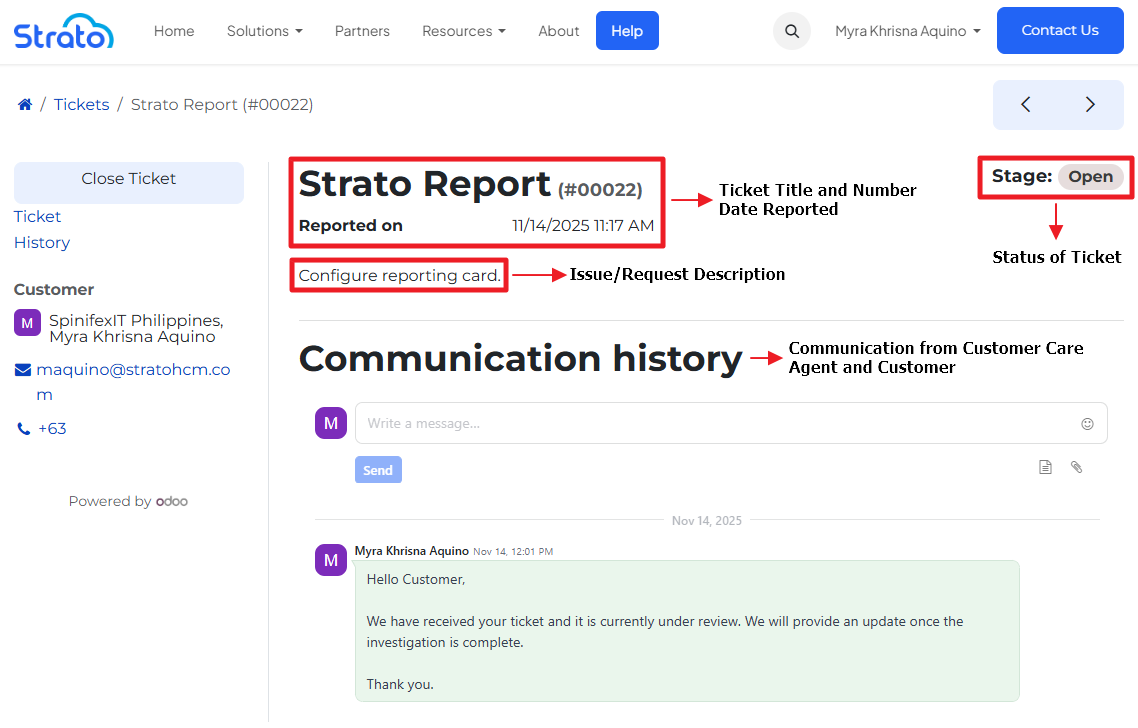
Customer Care Portal: Access, Submit, and View Support Tickets
The Customer Care Portal in Odoo allows customers to easily view and manage their support tickets, track progress, and communicate with the support team in one centralized location. Through the portal, users can access real-time updates, submit new requests, and review previous interactions - all designed to make support faster and more transparent.
To get started, simply visit the Customer Care Portal at https://www.stratohcm.com/. From there, you can log in using your registered email address and password. If this is your first time accessing the portal, you may need to activate your account through an invitation email or request access from your support representative.
Portal Registration
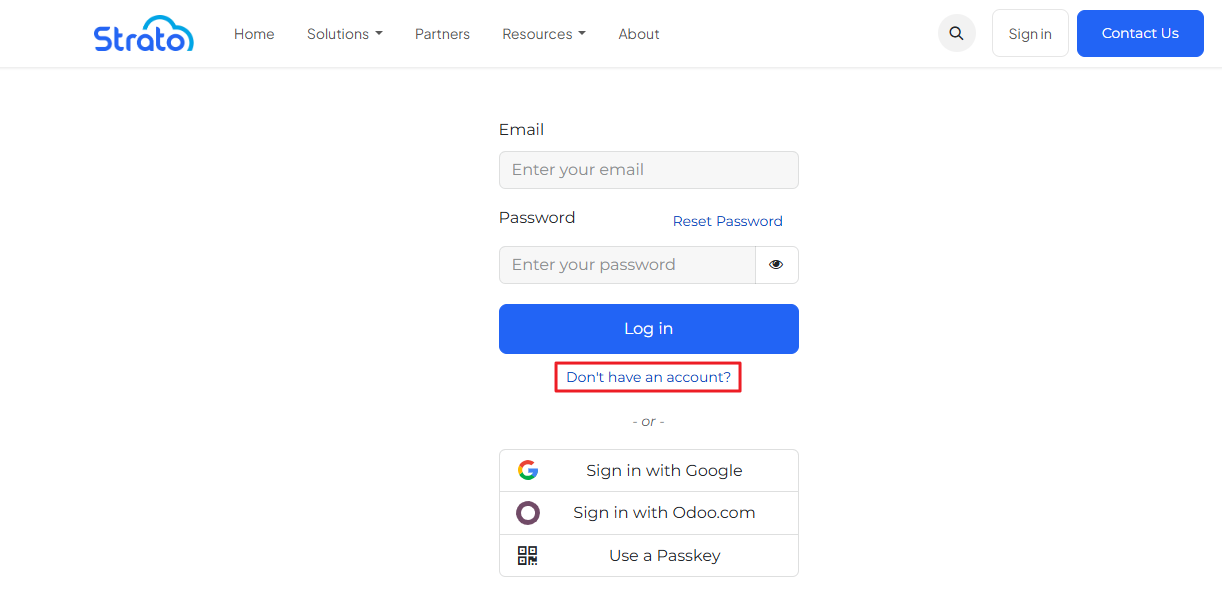
Select Sign In on the top right.

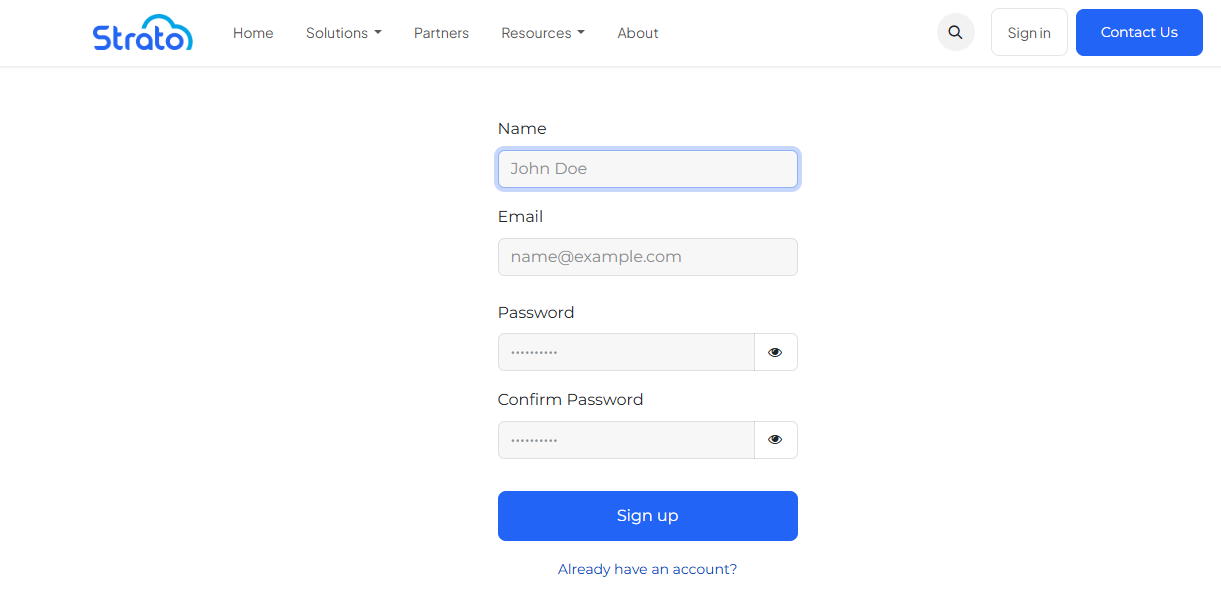
New users can register for an account.
Fill in the necessary details to register.
Access Portal
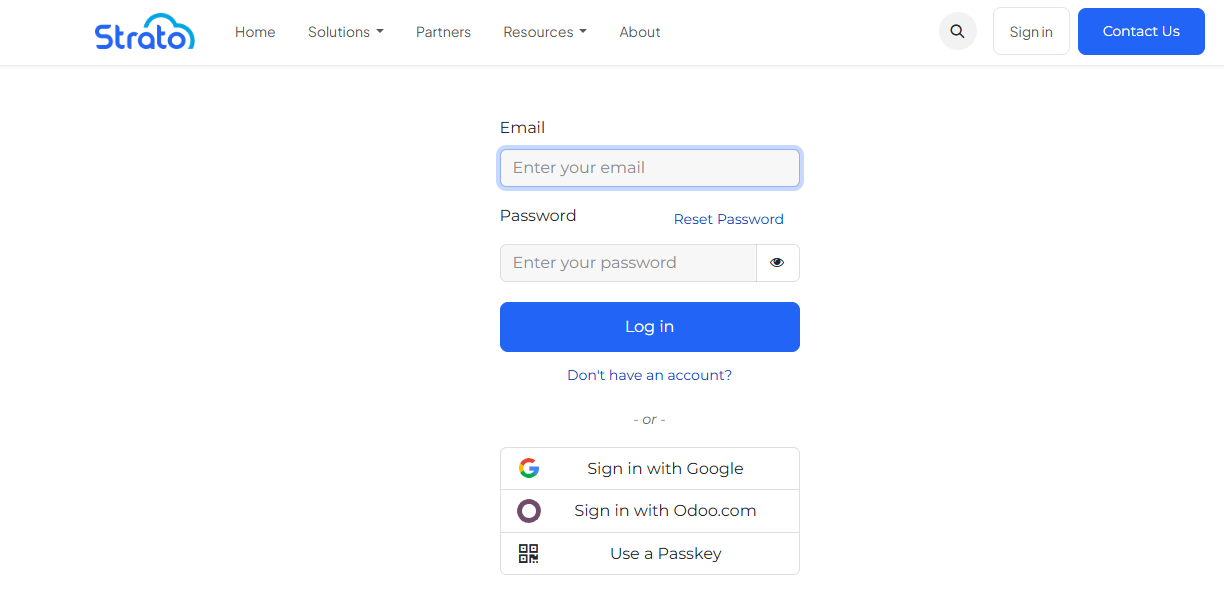
Select Sign In on the top right.
Enter user login details - Email Address and Password.
Submit Ticket
There are two ways:
- Email Support
- Emails sent to this address [email protected] will automatically create a ticket in Odoo.
- Use the Strato Support Portal
- You will receive an email invitation from: [email protected].
- Registration takes only a few minutes. Once registered, you can:
- Create new tickets
- View all your past and ongoing tickets
- Track ticket status and communication
- Access Knowledge Base articles
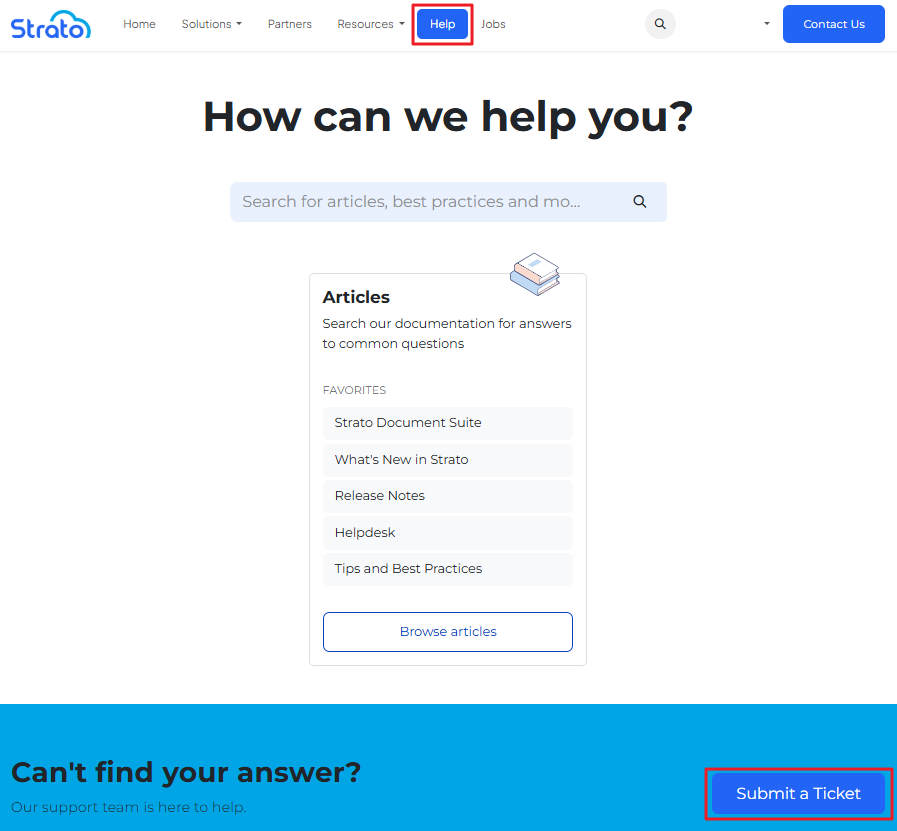
From the website menu, navigate to the Help section.
The Help section provides access to Knowledge articles and the option to submit a support ticket through Contact Us.
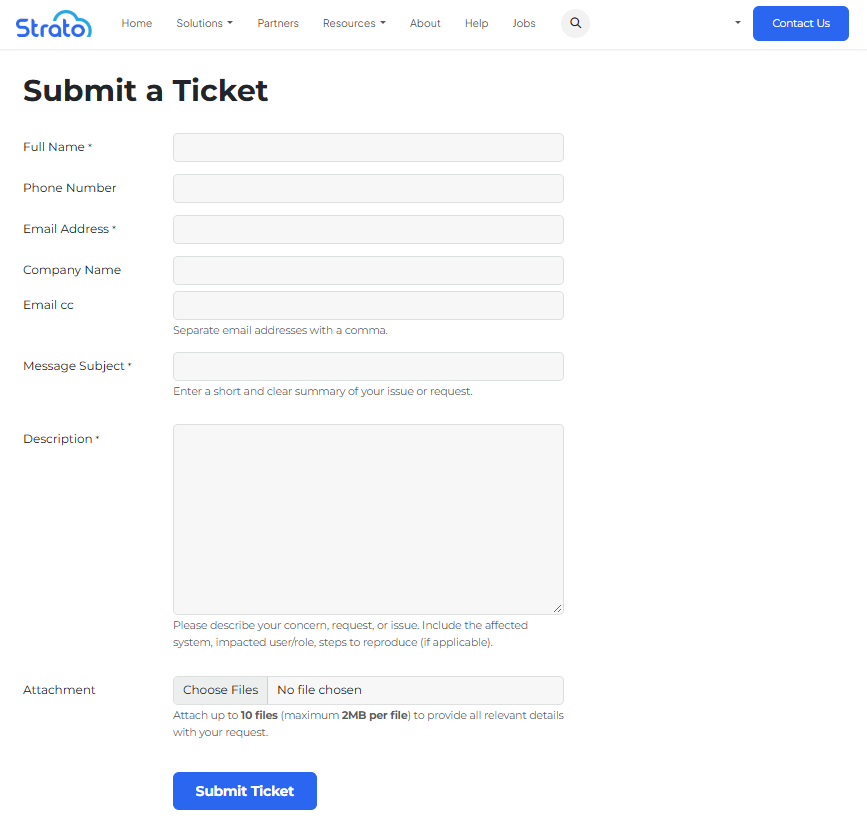
This page displays the support ticket submission form.
NOTE:
Attachments
You can upload multiple documents when submitting a support ticket through the Customer Care Portal.
The attachment field supports up to a maximum of 10 files per ticket to help you provide all relevant information in one submission.
Use attachments to include screenshots, documents, or other supporting files related to your request.
View Ticket
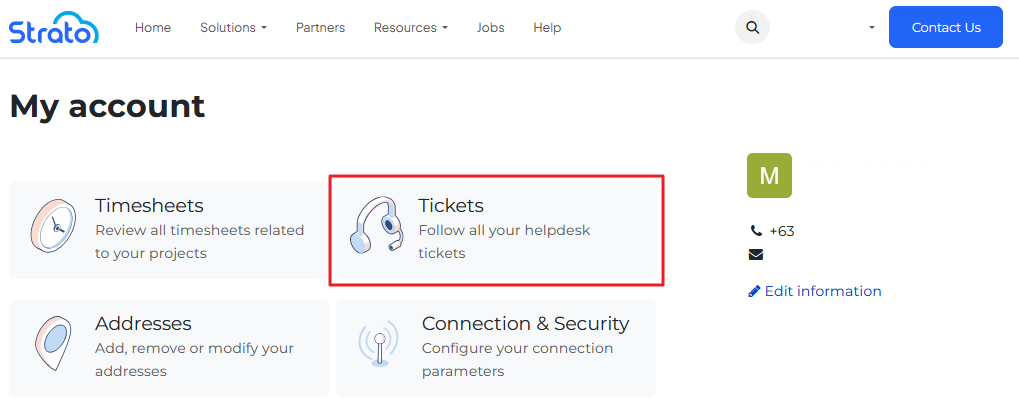
After a ticket is submitted, the list of submitted requests can be viewed under My Account → Tickets.

This area shows all submitted tickets.
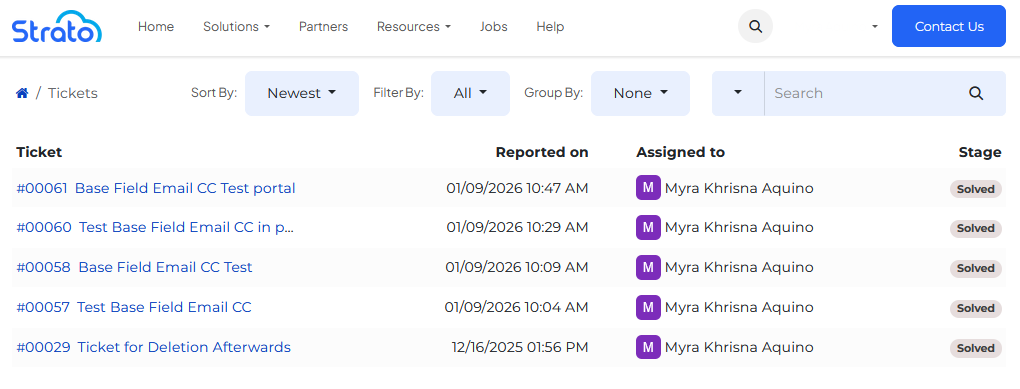
Selecting a ticket opens its detailed view, including information and updates.