Customer Care Portal FAQ
Transition to the New Strato Support Portal
As part of our ongoing effort to improve your support experience, Strato is moving to a new customer support platform powered by Odoo. This article answers frequently asked questions about the transition, what changes to expect, and how to use the new Strato Support Portal.
You can also visit our Strato website for more information about our products and services.
Note: Any unresolved tickets by February 2026 will be migrated to the new system.
Will this affect Easy Suite support?
No. Only Strato is transitioning to Odoo Helpdesk.
If you use Easy Suite, support will continue via Zendesk as usual.
What will the new support portal look like?
Expect a modern, clean interface integrated with our website.
You can:
- View all support requests
- Check ticket progress
- Reply directly from the portal
- Access guides and FAQs
- Browse Knowledge Base articles
Will my access change?
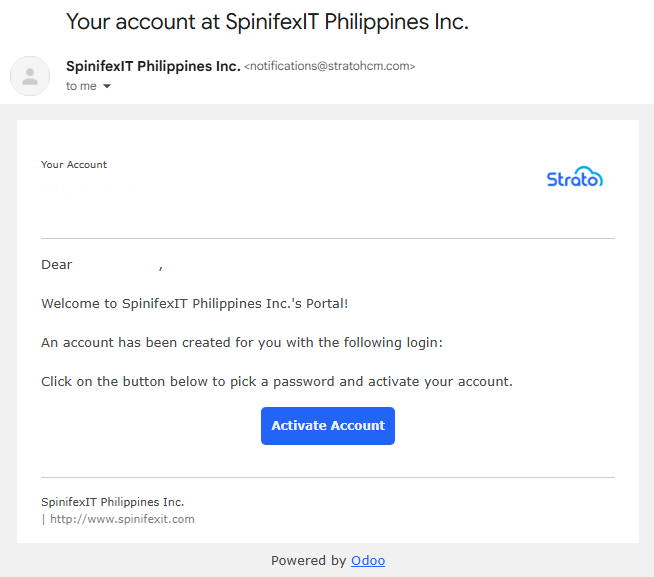
You’ll receive a registration email from: [email protected]
Once you complete registration, you’ll have full access to the portal.
Is my data secure in Odoo?
Yes. Strato follows industry-standard security protocols, and customer data is handled in compliance with internal policies and our security framework. Odoo is a secure, cloud-based platform designed for enterprise use.
How do I download attachments from the Customer Care Portal?
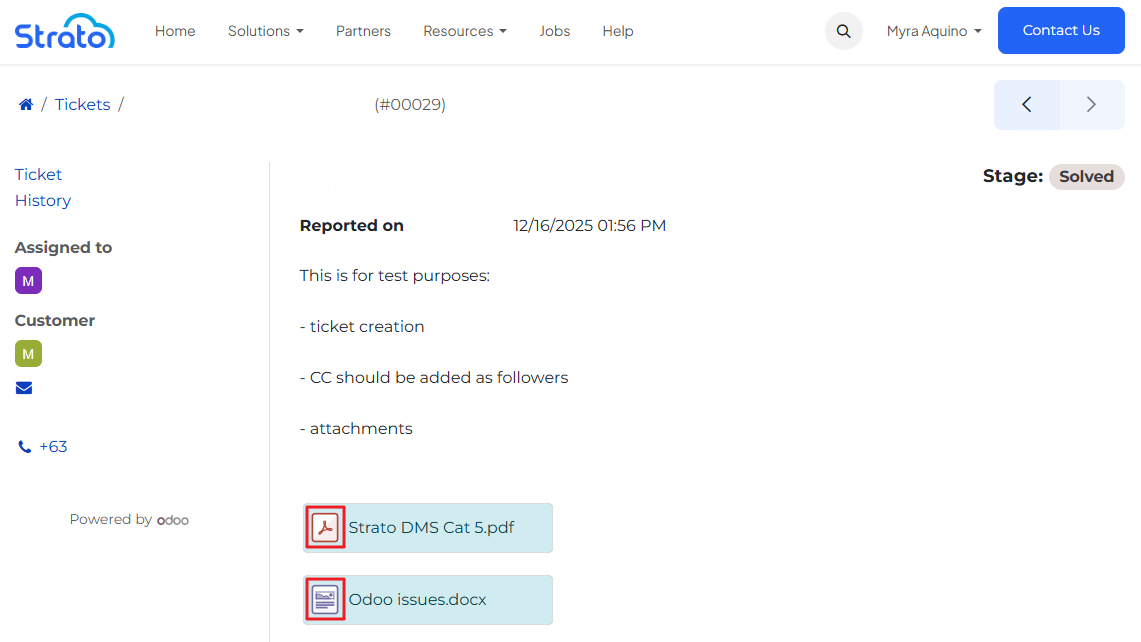
Attachments in the Customer Care Portal can be downloaded by clicking the document icon associated with the ticket or message. Once clicked, the file will automatically download to your device.
Can I view all the tickets raised for our company?
Yes, if Shared Ticket Access is enabled for your company.
When this feature is enabled, all users linked to your company can view all helpdesk tickets created by any contact within the same organization. This helps teams stay aligned and informed on all support-related activities.
If Shared Ticket Access is disabled (default setting), each user can only view the tickets they personally created.
If you are unsure whether this feature is enabled for your company, please contact your Customer Care representative.
Can we integrate another ticketing tool, such as Jira?
Yes. The Customer Care Portal supports integration with external ticketing tools such as Jira through email-based integration.
We use token-based email threading, which allows emails from external systems (including those that remove standard email headers) to be correctly linked to the right support ticket.
Unique tokens are automatically added to outgoing emails and extracted from incoming replies to ensure conversations remain properly threaded.
If you are interested in integrating an external ticketing system, please reach out to your Customer Care representative for assistance.
Can I edit or update a closed ticket in Odoo Helpdesk?
No, closed tickets in Odoo Helpdesk are read-only for customers. This ensures the ticket history remains accurate and complete. If you need changes to ticket details (e.g., correcting information), a support agent can reopen or update the ticket for you.
I have an update to the same query; should I create a new ticket?
It depends on the ticket status:
- If the ticket is still open: Simply reply to the existing ticket. This keeps all related information together and helps the support team resolve your issue faster.
- If the ticket is solved: You should create a new ticket for your update, since solved tickets cannot be edited by customers in standard Odoo.
Can I reopen a solved ticket?
In the standard Odoo Helpdesk, customers cannot reopen a solved/closed ticket. Once a ticket is marked as solved, it becomes read-only for customers to maintain the ticket history.
What you can do instead:
- Contact the support team: A helpdesk agent can manually reopen the ticket if necessary.
- Create a new ticket: If the issue is ongoing or you have new information, submit a new ticket.
Can I resolve/close a ticket myself in the Customer Portal?
Yes. In our Customer Portal, you can click the “Close Ticket” button to mark your ticket as resolved. This lets you indicate to the support team that your issue has been addressed.
Important Notes:
- Once a ticket is closed, it becomes read-only, and you cannot edit it.
- If you have additional updates after closing the ticket, you should create a new ticket or contact the support team to reopen it.
- Closing a ticket yourself helps the support team track which issues are resolved quickly.
Why was my support ticket automatically closed?
To help keep our support queue up to date, the Customer Care Helpdesk uses automatic ticket closing.
If a ticket remains inactive for 10 days while in the Awaiting Customer stage, it will automatically be moved to Solved. This helps ensure that open tickets accurately reflect active requests.
If you still need assistance after your ticket is closed, you can submit a new support ticket through the Customer Care Portal.
Who should I contact if I have issues with registration or access?
If you encounter any issues, simply email us at: [email protected]
We’re here to help!