Configure Concatenate Formula Fields
Concatenate Formula Fields combine the text of two or more fields or static inputs into one.
This article explains how to configure Concatenate Formula Fields.
Requirements
Basic knowledge of how to create Formula Fields in the Field Settings / Manager is required.
Instructions
- After selecting Concatenate as the function for your Formula Field, click the Add Parameter button. This will add a parameter where you can define the values to be combined. You can manually enter string or text values or use a Datasource Field in the parameters.


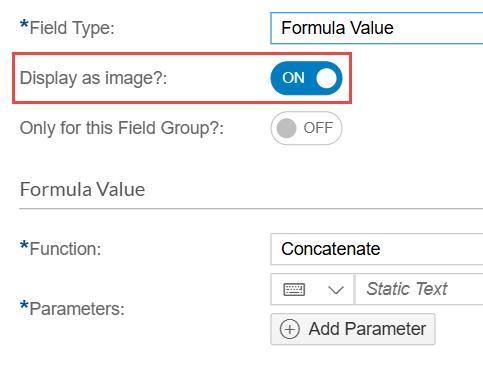
- To display image links as actual images instead of text, enable the Display as image? toggle.
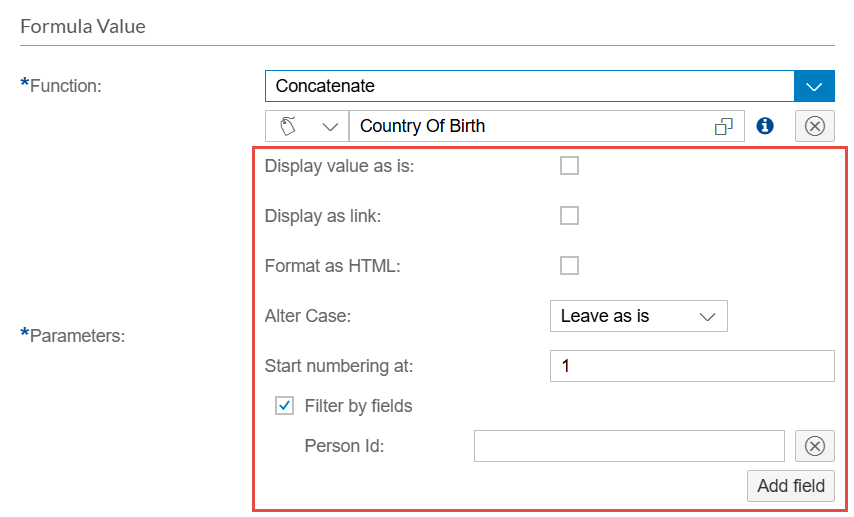
- For Datasource Fields, you can enable Filter by fields. This allows you to filter the selected Datasource Field with a value coming from another field. You can add more filters by clicking the Add field button.
- You can also disable Display value as is to configure how the values from the field are shown.
- Repeat step 1 to add more parameters as needed.
- After configuring your Formula Field, click Save.
