Create Formula Fields
Formula Fields use inputted static data and/or existing Datasource Fields to produce a different value. There are several formulas and operations to use when creating Formula Fields.
Along with Datasource Fields, Template Parameters and pending data can also be used as inputs in Formula Fields, whenever applicable.
This article explains how to create and configure Formula Fields.
Requirements
Basic knowledge of Field Settings / Manager is required.
Instructions
- In the Field Settings, select the Catalog and Field Group where you want to create a new field.
- From the configuration panel below, click Create A New Field under the Actions section.

- The Create A New Field window will appear. Enter a name for the Formula Field, and set the Field Type to Formula Value.

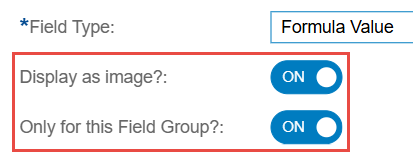
- Optionally, you can set the Formula Field to only be available for your selected Field Group by enabling the Only for this Field Group? toggle.
- When the Function is set to either Concatenate, Condition, Replace, or Regular Expression (Regex), an additional toggle lets you display an image link as an actual image rather than text.
- Select the function or operation needed for the field, and configure the inputs required. You can choose from the following functions and operations:

- Concatenate: Combines the text of two or more fields or static inputs into one.
- Basic Mathematical Operations: Performs addition, subtraction, multiplication, or division to fields or static inputs that contain numbers.
- Average: Computes the average of fields or static inputs that contain numbers.
- Condition: Outputs values based on whether the configured condition is evaluated as true or false.
- Replace: Replaces the value of a field with a different one. This only works for Datasource Fields.
- Date Difference: Outputs the difference between two dates.
- Units of Time: Displays the year, month, or day of the date.
- Text Truncation: Displays a specific number of characters from either the left or right side of the field.
- Letter Case: Displays the text in either uppercase, lowercase, or proper case.
- Dynamic Field: Displays a range of dynamic fields based on a Field Group, static input or another field.
- Regular Expression (Regex): Outputs text values that match the defined regular expression pattern.
- After configuring your Formula Field, click Save.
