User Management
The User Management tool is the central hub where administrators manage system access and authorisation for themselves and other users in Strato. Administrators use this tool to control who can access the system and what actions they are permitted to perform.
This article provides an overview of available management actions and explains how to navigate the different views and tabs within the tool.
Functionality
User Management is where an Administrator can be accessed via the Tools widget on the Strato Dashboard or through the Tools menu.
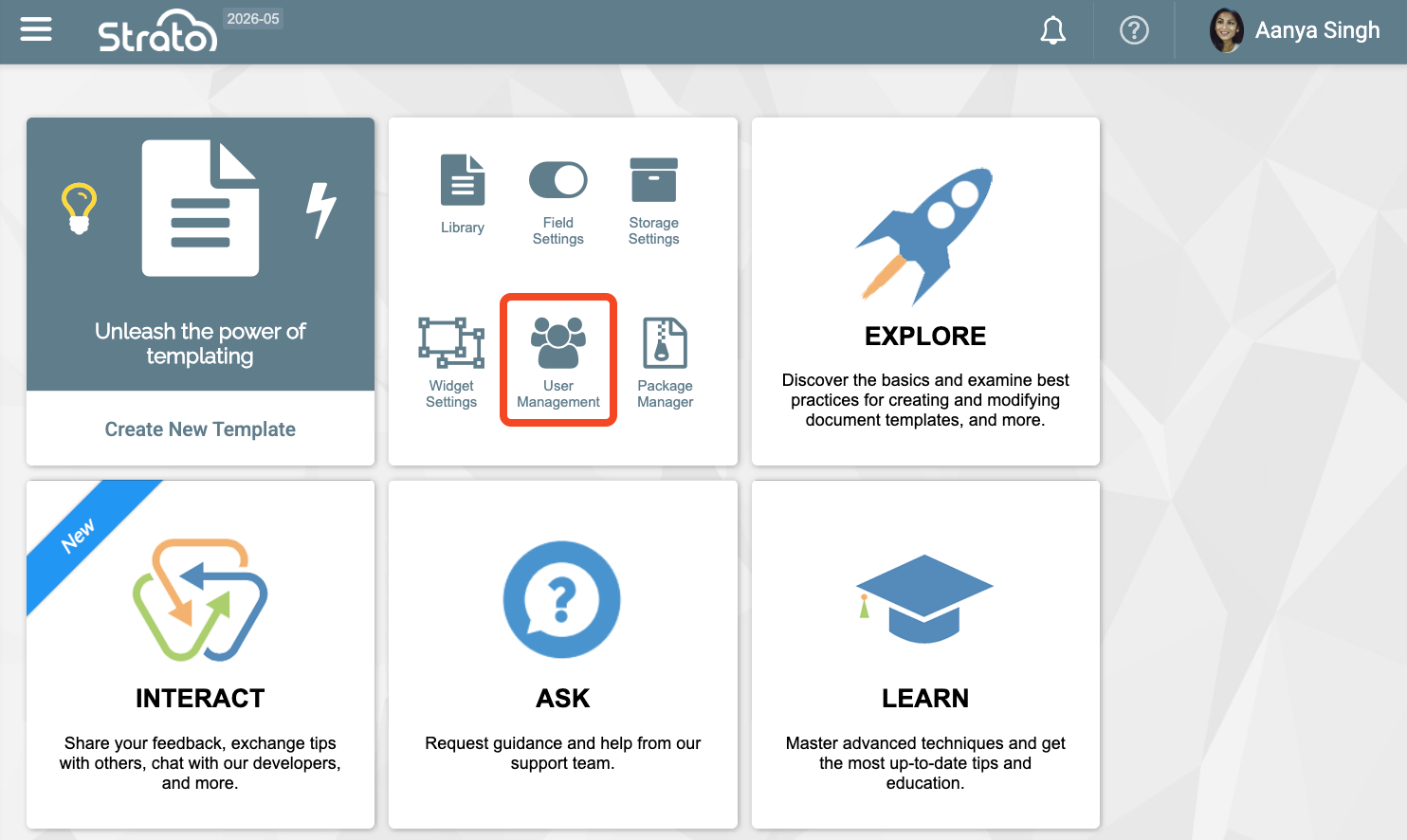
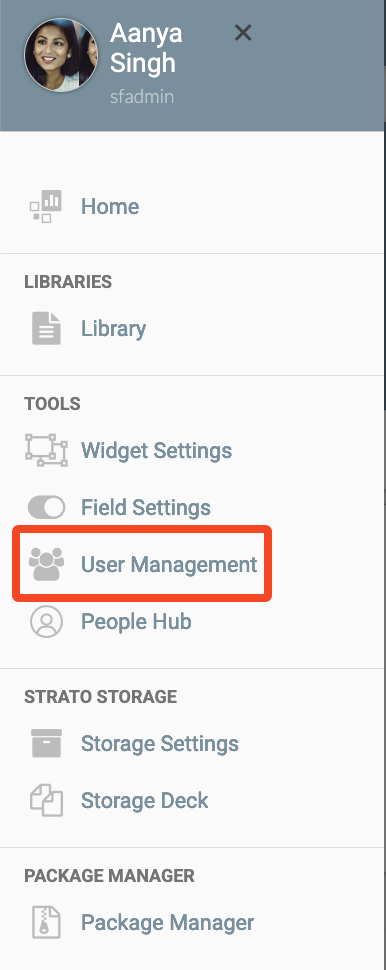
The User Management tool allows administrators to:
- Add new users
- Modify the access and authorisation of existing users
- Assign roles to users
- Assign users to groups
- Deactivate/reactivate users
- Sync users
- Validate users
- Access the external user list
Navigation and View
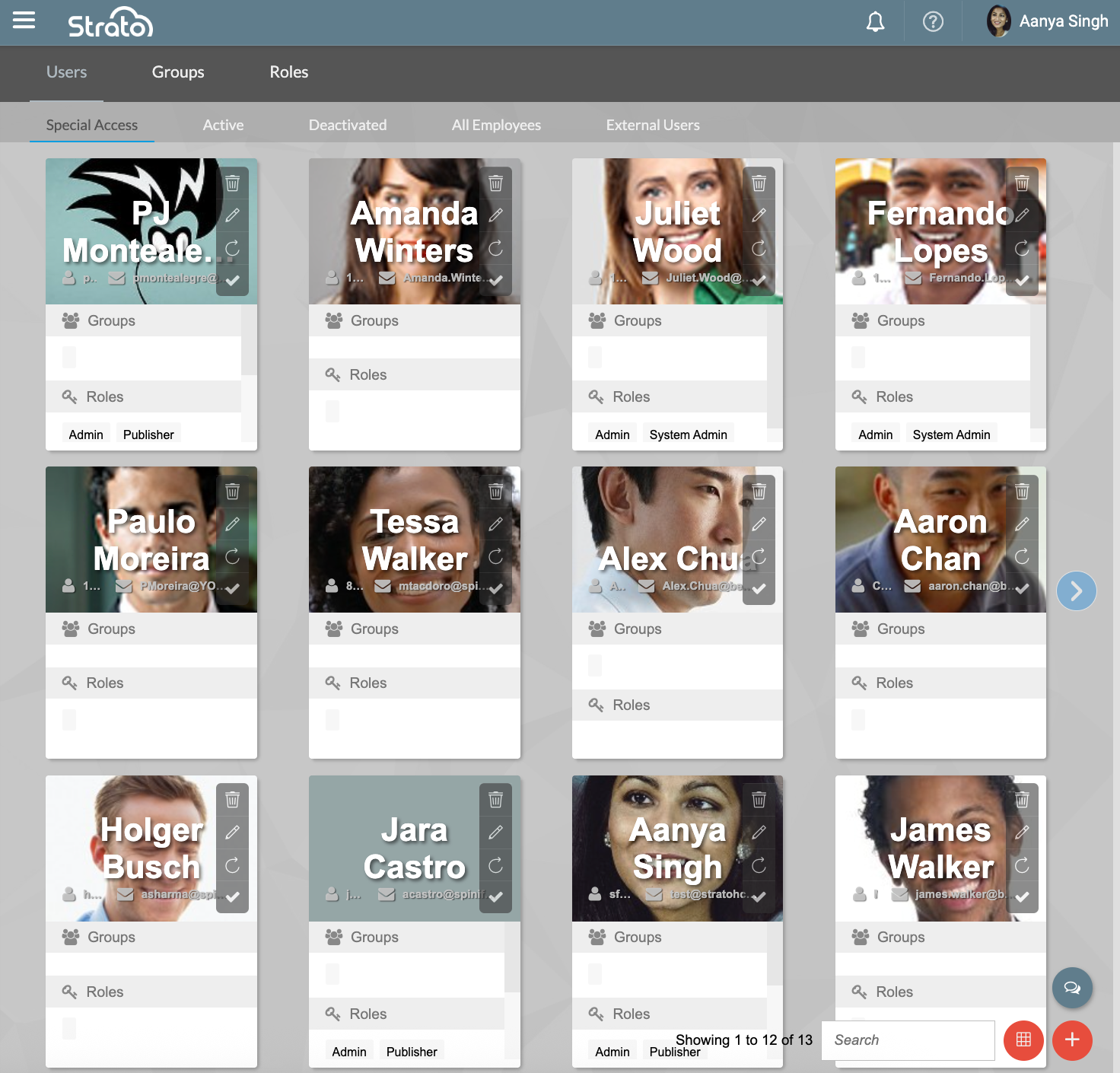
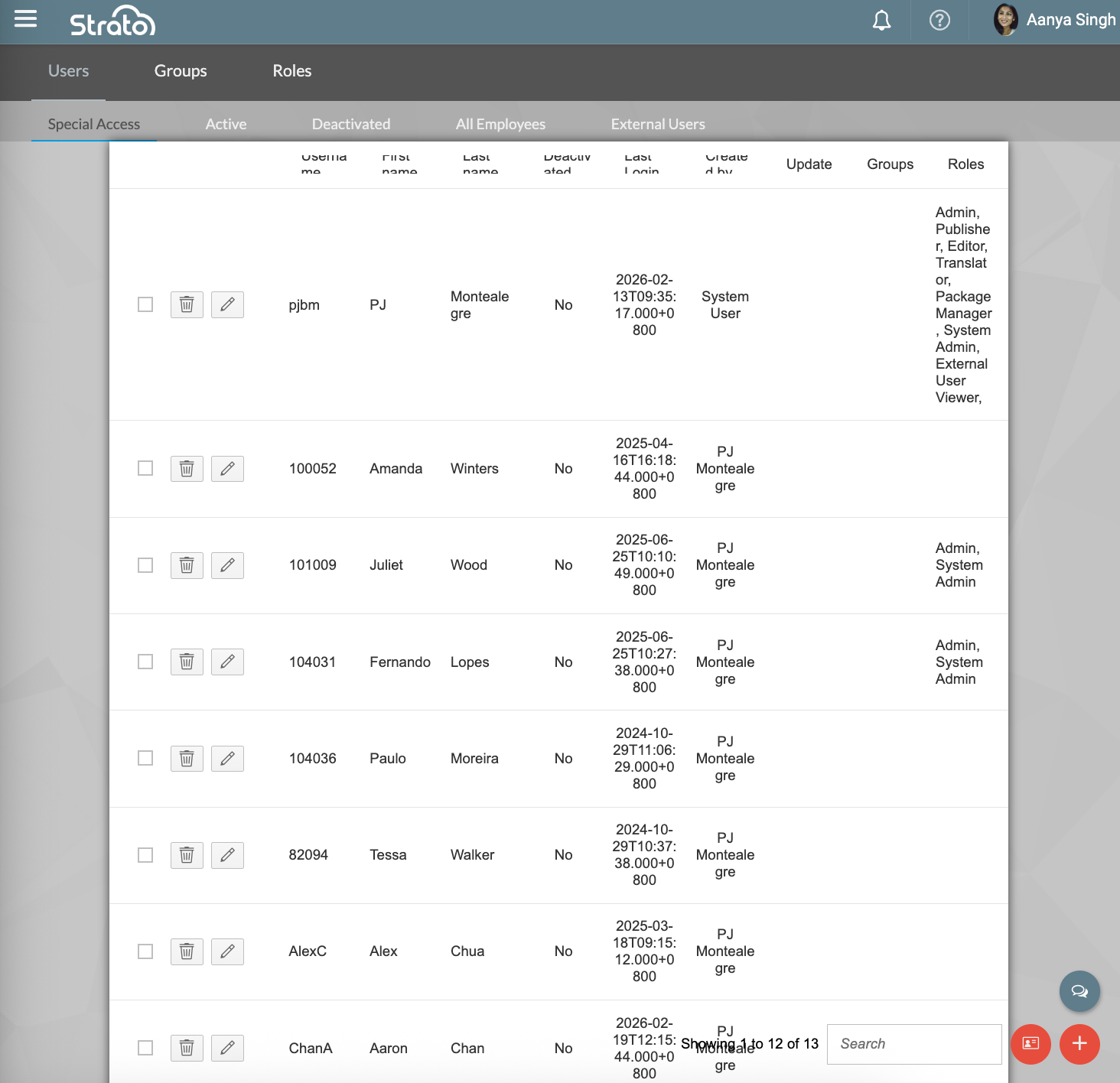
Administrators can toggle between two primary display formats using the button located in the lower-left section of the screen:

- Card View - This is the default view, displaying up to 12 users per screen. It is recommended for organisations with a small number of users.
- Table view - This view is recommended for organisations with more than 30 users. It allows for alphabetical sorting, grouping, and bulk actions such as deactivating multiple items at once.
The User Management screen has 3 main tabs:
- Users - this is the tab that will be displayed upon launching User Management. This displays all the users and has 5 subtabs:
- Special Access
- Active
- Deactivated
- All Employees
- External Users
- Groups - displays the groups to which users can be assigned.
- Roles - displays the roles that can be assigned to users.
Here are the simple steps for creating users, groups, and roles: