Analyze and Investigate Workflow Errors Encountered
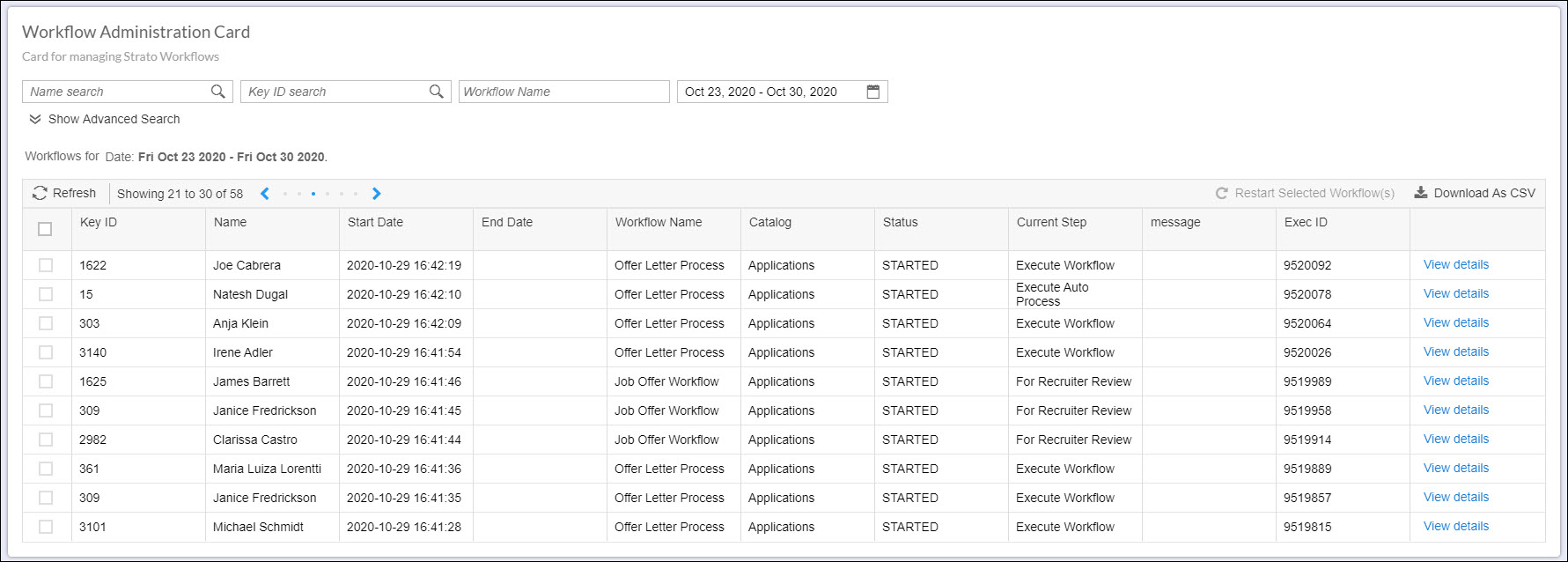
To be able to view all the running or completed workflows, you should have a Workflow Administration Card configured in your Strato Dashboard widget. (For more details about this card, read: Card Type - Workflow Admin Card)
It is from the Workflow Administration Card where administrators can see which workflows have been completed and which ones encountered an error. More details about the workflow can be viewed for further analysis just by clicking the View Details function for each workflow.
This article focuses on the following:
Checking If Errors Exist
Workflow Administrators can already see at first glance which workflows have an error from the Status column.
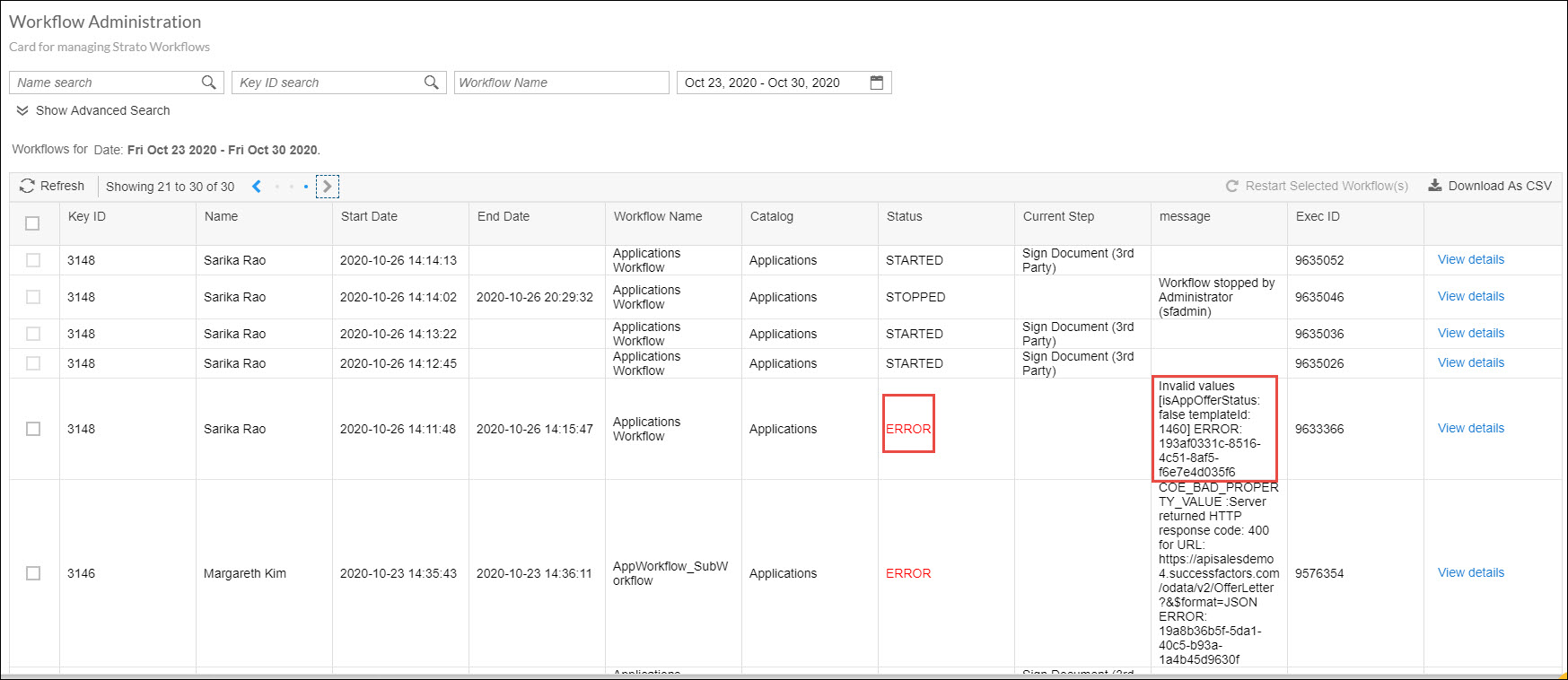
A workflow with errors will have the word ERROR in red font under the Status column. This is accompanied by a description of the error in the message column. If you wish to further investigate the workflow and the error(s) encountered, click the View Details button on the last column.
Investigating Errors
Now that you've decided to investigate the error(s) in your workflow by clicking the View Details button, a pop-up box will appear where you can see all the steps in that workflow. Here, you will see which specific step encountered the error together with the message. You can take note of the timestamps for the start dates and end dates for reporting, analytics, and performance purposes.
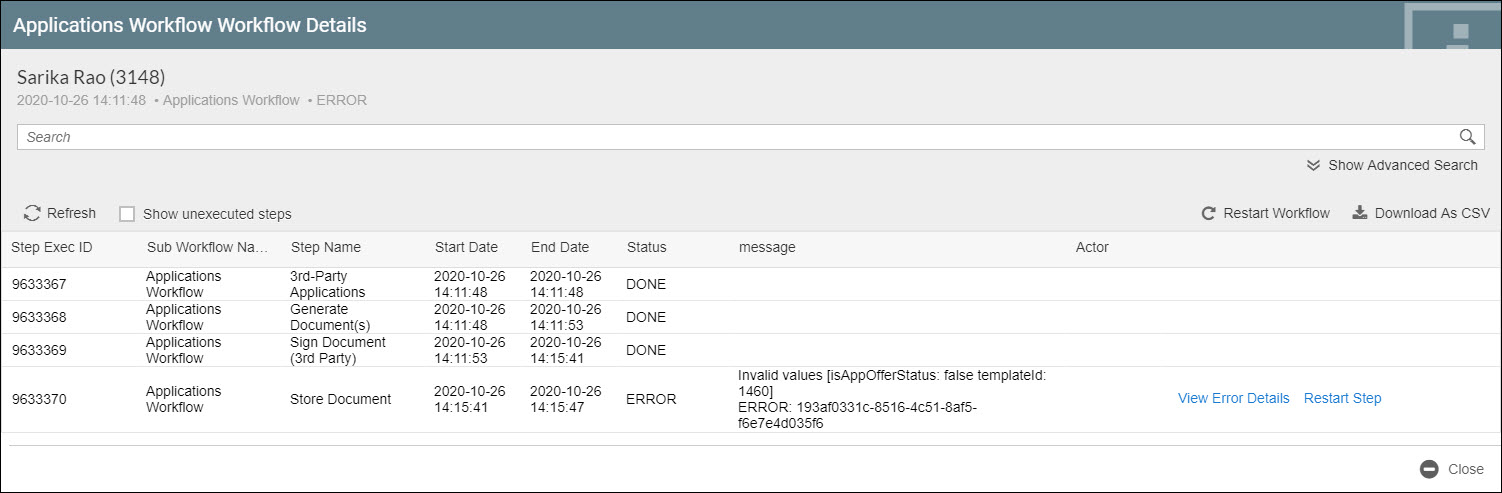
From here, there are several actions that you can take which will be discussed in the last section of this article.
Taking Actions
There are several actions that you can take from the View Details screen.
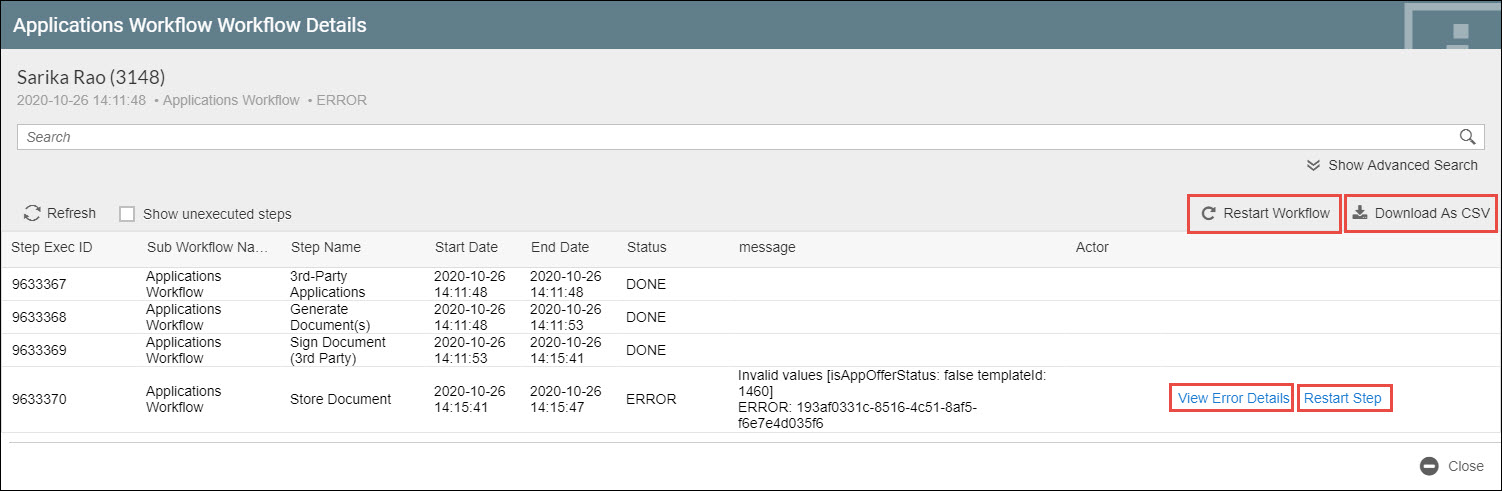
- Restart Workflow - when clicked, this will restart the workflow and will appear as the most recent workflow in the list of workflows in the Workflow Administration Card. For more details about restarting the workflow, read Restart a Workflow via Workflow Admin Card
- Download as CSV - You can download this table as a CSV file and save it to your local PC. You will be asked to enter a name for the CSV file.
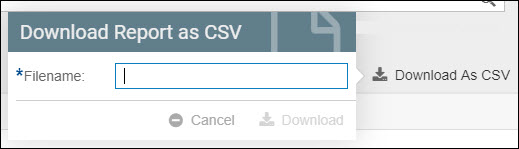
- Once downloaded it should look like this. Note that you may need to adjust your cell formats for the date fields to be displayed correctly.

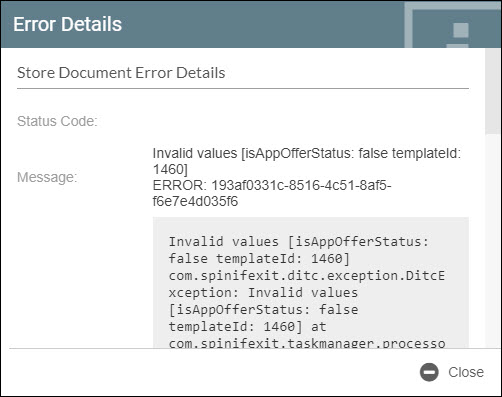
- View Error Details - You can see the full text of the error message in the Error Details window.
- Restart Step - this is similar to the Restart Workflow action but instead of restarting the entire workflow, only the specific step will be restarted. For more details about restarting a step, the information is found in the same article for restarting a workflow Restart a Workflow via Workflow Admin Card
- Manually Stop a Workflow
Debug Information
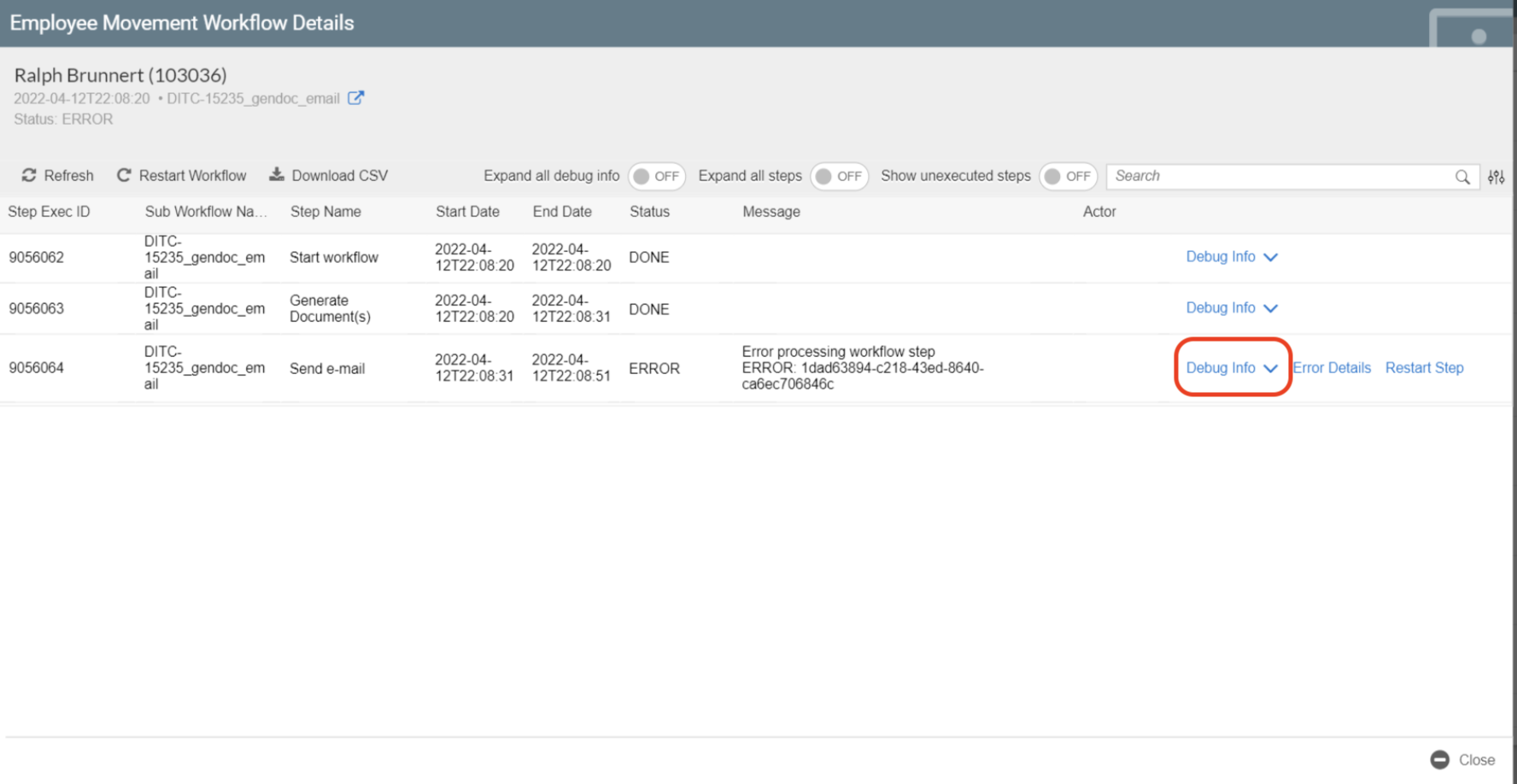
Aside from the card's view Error Details functionality, an in-depth analysis of error details can be viewed via the Debug Info feature.
For more information on this functionality, please read: Debug Info on Workflows (Workflow Admin Card)