Manually Stop (Force Stop) Workflow via Workflow Admin Card
To be able to view running or completed workflow details, and to manually stop a running workflow, you should have a Workflow Administration Card configured in your Strato Dashboard widget. (For more details about this card, read: Card Type - Workflow Admin Card
Depending on the user role, there is also a force stop feature to manually stop a running workflow. (The user’s role should have an authorization to manually stop a running workflow in Strato.)
To manually stop a running workflow in Strato:
- Go to your Workflow Administration Card from the Dashboard Widget.
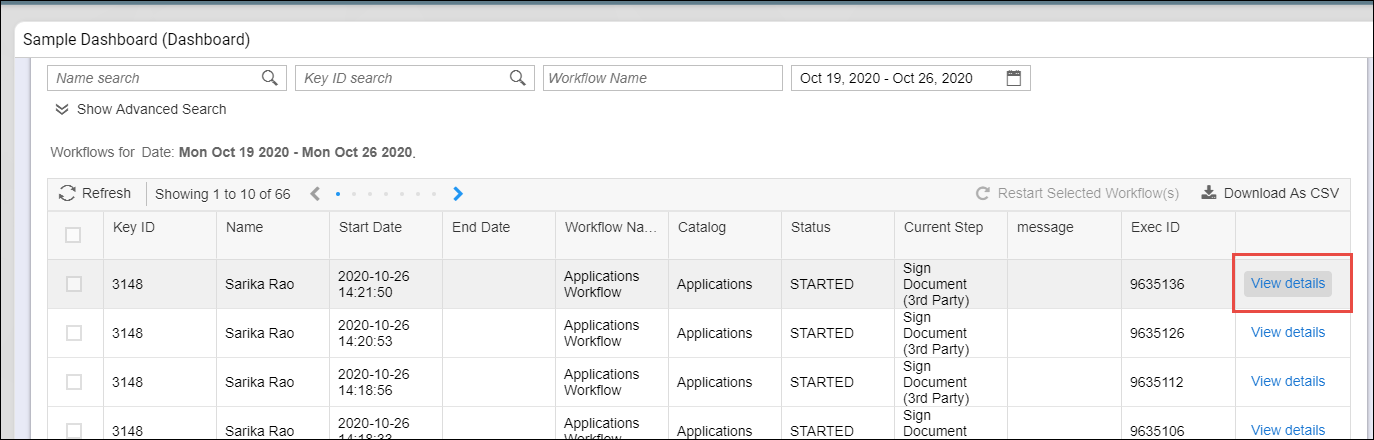
- Click on the View Details button for the workflow that needs to be manually stopped.
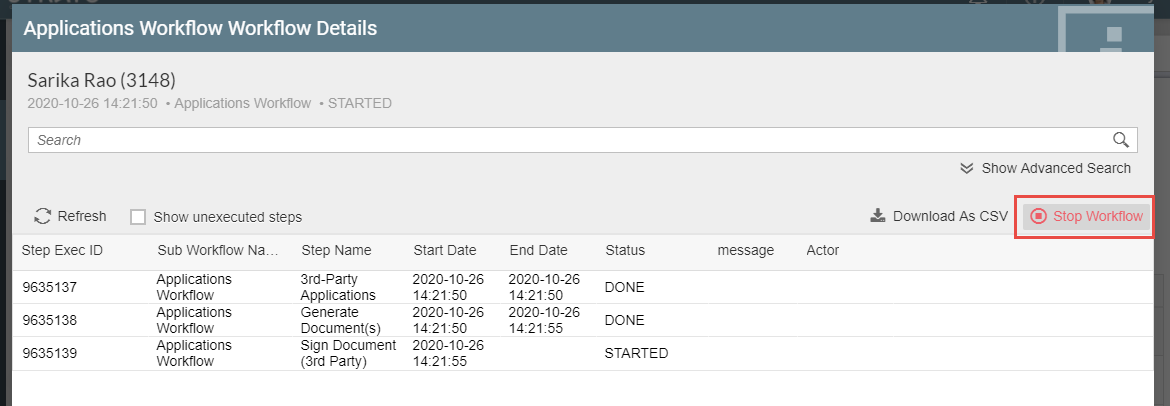
- Then, click on the Stop Workflow button as shown in the sample screen below.
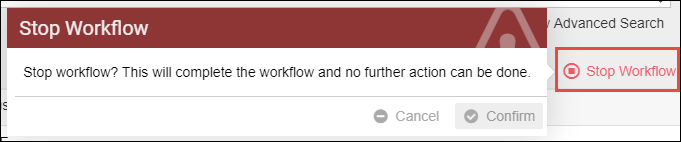
- When clicked, there will be a pop-up to confirm the force stop. Click Confirm.
This should now have forced the workflow to stop, and the Status for this workflow should reflect as STOPPED from the Workflow Admin Card.

Related articles
- Workflow Actions for HR Admin in Workflow Admin Card (Dashboard Widget)
- Viewing Running Workflows via the Workflow Admin Card (Dashboard)
- Manually Trigger a Strato Workflow via Dashboard Widget