Restart a Workflow via Workflow Admin Card
To be able to view running or completed workflow details, you should have a Workflow Administration Card configured in your Strato Dashboard widget. (For more details about this card, read: Card Type - Workflow Admin Card.)
Depending on the user role, other actions such as restarting a workflow that encountered an error is also available. (The user’s role should have the authorization to restart a workflow in Strato.)
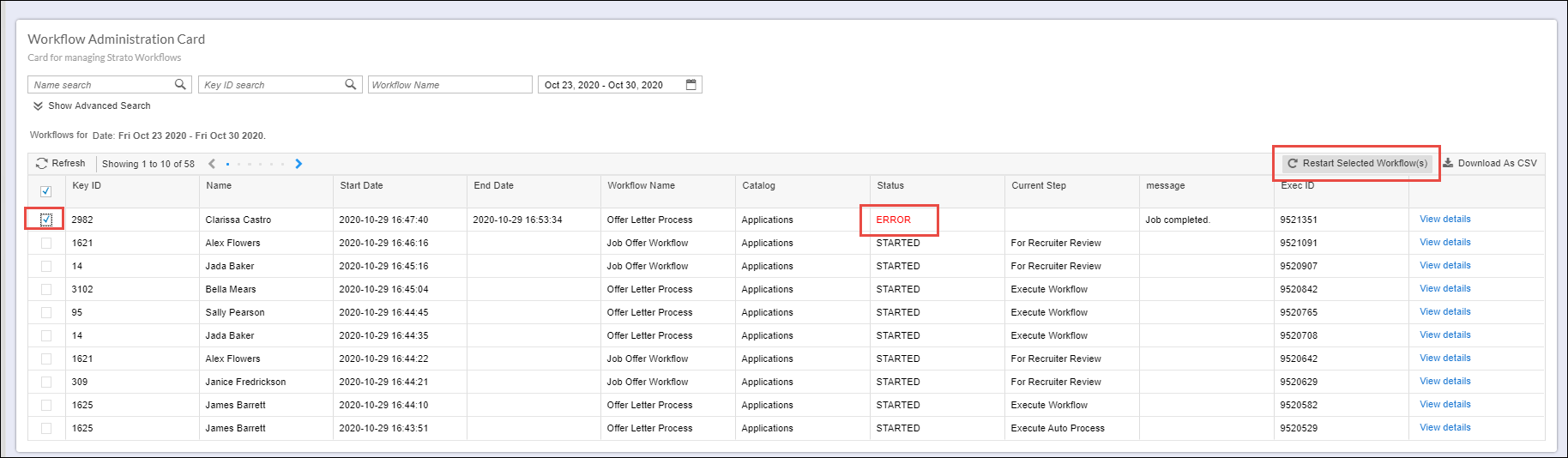
For this feature, if there are errors encountered during workflow execution, as shown in the screen below, an Admin can select the workflow that encountered an error by ticking the box on the left column, and clicking the Restart Selected Workflow(s) button as highlighted in the screen below. It is possible to select multiple workflows for restart, and only workflows with errors can be restarted,
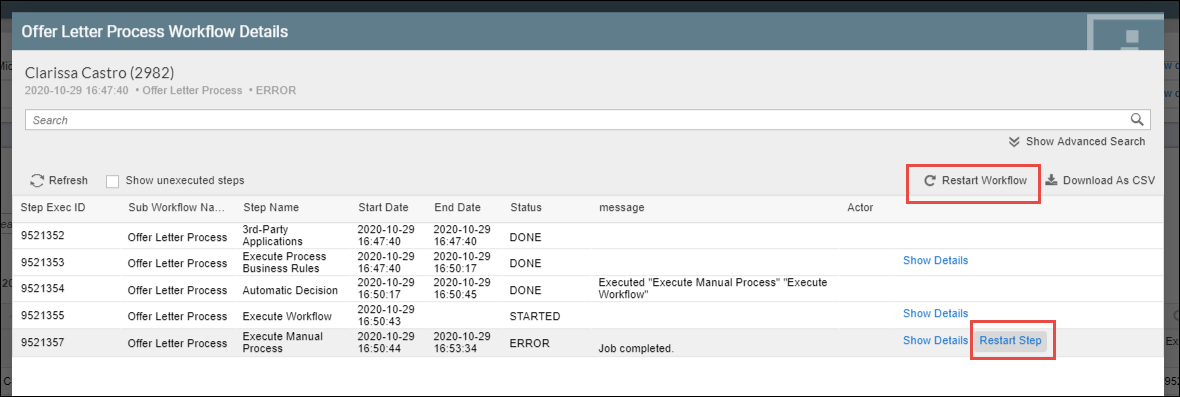
Furthermore, Admins can also drill down to the workflow with error to see the more details of this error via the View Details function. From there, the specific step that encountered an error can be restarted via the Restart Step function. There's also an option to restart the entire workflow via the Restart Workflow button from this details screen.
The how-to below shows the steps on restarting a workflow step from the Workflow Admin Card:
- Go to your Workflow Administration Card from the Dashboard Widget.
- Click on the View Details button for the employee that had an error from the workflow execution. (You can use the Search feature to search for a particular workflow from the list either via employee name or workflow name.)
- From the details screen, click the Restart step button for the item that had an error to restart the workflow.
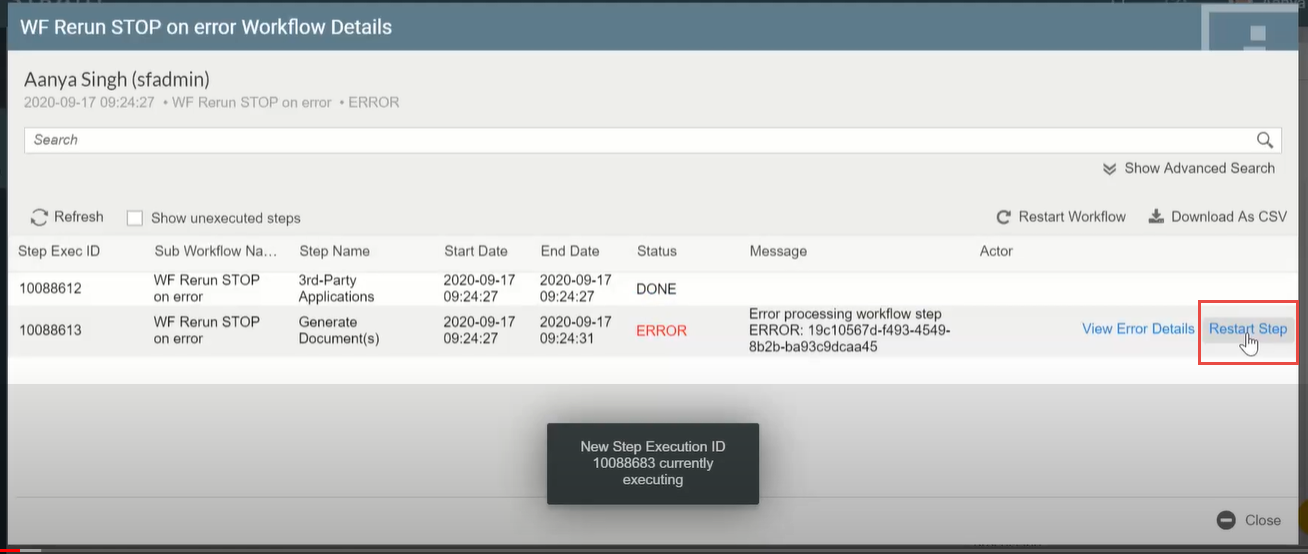
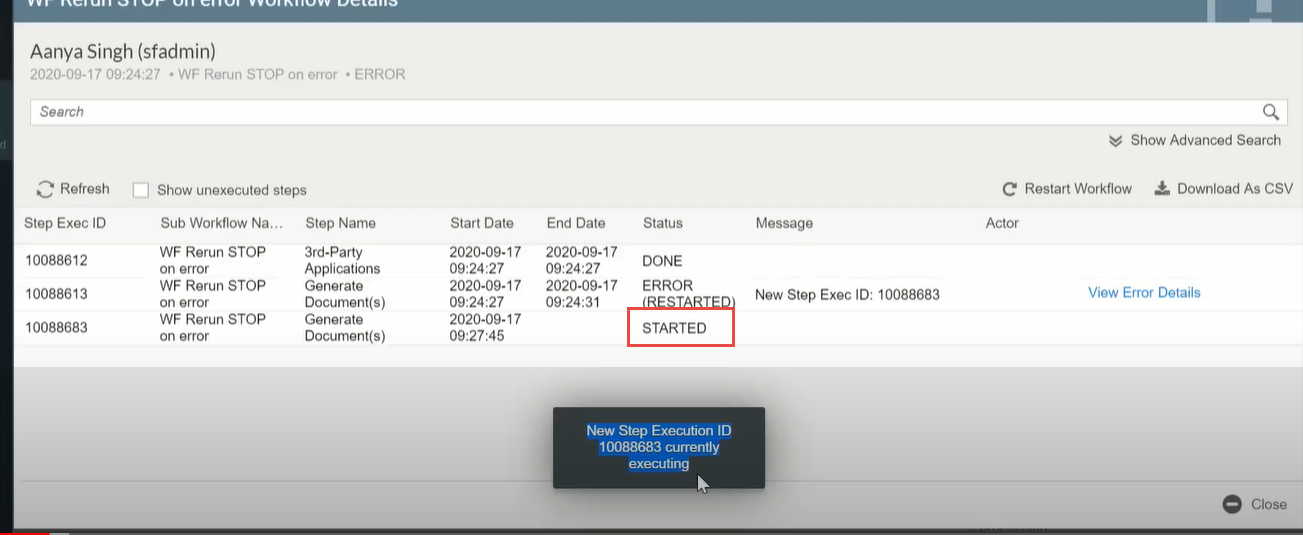
From this action, a confirmation box will then pop-up to prompt that a new step execution ID has already started to execute. Also, the status from this item should now reflect as Started, as shown in the screen below.