Adding Templates in the Generator Card
Document and Workflow Templates can be added in the Dashboard Widget via tabs in the Generator Card . Depending on who the documents are for (ex: applicants or employees under your team), the templates can be easily accessed or generated from the Generator card. Restriction settings can also be applied so that specific templates can be shown (or hidden) depending on your role. Read further to know how to add templates in the generator card.
Prerequisites
- Generator Card - read Adding a Card in a Dashboard Widget
- Created Tabs in the Generator Card - read Card Type - Generator Card (Edit Mode)
How-To
- From the Generator Card, click on the tab where you would like to add a template. In this example the templates will be added in the HR Admins tab.
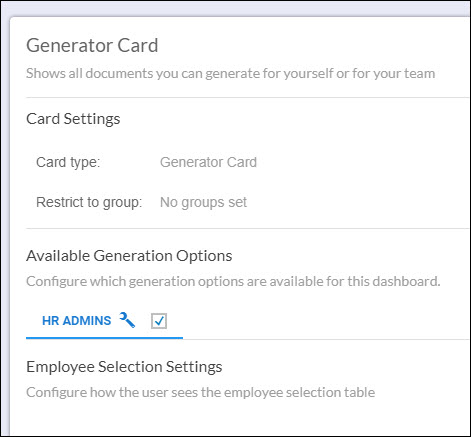
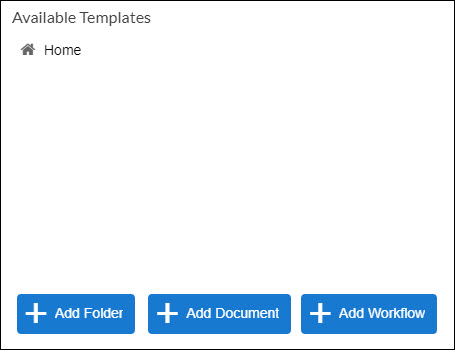
- First, try adding a document. Navigate to the bottom of the Generator Card.
- Click Add Document.
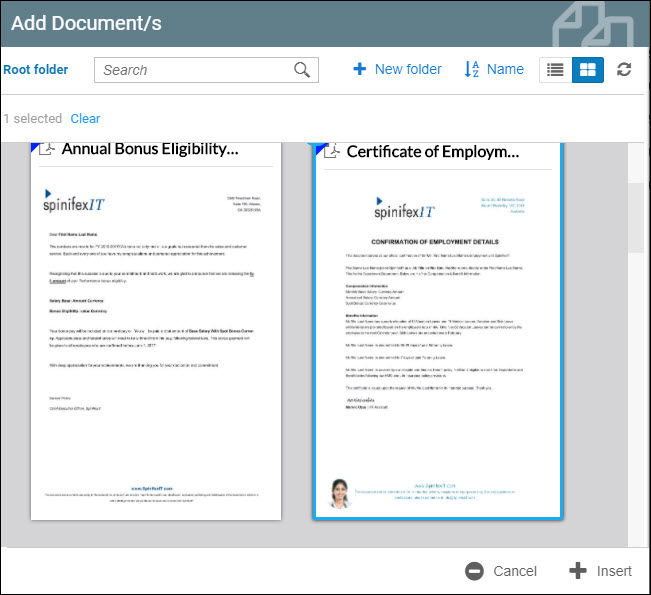
- A small window will be displayed showing your library containing documents from the Employee Catalog. In this example Certificate of Employment was selected and added.
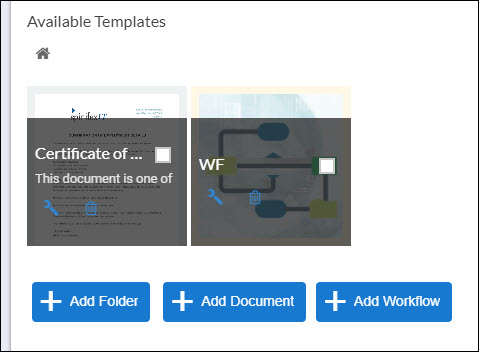
- The template should now be displayed.
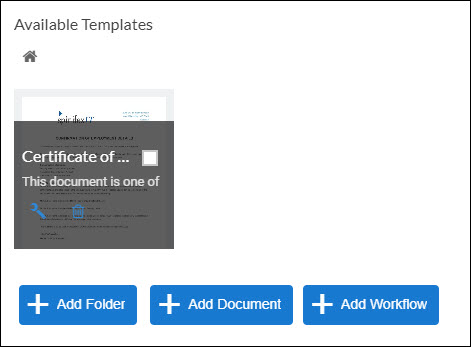
- Now try adding a workflow. Click Add Workflow.
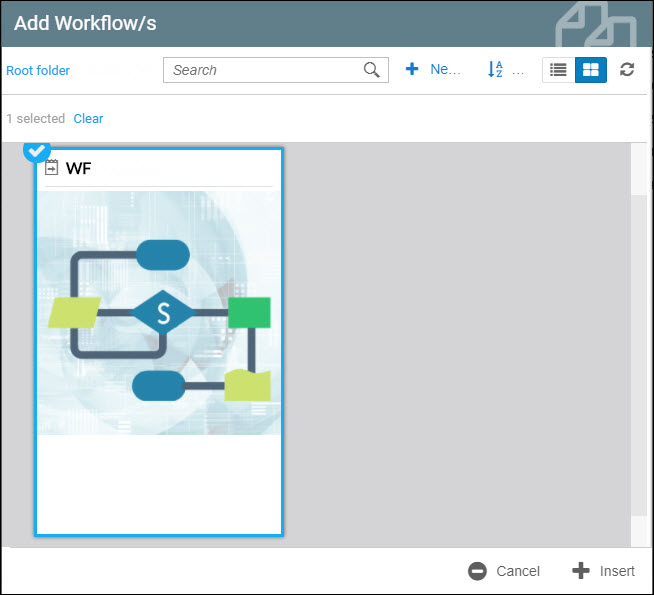
- A small window will be displayed showing your library containing workflows. In this example WF was selected and added.
- The workflow should now be displayed.