Card Type - Generator Card (Edit Mode)
The Generator Card is used to generate documents for several purposes. This article will go through the setup and configuration of this card as well as the different document generation purposes.
To know how to add cards in dashboard, read:
Overview
The Generator Card enables the users to be able to easily access and generate document and workflow templates via their dashboard widgets. Depending on which documents to be generated, or workflow to be executed, and for who, the Generator card can be setup to be specific for Managers/Admins (MSS), and for Employees (ESS).
To know how to add cards in dashboard, read Adding a Card in a Dashboard Widget
To know how to add templates in the Generator Card, read Adding Templates in the Generator Card
To know how to use the Employee Selection Table in Dashboard Widget, read Employee Selection Table (Dashboard Widget)
Read all about the different tabs for MSS and ESS in the Tab Types section below.
Configuration and Setup
To start, create a Generator Card in the Dashboard Widget.
- Name - enter the Generator Card name.
- Restrict to Group - select a group from the user management in which the specific card will be available to. Only the users under that group will have the access to the card.
- Card Type - select Generator Card.
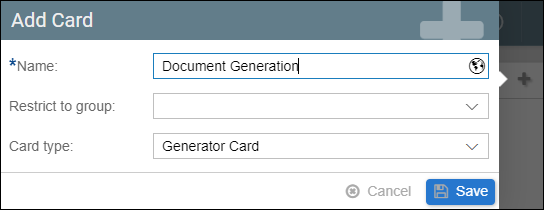
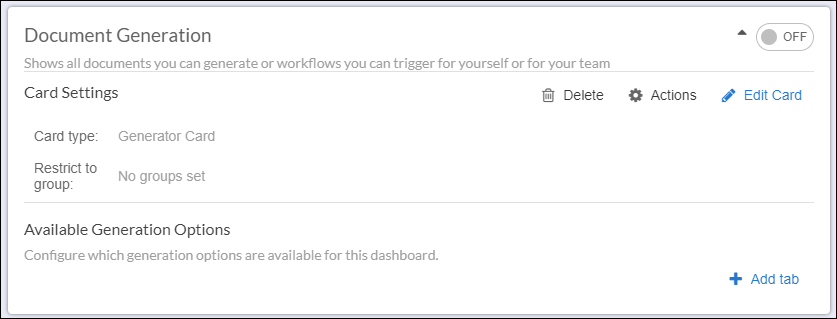
Once created, the Generator Card will look like this.
By default, all new cards are not enabled in the Dashboard Widget. Click the toggle button on the top right corner to enable the Generator Card.
The Delete button allows users to delete the Generator Card, configuring card actions is available on the Actions button while the Edit Card button allows users to modify its settings.

Click the Add tab button to add tabs to the Generator Card.

Users can move the sequence of the cards in dashboard through the up and down button available on the top-right corner of each card.

The following options will appear:
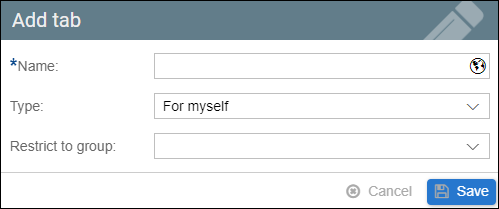
- Name - enter a name for the tab.
- Type - choose among; for myself, for my team, for others, and for applicants.
- Restrict to group - select a group from user management that this tab will only be visible to.
In the example below, all tab types have been added, and each tab displays the card differently. Depending on the tab that the user select, it will show or hide the templates that the user configured for it.
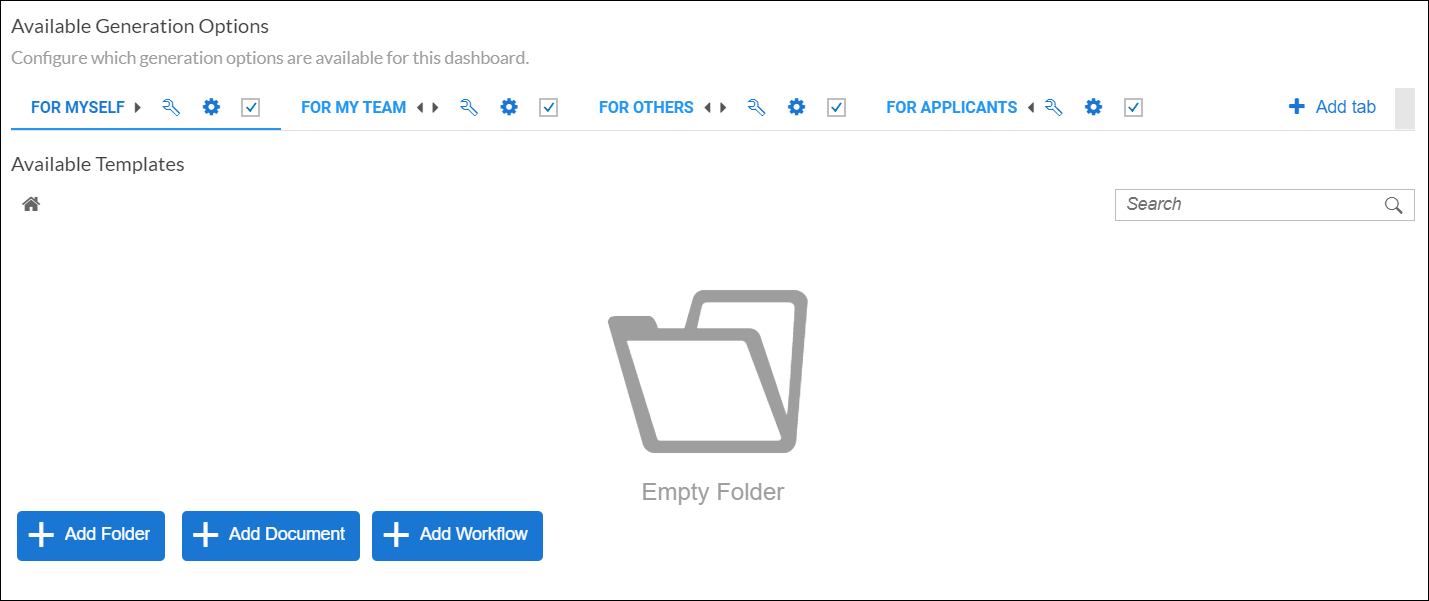
Card Tab Types
For Myself
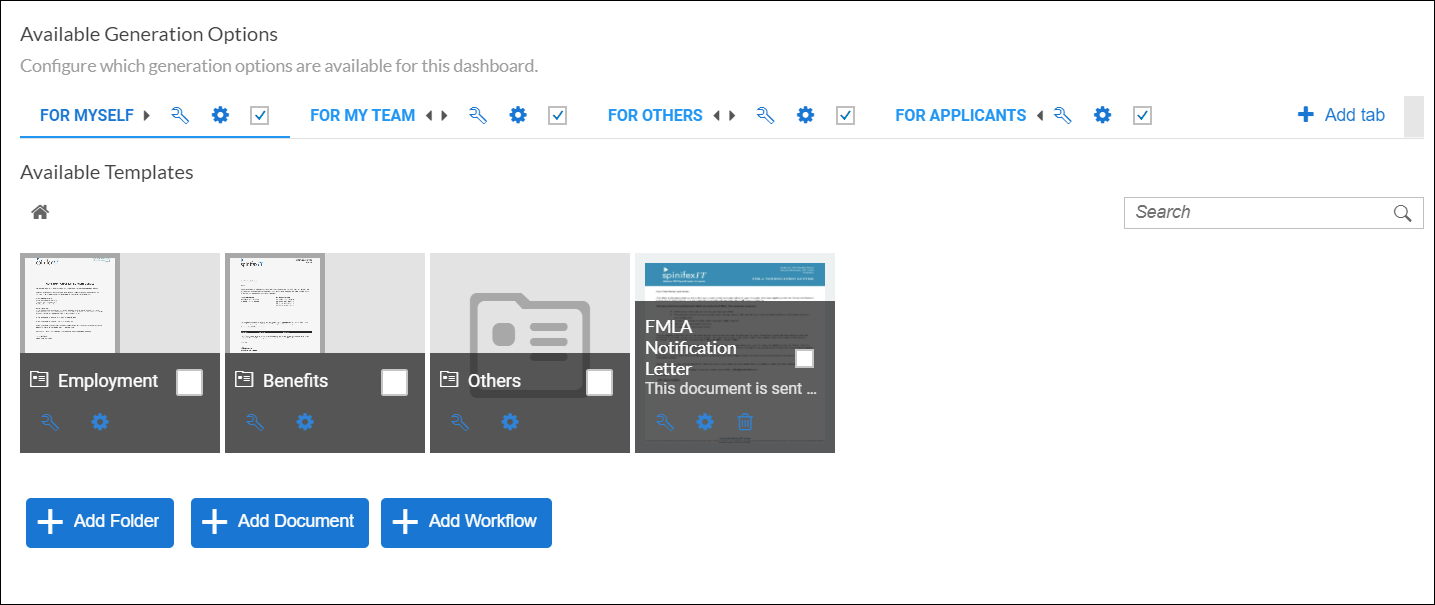
The For Myself tab is used to generate Employee Self Service documents. Some examples of documents that fall under this tab are Certificate of Employment, Benefits Letters, etc. These documents contain employee's personal details and information.
Click the Add Document button to add document templates to the root folder of the For Myself tab. Users can create folders as a way to group and organize templates.

When adding document templates, only templates from the Employee catalog (and User catalog when enabled) will be available.
To know how to add templates in the generator card, read Adding Templates in the Generator Card
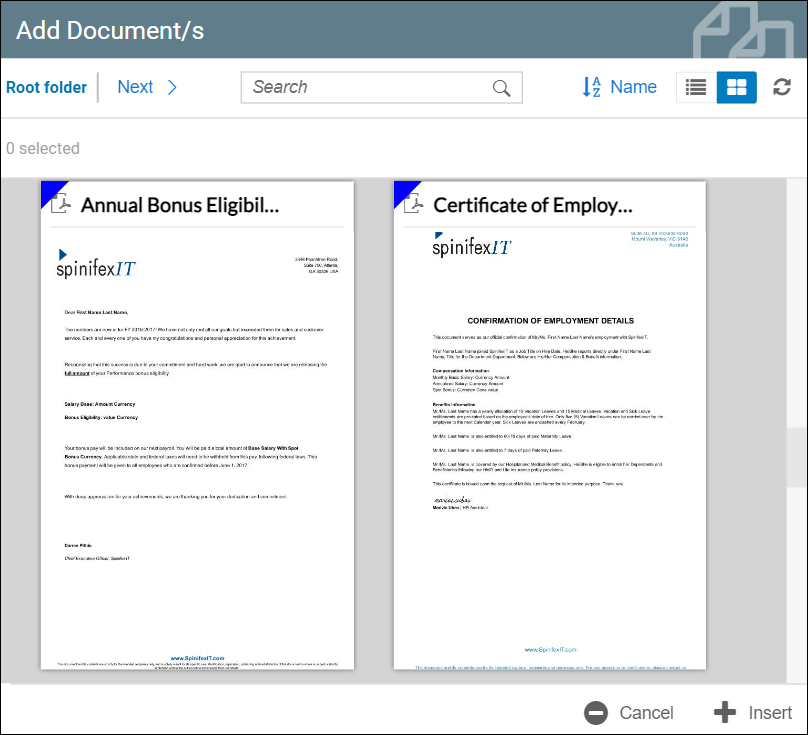
In the example below, users can see some documents that have been added.
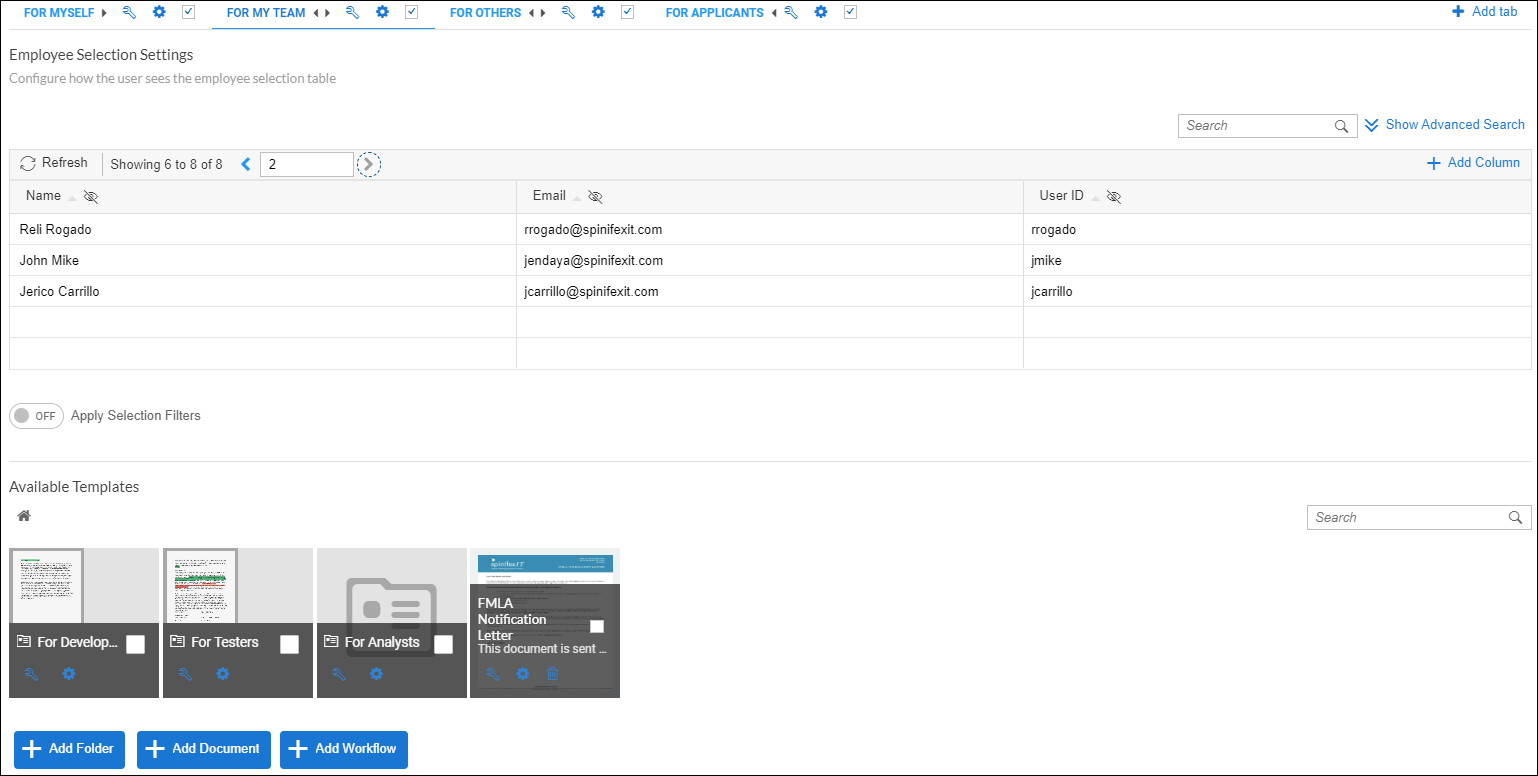
For My Team
This tab is used by managers and team leaders to generate documents that might be used for their direct reports. If there are also employees reporting under the manager’s direct reports, these employees can be searched and selected as well. Similar to the 'For Myself' tab, users can create folders and add templates from the Employee catalog.
In some instances, some documents can only be generated for employees with a specific status, from a certain location, or with a certain role. To know how to filter documents, read Restricting Document Templates based on Conditions
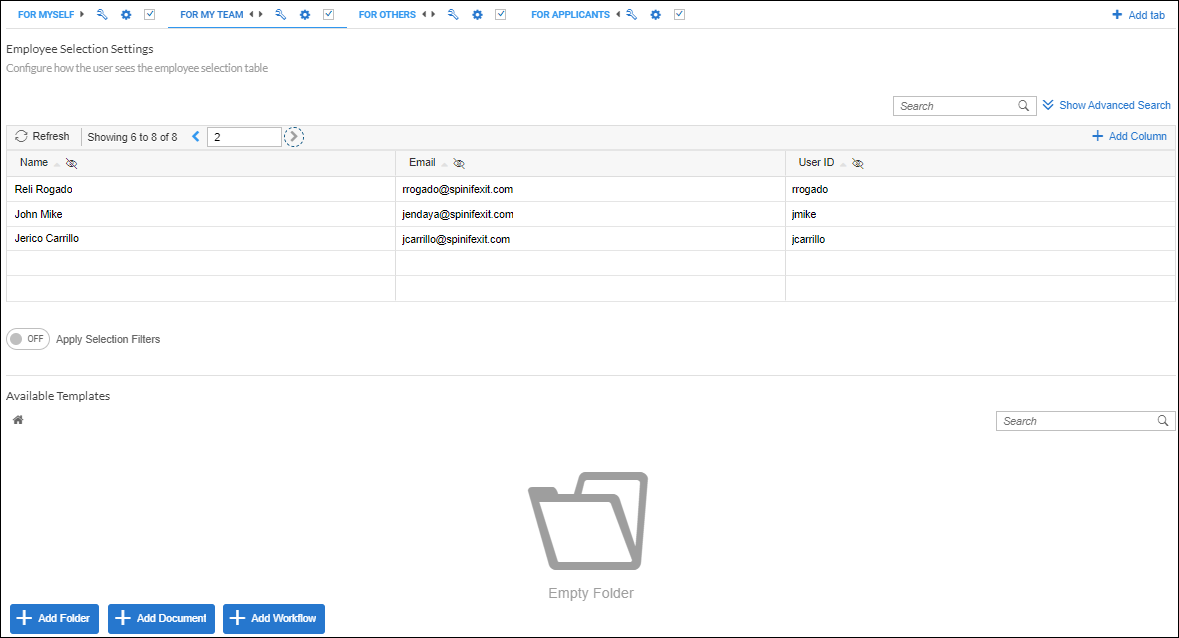
In the example below, the documents that have been added are shown.
To know how to add templates in the generator card, read Adding Templates in the Generator Card
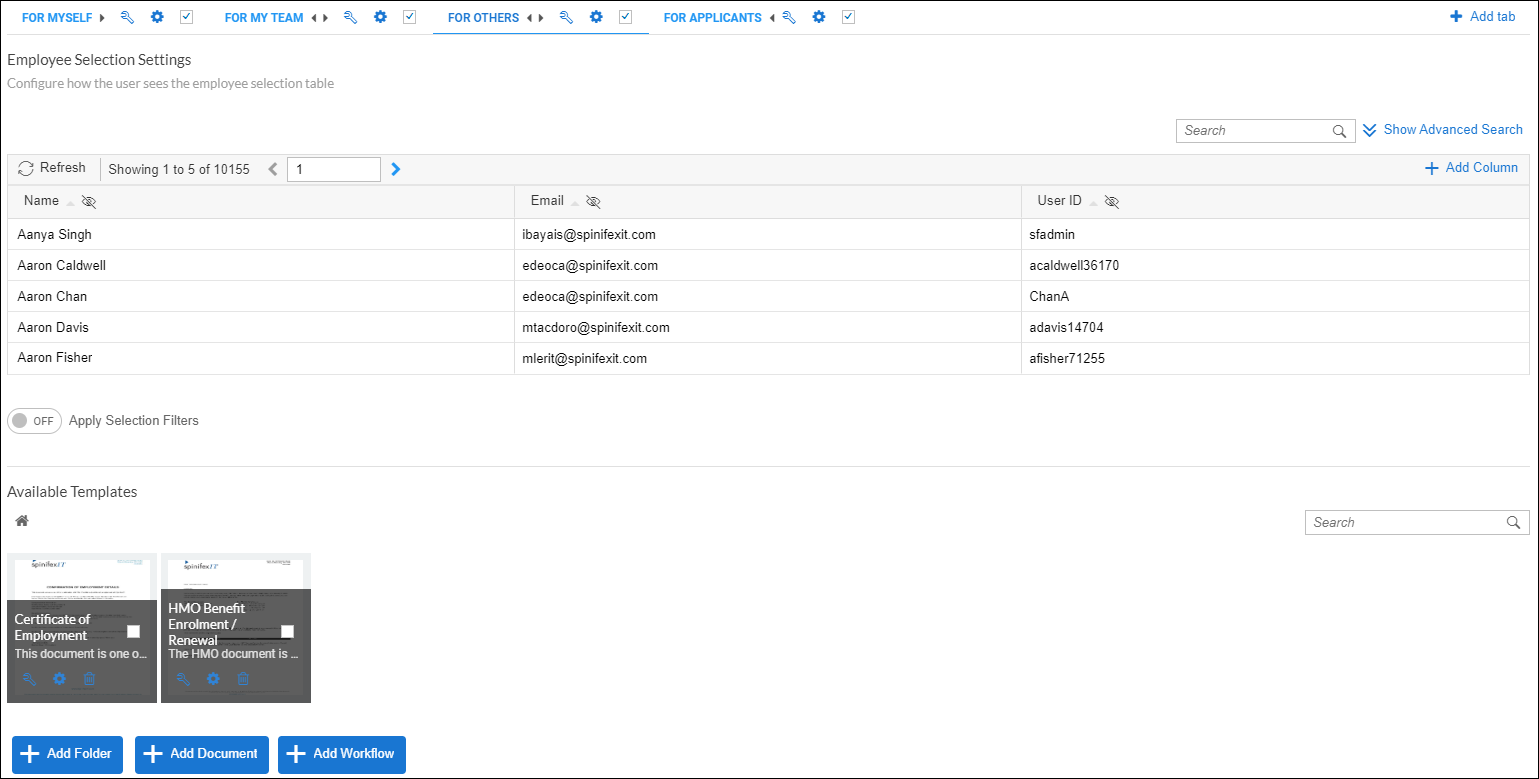
For Others
This tab is for generating documents for all employees in the system and is used by HR admins. Similar to the For My Team tab, users can create folders and add templates (from the Employee catalog).
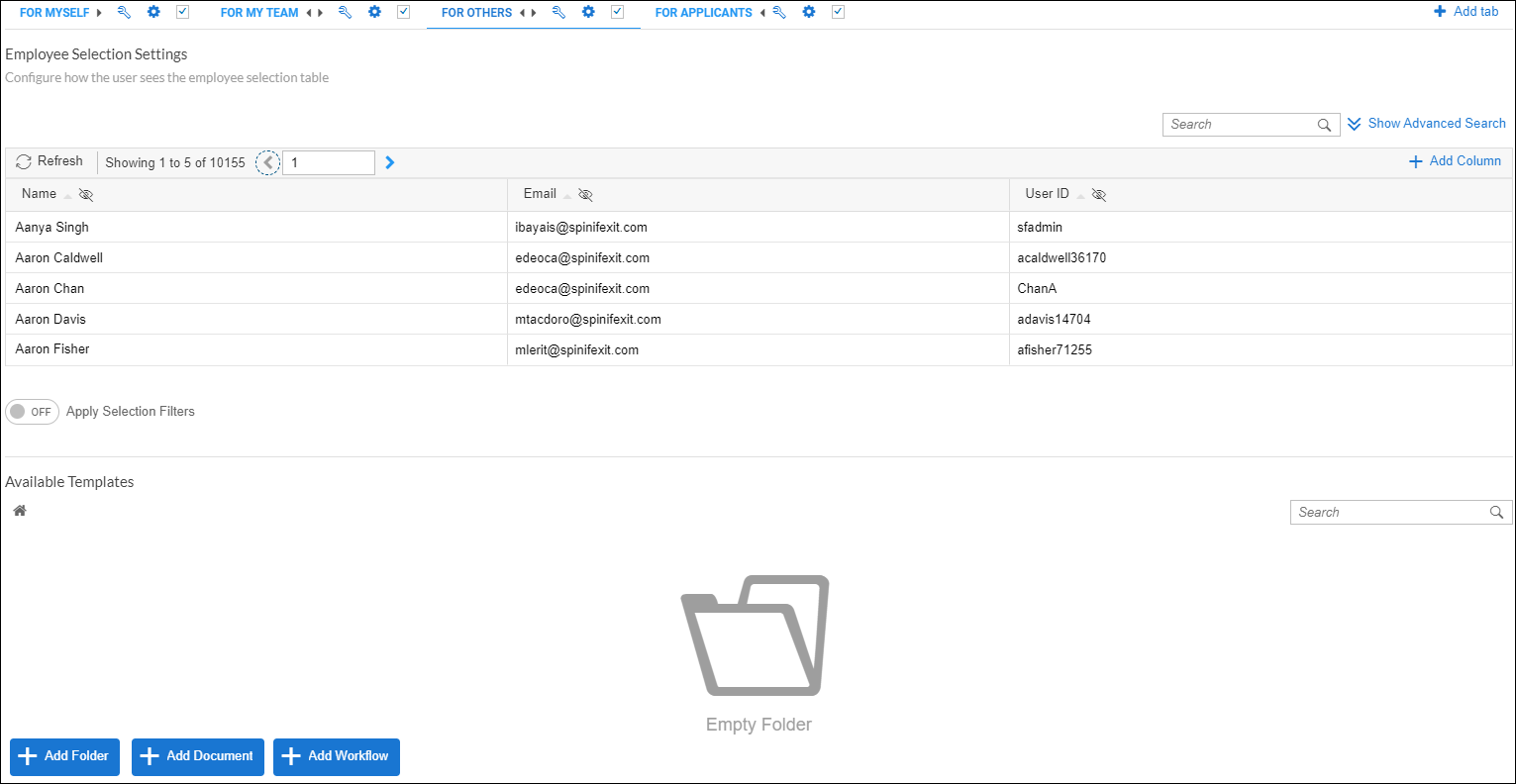
In the example below, the documents that have been added are shown.
To know how to add templates in the generator card, read Adding Templates in the Generator Card
For Applicants
The For Applicants tab is used by recruiters and hiring managers to generate documents for candidates. Similar to other tabs, users can create a folder and add templates (from the Application catalog).
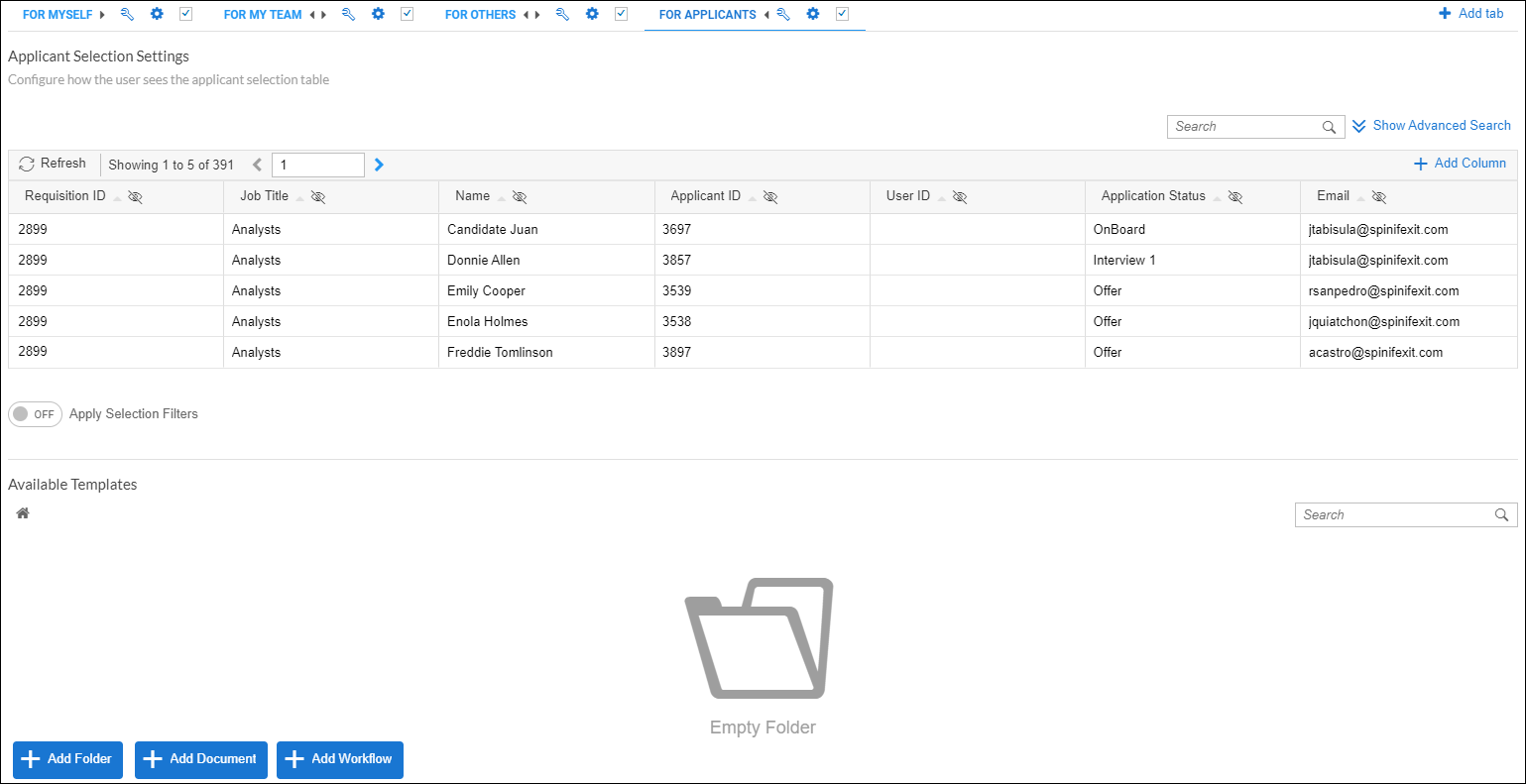
In the example below, the documents that have been added are shown.

To know how to add templates in the generator card, read Adding Templates in the Generator Card
Usage
After configuring the Generator Card and the other available tabs, users can proceed to generate documents.
For the view mode of the Generator Card, please read:
Card Type - Generator Card (View Mode)
For a sample use case, read Dashboard Widget - Use Cases Overview