Navigate the People View in People Hub
The People view in People Hub provides you with a list of all users you currently have access to. In this view, you can search using keywords, and show or hide columns based on your needs.
Requirements
Make sure that New Design - People Hub is installed in the Upgrade Centre.
Features
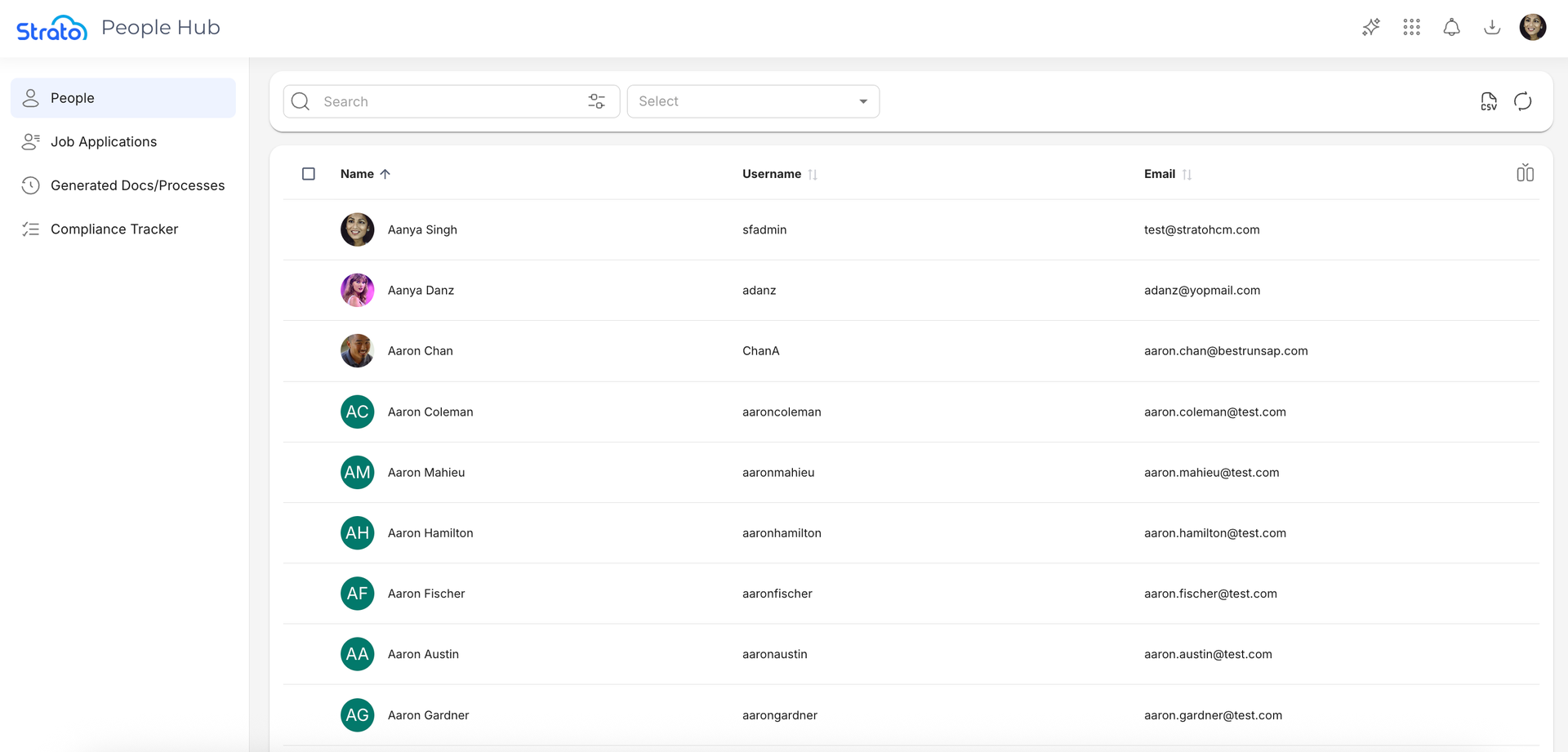
The People view allows you to sort and customize the columns that are displayed. You can also search for users and view a user's information.
Actions
 | The Refresh button refreshes the User List |
 | The Show/Hide columns button allows you to toggle additional details on and off. Note that the Name, Username, and Email columns are enabled by default and cannot be toggled off.
|
 | The Sort button allows you to sort by the selected column in ascending or descending order. Note that you can only sort using the Name, Username, and Email columns. |
 | The Rows per page dropdown allows you to choose either to show 10 or 25 entries per page. |
 | The Record count shows you the number of entries currently being viewed out of the total number of entries. |
 | The Navigation controls allow you to jump between pages. You can go to the previous page, next page, or the last page, respectively. |
 | The Export button allows you to export the current list as a CSV file. The exported CSV file will contain the available entries and visible columns across all pages. If there is an active search query, filter, or sorting, then the CSV file will contain only the results based on those. |
 | The Move Column handle allows you to drag and drop columns to easily reorder them. |
 | The View icon appears when you hover over a user. This button allows you to open the User Information page for the user you're hovering on. |
Two additional actions are available from the More button: Set Legal Hold and Generate Documents.
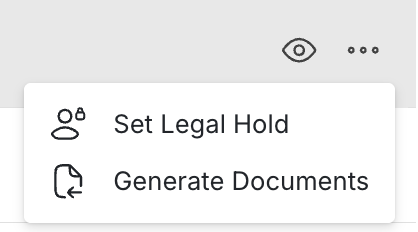
Set Legal Hold | Applies the Legal Hold status to a user. |
Generate Documents | Initiates the document generation workflow for the selected user. |
Column Display
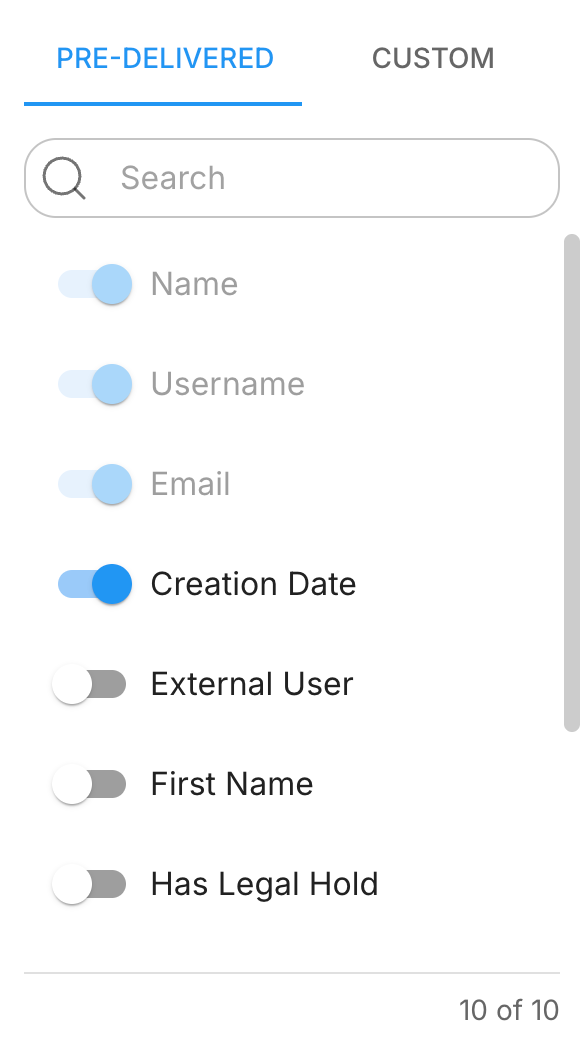
When you click the Show/Hide columns button, it enables you to toggle both Pre-Delivered and Custom User Properties as columns.
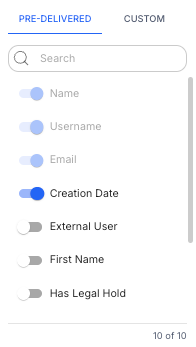
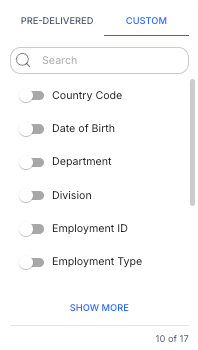
Enabled column will be sorted alphabetically, and will follow this order:
- Default Columns
- Pre-Delivered User Properties
- Custom User Properties

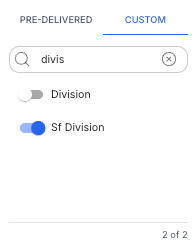
You can also search for User Properties using the search bar. The search will be applied against the names of the User Properties.
Search
Users can search for keywords using the search bar located at the top of the user list. By default, the basic search keyword looks at values in the Name, Email, and User Name columns.
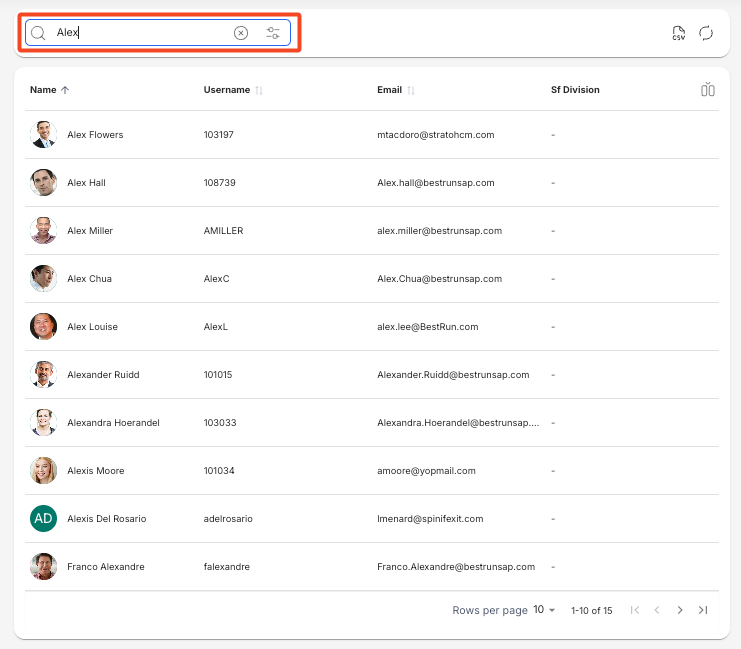
While advanced search filters are enabled, the basic search applies to the current list of filtered entries.
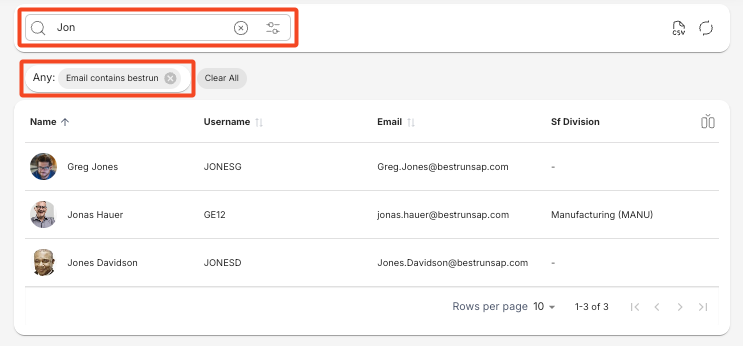
To do an advanced search, click the Filter icon. You can create condition groups, where you can define which User Properties to check (for example, Email), how to compare it (for example, Contains), and values to compare it to (for example, “bestrun”). You can string multiple conditions and condition groups together.
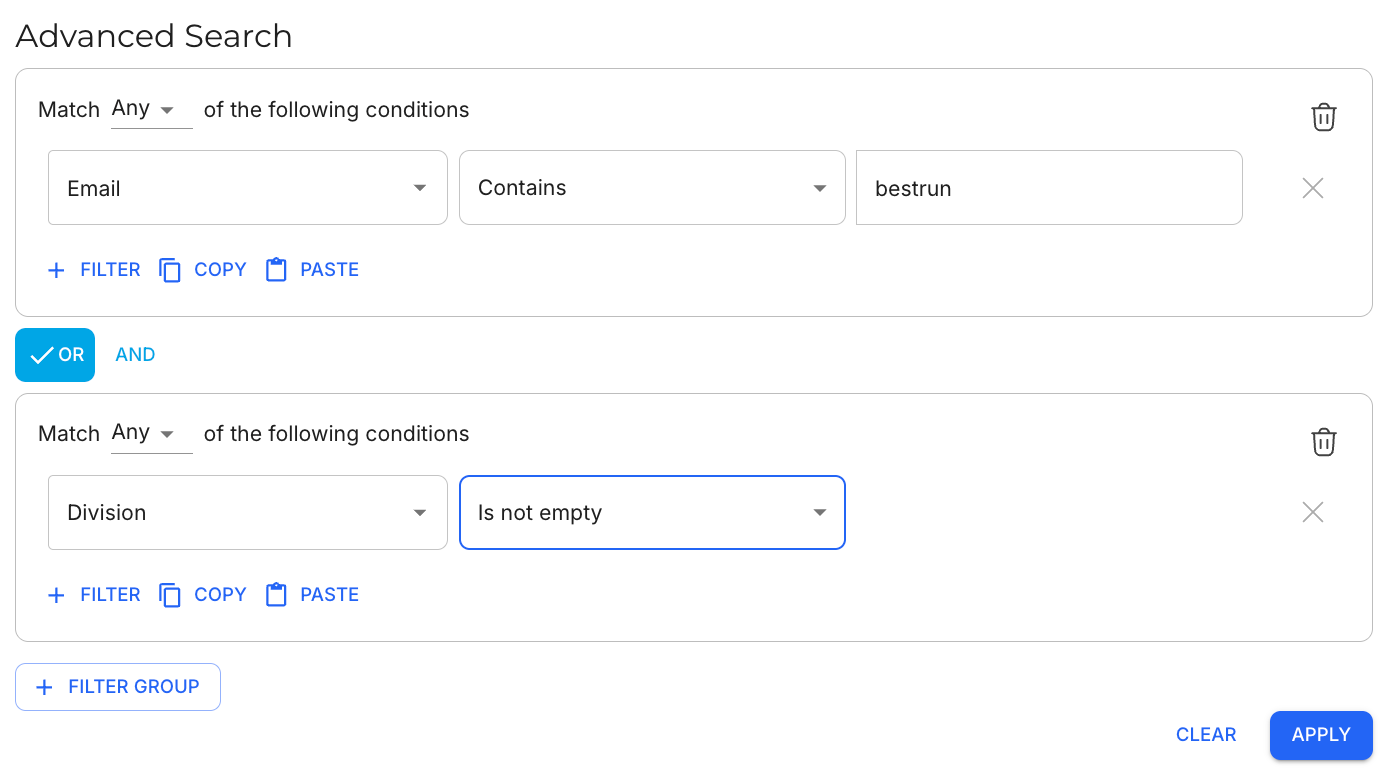
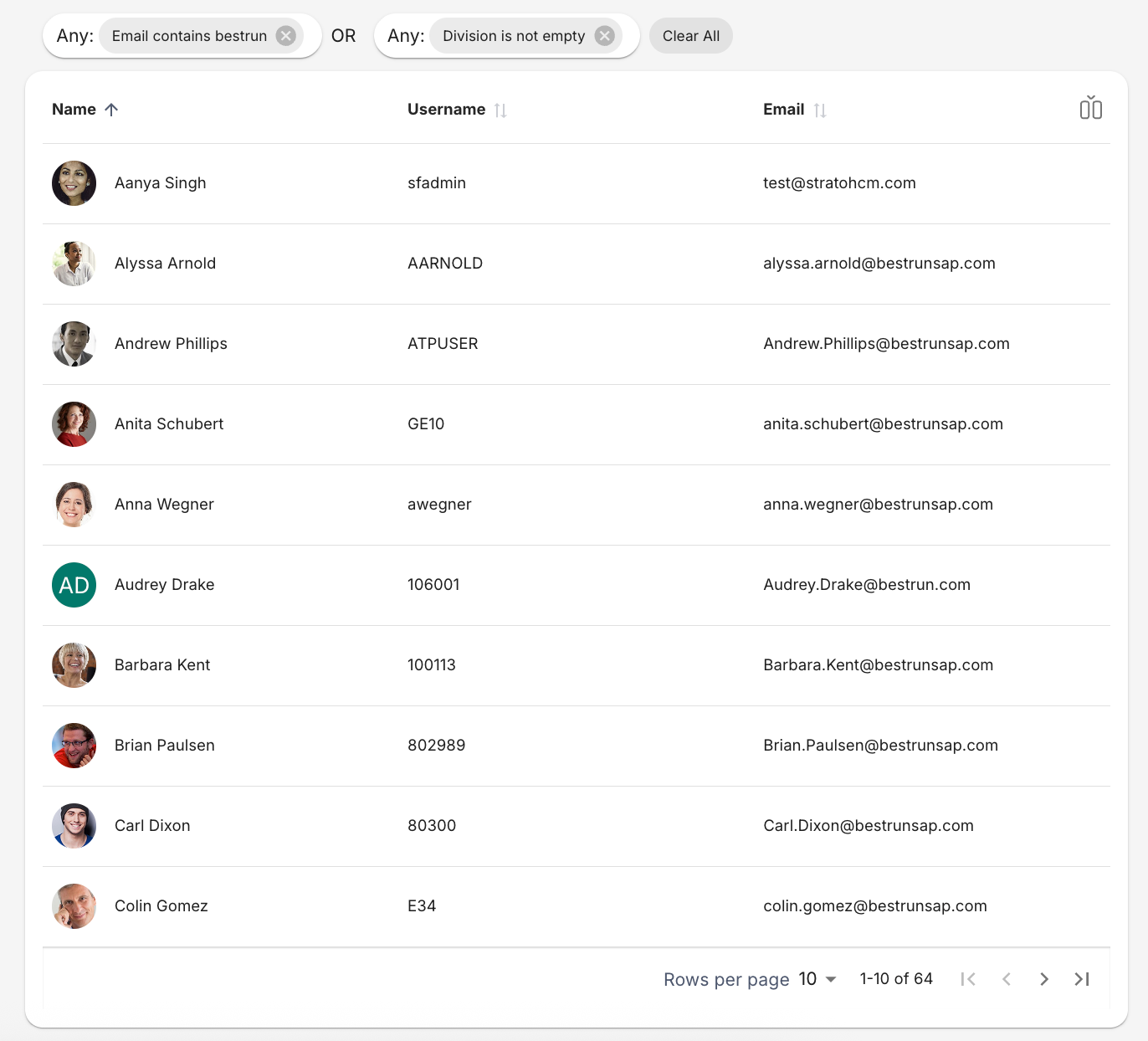
The advanced search will apply to the User Properties you have set as conditions, even if they are not enabled as columns.
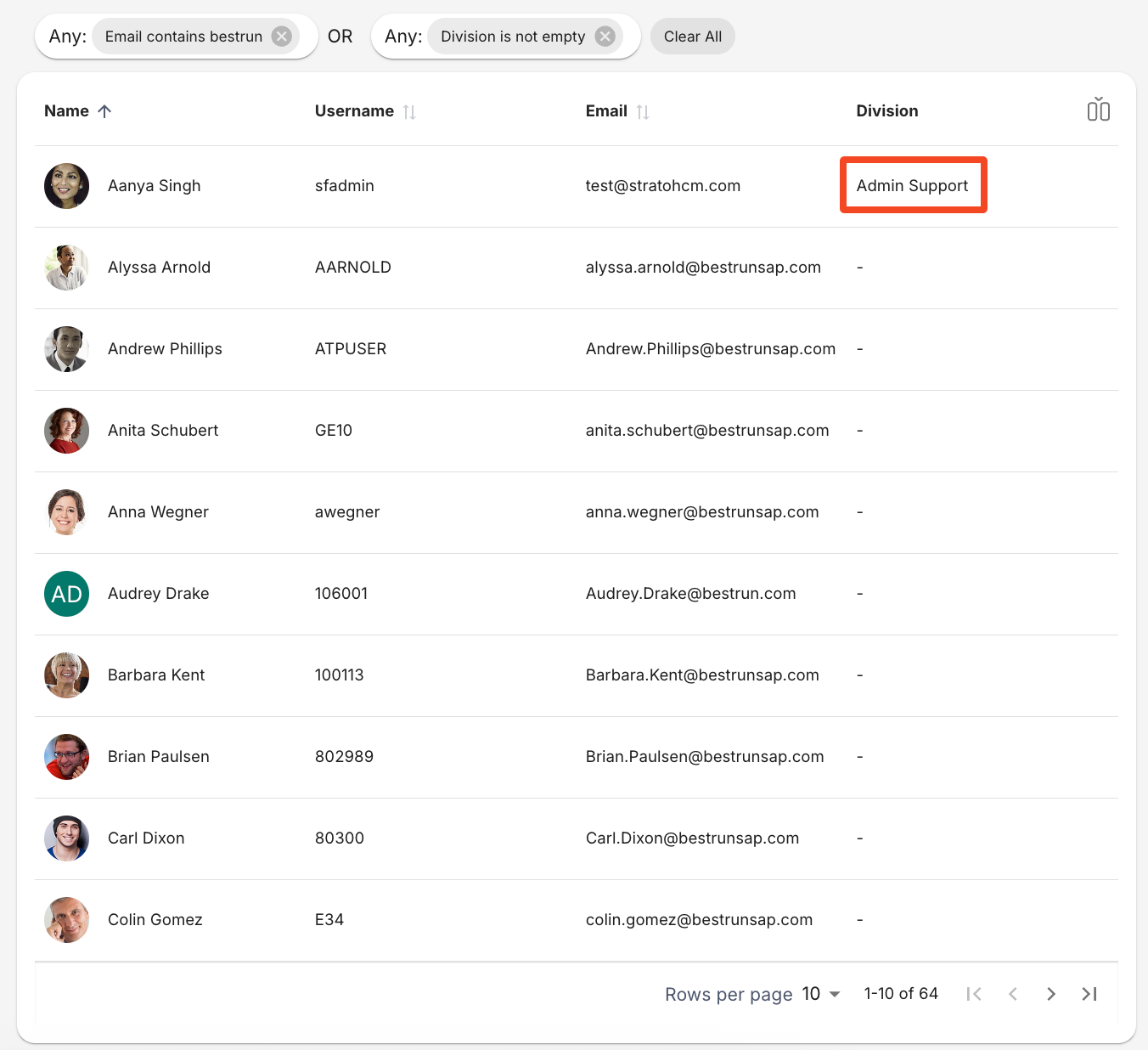
In this example, the user Aanya Singh does not match the first condition set (“Email contains bestrun”).
However, if we enable the Division User Property as a column, it shows that Aanya Singh has a value for this User Property, and that is why she shows in this advanced search.
In addition to this, Custom Filters provide a faster way to apply common search criteria. These filters are preconfigured by administrators and made available to specific groups of users.
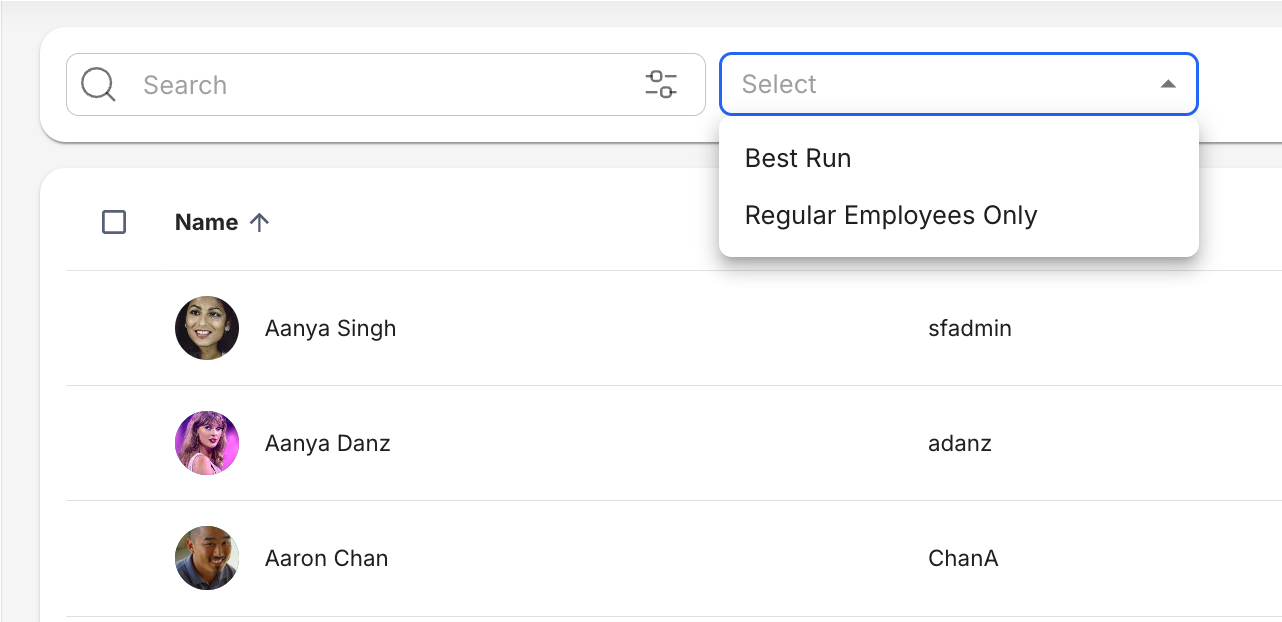
From the Custom Filters Dropdown, you can select a filter to instantly update the employee list. Custom filters also work together with advanced search, and both are applied using an AND operation.
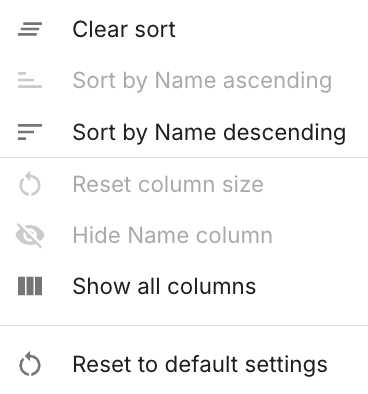
Column Actions
The Column Actions button appears on the right side when hovering over a column.
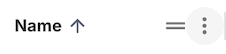
When clicked, the button shows you a list of actions you can do to the selected column.