People Hub
People Hub provides a simple way to view employee files, generate documents and processes, and access employee data. Using People Hub, you can access the User Information page, which provides quick access to a user’s Files, Properties, Policies, Groups, and Requests.
This article contains the following sections:
Access
There are two ways to access People Hub, depending on your version of Strato.
Strato V1
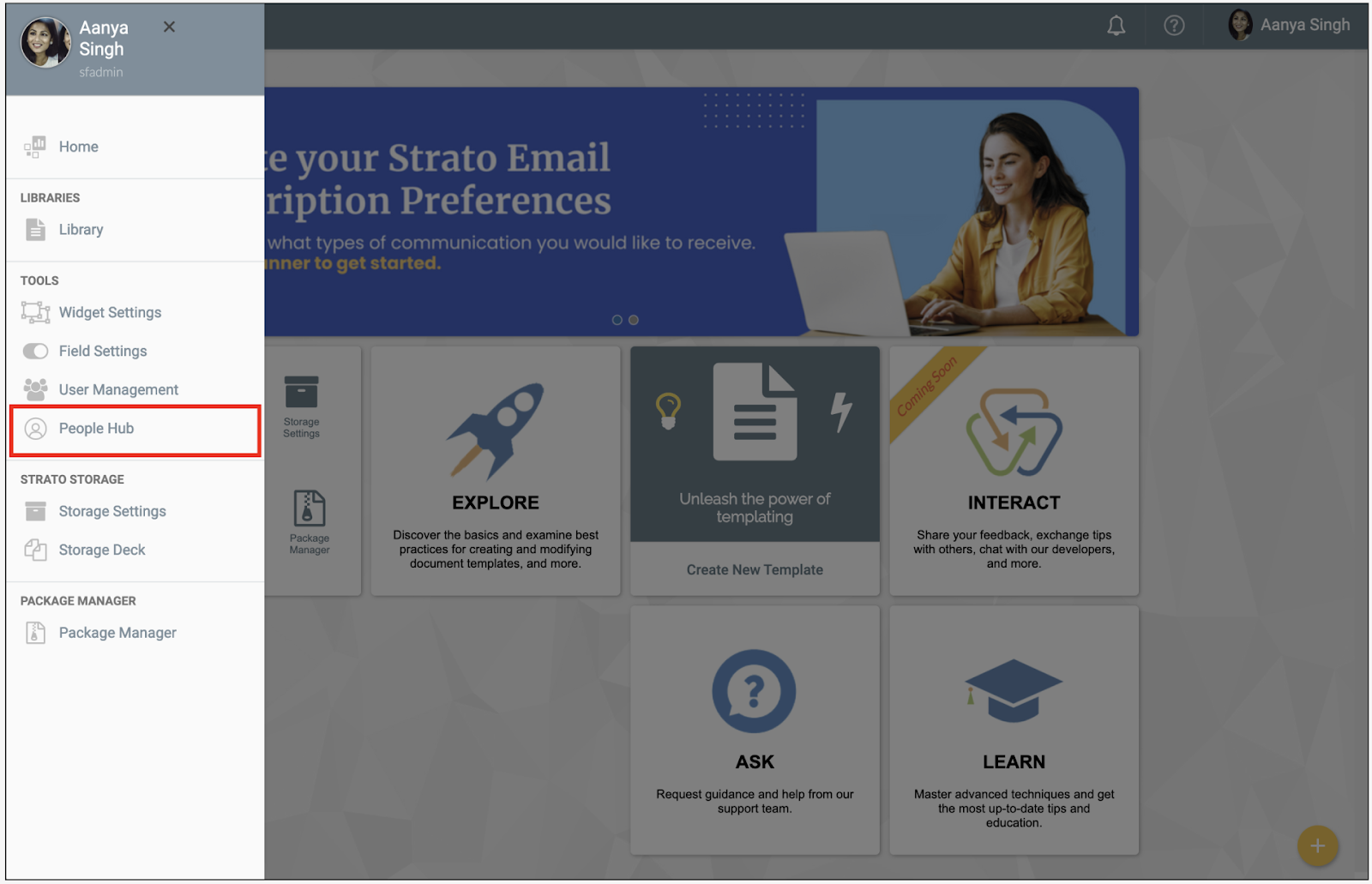
You can access the People Hub via the Strato sidebar, and click People Hub under the Tools menu.
Strato V2
Users can access People Hub via the Strato App Menu Bar.

Features
People View
The People view provides you with a list of all users you currently have access to. In this view, you can search using keywords, and show or hide columns based on your needs.

To view a user's information, click the View icon that appears when you hover over a user. This opens the User Information page.

User Information
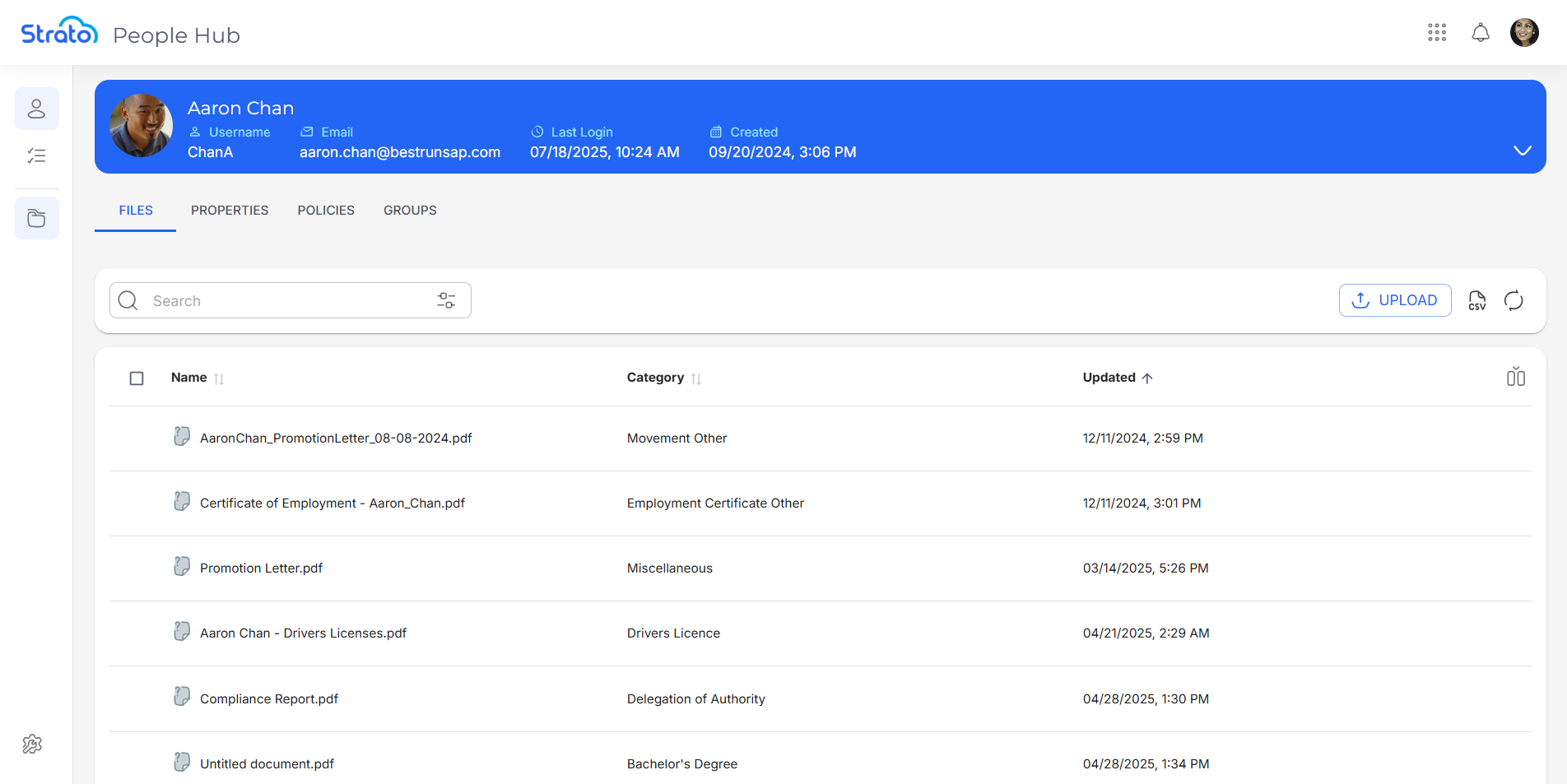
The User Information page provides a comprehensive view of a user’s details. From here, you can manage the user’s associated files, properties, polices, and groups by clicking their respective tabs.
The header displays the user’s basic details, which ensures that essential information is readily accessible. These details include the user’s full name, unique identifier (Username), Email, Last Login, and account creation date (Created).
Files
The Files tab lets you view and manage the files associated with the user. From here, you can view, download, and delete files, as well as edit the files’ details.
Properties
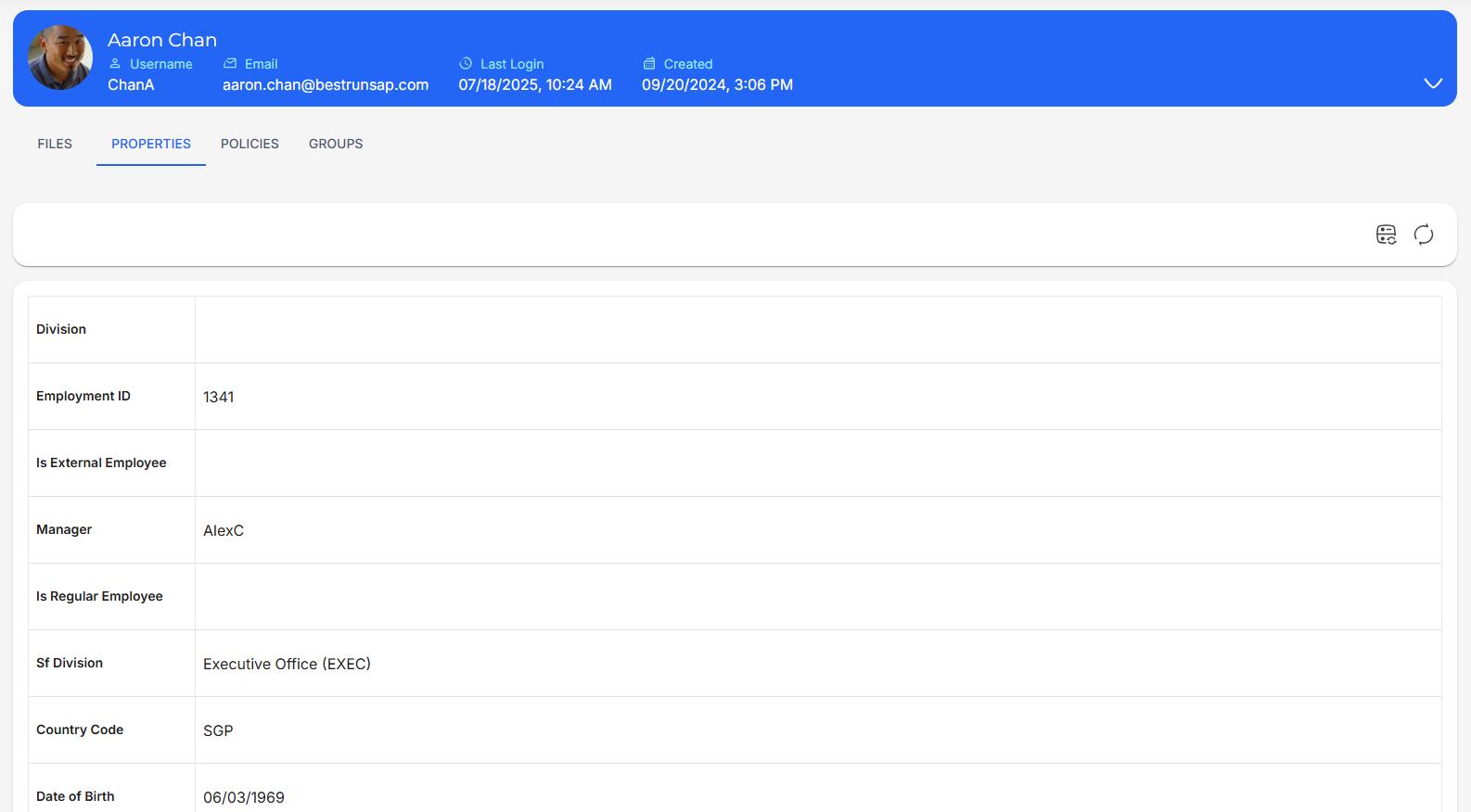
The Properties tab displays the list of User Properties and allows you to edit custom User Properties. User Properties act as metadata to offer detailed information about users. They are also used to filter the assignment and targeting of Policies and Groups.
Policies
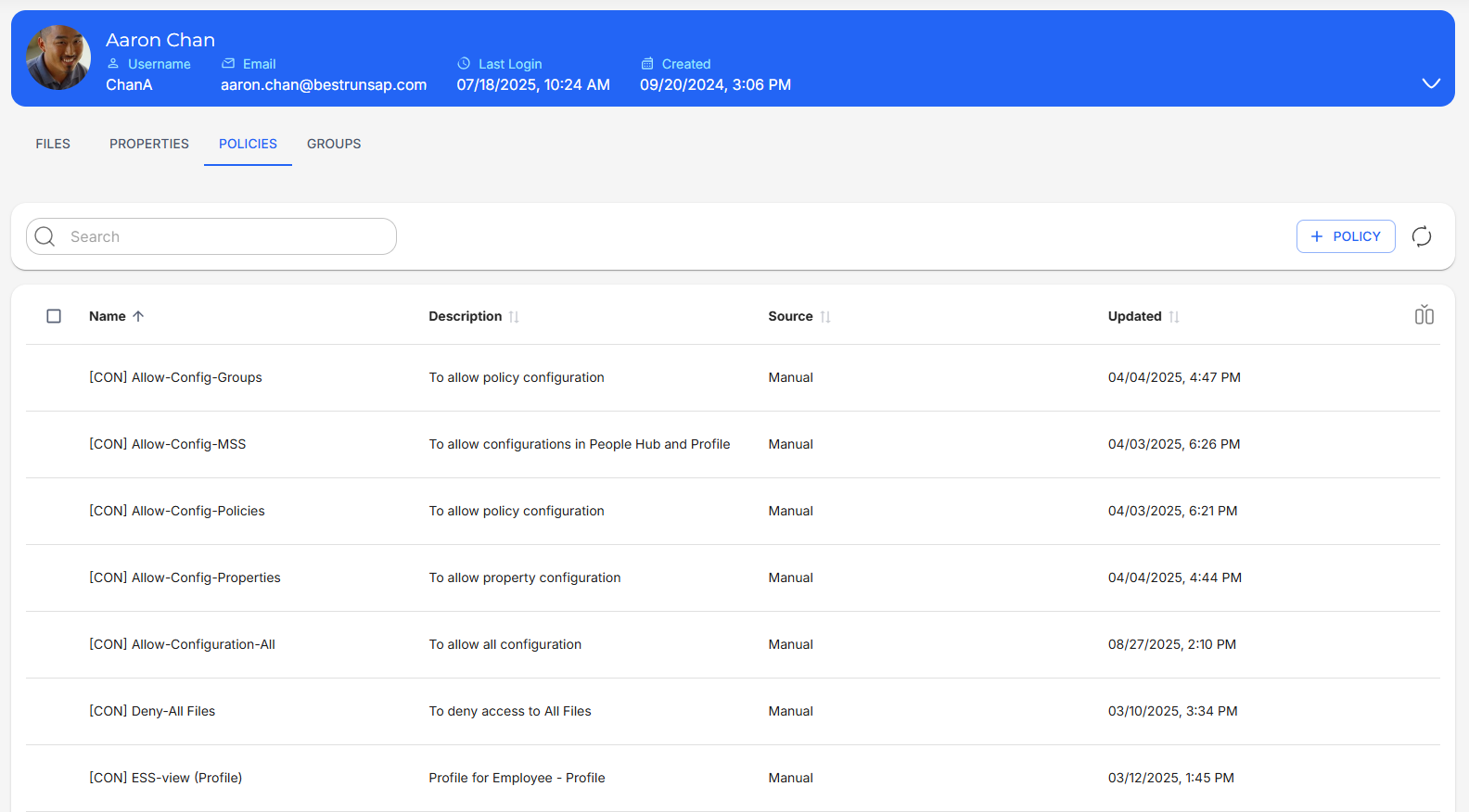
The Policies tab lets you view and manage the Policies attached to the user. Policies contain the permissions that control the access of each user. They specify the actions that users can and cannot perform, as well as grant access to specific tasks and features within the system.
Groups
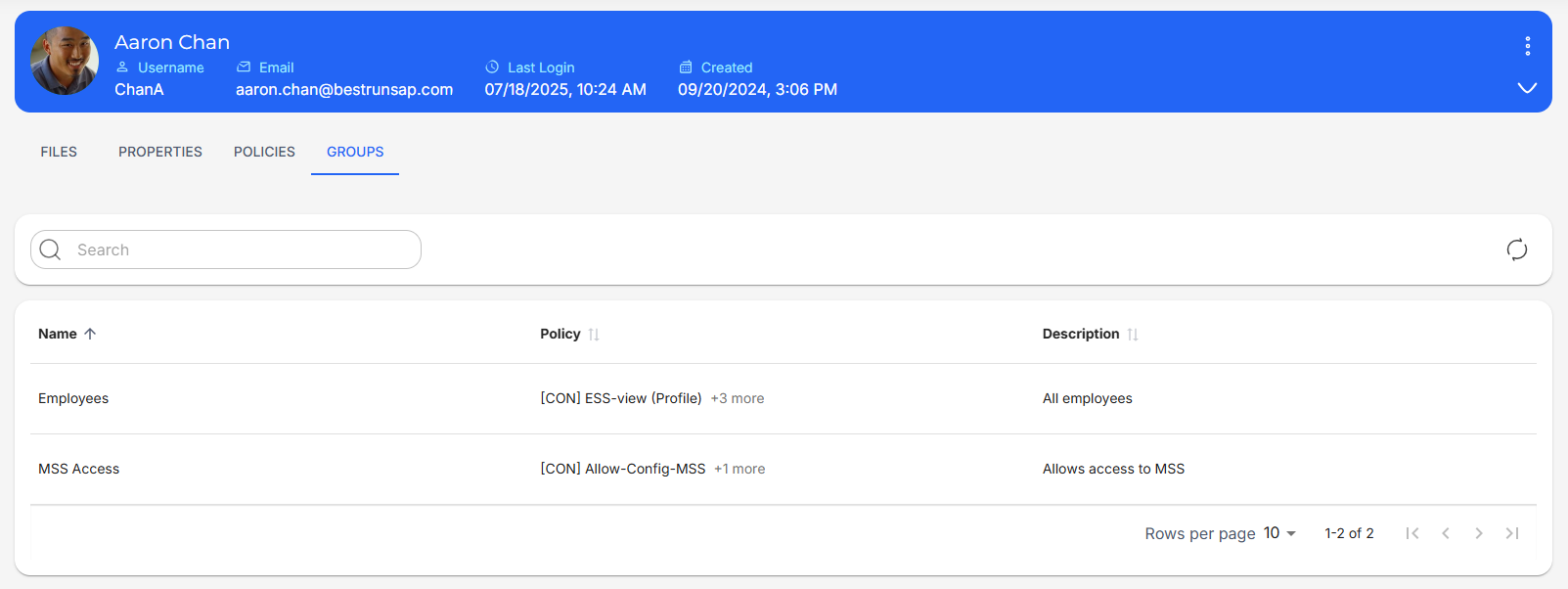
The Groups tab lets you view and manage the Groups that the user is a part of. Groups are used to assign Policies to users, and users can be added to specific Groups based on their User Properties and SuccessFactors Role Based Permissions.
Requests
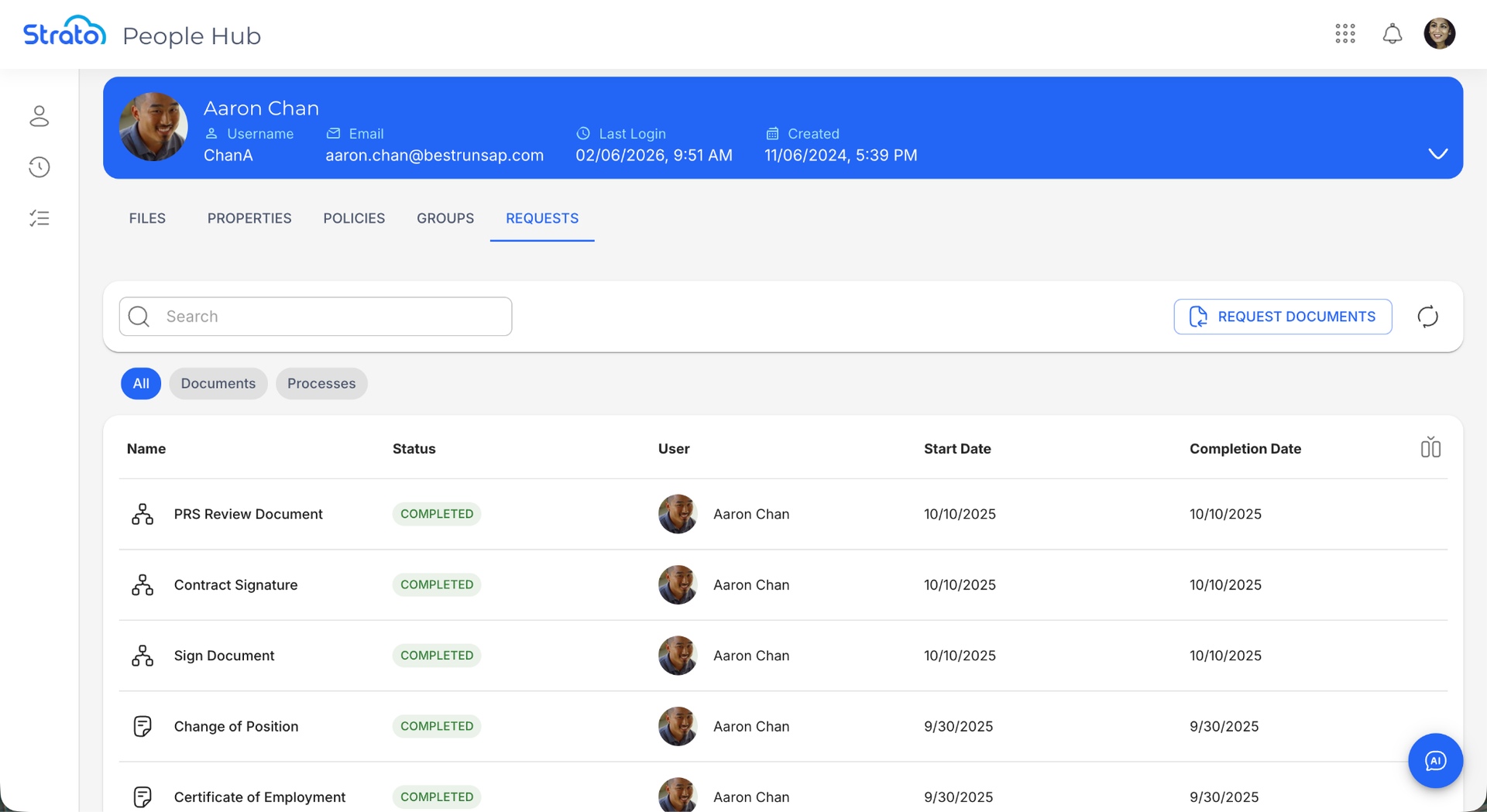
The Requests tab lets users and admins request and view documents and processes for a user. From here, you can view and download generated documents, or view the status and timeline of executed workflows.
Configurations
Under People Settings in the Configurations page, you can access Groups, User Properties, and Access Policy. These pages are used to set up the Groups, Properties, and Policies you will assign to users to control accesses and permissions.

Related articles
- Upgrade Center
- Authorisation Framework
- Navigate the Files Tab
- User Properties
- Configure and Manage User Properties
- Policies
- Groups
- Navigate the Requests Tab