Navigate the Requests Tab
This article explains how to navigate the Requests tab in the User Information page, where users and admins can request documents and processes for a specific user.
This article contains the following sections:
Requirements
Features
Requests List
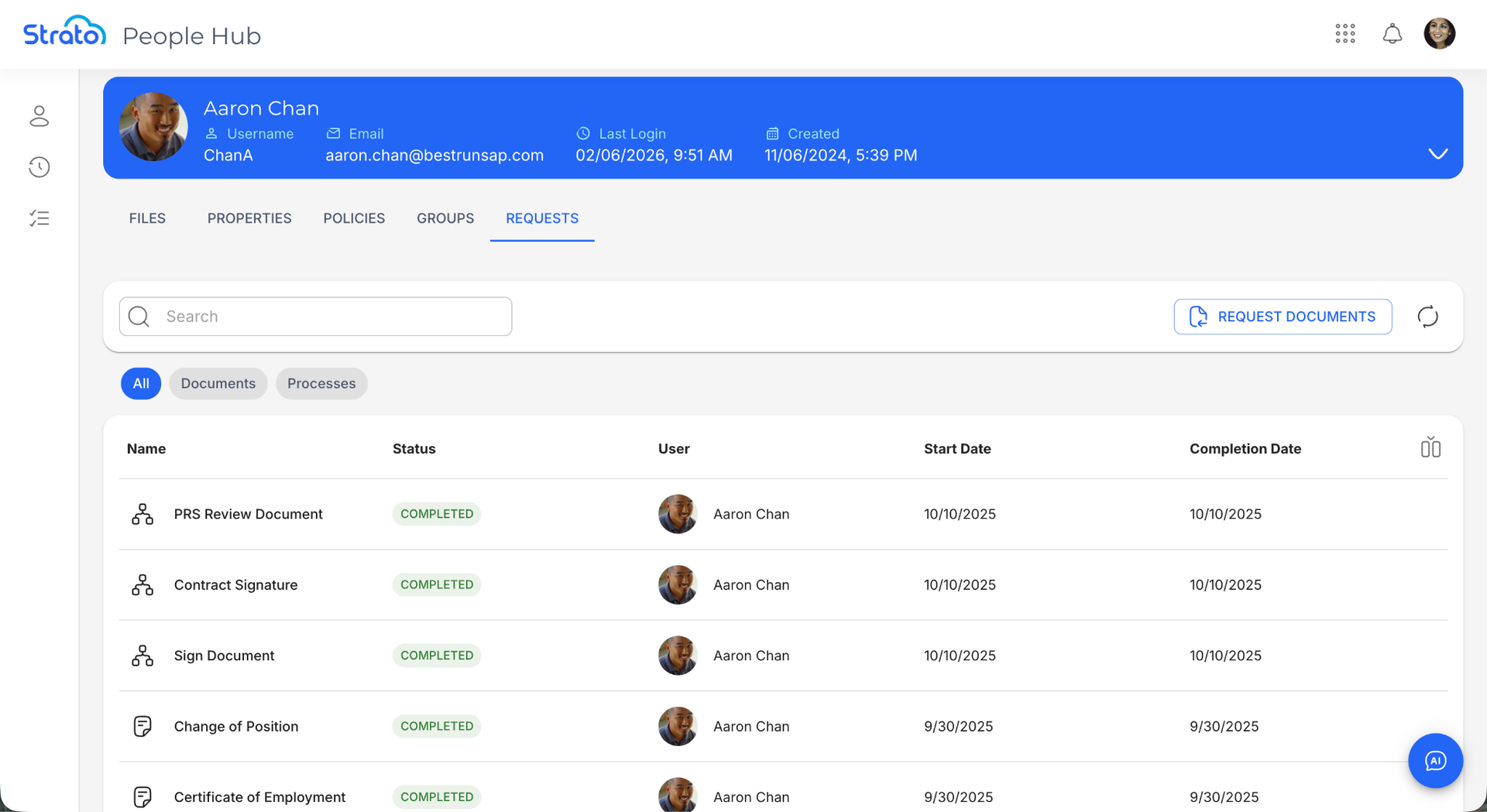
When you open the Requests tab in the User Information page, you will see the list of documents and processes requested for the user, and the details of these requests.
By default, these details include the Name, Status, User for which the document or process was requested, and the Start Date and Completion Date of the request.
Actions
 | The Request Documents button allows you to request a document or process for the user. |
 | The Quick Filter buttons allow you to filter the list to show either Documents only, Processes only, or All entries. |
 | The Refresh button refreshes the Requests List. |
 | The Show/Hide columns button allows you to toggle additional details on and off. 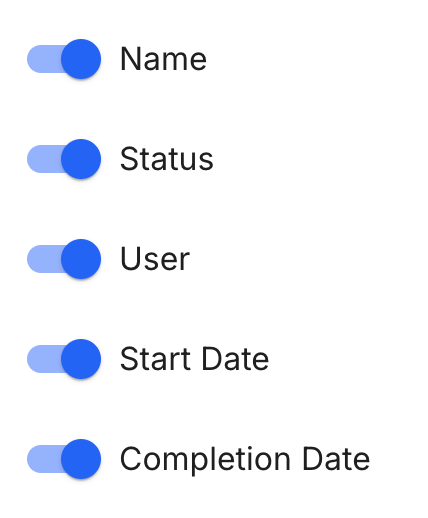 |
 | The Rows per page dropdown allows you to choose either to show 10 or 25 requests per page. |
 | The Record count shows you the number of requests currently being viewed out of the total number of requests. |
 | The Navigation controls allow you to jump between pages. You can go to the previous page, next page, or the last page, respectively. |
 | The Move Column handle allows you to drag and drop columns to easily reorder them. |
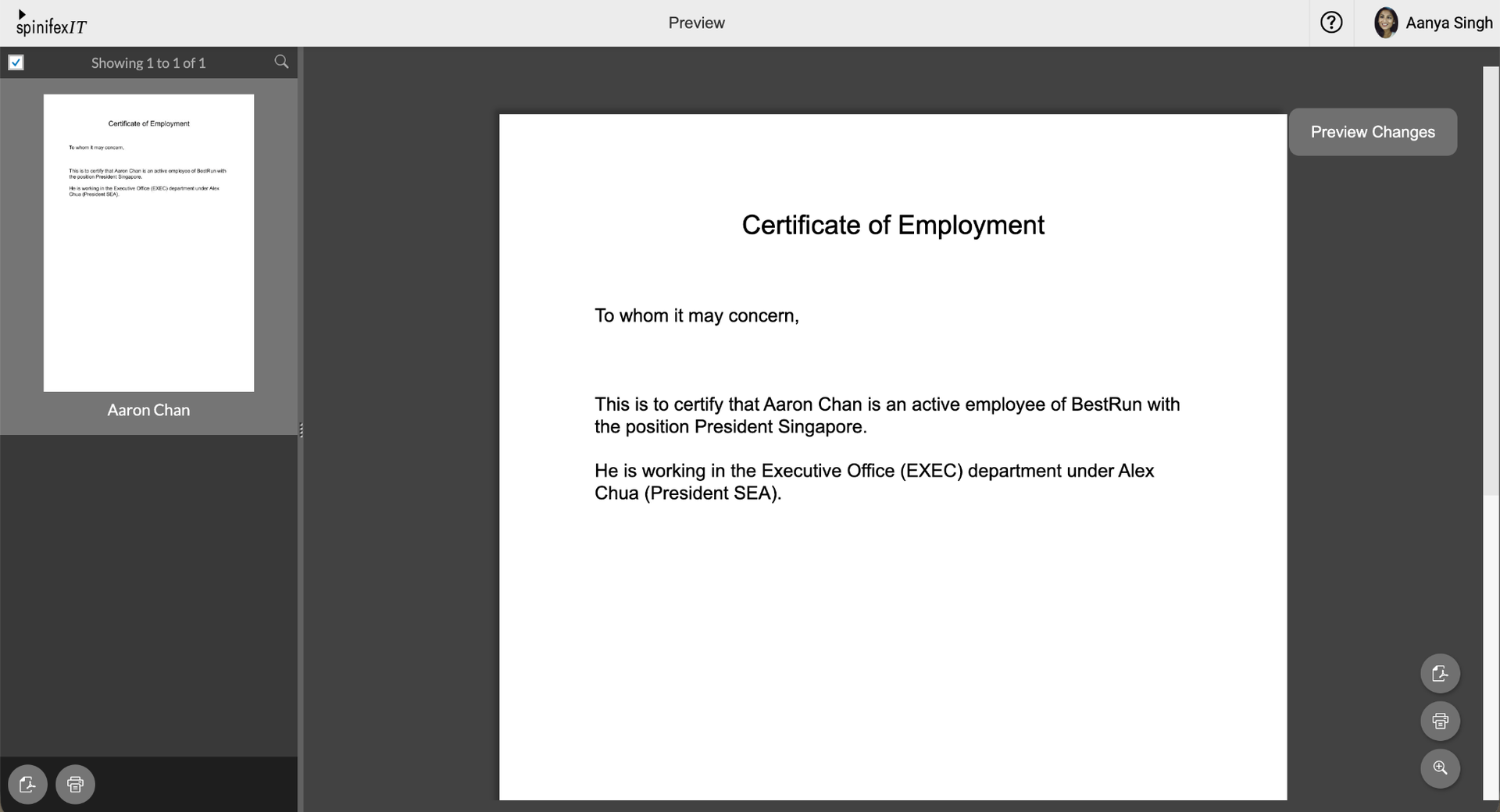
When hovering over a document, two additional actions are available from the More button: View and Download the selected document.

View | Opens the document in the Document Preview.
|
Download | Downloads the selected document. |
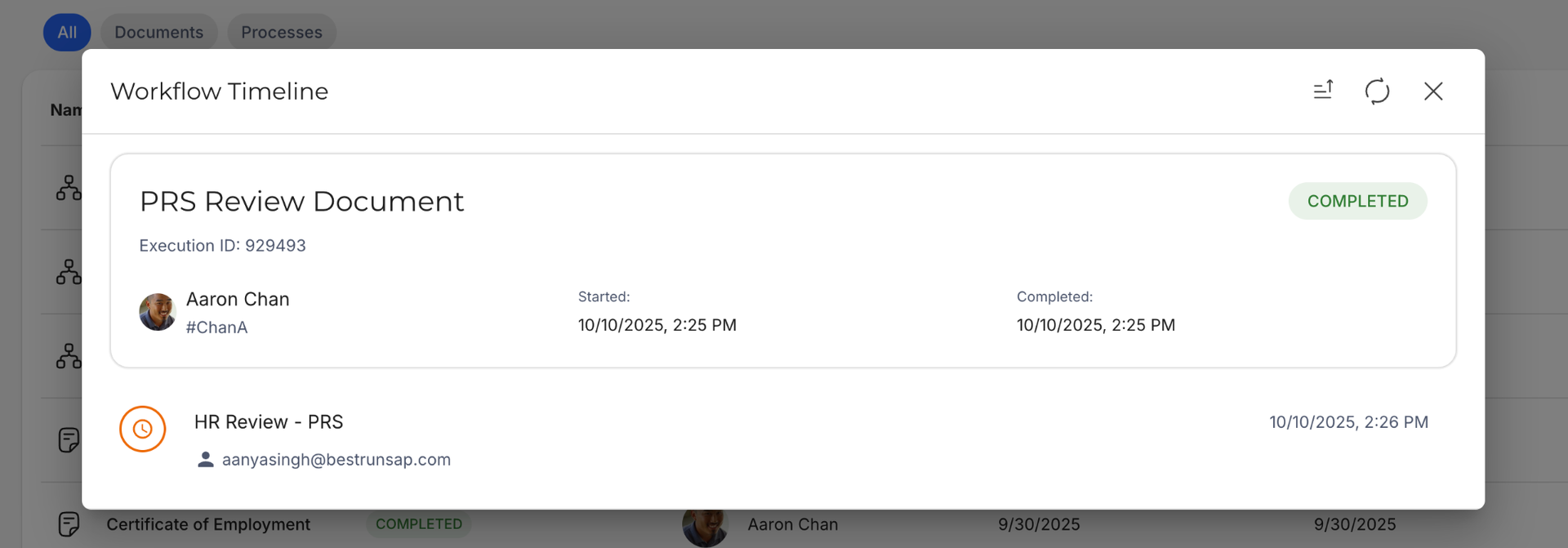
When hovering over a process, the Open button is available.

This opens the Workflow Timeline, showing the details of the selected process, and its steps and their statuses.
Search
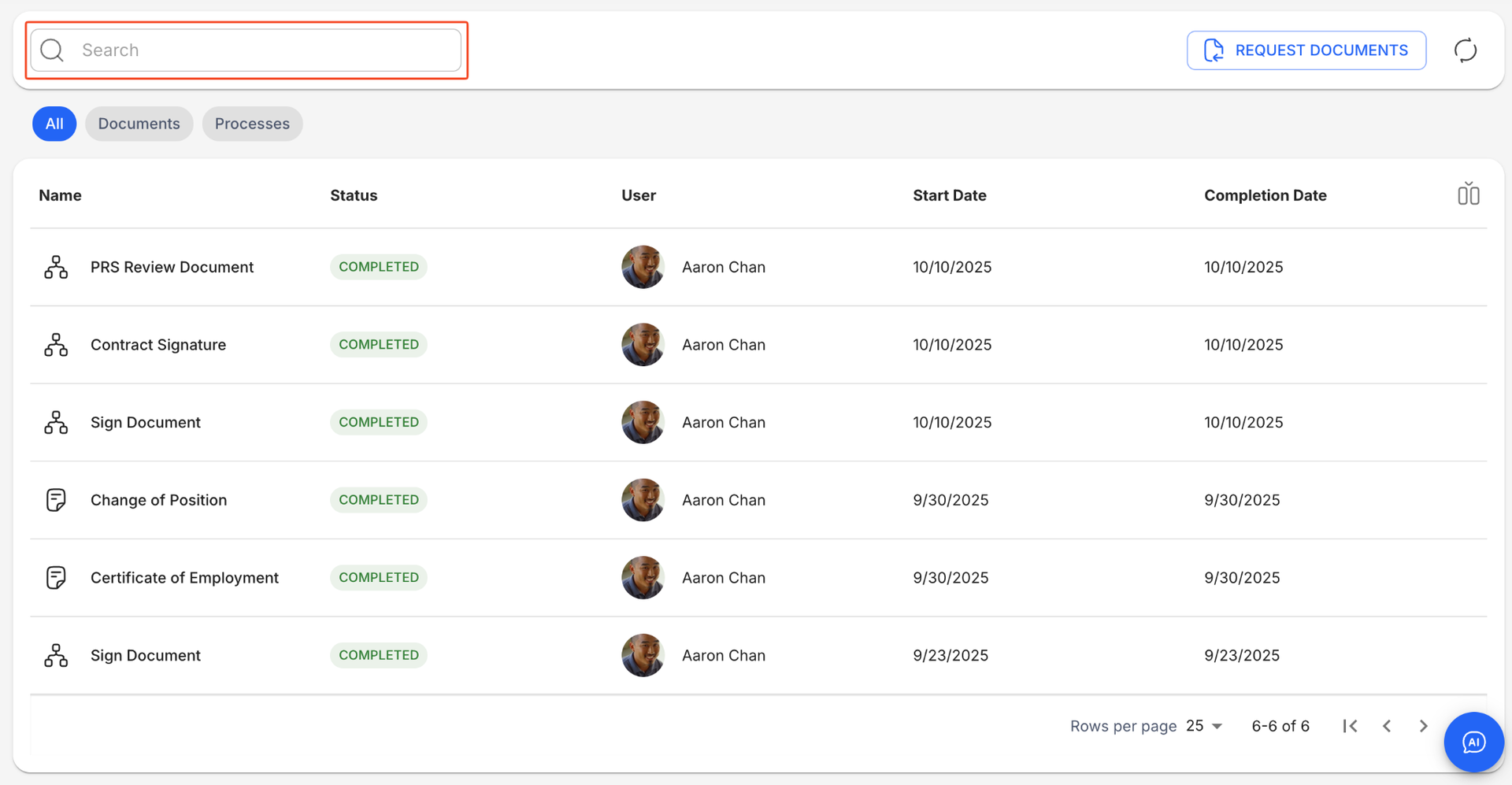
You can search for keywords using the Search bar located at the top of the Requests list. The search applies to the Name column.
Column Actions
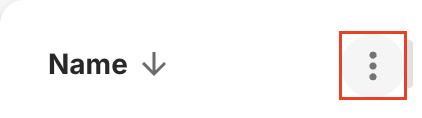
The Column Actions button appears on the right side when hovering over a column.
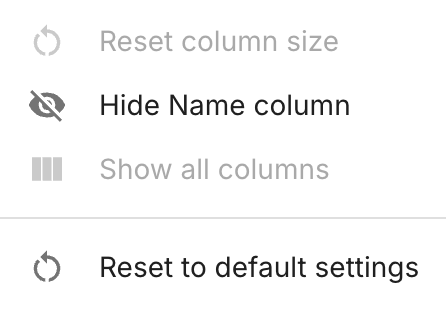
When clicked, the button shows you a list of actions you can do to the selected column.
Related articles
- New Design - People Hub
- New Feature - Employee Actions in People Hub - Generate Document and Workflows