Navigate the User Properties Tab
This article explains how to navigate the Properties tab in the User Information page, where admins can manage the User Properties of a specific user.
Requirements
Make sure that New Design - People Hub is installed in the Upgrade Centre.
Features
User Property List
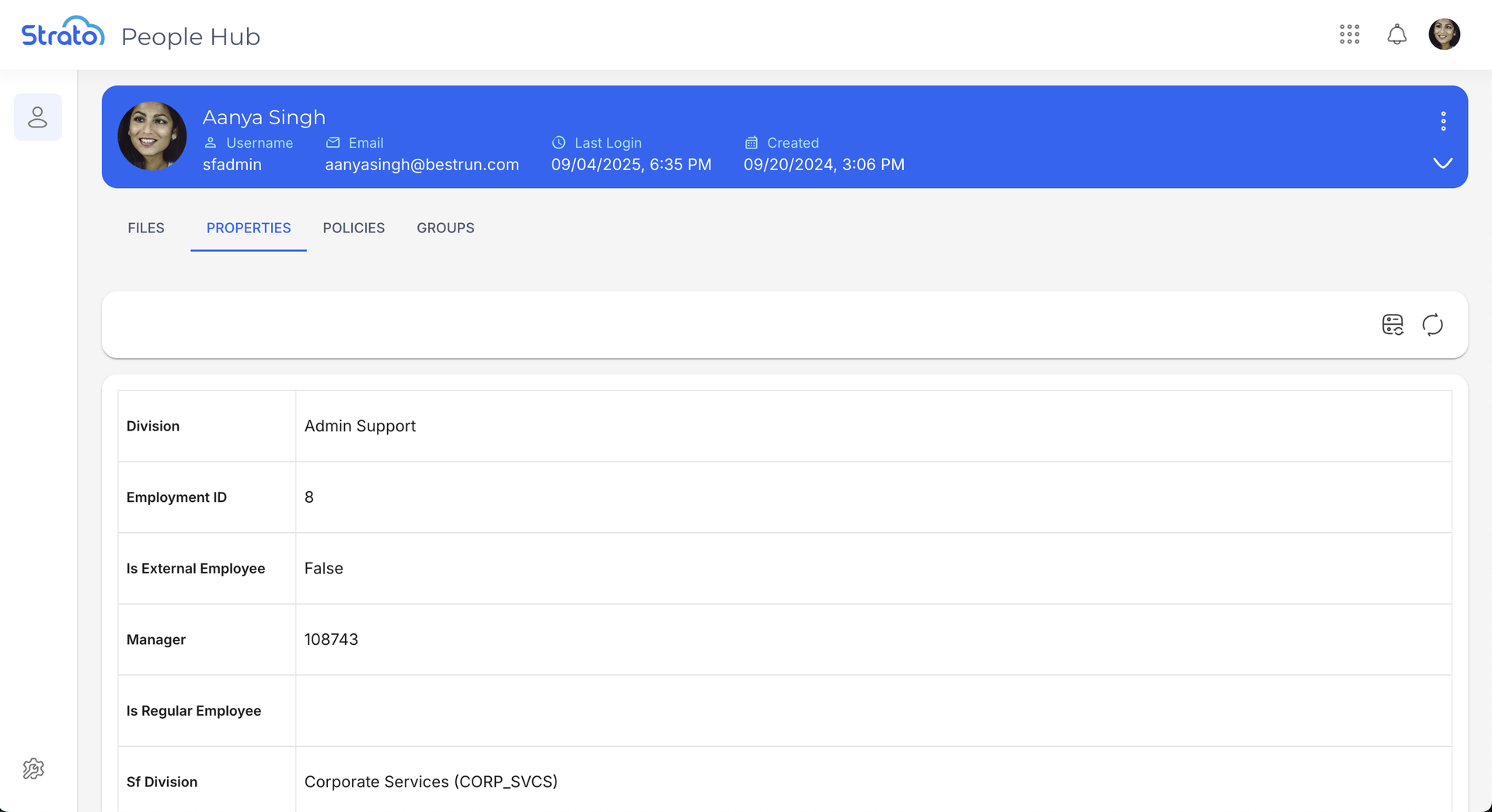
When you open the Properties tab in the User Information page, you will see the list of User Properties of a specific user, and the values of these User Properties.
Actions
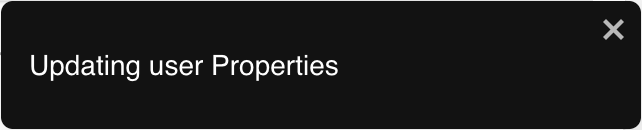
 | The Update button syncs the User Properties with the latest values based on the configured mapping. While the update is in progress, the button is grayed out and cannot be clicked. If you hover over it during the update, a tooltip will appear that says “Update in progress”. A message will also appear confirming that the update is still in progress.
Once the update is done, a message will appear to confirm if the update is successful.  |
 | The Refresh button refreshes the User Property List. |
 | The Rows per page dropdown allows you to choose either to show 10 or 25 User Properties per page. |
 | The Record count shows you the number of User Properties currently being viewed out of the total number of User Properties. |
 | The Navigation controls allow you to jump between pages. You can go to the previous page, next page, or the last page, respectively. |
To edit a User Property, you can double-click on the User Property or click the Edit button that appears when you hover over a User Property.

Depending on the User Property’s type, you will be able to input a specific value, such as a String, Number, Date, or Boolean (True or False) value.

Related articles
- New Design - People Hub
- New Feature - Authorisation Framework
- User Properties
- Configure and Manage User Properties
- Update User Property Values via API