Workflow Monitoring
Workflow Monitoring provides a simple way of viewing all running Workflows in Strato. This makes it easier for users to track Workflow progress, confirm fully executed Workflows, and quickly identify errors that may come up during execution.
Requirements
Make sure that New Feature - Authorization Framework Integration with Configurations is installed in the Upgrade Center.
To access Workflow Monitoring, your user account should have a Policy with the following permissions defined:
- Tool: Configuration
- Type of Object: Cards
- Data Object: Cards > Workflow Monitoring
Access
Workflow Monitoring Card
You can access Workflow Monitoring via the Workflow Monitoring card in the Strato Homepage.

App Menu Bar
You can also access Workflow Monitoring via the Strato App Menu Bar.

Features
Workflow List
When you open the Workflow Monitoring page, you will see the list of executed Workflows. By default, the view is set to Groups and can be switched to a List View.
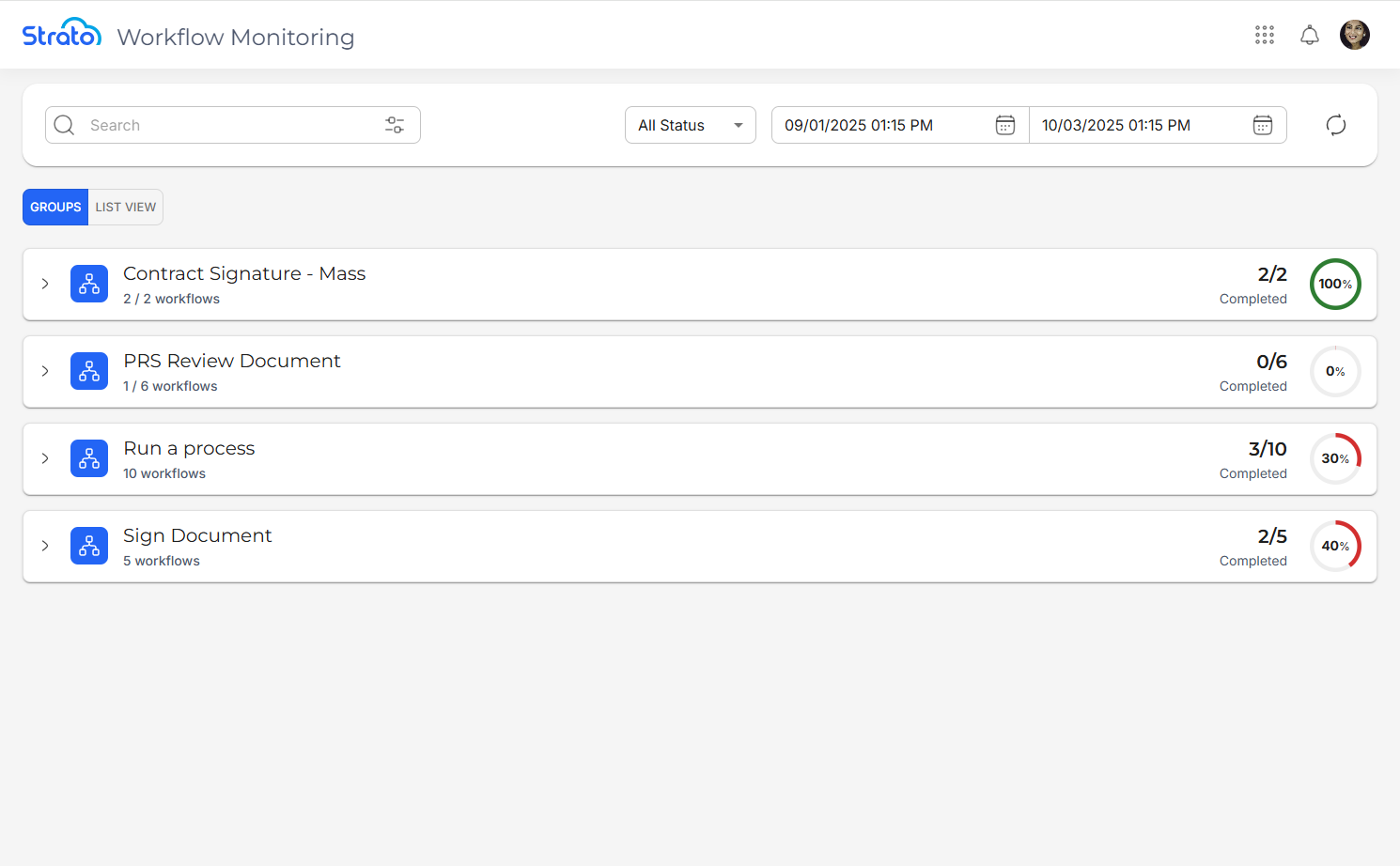
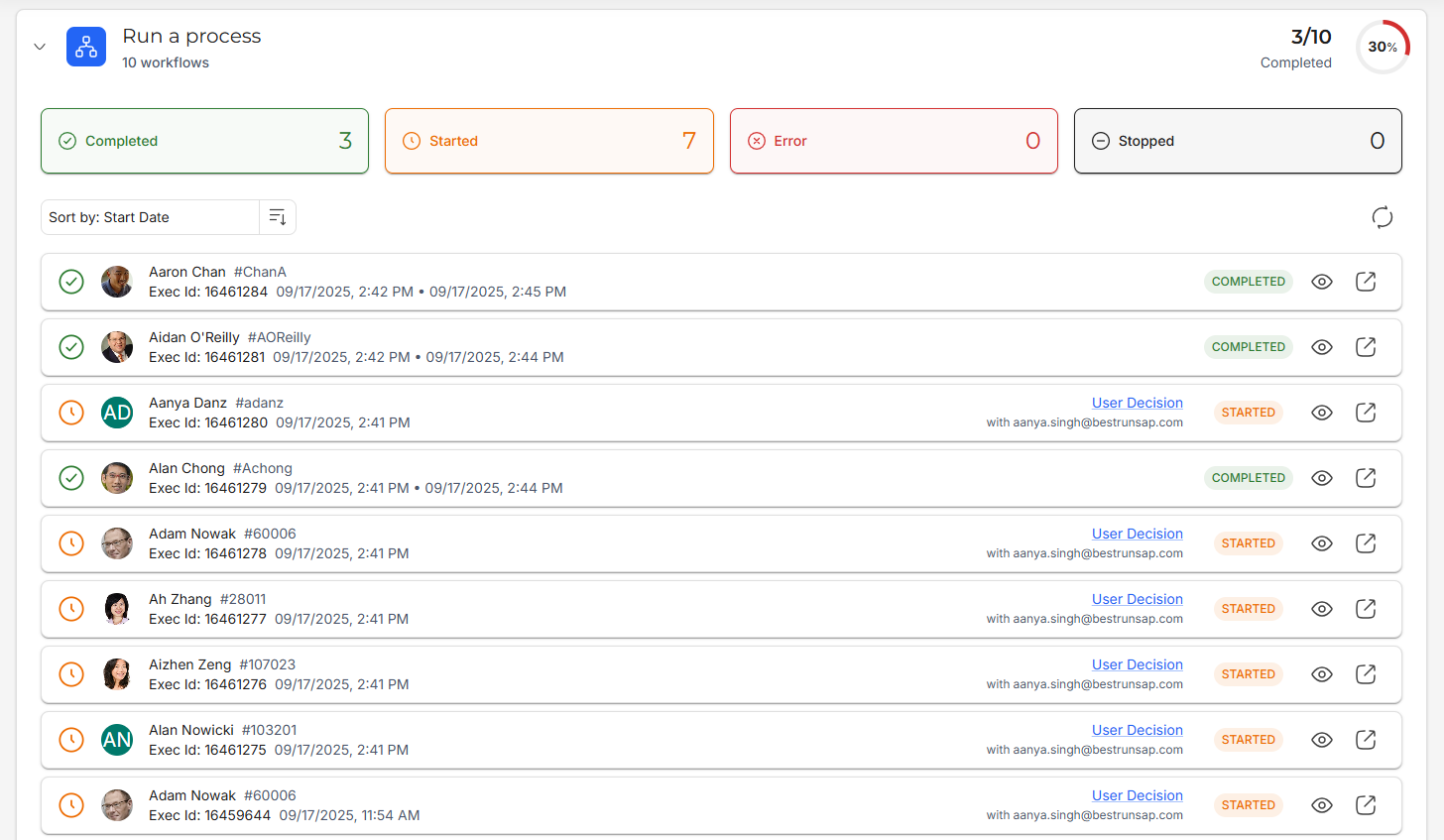
When in Groups view, all executed Workflows are grouped together. Each Workflow Group can be expanded to see all instances of that Workflow being executed.
When in List View, all executed Workflows are displayed in a table format.
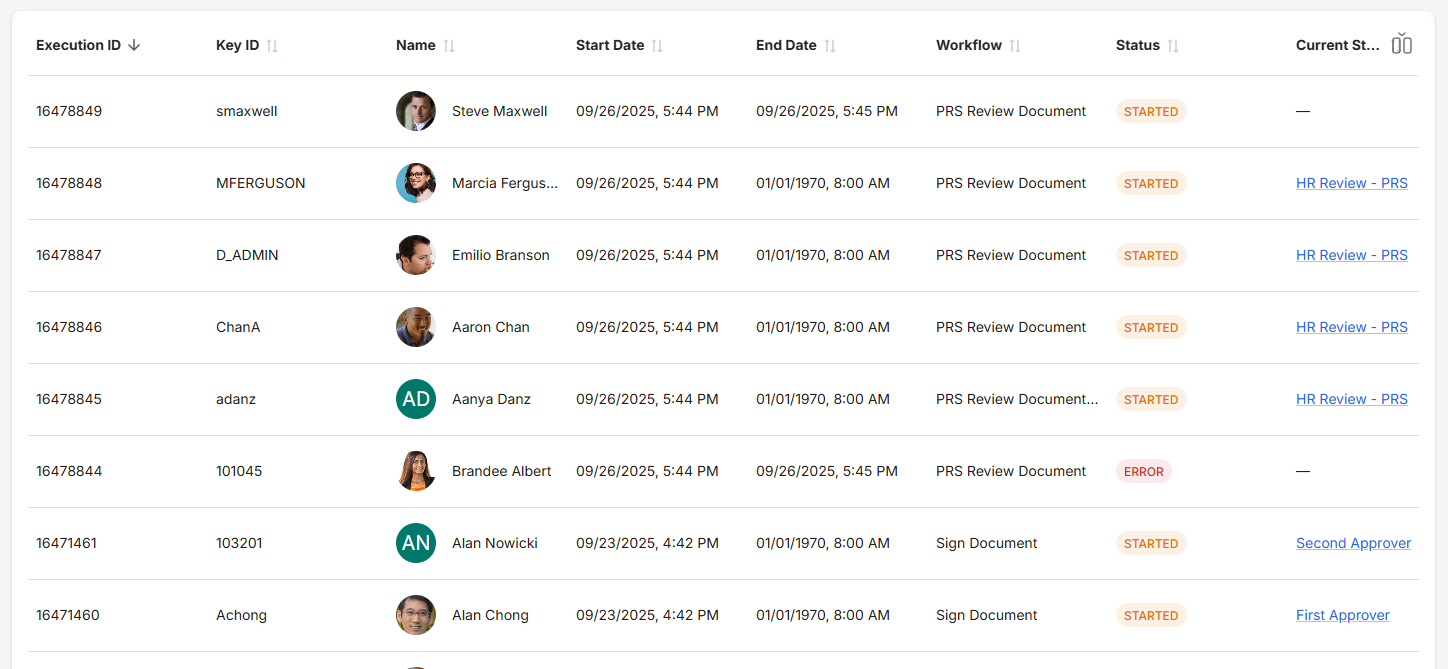
Regardless of view, these information are displayed by default:
- Workflow: The Workflow being executed.
- Execution ID: A unique identifier for the Workflow instance.
- Key ID: The username of the recipient for whom the Workflow is being executed.
- Name: The name of the recipient.
- Start Date: The date and time when the Workflow is started.
- End Date: The date and time when the Workflow is finished. This information is not shown in the Groups view if the Workflow is still ongoing.
- Status: The current status of the Workflow instance.
- Current Step: The active step in the Workflow.
- Current Actor: The user responsible for the current step in the Workflow.
Search Workflows
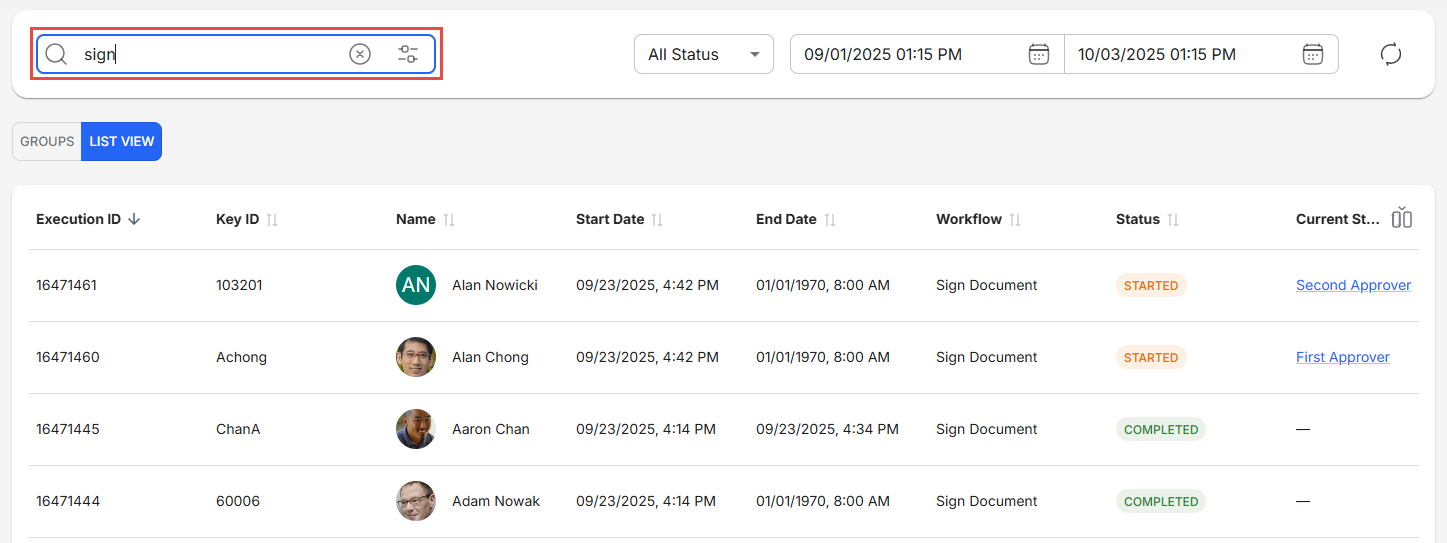
You can search for Workflows by using the search bar. The search query will look for matching entries from the following columns or fields:
- Workflow
- Name
- Key ID
- Current Step
- Current Actor
- Execution ID (Exact matches only)
Filter Workflows
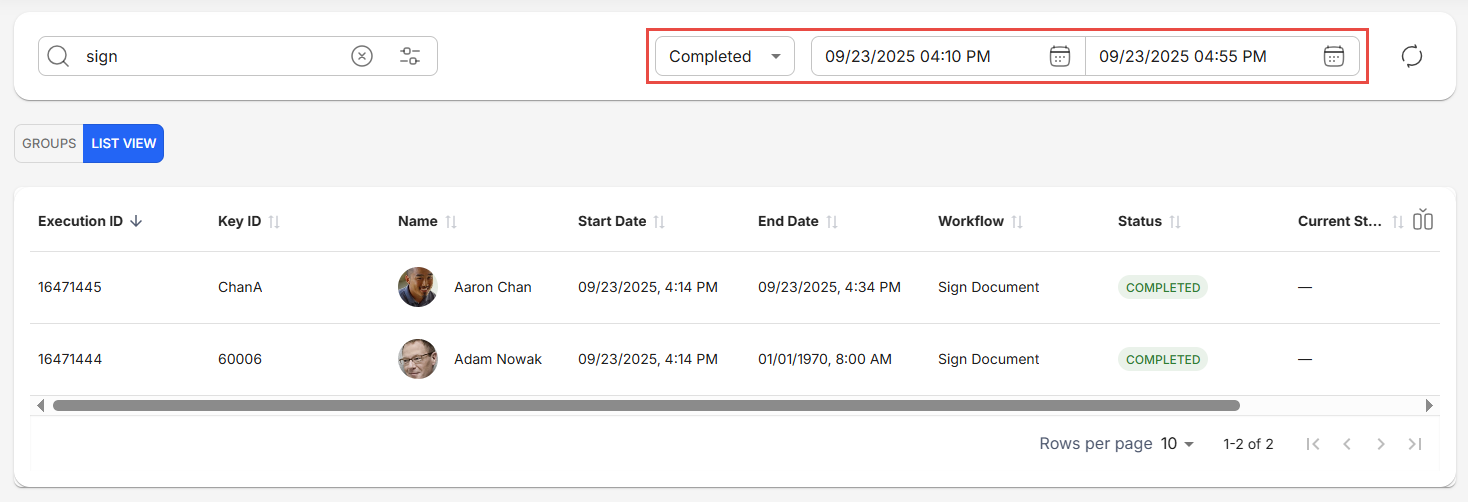
You can filter Workflows according to their status and start date by using the Global Status filter dropdown and date pickers.
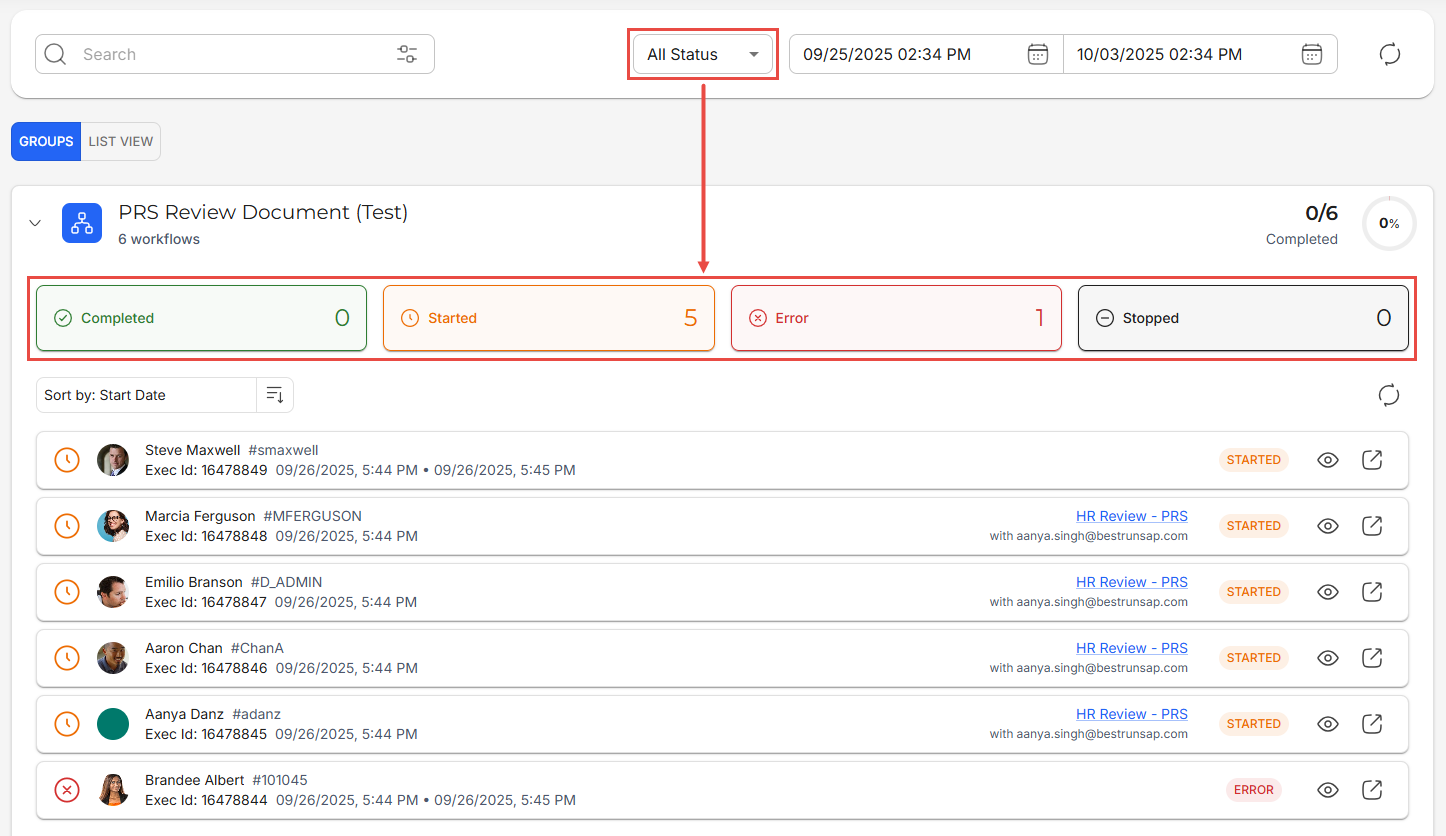
Additionally, in Groups view, you can filter specific Workflow instances per group by clicking on any of the buttons above the list of Workflow instances. This only works if the Global Status filter is set to All Status.
View Workflow Timeline
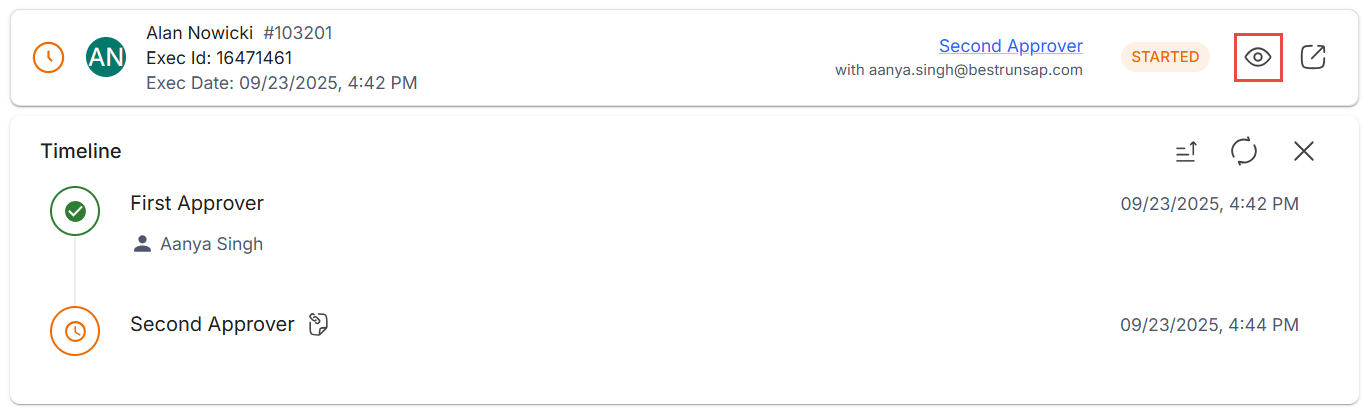
You can view the timeline of each Workflow instance to see the steps that occurred during its execution by clicking the View Timeline button.