Sign a Document via Strato Sign [V1]
Strato Workflow has the internal signature capability called Strato Sign for HR Documents that need signing (aside from signing via 3rd Party). This is enabled within the User Decision step of a workflow template, and it is in this step where signing or approval/rejection of a document takes place such as signing a Job Offer letter as part of the Job Hiring Workflow Process.
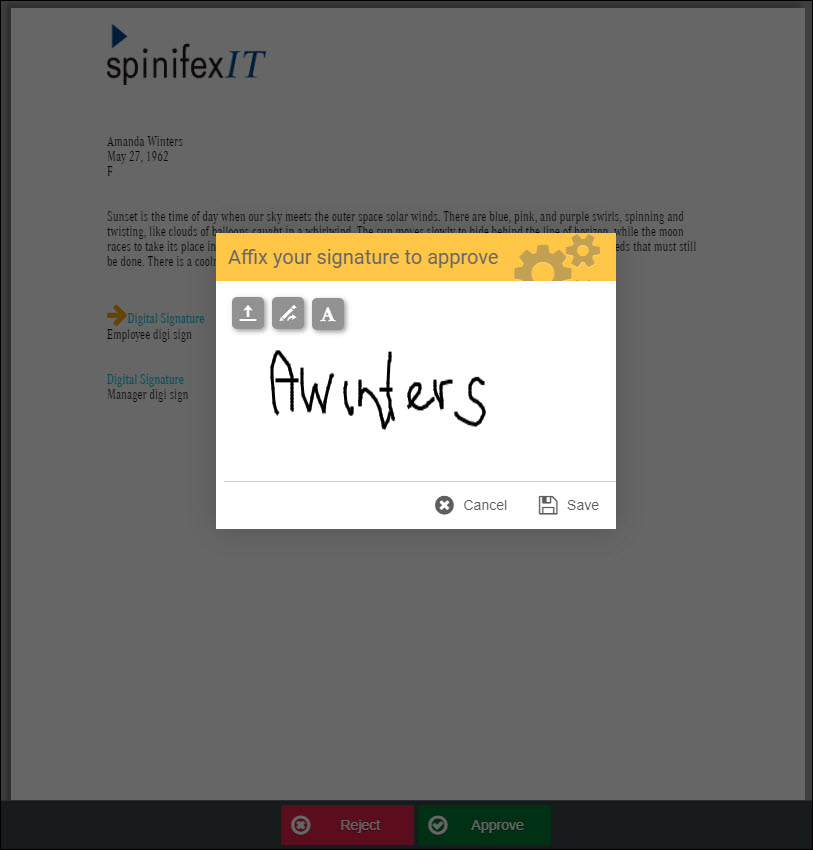
When a document is signed by the user in Strato Workflow, the image of the signature is added to the document as shown in the sample screen below.
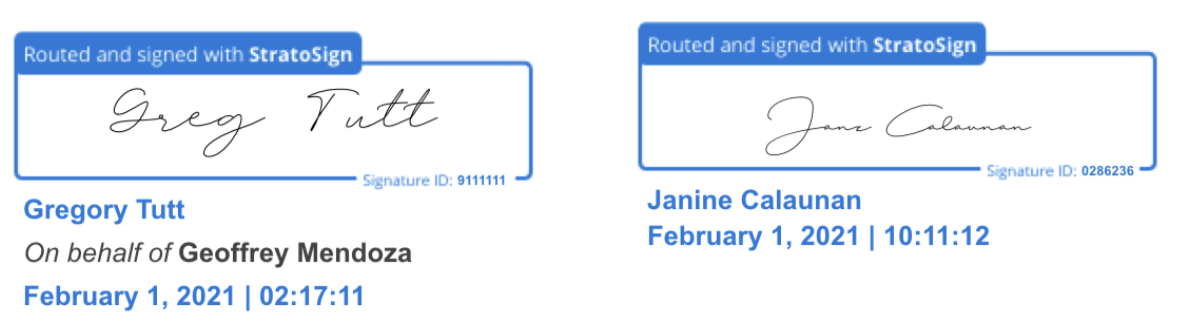
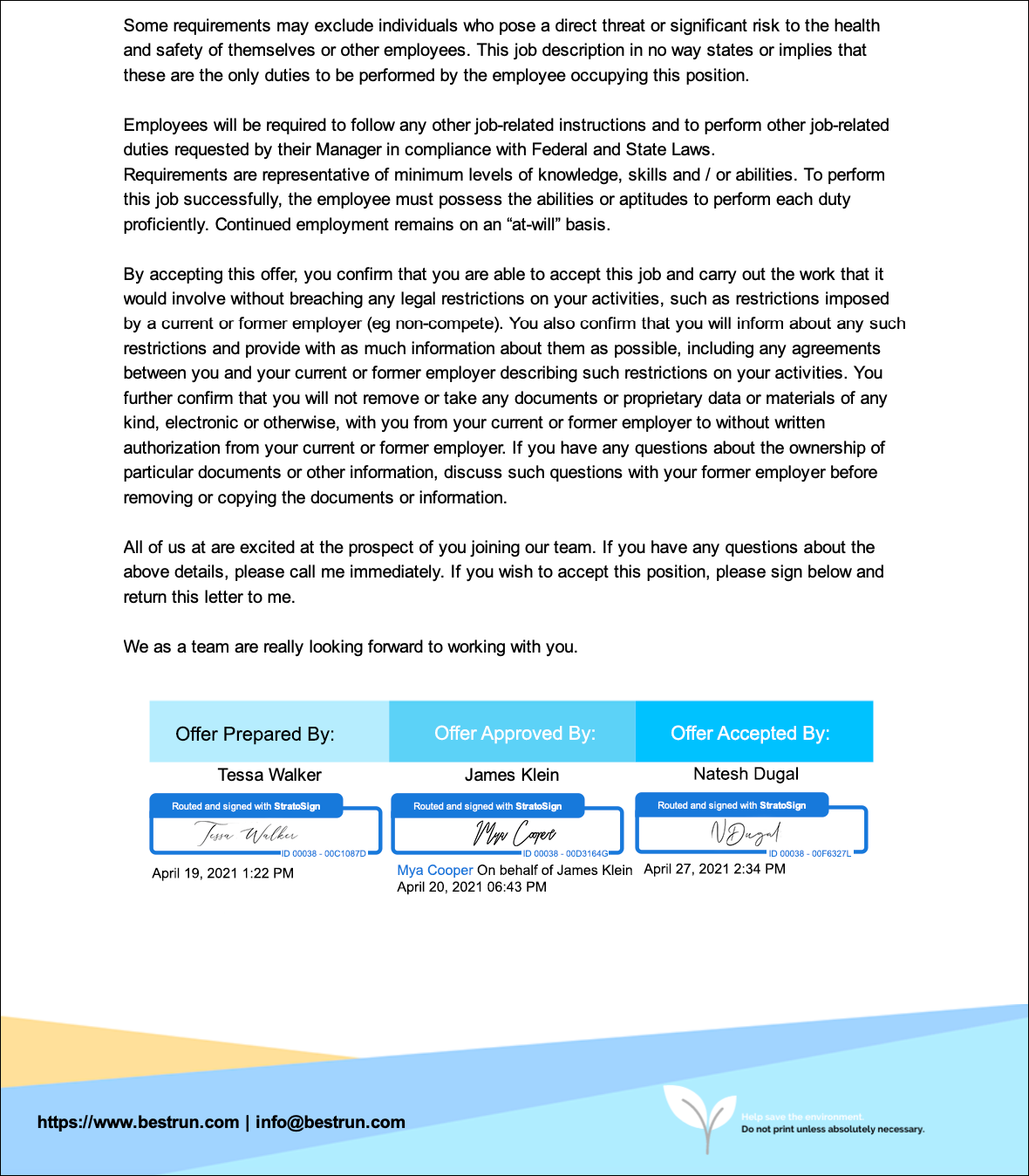
Moreover, another capability that can be enabled in Strato Workflow for a User Decision step, is the Sign via Strato Sign feature (starting version 1.15.100) which enables the system to affix the image of the signature, enclosed in a signature box, with the Signature ID that could trace some identification information about the signature (i.e. who signed the document, Timestamp of the signature, etc).
Also, when a user is signing “On Behalf Of” someone, the name of the signer will be shown indicating that it was signed on behalf of the original recipient.
The image below shows an example of how this looks in a document when enabled.
Configuration
To use the Strato Sign feature in your workflow, there should be a User Decision step. And within this step, the following should be enabled from the Step Properties:
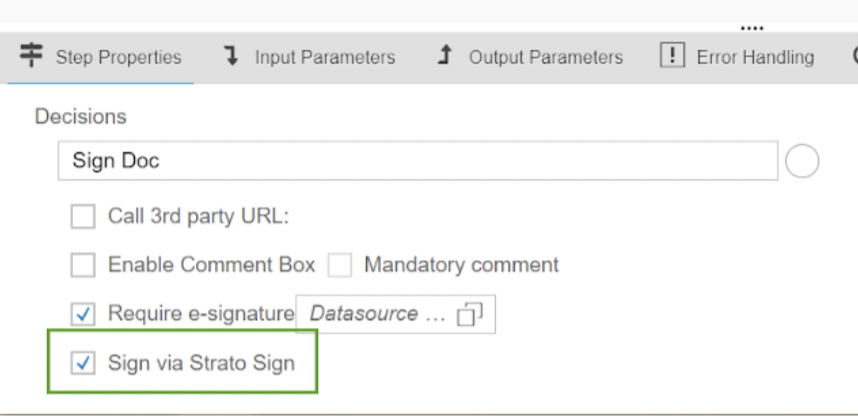
- Sign via Strato Sign - this enables the signature box that will enclose the signature, and will display the user’s Signature ID. Also, when a user is signing “On Behalf Of” someone, the name of the signer will be shown indicating that it was signed on behalf of the original recipient.
For saving the signature image in the database and reusing the saved image, this should be enabled from the User Decision step's Input Parameters:
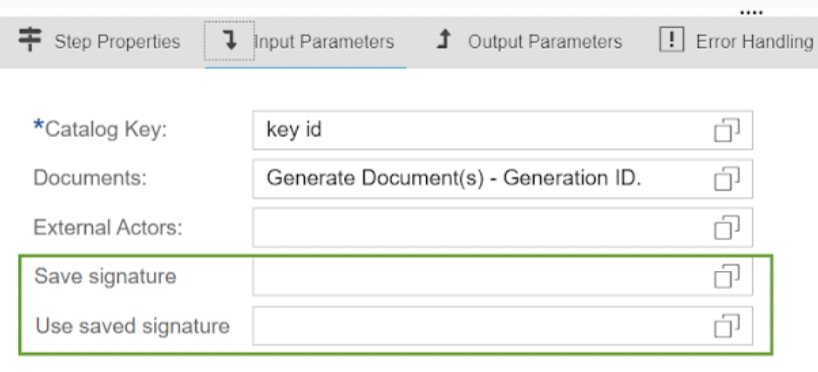
- Save Signature - when enabled, this gives an option to the signatory of the document to save the signature entered in the signature box. The Signature ID is captured by the system when saved.
- Use Saved signature - if there is a signature already saved from previous workflow, then every time there is a document to sign via the workflow moving forward, the user can just easily choose to use the previously saved signature instead of entering a new signature again. This uses the captured Signature ID from the previously saved signature.
Sample of how the signature boxes look like at a bottom of a document, using an E-signature field, enabled for Strato Sign:
Related articles
- Creating and Configuring Digital Signature Fields
- Creating/ Editing Documents with Internal Workflow (E-signature)
- User Decision step
- Strato Automate - Overview