Use Raw and Multipart Body Builder in Call External Services Step [V1]
The Call External Services has a Body Builder function that allows you to create an API body to call an external web service client.
This feature enables:
- Integrating 3rd-party applications to POST or GET data (ex: creating or updating tickets from applications such as JIRA Atlassian, and Microsoft Dynamics CRM)
- Attaching Strato Documents via API (read: Attach Documents to 3rd-Party Applications via API)
The Body Builder function of the Call External Services workflow step has 2 editing options:
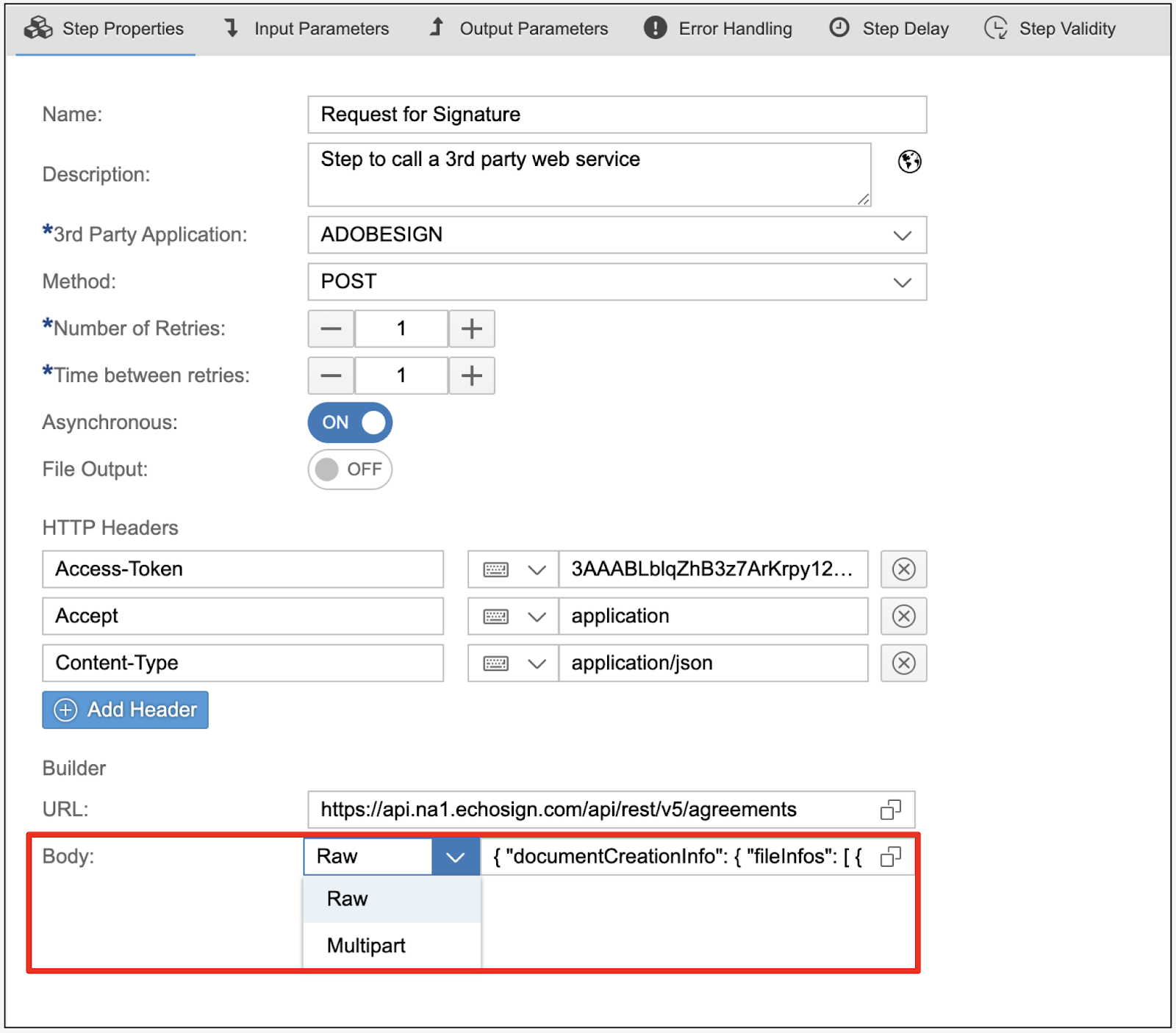
Raw Builder
Selecting the Raw Builder option will direct you to this builder screen, as shown below. Click the Add Parameter button to start adding the parameters of the API body of the 3rd-party application to be called.
There are 4 available options for building the API body via Raw Builder:
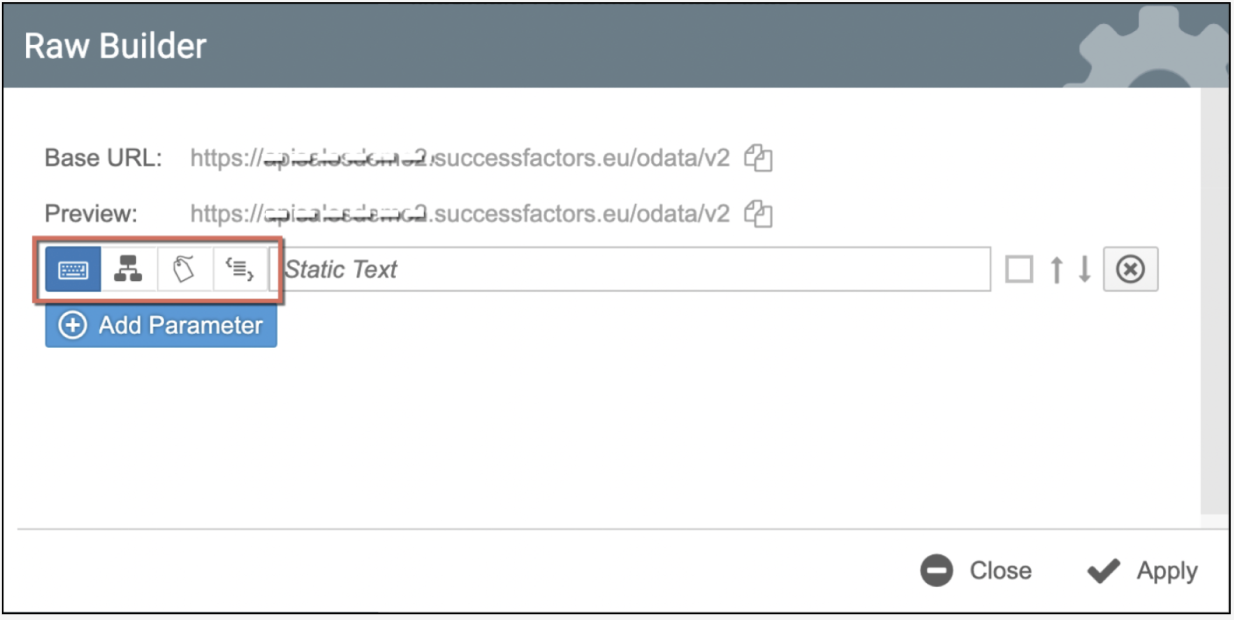
- Static Text or String
- External Actors from Input Parameter - The selection here will be the dynamically mapped data from another workflow steps or containers. (This will be automatically converted to a base64-encoded string.)
- Datasource Field - To add SuccessFactors fields from the catalog selected for the template or from System fields.
- Special Characters - To allow inserting special characters in the API body.
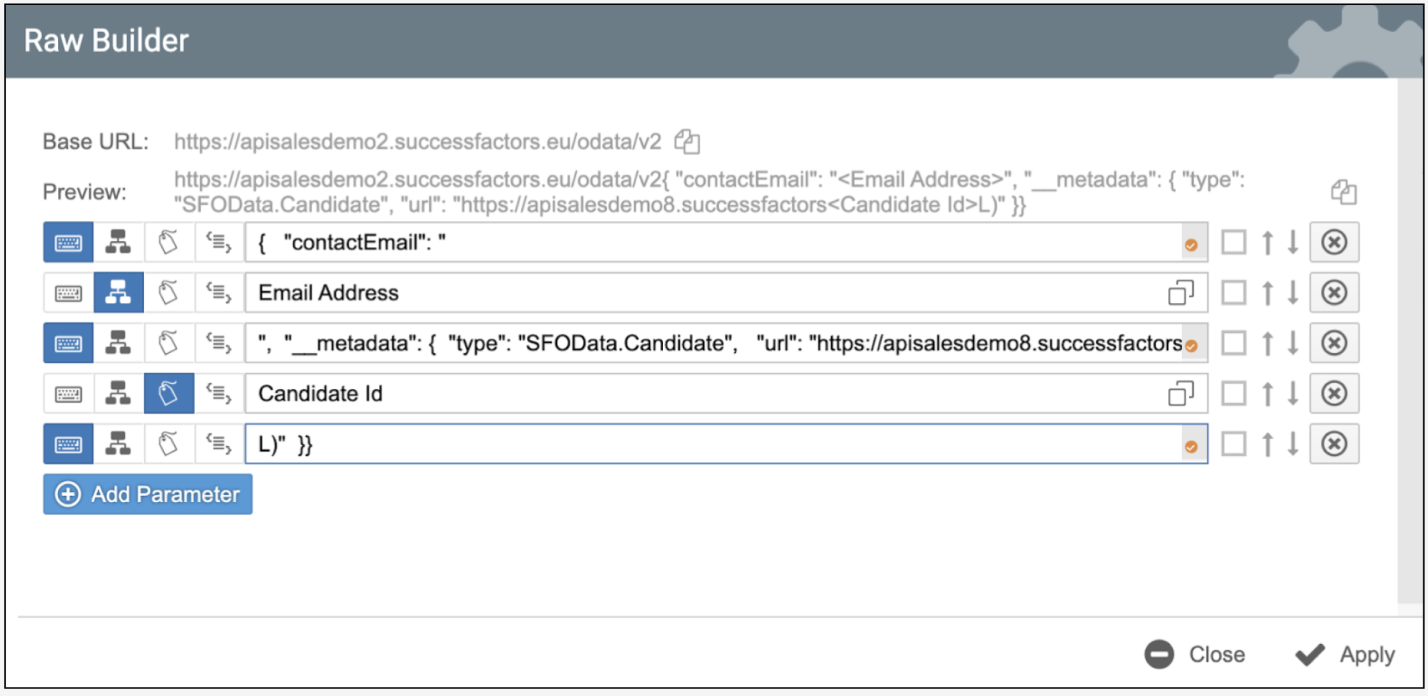
The screen below shows an example of how the API was formed using the Raw Builder. The sample content of the body is the API call for updating the email address of the candidate in SuccessFactors. (See the sample use case of this here: Sample Use Case - Call External Services)
The 1st, 3rd, and 5th lines used the Static Text option in the example below. The 2nd line used the External Actors from Input Parameter selecting the Container for the email address data, while the 4th line used the Datasource Field option mapping the SuccessFactors field for the Candidate Id.
Multipart Builder
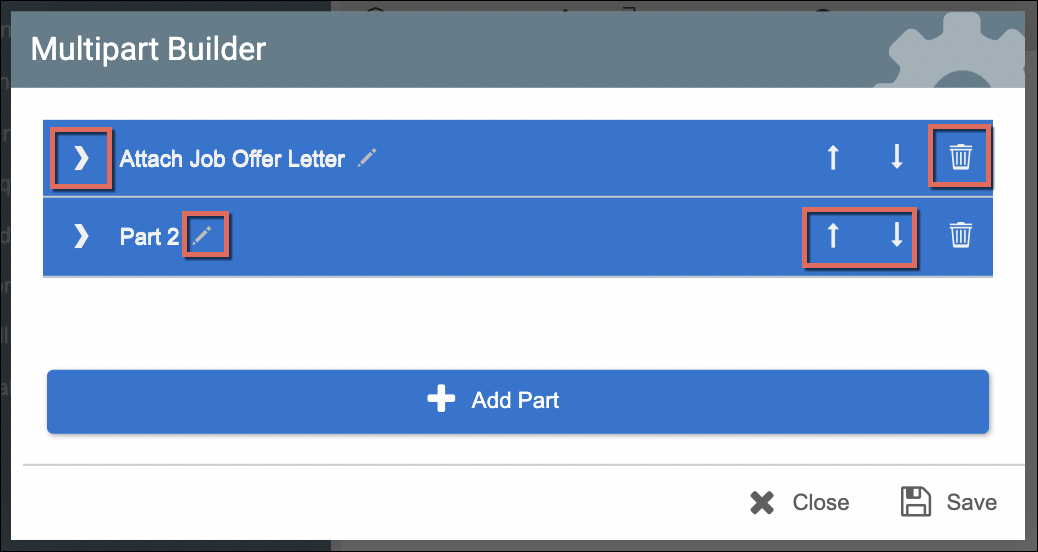
This option allows you to build an API body that can cater to Multipart upload. Selecting this builder option prompts the Multipart Builder screen as shown here:
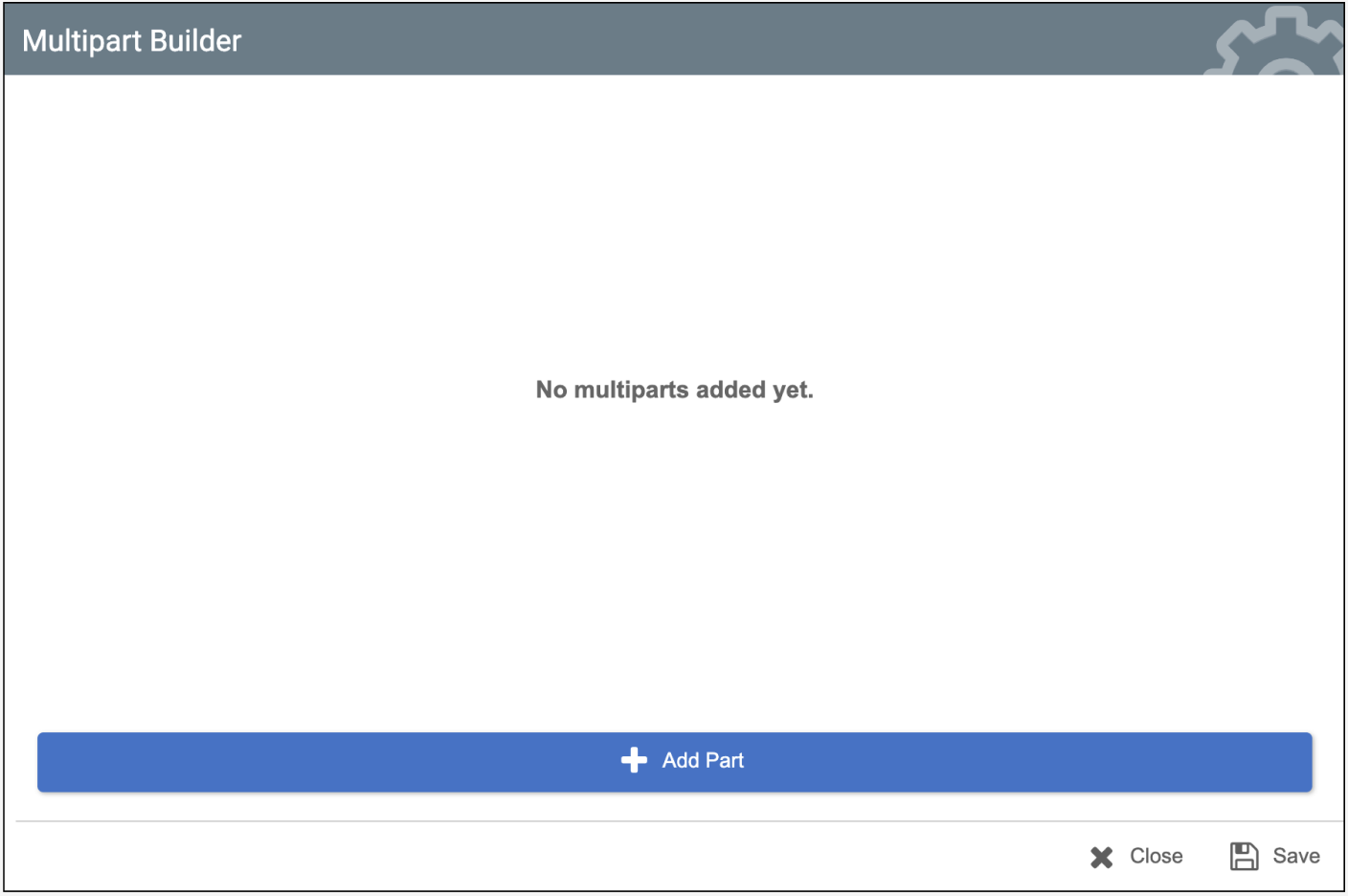
Start adding parts by clicking the Add Part button. Depending on your API body to define, you can add multiple parts to the body. From there, you then modify the following:
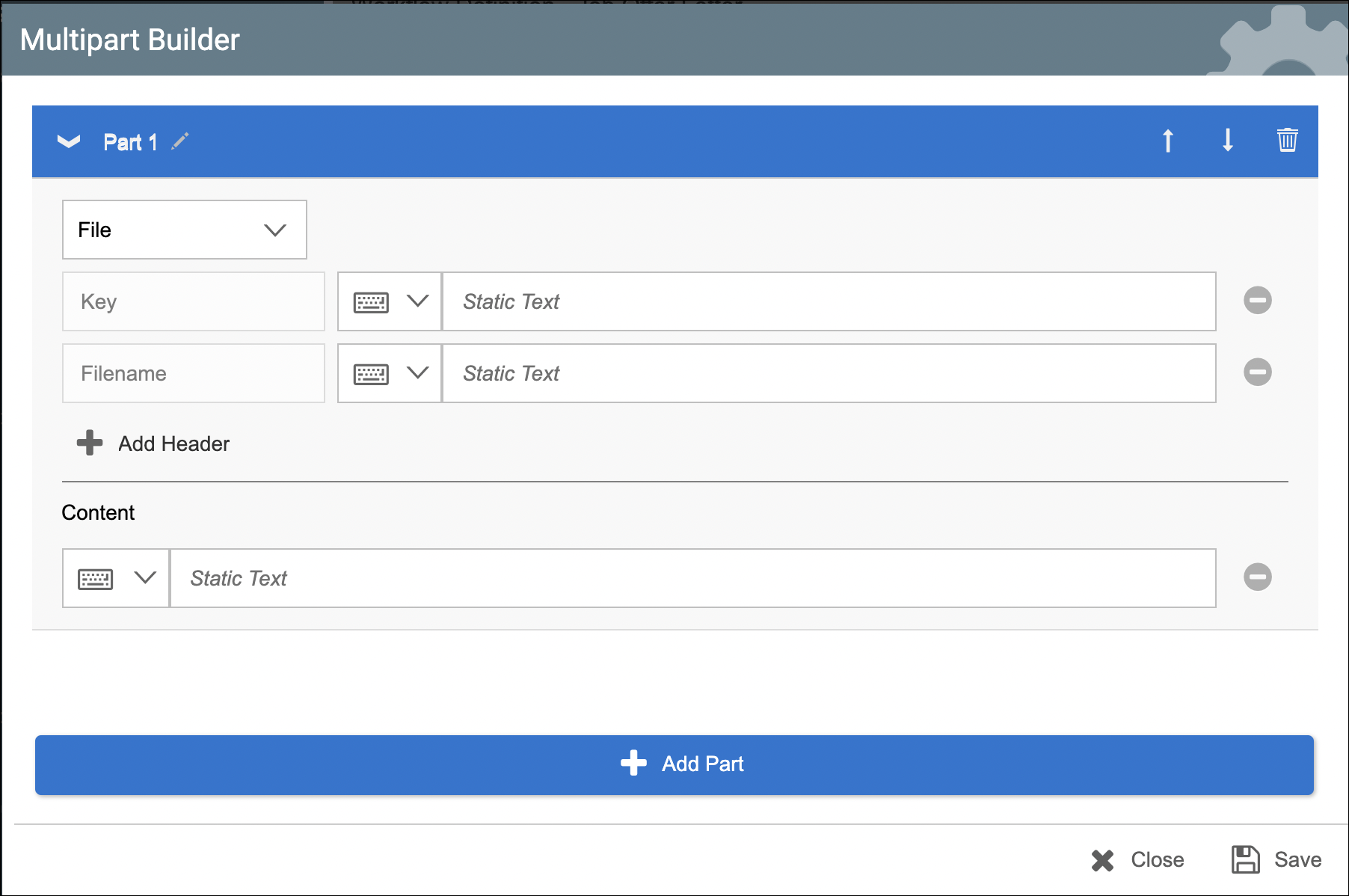
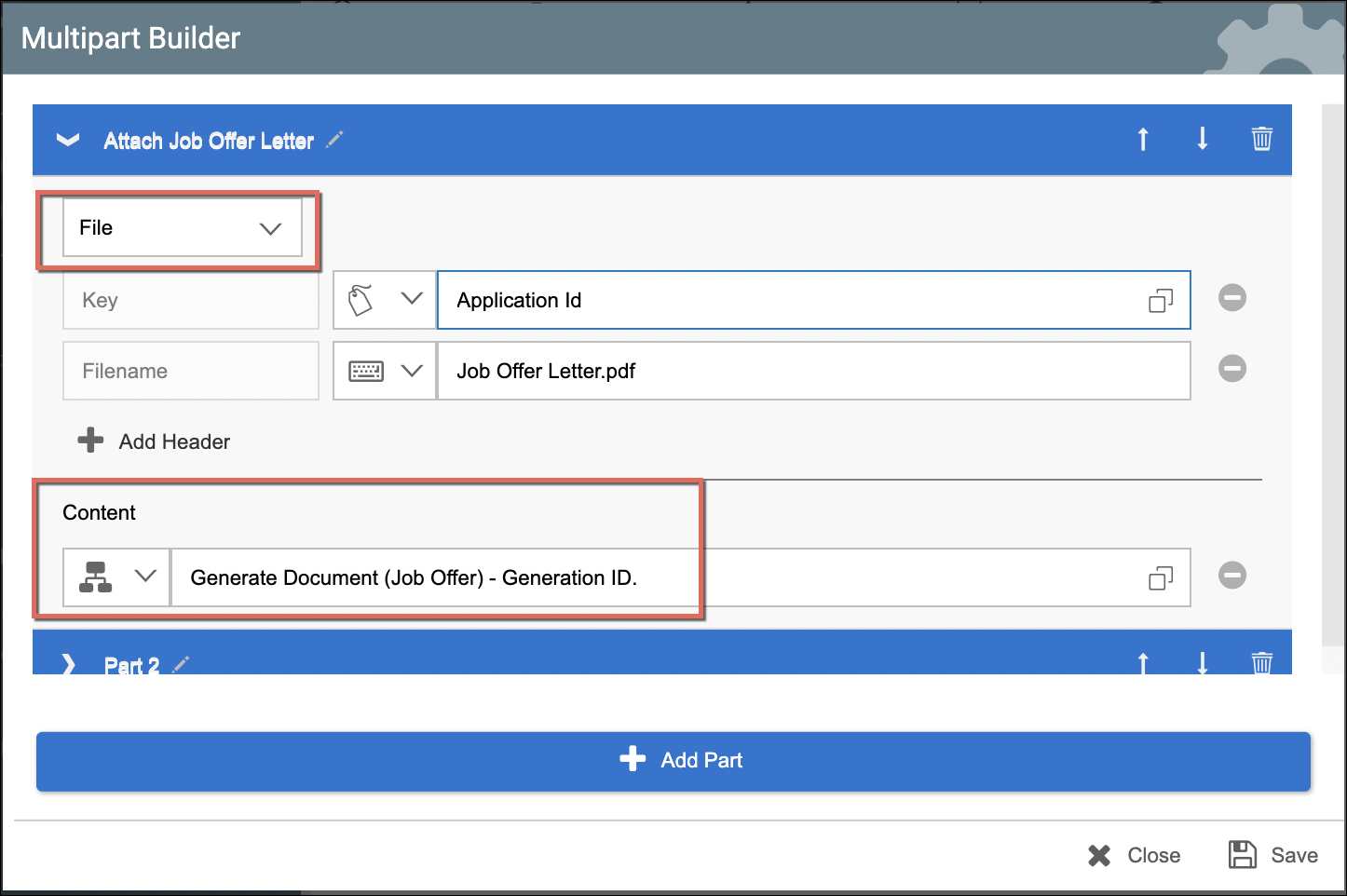
- File - select this option if creating an API call for attaching a file. The headers Key and Filename are added by default for this option and cannot be deleted.
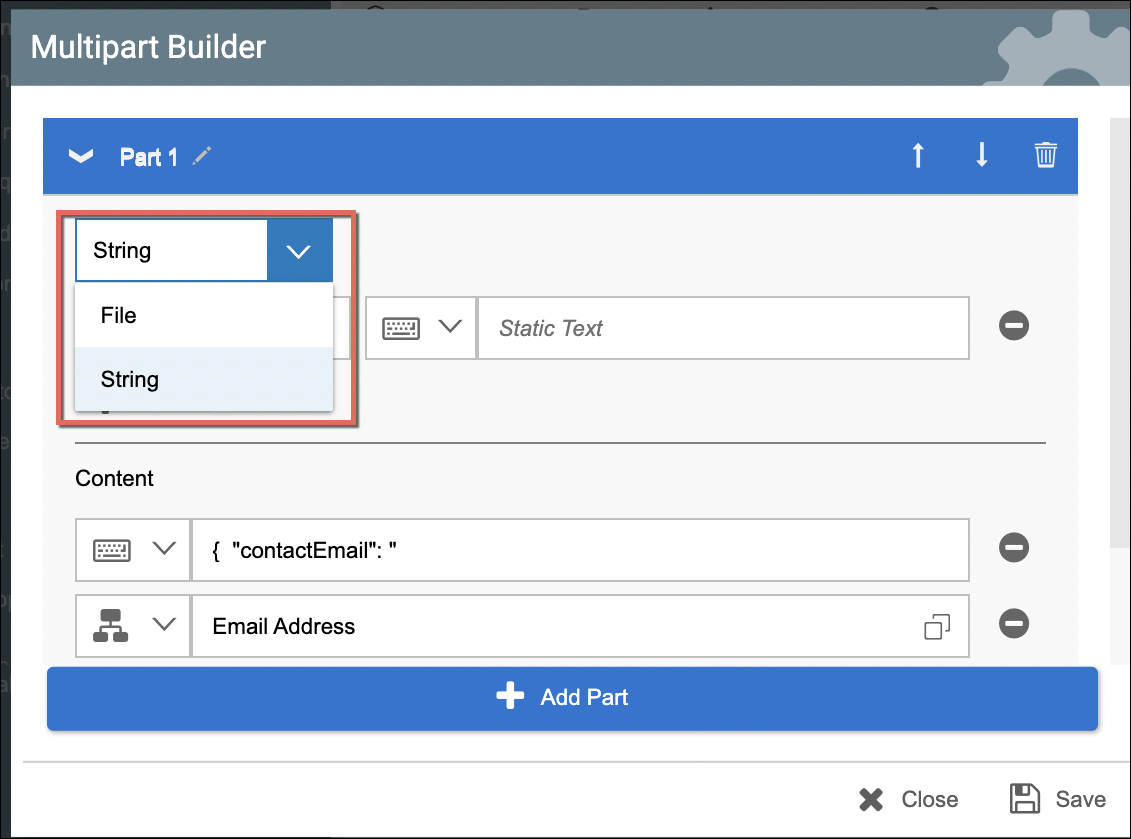
- String - Select this option if creating a part for the metadata and other information which are all configured under the Content section of the multipart screen.
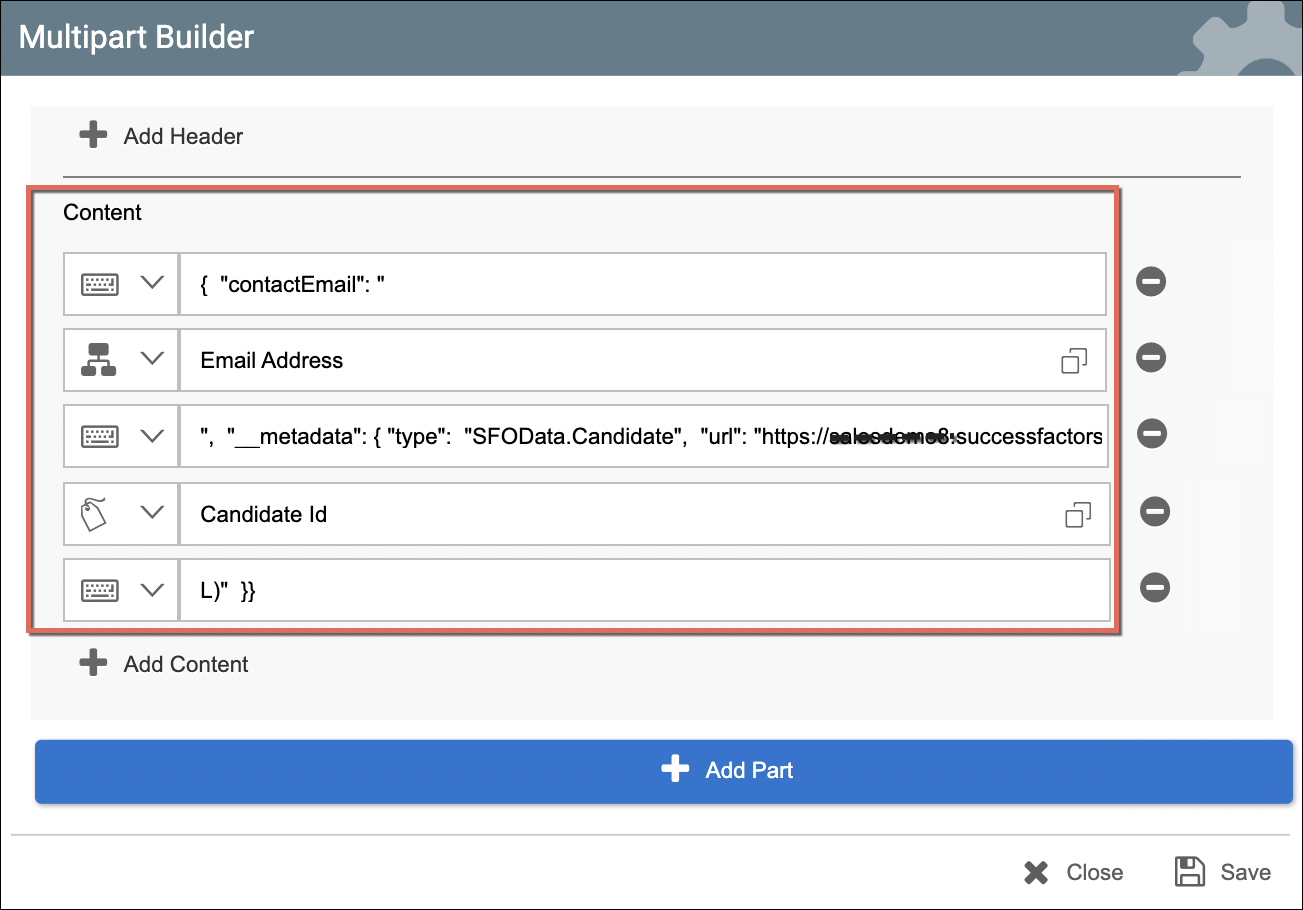
- Add Header - If needed, you may add more Header key-value pairs by clicking on the Add Header button.
- Add Content - To add and build more content.
Supply and map the values for the Headers and Content of the API body based on the following: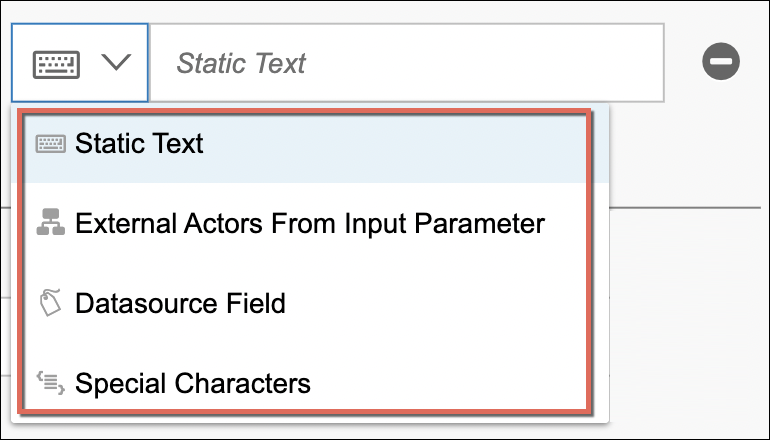
- Static Text or String
- External Actors from Input Parameter - The selection here will be the dynamically mapped data from other workflow steps or containers. (This will be automatically converted to a base64-encoded string.)
- Datasource Field - To add SuccessFactors fields from the catalog selected for the template or from System fields.
- Special Characters - To allow inserting special characters in the API body.
Other options in the Multipart Builder:
- Expand/Collapse - The parts of the Multipart Builder are collapsible. Just click the arrow icon on the left to expand the collapsed parts.
- Rename - Click on the Pencil icon to rename a part. This is to easily identify the parts especially when they are collapsed and to be reordered. Click on the Save button to save the new name.

- Delete - You can delete parts via the Delete option.
- Reorder - Reorder the parts via the Up/Down arrows.