Attach Documents to Third-Party Applications via API [V1]
Overview
Using the Call External Services step's Body Builder function, documents from Strato Workflow can be uploaded in a 3rd-party application via API. The documents (PDF) that can be uploaded include the following:
- Documents automatically generated within Strato Workflow (via Generate Document step)
- Documents uploaded by the user in the workflow (via Request File step)
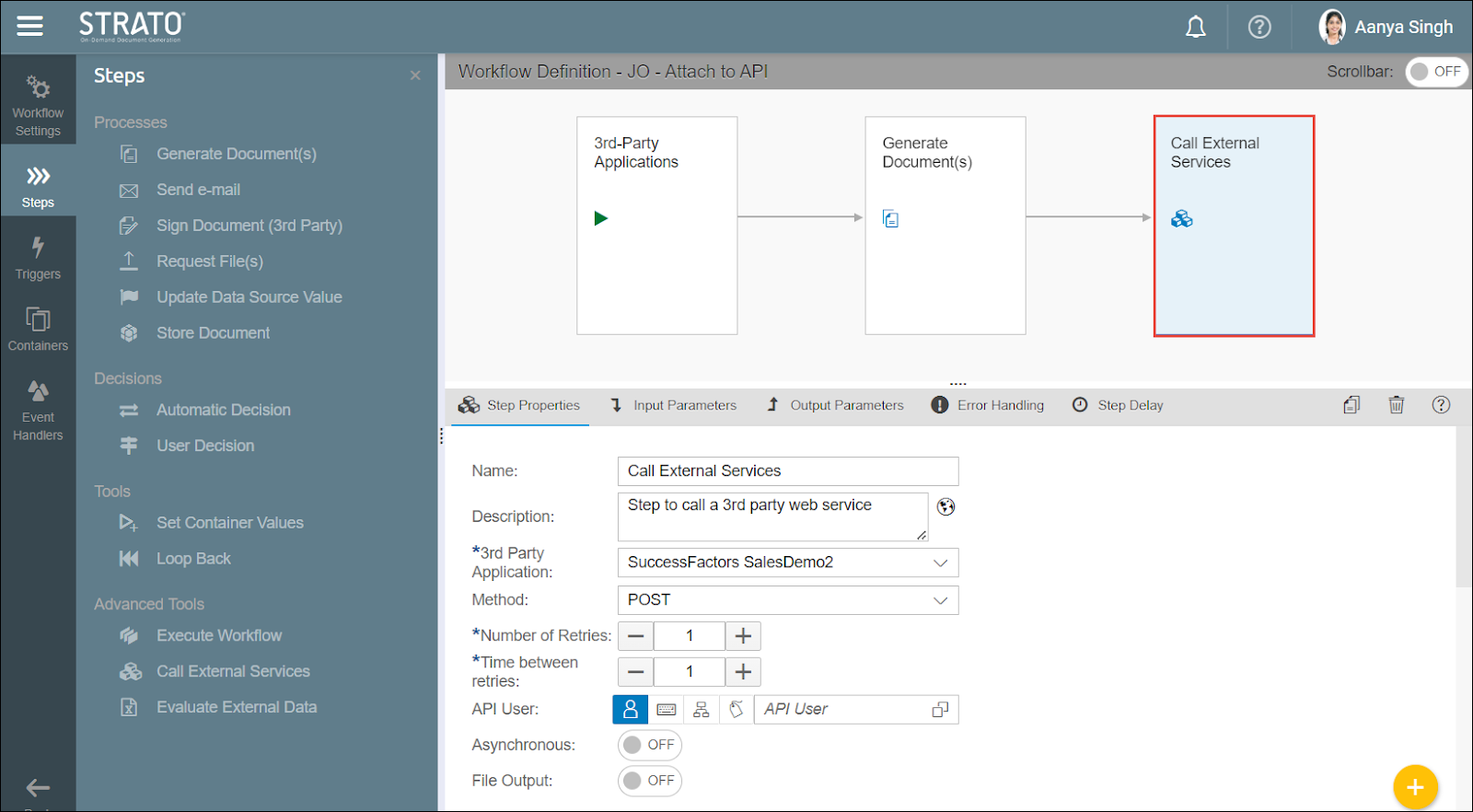
To know more about the properties and functions of this workflow step, read: Call External Services
Sample Use Case
Below are some of the possible use cases where Strato documents can be uploaded to 3rd-party applications via API using the Call External Services (web service) workflow step:
- Attaching a document to the Recruiting Module of SuccessFactors via API
- Automatically attach a generated Strato document in a ticketing application (ex: JIRA or MS Dynamics 3rd-party applications)
- Storing of Strato Documents to external Document Management System
In this basic Job Offer Workflow template below, there are only 3 workflow steps involved including the Call External Services workflow step (last step). Basically, the steps to be executed following this template will be the following:
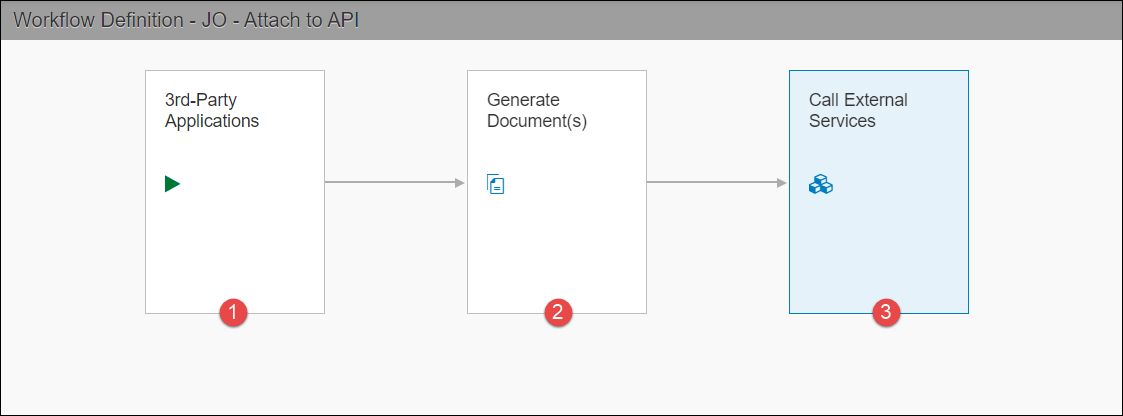
- The Trigger component that will call the Job Offer Letter workflow to execute. Depending on its configuration, the trigger can be a SuccessFactors workflow or a 3rd-party application. (More details about Triggers here: Workflow Triggers)
- Once triggered, the Job Offer Letter will be generated in the Generate Document(s) step.
- After generating the document, the last step is for the workflow to call the web service client via API and upload the generated document to the 3rd-party application. For example, uploading a Strato document to the Recruiting Module of SuccessFactors via API. (Read the overview of this workflow step here: Call External Services)
Workflow Step Configuration
The sample configuration below for the Call External Services starts from step 4 onwards. This example will use the Raw Builder option:
- First, make sure that the web service client to be used is configured in your Strato Admin tool.
- Start building your workflow template according to your requirements. Define the parameters needed, the trigger of the workflow, and all the steps required in your workflow. (Read: Workflow Template Editor (Create Workflow))
- Add a Call External Services step in your workflow to store a Strato document to the 3rd-party application via API. Setup the Step Properties and the Input Parameters required. All the settings and functions here are described in this article: Call External Services - Step Properties
- At the bottom of the Call External Services' Step Properties screen, form the API body via the Body Builder function.
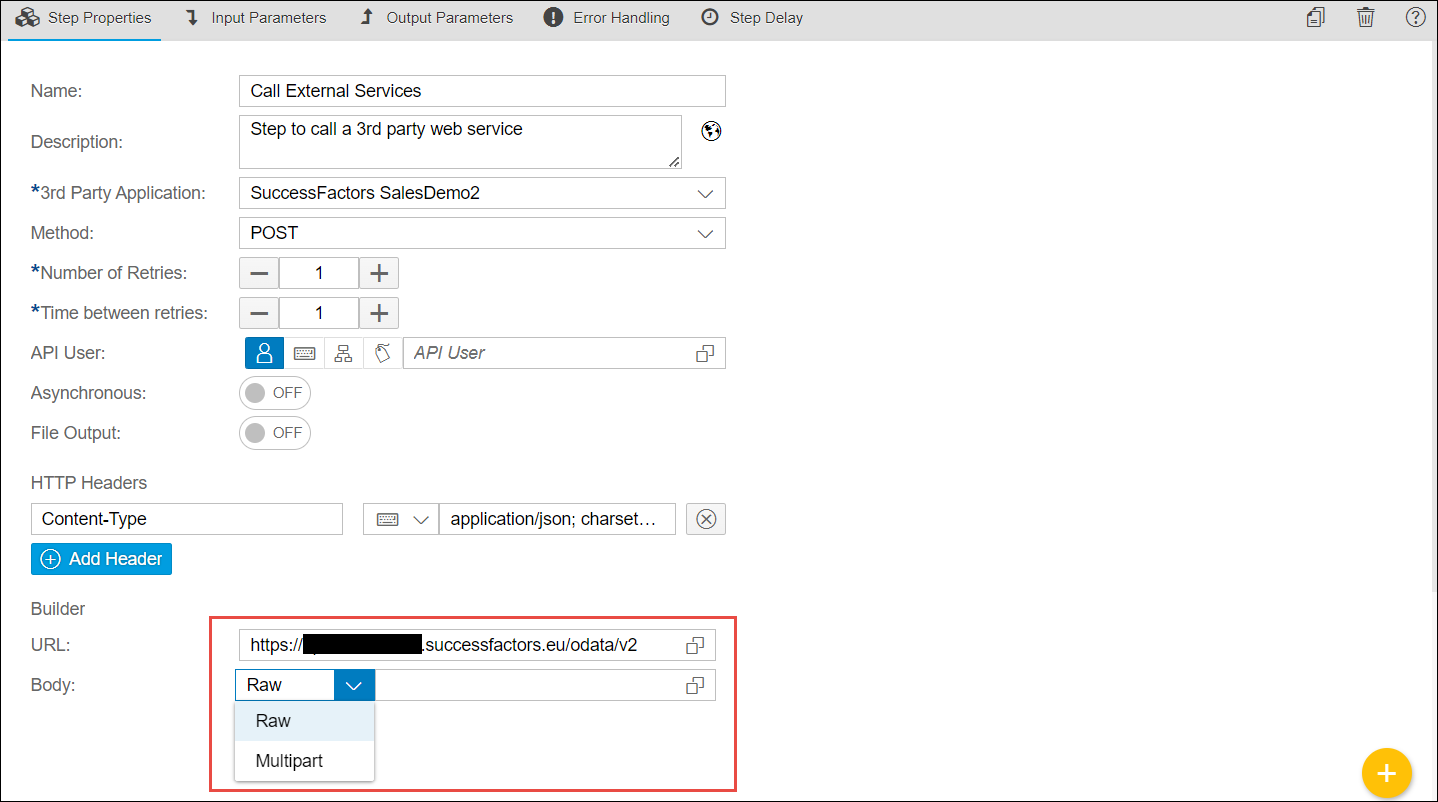
The Body Builder has 2 editing options:- Raw Builder (default option)
- Multipart Builder
- For this example, use the default Raw Body Builder option. This will prompt the Raw Body Builder screen. (You can also use the Multipart Builder option for attaching files to the 3rd-party application. Read about it from this article: Multipart Builder Option)
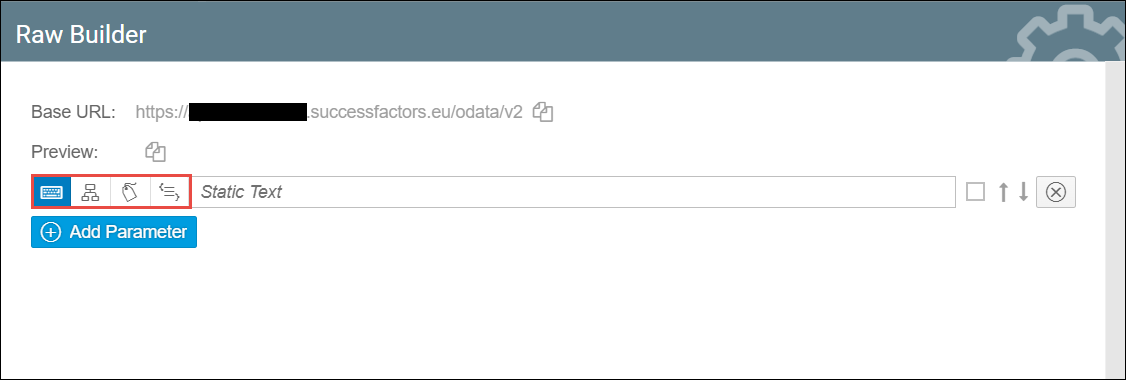
- Start building the body by clicking Add Parameter. There are 4 options to use:
- Static Text or String
- External Actors from Input Parameter - The selection here will be the dynamically mapped data from other workflow steps or containers. (This will be automatically converted to a base64-encoded string.)
- Data Source Field - To add a SuccessFactors field as a parameter (ex: Candidate ID for Application)
- Special Characters - To allow inserting special characters in the API body.As a sample reference, the screen below shows the following parameters added in the API body builder:
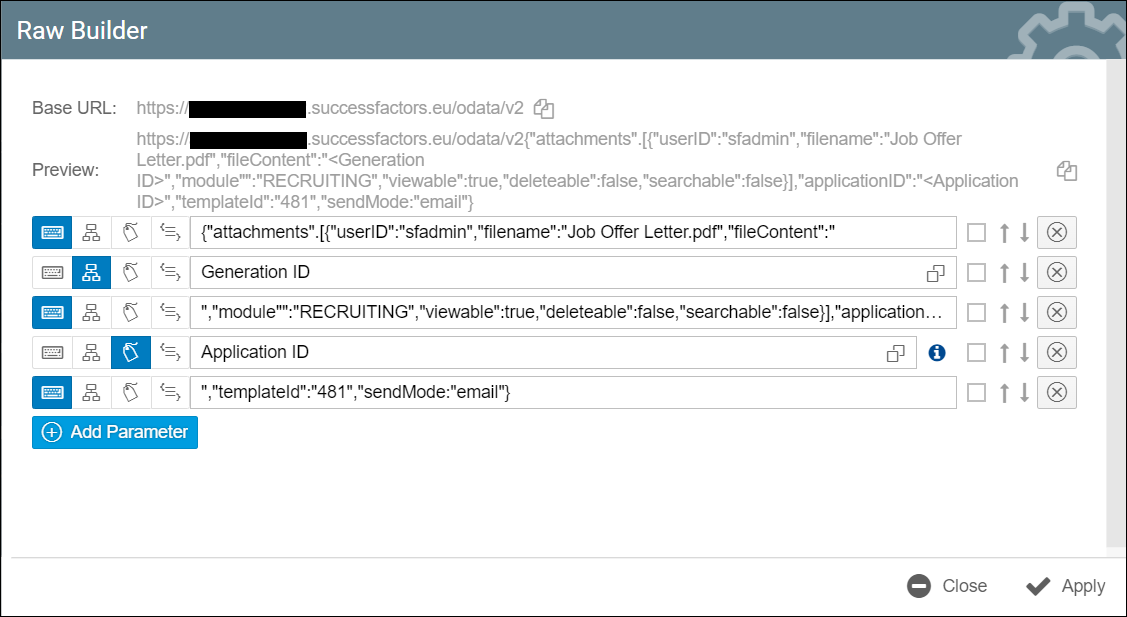
- Static Texts: (1st line) To define the attachment's file name; (3rd line) To define which module of SuccessFactors the document will be uploaded; (5th line) To define the template ID to use.
- External Actors From Input Parameter: (2nd line) It is here where the document generated from one of the steps of the workflow is mapped (ex: a document coming from a Generate Document step of the workflow)
- Data Source Field: (4th line) To map a SuccessFactors field such as the Application ID
- When done, Close the Body Builder function and Save your workflow.