Strato Sign
Starting with version 1.11, Strato Sign enables you to sign and route documents directly within your workflows without the need for external third-party integration tools. This functionality offers a seamless, internal solution for managing document approvals and signatures.
This article provides an overview of Strato Sign use cases and links to detailed configuration guides.
Common Use Cases
Strato Sign is designed to cover various documents that require routing and signing. Common examples of workflows you can implement include:
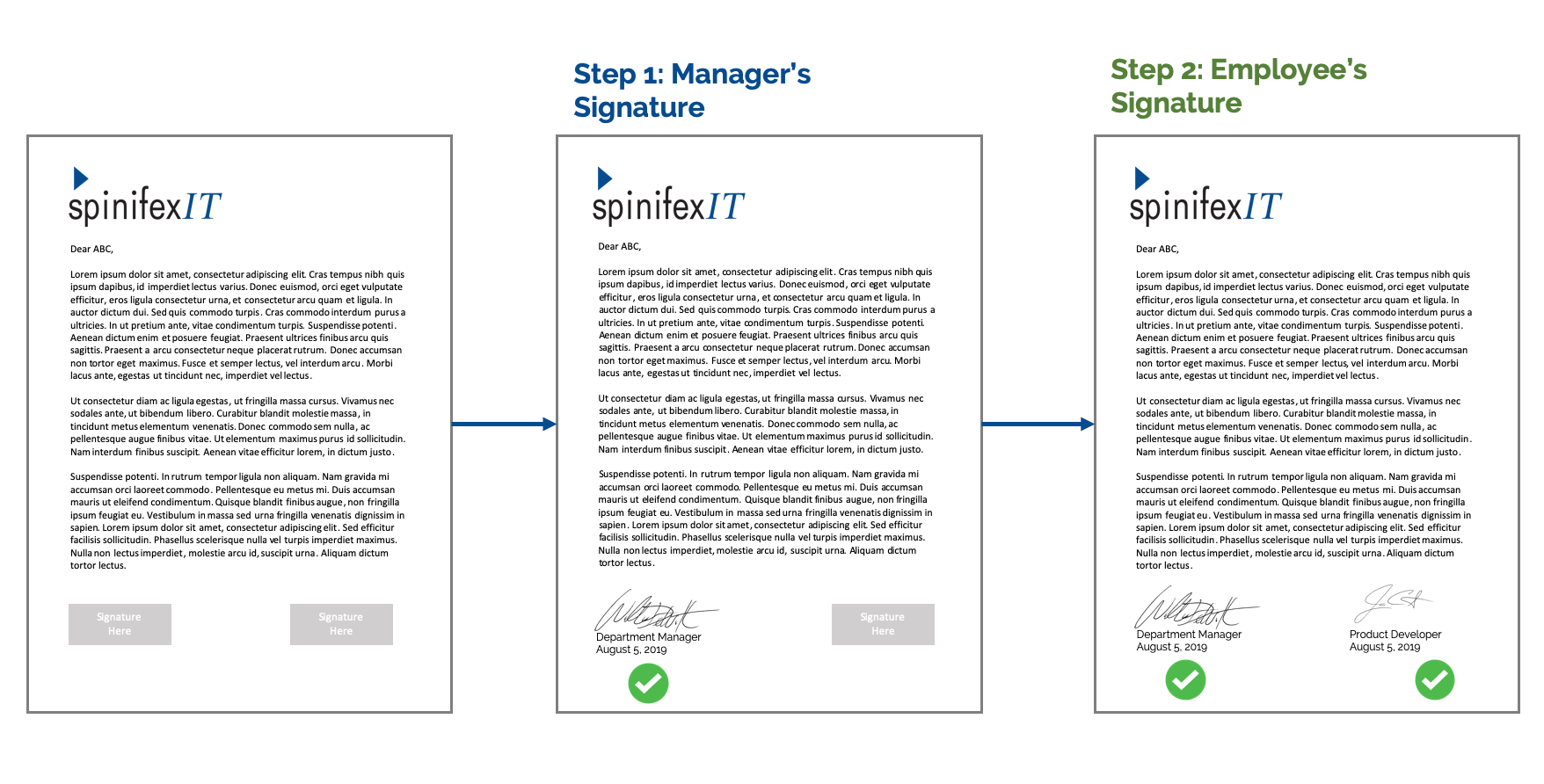
- Contract: HR Manager -> Hiring Manager -> Employee
- Employee Certificates: Employee Requesting -> Manager's Signature / HR's Signature
- Performance Appraisal/ Bonus Letters: HR's Signature -> Manager's Signature -Employee's Signature
More information on signing documents using this feature, here: Signing Documents Using Internal Workflow
The entire process of setting up and using Strato's Internal Workflow involves several steps. Please refer to the specific articles below for detailed instructions on each stage:
- Create or Configure Digital Signature Fields
- Create / Edit Documents for Internal Workflow (E-signature)
- Widget Configuration with Internal Workflow
- Generating and Sending Documents with Internal Workflow
- Signing Documents Using Internal Workflow
For other e-signature options that can be used in Strato (third-party applications), read:
Change your Signature in Strato
Strato publishers can create a signature field which displays their own signatures both in Strato. The signatures used for this field can be modified in both SAP SuccessFactors and in Strato.
Adding Your Signature in SAP SuccessFactors
Select the widget you would like to embed your signature on.
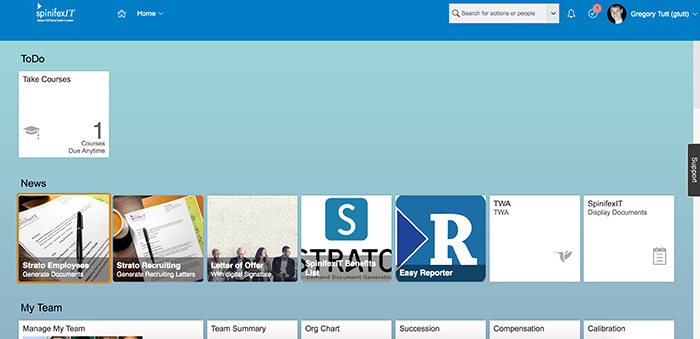
Click the Manage Your Signature icon.
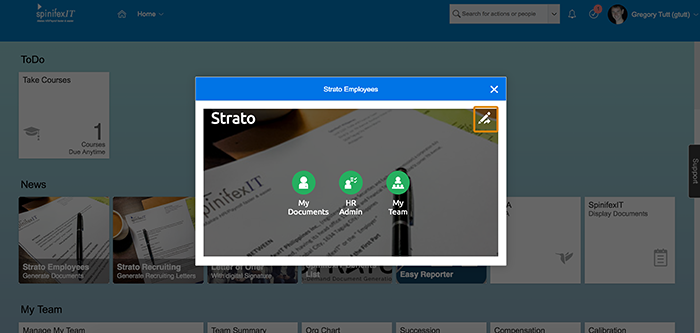
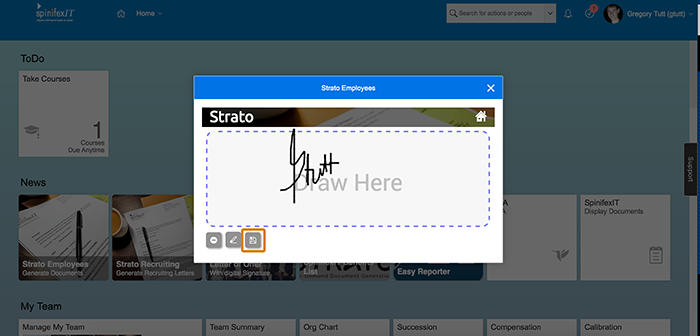
You have two options to embed a signature: you can draw on the SAP SuccessFactors signature box or upload an image of your signature.
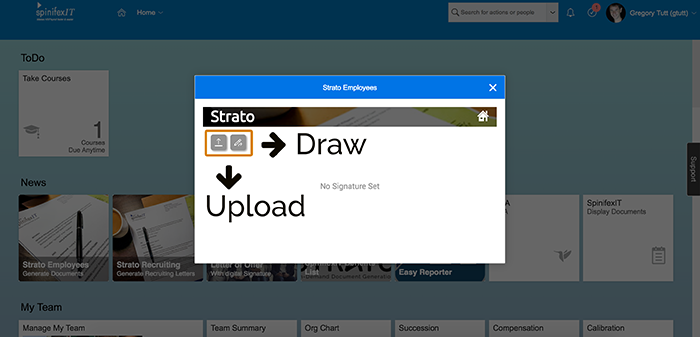
Draw your signature using your mouse pointer or stylus pen then click save to apply your signature.
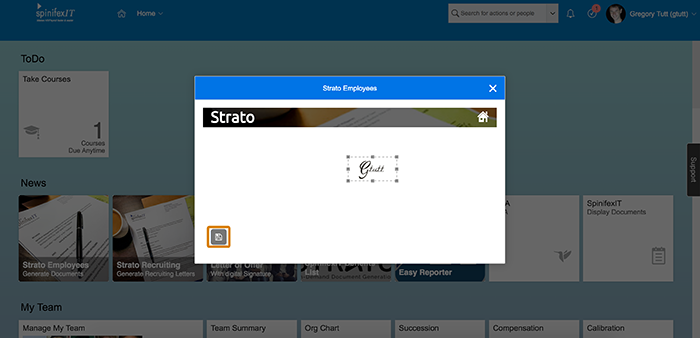
When uploading an image file, make sure to keep its background transparent. Select the area which covers your signature and then click save to apply your changes.
Adding Your Signature in Strato
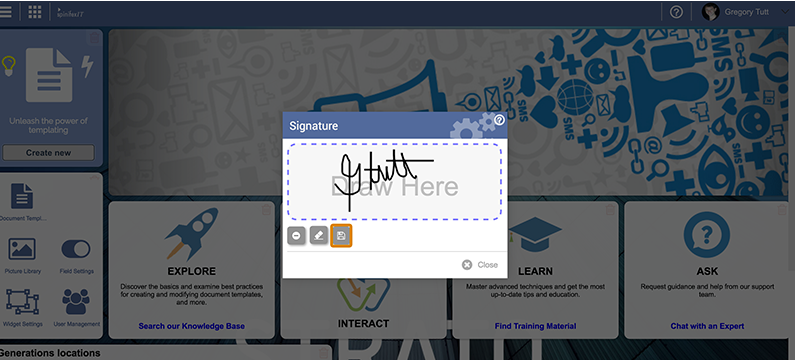
As a publisher, you can add a signature within the Strato dashboard by going to your User Settings.

Like in SAP SuccessFactors, there are 2 options for you to embed your signature in Strato.
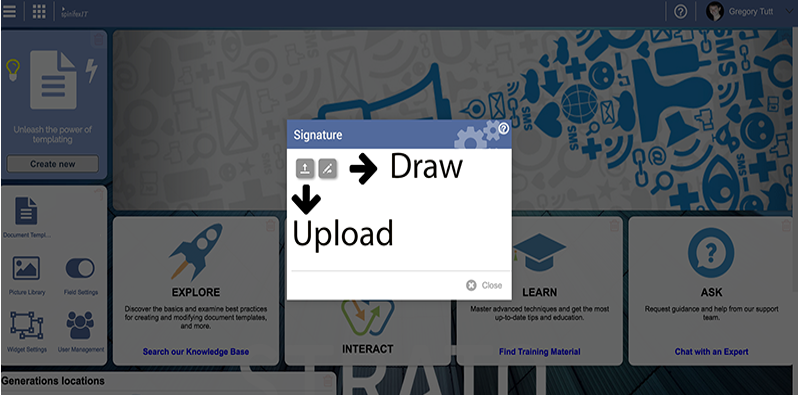
You may draw in the Signature box using your mouse pointer or stylus. Click save to apply the changes.
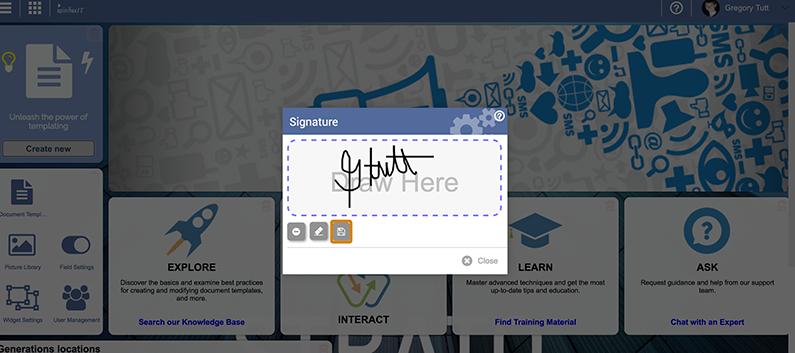
You can also upload an image. When uploading an image file, make sure to keep its background transparent. Select the area which covers your signature and then click save to apply your changes.
Remember: Strato uses the latest signature you uploaded in both the SAP SuccessFactors and Strato environment.