Sign (Approve/Accept) Documents Using Internal Workflow
Starting with version 1.11, Strato allows users to sign and approve documents directly within the system without requiring third-party integration tools (such as DocuSign or AdobeSign). This article guides signatories through the process of reviewing and signing documents using the Internal Workflow.
Instructions
To sign a document using the Internal Workflow, follow the steps below.
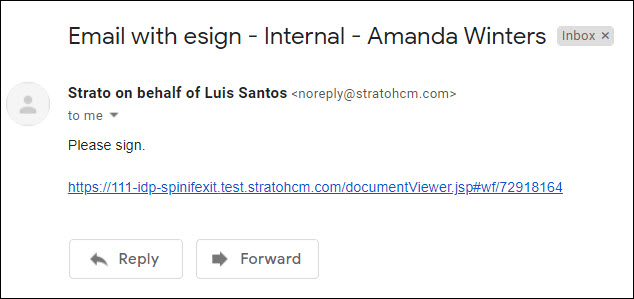
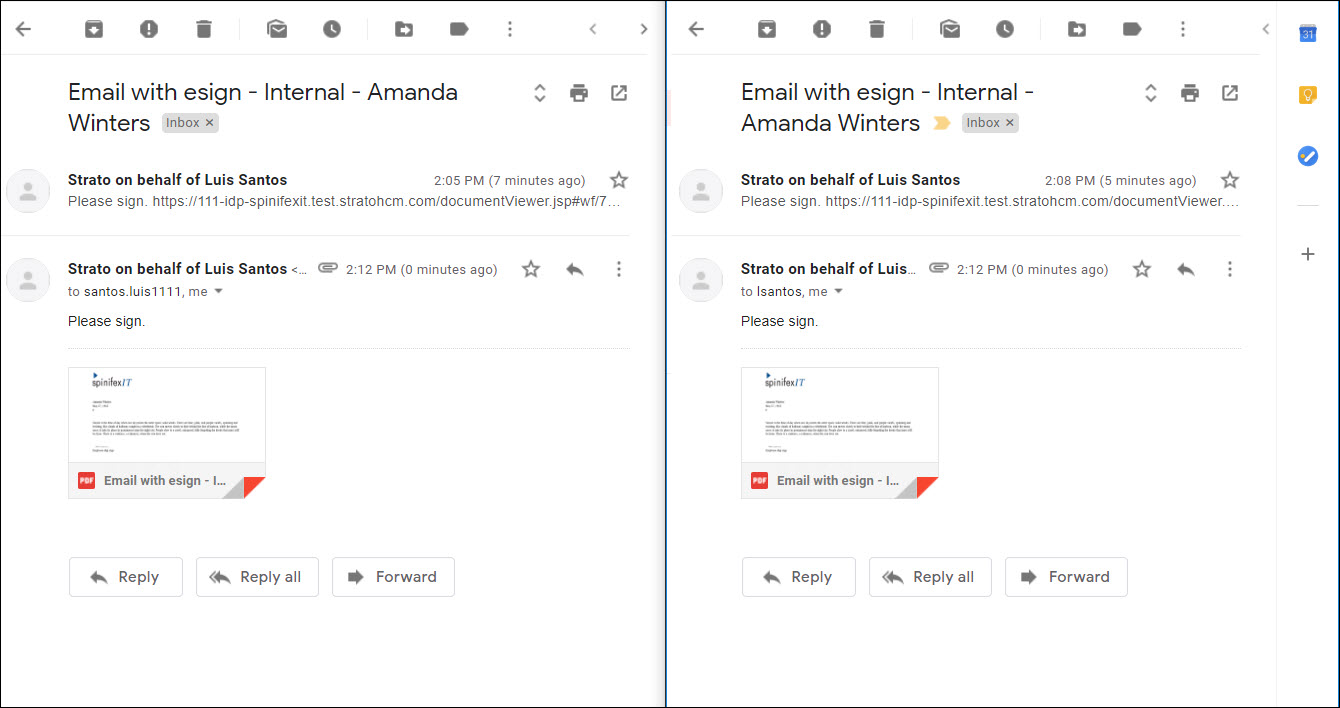
- Open the email notification indicating that a document has been generated and requires your e-signature.
- Click the link provided in the email to open the document in a new window.
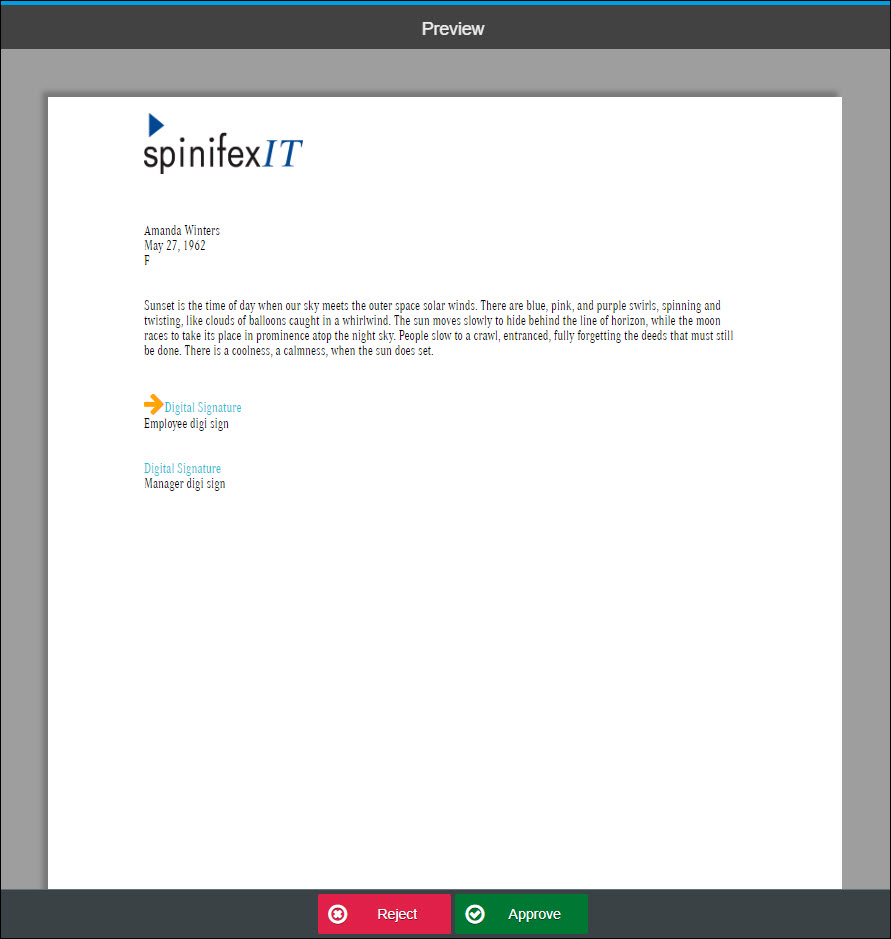
- Review the document content.
- Click Approve.
- A signature box will appear. Select one of the following methods to provide your signature:
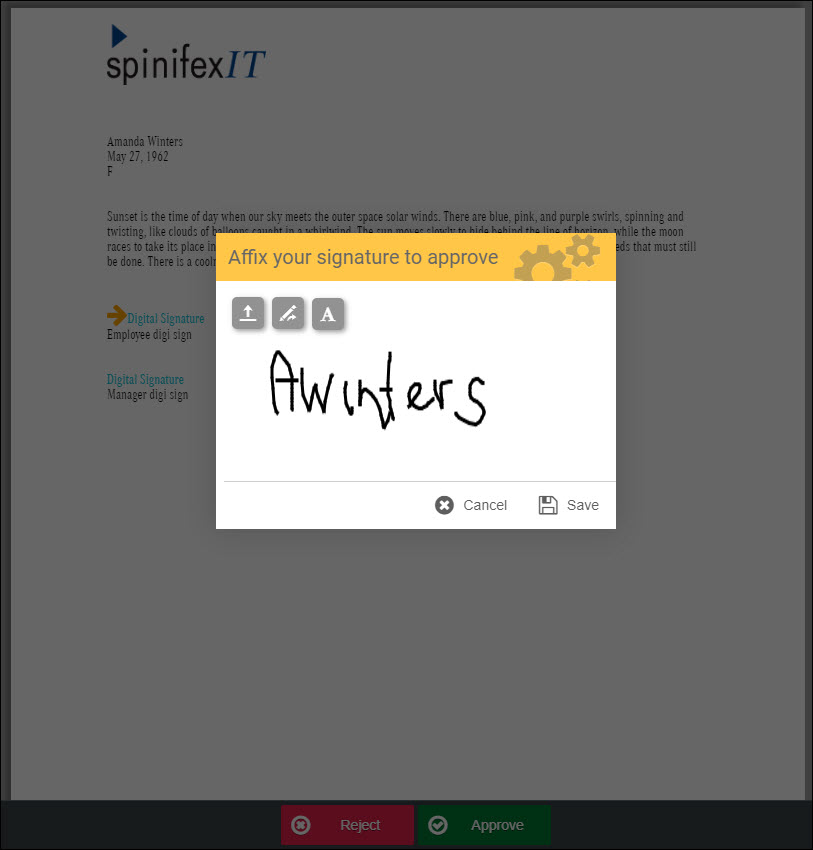
- Sign: Draw your signature directly
- Upload: Upload an image file of your signature
- Click Save to save your signature. Once signed, a confirmation will be displayed on the lower screen.
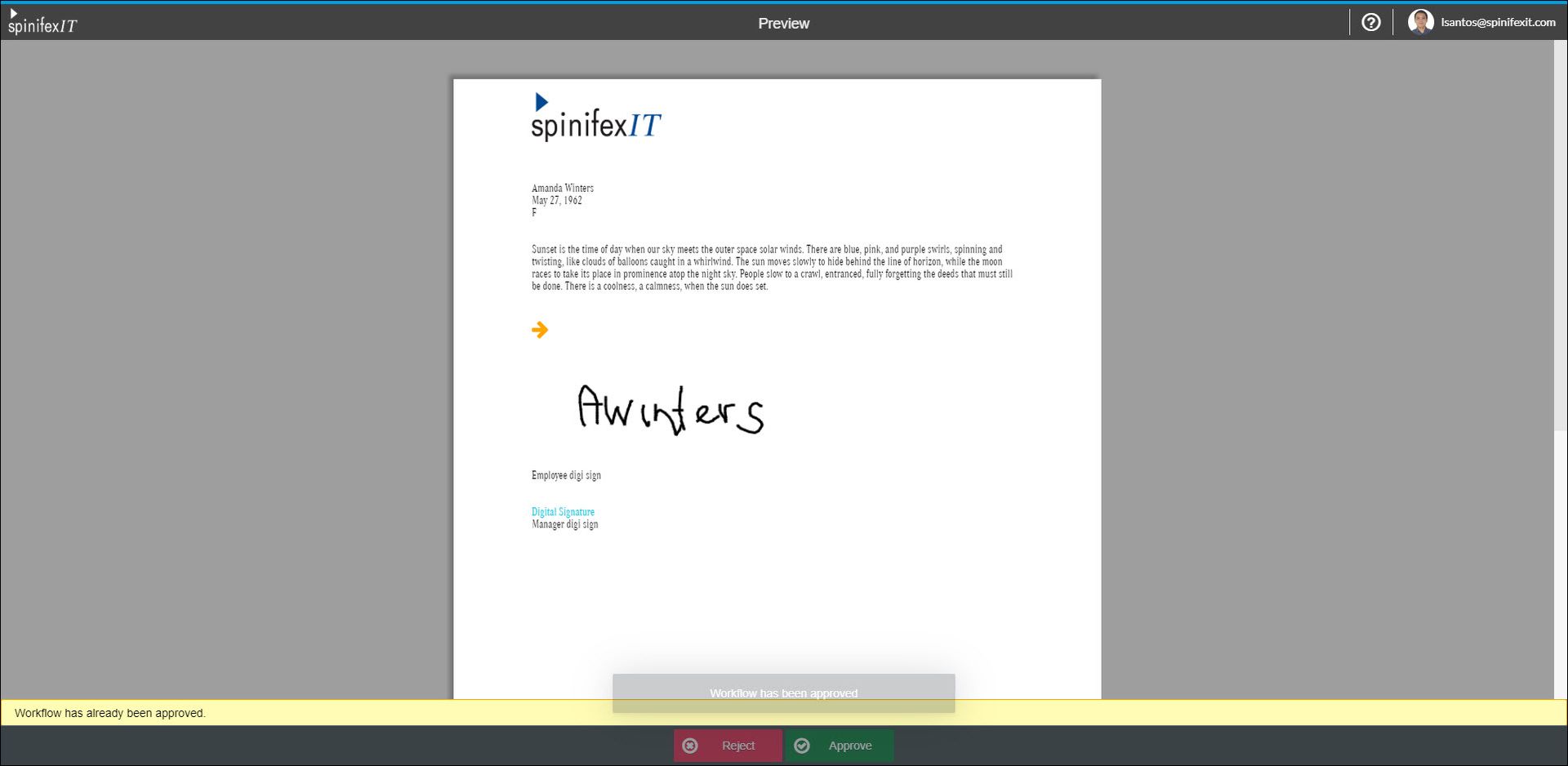
Once all required parties have signed the document, the workflow is considered complete. All signatories will receive a final PDF copy of the signed document via email.
Related articles
- Create or Configure Digital Signature Fields for Documents that Require E-Signature
- Create / Edit Documents with Signature Field for Internal Workflow (E-signature)
- Widget Configuration with Internal Workflow
- Generating and Sending Documents with Internal Workflow