Authorizations to Folders and Files (File and Storage Management)
Not all company files and folders in your organization should be visible to every employee or every group in the company. There are items that should just be accessible by certain groups, regions, or specific people only.
To give several examples, there are files that should be accessible only by the HR Managers, or files that are viewable by Recruiters but can only be maintained or edited by HR Admins. Another example would be the files uploaded by HR Admins for employees (to be reflected in their respective My Files cards) who only belong to a certain region or country.
For Folders, if the authorization is applied to a specific folder, all folders and files under that folder inherit those permissions unless it is explicitly overridden.
Adding Authorizations to a Folder- Editing a Folder
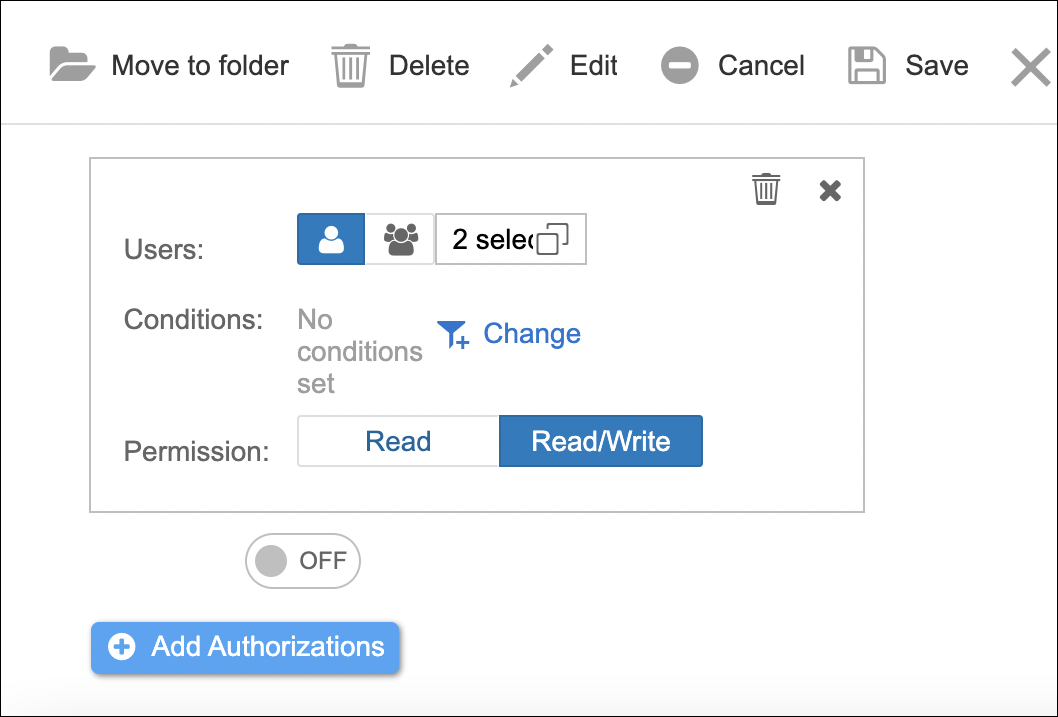
For Files, setting authorizations/permissions can be done when the Allow public access is toggled off. Otherwise, this will not enable the authorization settings as the file is being allowed to be accessed externally/publicly.
Adding Authorizations - Uploading New File
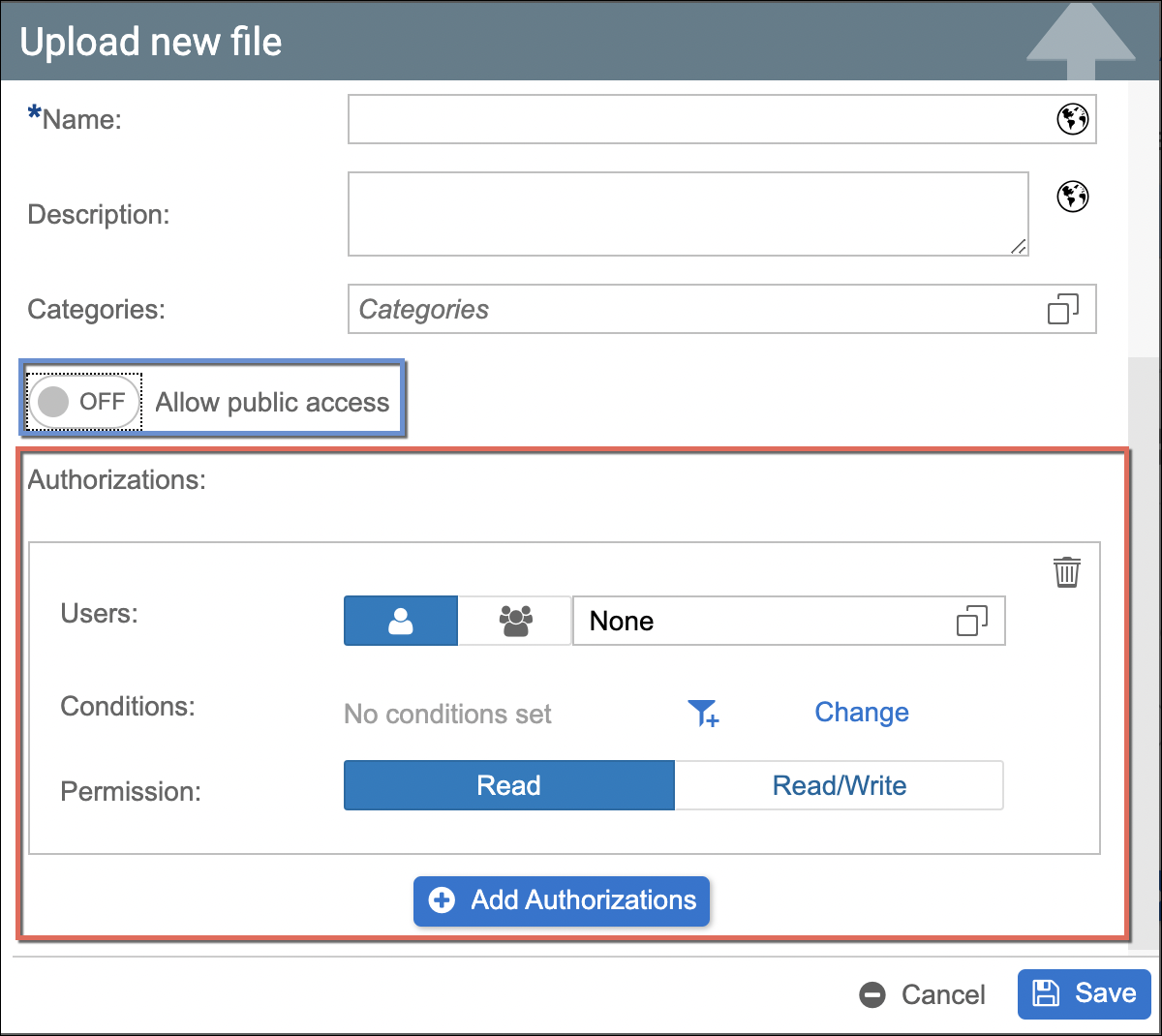
Public Access Enabled - Uploading New File

For both folders and files, if there are no specific user or user group authorizations set, this means that the folder/file is accessible internally by users who have access to the Root Folder or to any folder location where the folder or file is added.
No specific authorization set - Accessible Internally

Given the proper user role for file management, you can set and control access and security to all your company folders and files when:
- Adding new, and editing existing folders and files in File Management
- Adding new files, and editing existing folders and files within Storage Management
The authorizations to set can be applied for (or with) the following:
- Users/User Groups
- Conditions
- Permissions
Authorizations by Users / User Groups
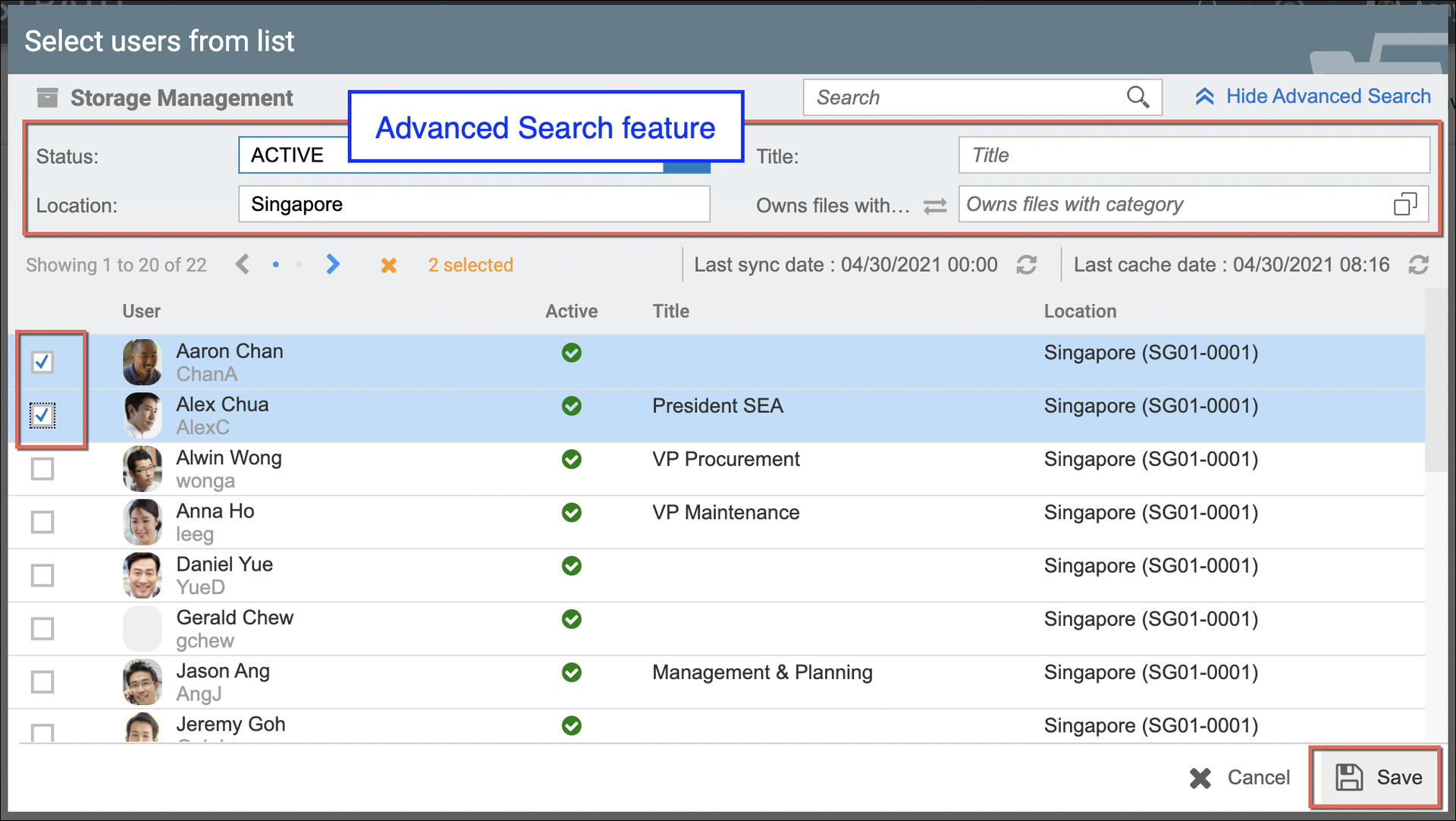
You can set authorization either for a specific user(s) or group(s) of users. When setting folder/file authorization for specific users only, clicking the selection icon will prompt the Select Users from List window. You can use the Advanced Search function to find specific users. For example, selecting users based on a particular region/country, or users who own certain files based on categories.
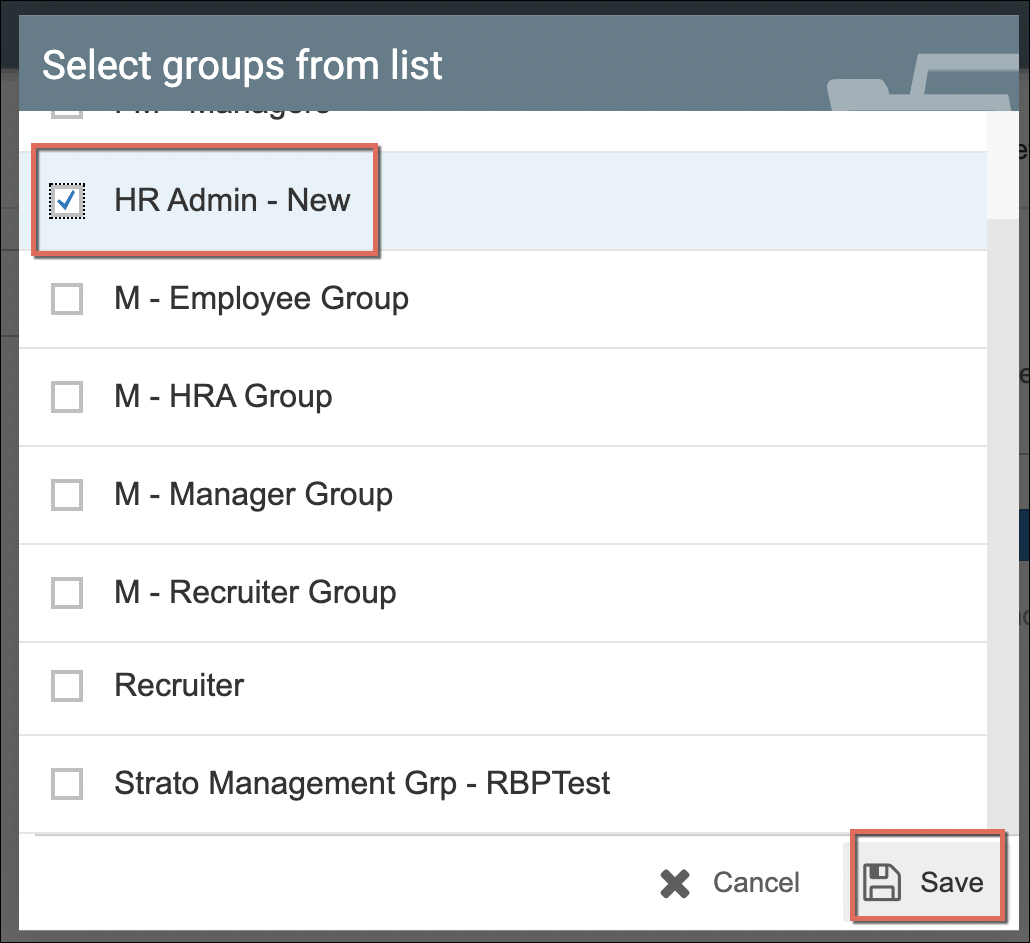
For user groups, the Select groups from List will be prompted where you can select from your group of users that are configured within your User Management. (read: Strato User Groups - User Management)
Set Authorizations by Conditions
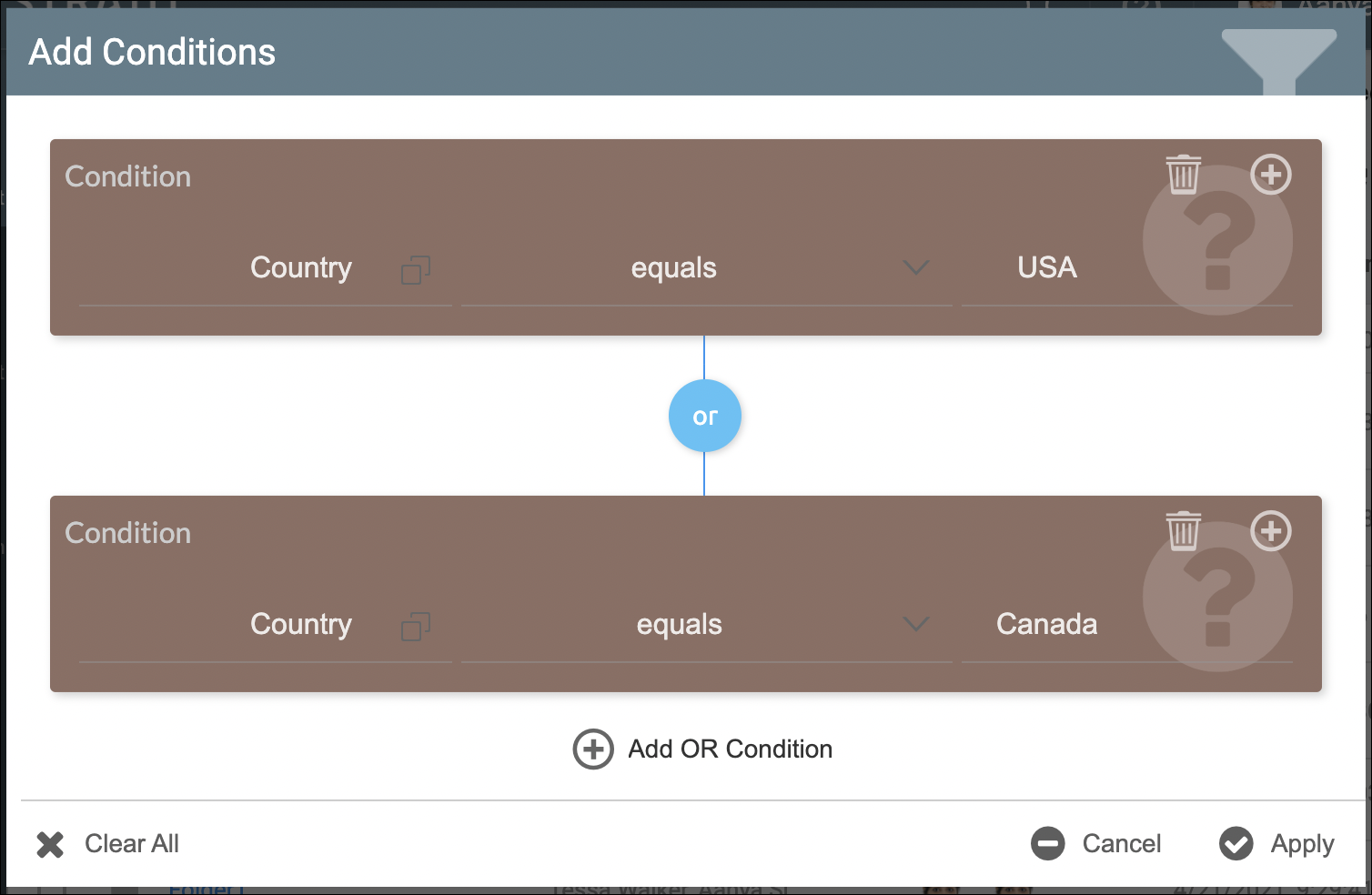
Multiple entries are also possible to allow authorizations based on various business rules via Conditions. A good example would be uploading documents that should only be accessible by HR Admins and Recruiters from offices located in specific countries.
Set Permissions
For Permissions, you can set whether a folder or a file can only be read, or can be both read and edited (read/write) by specific users or groups. An example is shown in the basic how-to article here: How to Set Authorizations/Permissions for File Management