View Datasource Field Properties and Assign Key Fields (Tooltip)
Tooltip - Datasource Field
The Tooltip function for the Datasource Field allows users to easily view and check a data source field property details, and determine which field group a mapped field was derived from. It also allows users to assign Key Fields directly to the content of the Data Source Field. The Tooltip function is easily found via the [ i ] icon beside the Datasource Field, and is available for the following workflow (Strato Automate) components:
- Datasource Field - This is where fields are mapped in the workflow to retrieve records from. The following workflow components/workflow steps use the Datasource Field function to retrieve SuccessFactors data:
- User Decision (to map email address, password, and signature fields)
- Request File (to map an email address)
- Store Document (to map the owner of the document)
- Set Container Values (to set data to a parameter)
- Multipart Builder - Call External Services
(More information on the Datasource Field here: Datasource Fields in Strato Automate(Workflow)
- Conditions window - This is the screen where conditions are set using data fields, as shown in the sample screen below.
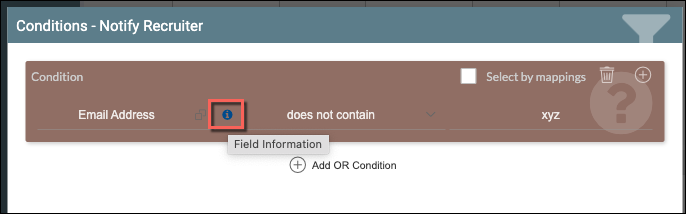
With the Tooltip, information about the mapped field can be viewed in just one click and will show the following details for the mapped field:
- Field Label
- Field Group
- API path; and
- Key Field value (if there's any)
Assign Key Fields
Assigning Key Fields works for data source fields that have multiple records. When a Key Field is assigned, then Strato Automate (Workflow) will automatically use that specific record to be retrieved and used in the workflow. To give a basic example, when retrieving an employee's email address to send email notifications within the workflow, there are instances that there might be multiple email addresses stored in the SuccessFactors for that employee.
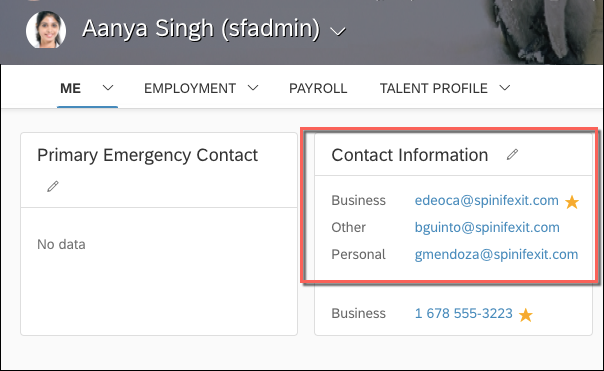
In this case, assigning a Key Field for the Email Address field will then let Strato Automate know which is the correct email address to use in the workflow despite the employee having multiple records of email addresses in SuccessFactors.
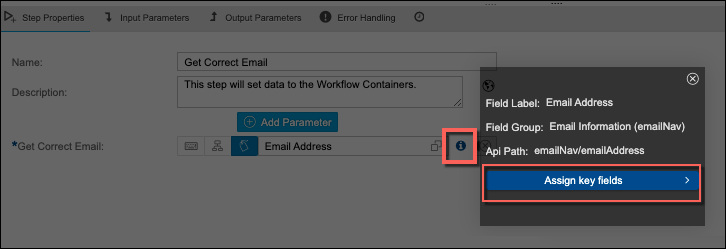
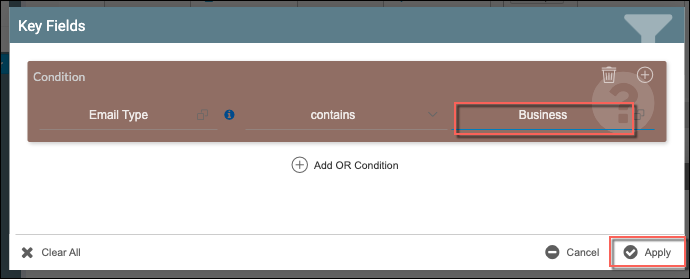
Assigning a Key Field can be done directly to the content of the Datasource Field, via the Tooltip. Simply click on the Assign Key Fields button and apply the necessary conditions to get the required record as the Key Field.
In the example shown below, from the multiple email addresses of the employee, the email with the Business email type was the chosen Key Field which will then be used to send notifications in Strato Automate.
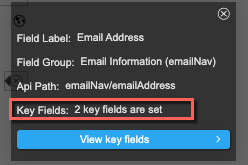
Once Key Field is assigned, this is easily indicated by the [ i ] icon being yellow in color and this can also be reflected from the field properties via the Tooltip, as shown in the screen below.

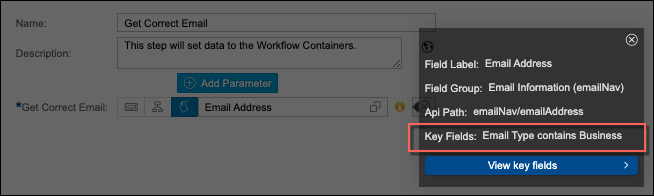
If there are multiple Key Fields set, then the Tooltip will show the number text as the Key Field description. Example: