Navigate the All Files Page
This article explains how to navigate the All Files page, where admins can manage the files of all the users that are accessible to them.
This article contains the following sections:
Requirements
Make sure that New Design - Strato Storage is installed in the Upgrade Centre.
Features
File List
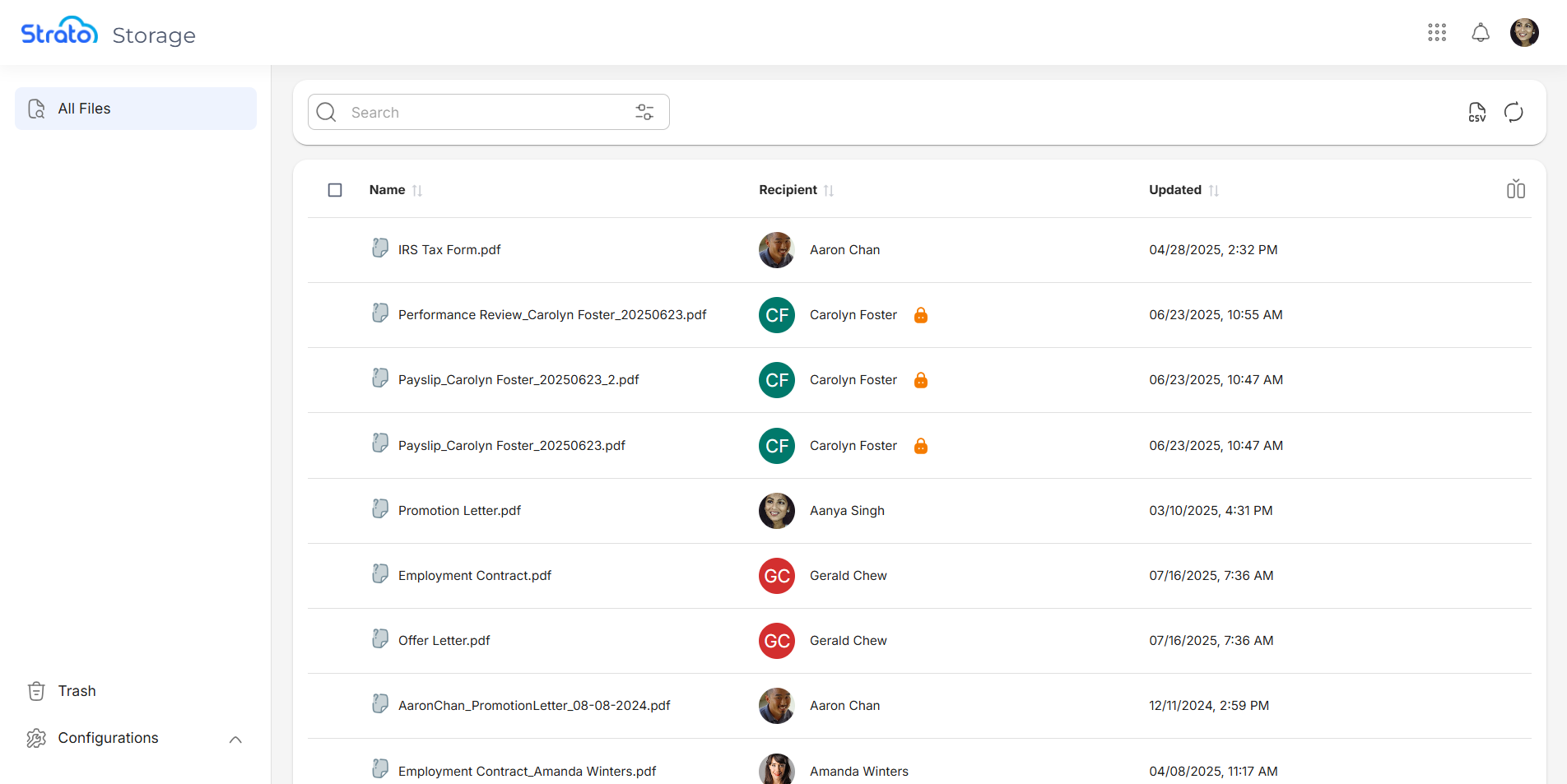
When you open the All Files page, you will see the list of files of all the users that are accessible to you, and the details of these files.
By default, these details include the file’s Name, the Recipient of the file, and the date and time the file was last Updated.
Actions
 | The Refresh button refreshes the Folder List. |
 | The Show/Hide columns button allows you to toggle additional details on and off. Note that the Name column is enabled by default and cannot be toggled off. 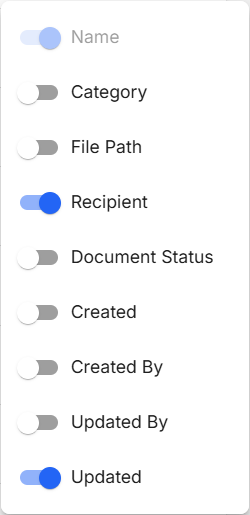 |
 | The Sort button allows you to sort by the selected column in ascending or descending order. |
 | The File Preview button allows you to see the contents of the file quickly. The preview can be seen to the left of the File Information panel.
|
 | The Rows per page dropdown allows you to choose either to show 10 or 25 entries per page. |
 | The Record count shows you the number of entries currently being viewed out of the total number of entries. |
 | The Navigation controls allow you to jump between pages. You can go to the first page, previous page, next page, or the last page, respectively. |
 | The Export to CSV button allows you to generate a CSV file of all available files. This file includes all active columns and download links for each file, and reflects any current filtering applied through Basic and Advanced Search. |
 | The Move Column handle allows you to drag and drop columns to easily reorder them. |
 | The Quick Filter buttons allow you to show either all of the files, Employee Files only, or Company Files only. This is only available when New Feature - Company Files is installed in the Upgrade Centre. |

Five additional actions are available from the More button: Download, Info, Open, Edit and Delete selected file.
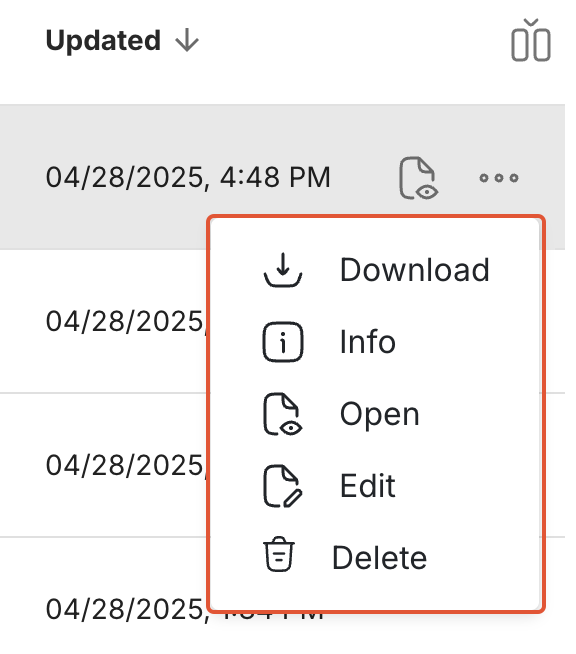
Download | Downloads the selected file. |
Info | Opens the File Information side panel where you can access the relevant details of a file. 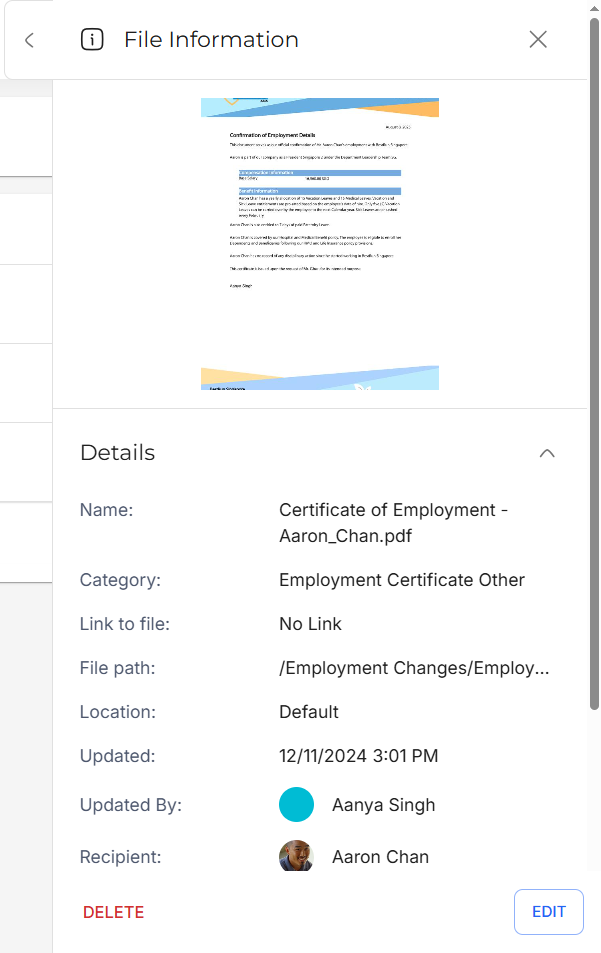 |
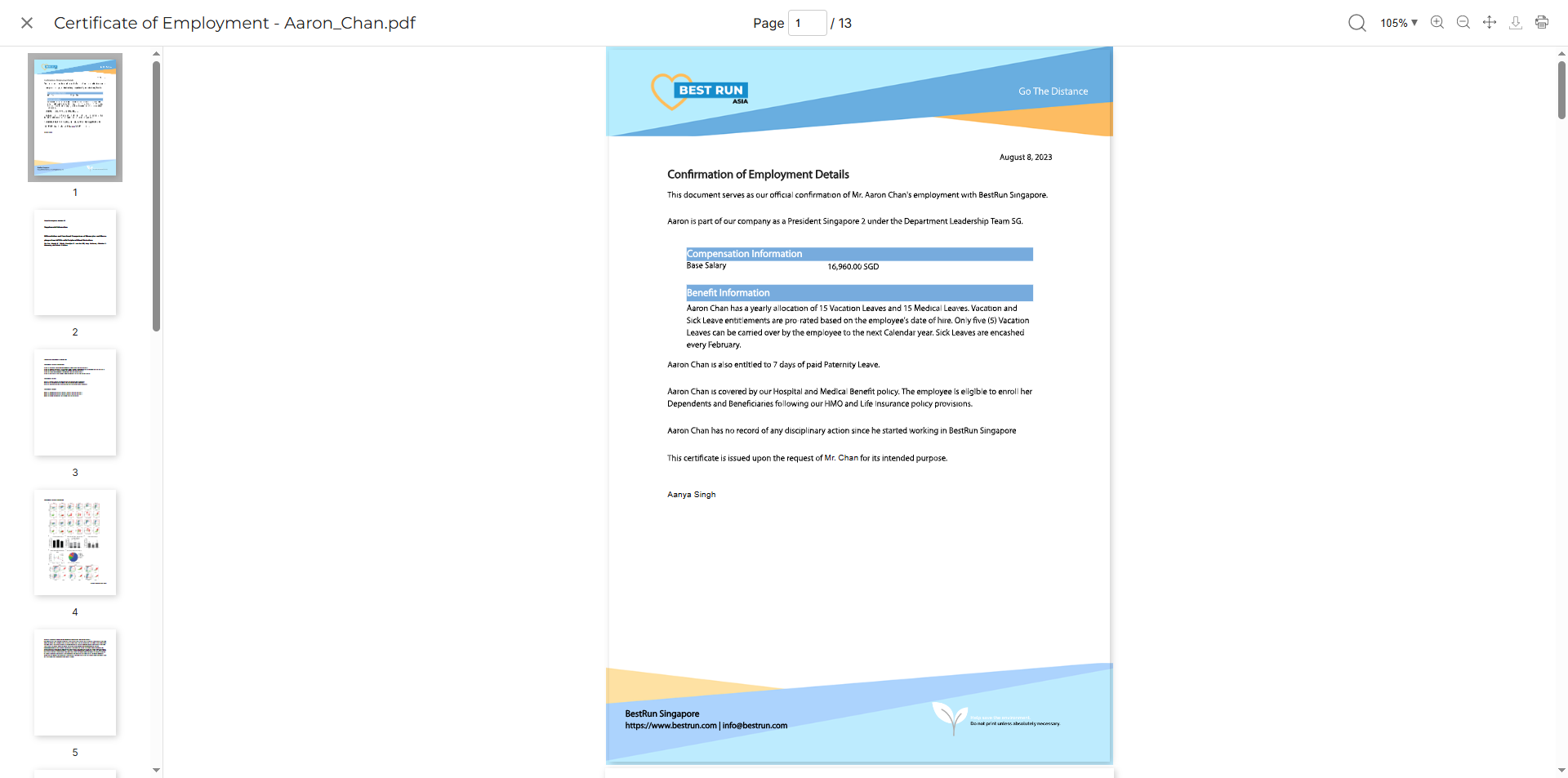
Open | Opens the File Viewer where you have more actions available, such as printing.
|
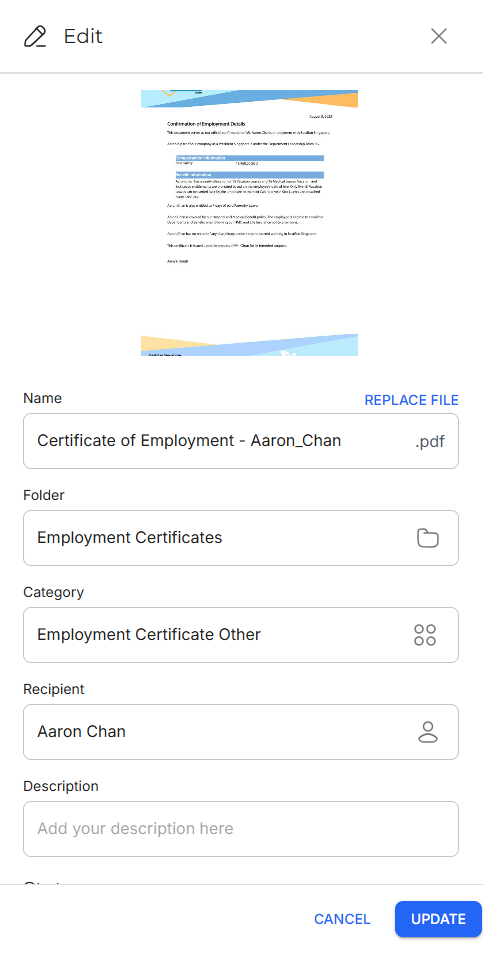
Edit | Opens the Edit side panel where you can modify the details of the selected file.
|
Delete | Removes the selected file from Strato Document Management. |
Search
You can search for keywords using the Search bar located at the top of the file list. The search applies to the Name column, and will only be done across files and folders that you have authorisation to view.
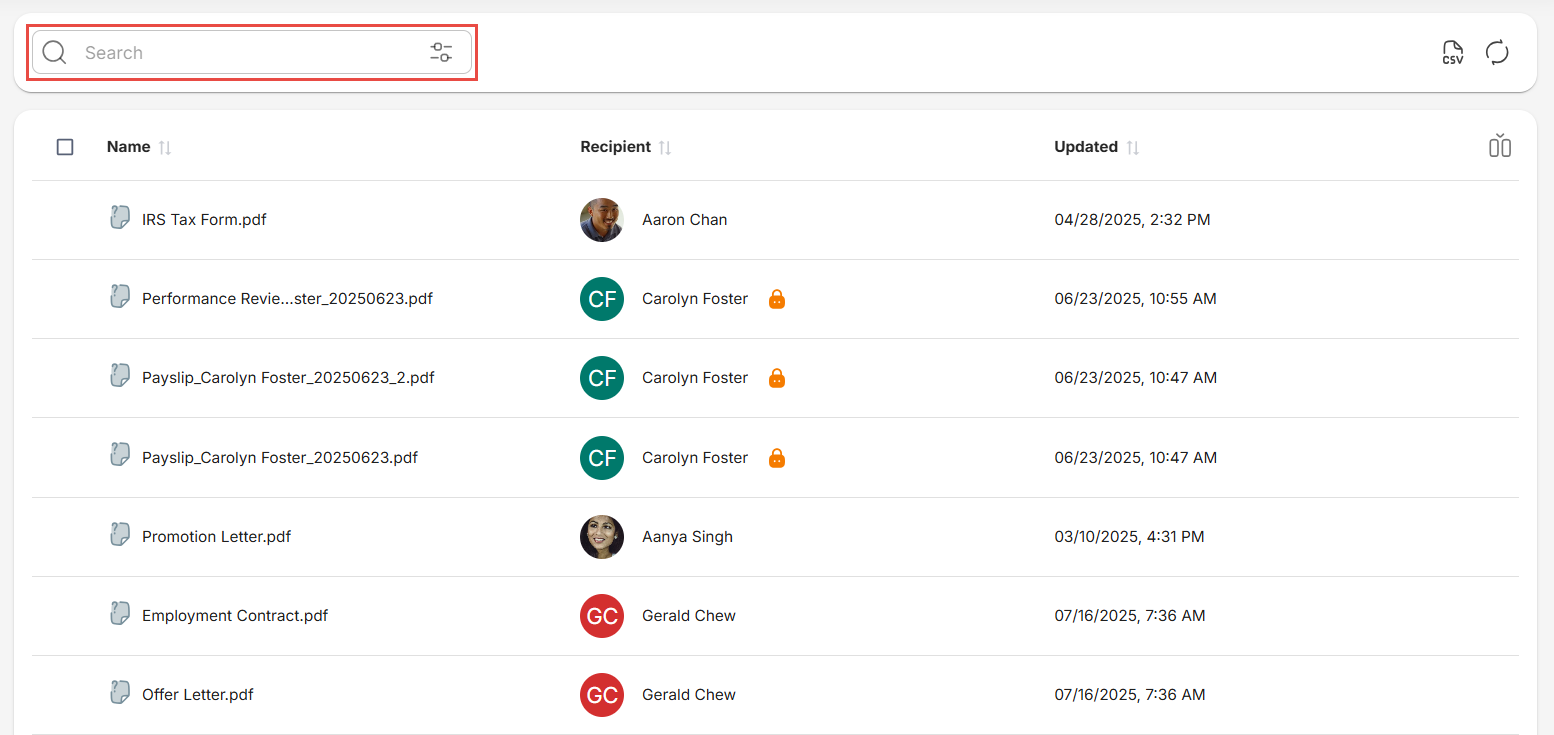
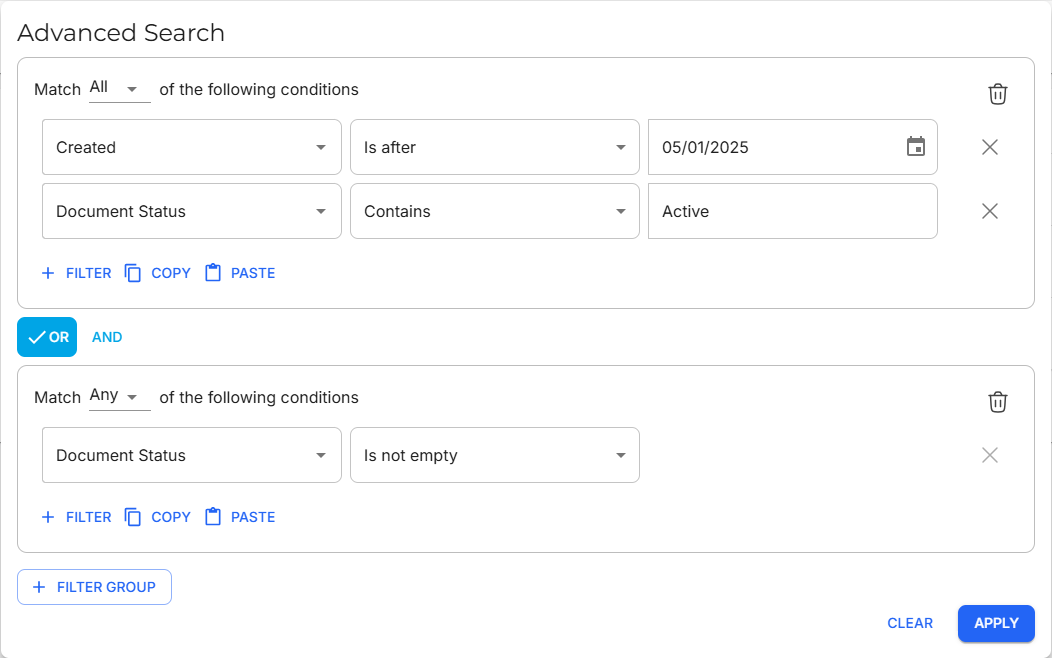
To do an advanced search, click the Filter icon. You can create condition groups, where you can define which file Properties to check (for example, Created), how to compare it (for example, Is after), and values to compare it to (for example, a date such as 05/01/2025). You can string multiple conditions and condition groups together.
Batch Actions
When selecting more than one file using the checkboxes, the following actions can be performed:

Note that Info and Open are unavailable when more than one file is selected.
Quick File Selection
Click on the dropdown button beside the number of selected files to open the dropdown menu. You can choose between the following options:
- Select all pages (X items): Select all items across all pages.
- Select this page (X items): Select all items in the current page you are currently viewing.
- Clear selection: Unselect all items.

Edit
Click Edit to open the Edit side panel where you can choose which details to edit. Toggle the checkbox next to the details you want to change.
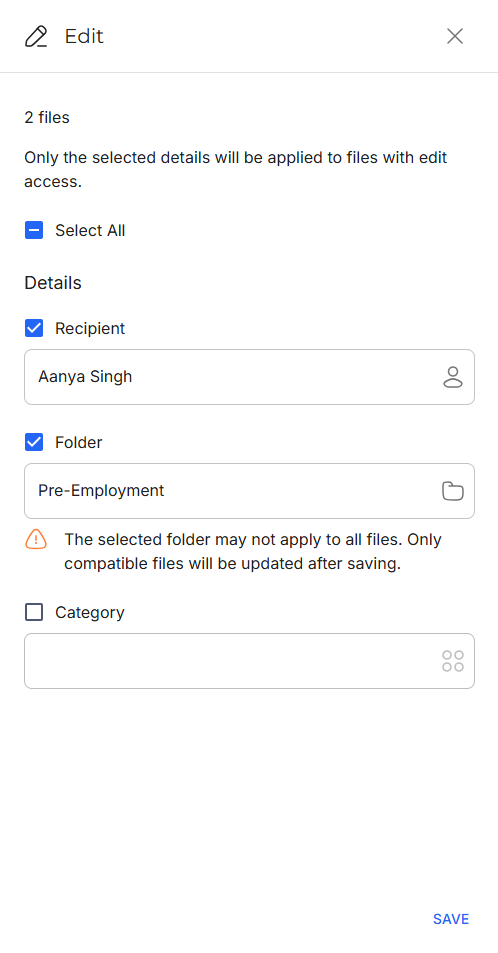
Click Save to apply the changes to the selected files.
Download
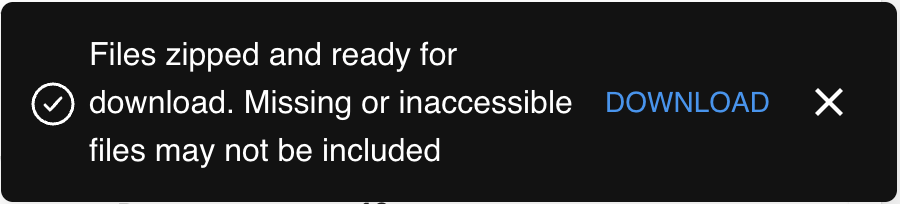
Click Download to download the selected files. A message will appear indicating that the files are being compressed in a zip file.

When the download is ready, a message will appear with a link to the Downloads page. The message may also note if any missing or inaccessible files were not included.
Delete
Click Delete to remove the files from Strato Document Management.
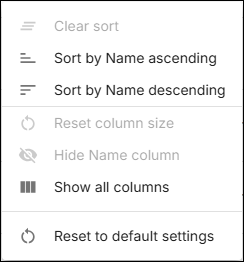
Column Actions
The Column Actions button appears on the right side when hovering over a column.
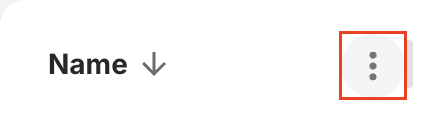
When clicked, the button shows you a list of actions you can do to the selected column.