New Feature - Company Files
The Company Files feature allows users to view, configure, and manage non-employee files. Unlike regular employee files, these files have no recipients and are not attached to any employees.
These are used for documents and files that belong to the organisation as a whole. Examples of Company Files include payroll registers, company tax summaries, job descriptions, and compliance documents.
Requirements
Your user must have a Policy that grants access to Company Files. Contact your Strato administrator if you need assistance with these permissions.
Access
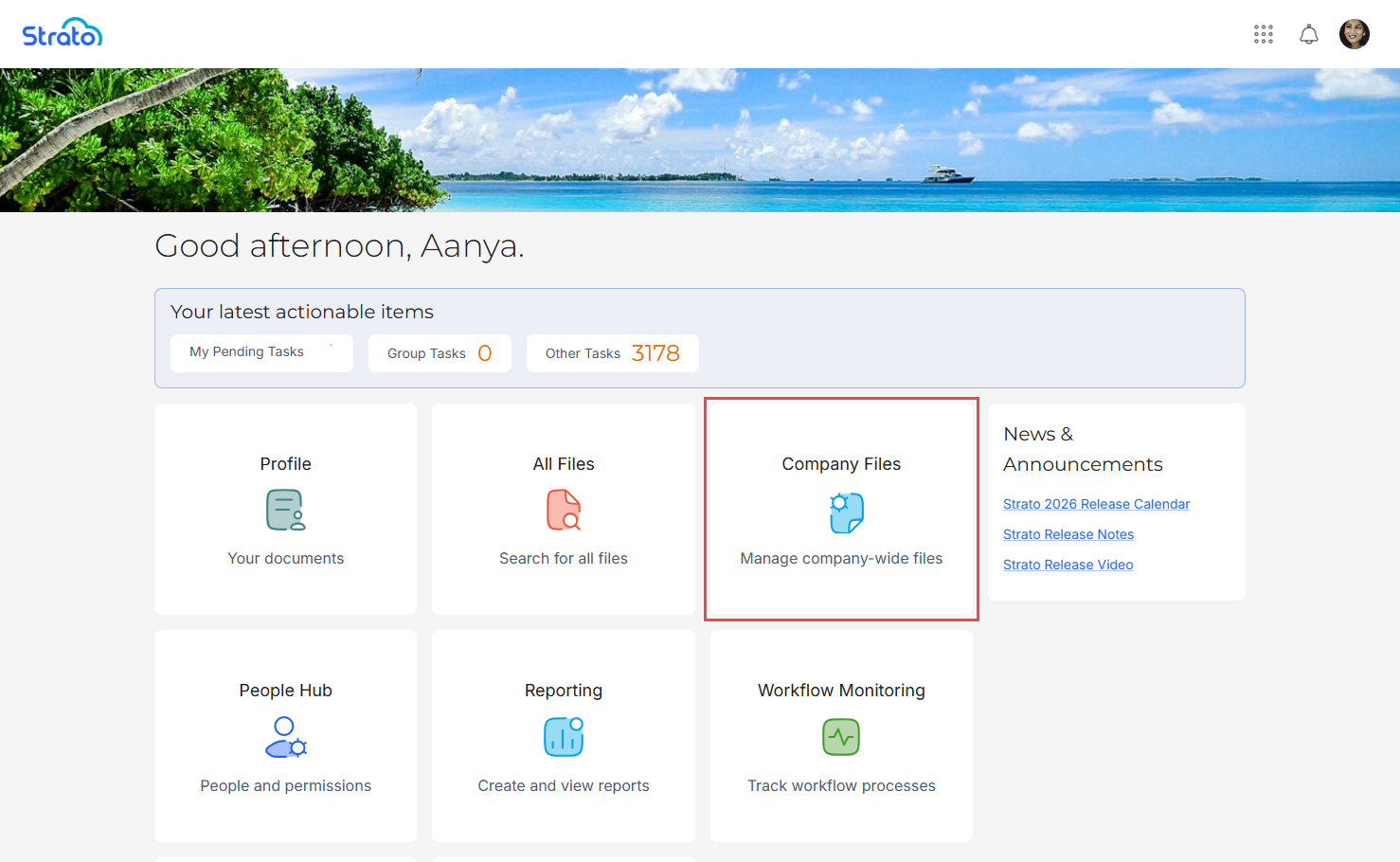
You can access Company Files by clicking the Company Files card on the Homepage.
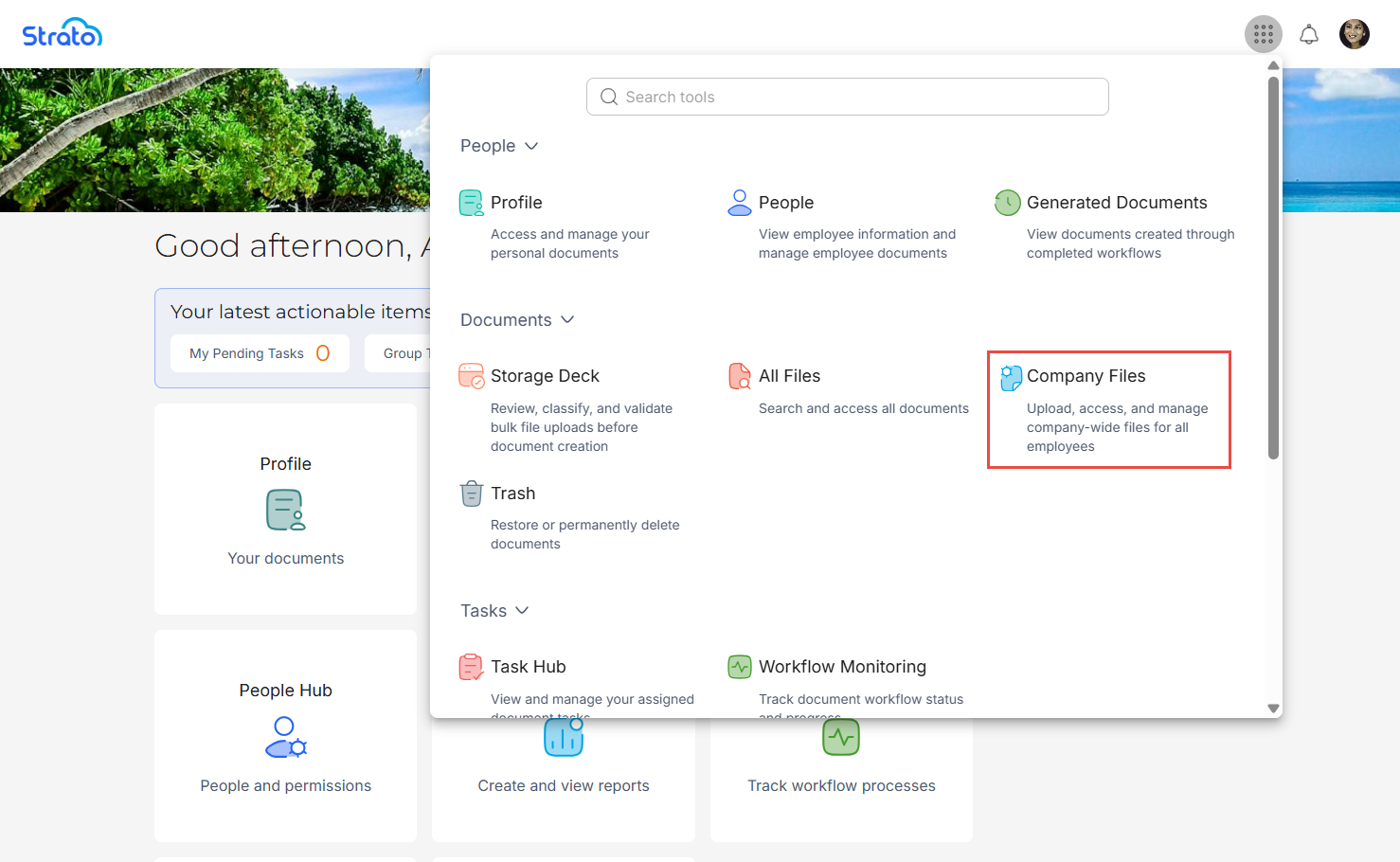
You can also access Company Files through the App Menu Bar.
Features
Company Files Page
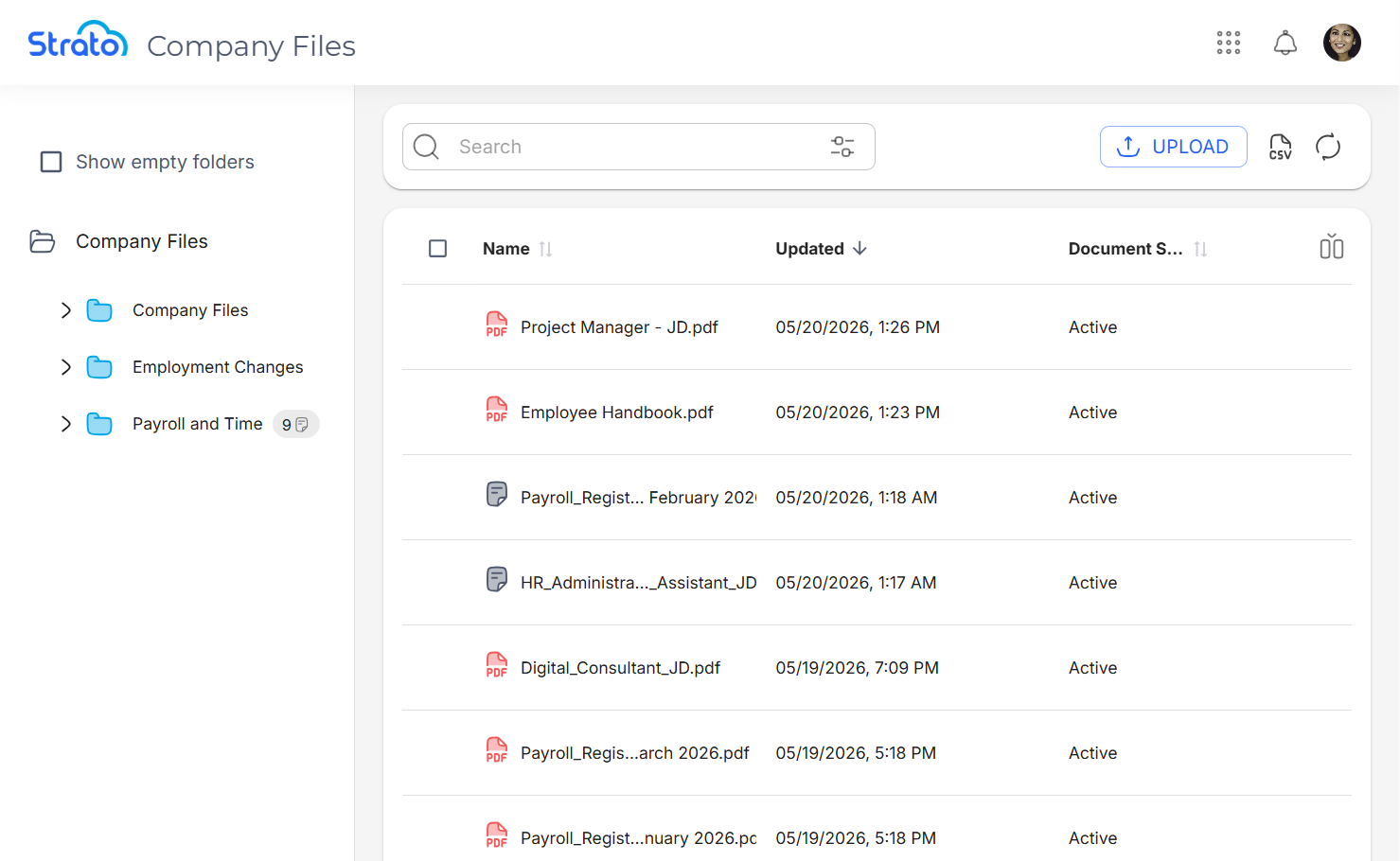
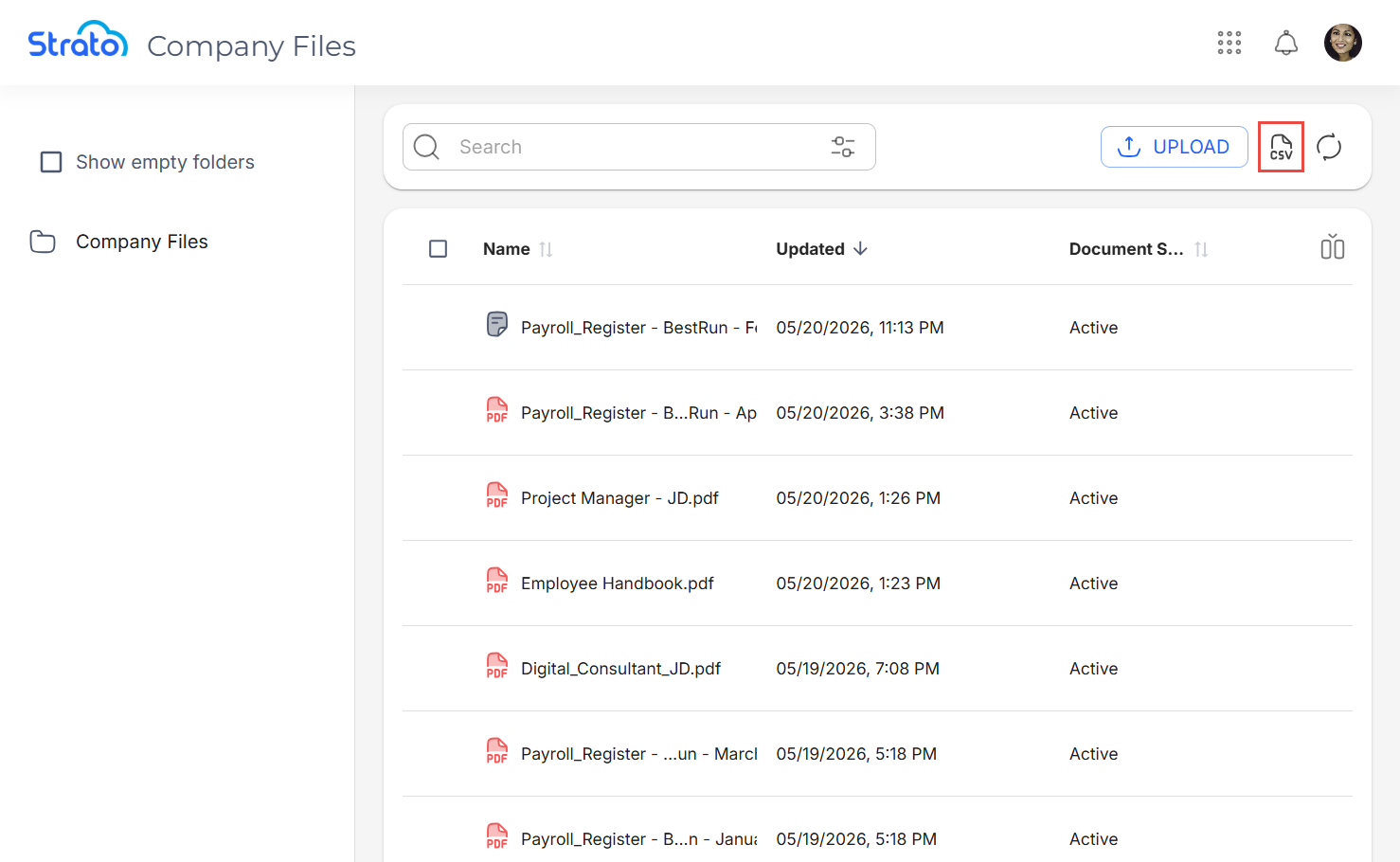
The Company Files page is where you can view, search, and manage files that belong to the organisation.
Upload Company Files
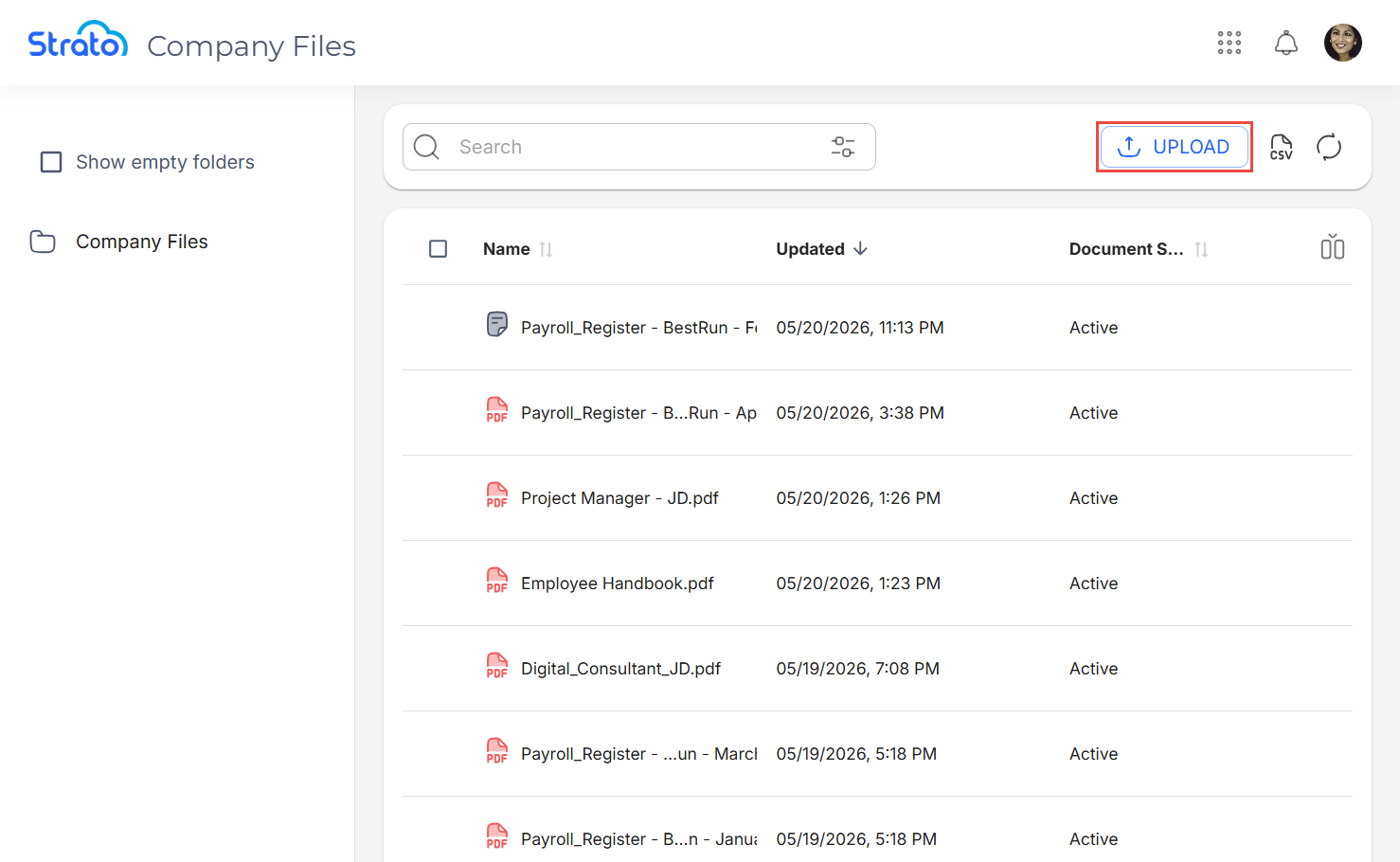
You can upload company files by clicking on the Upload button.
Export List of Files as CSV
You can export the list of company files as a CSV file by clicking on the Export to CSV button.
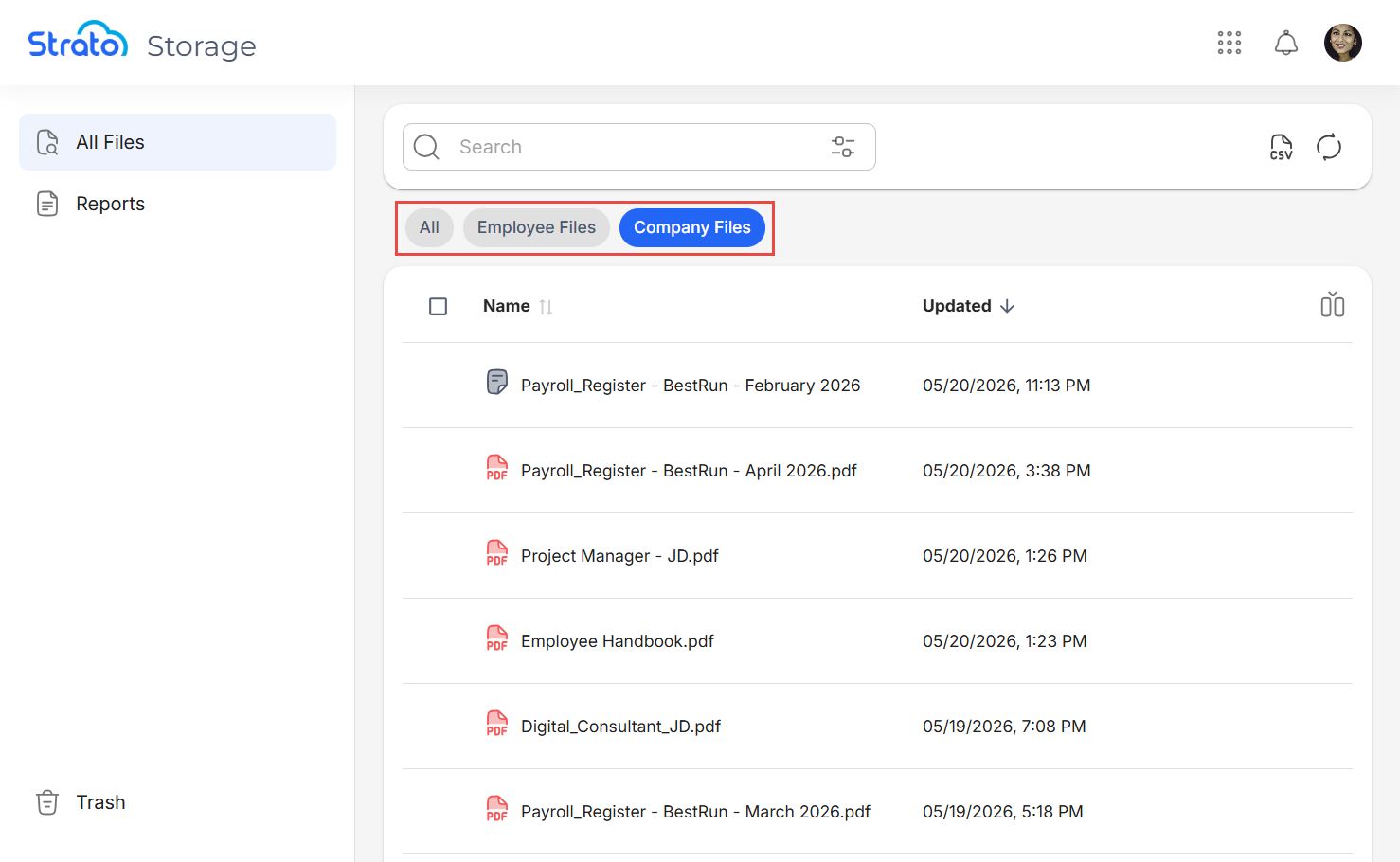
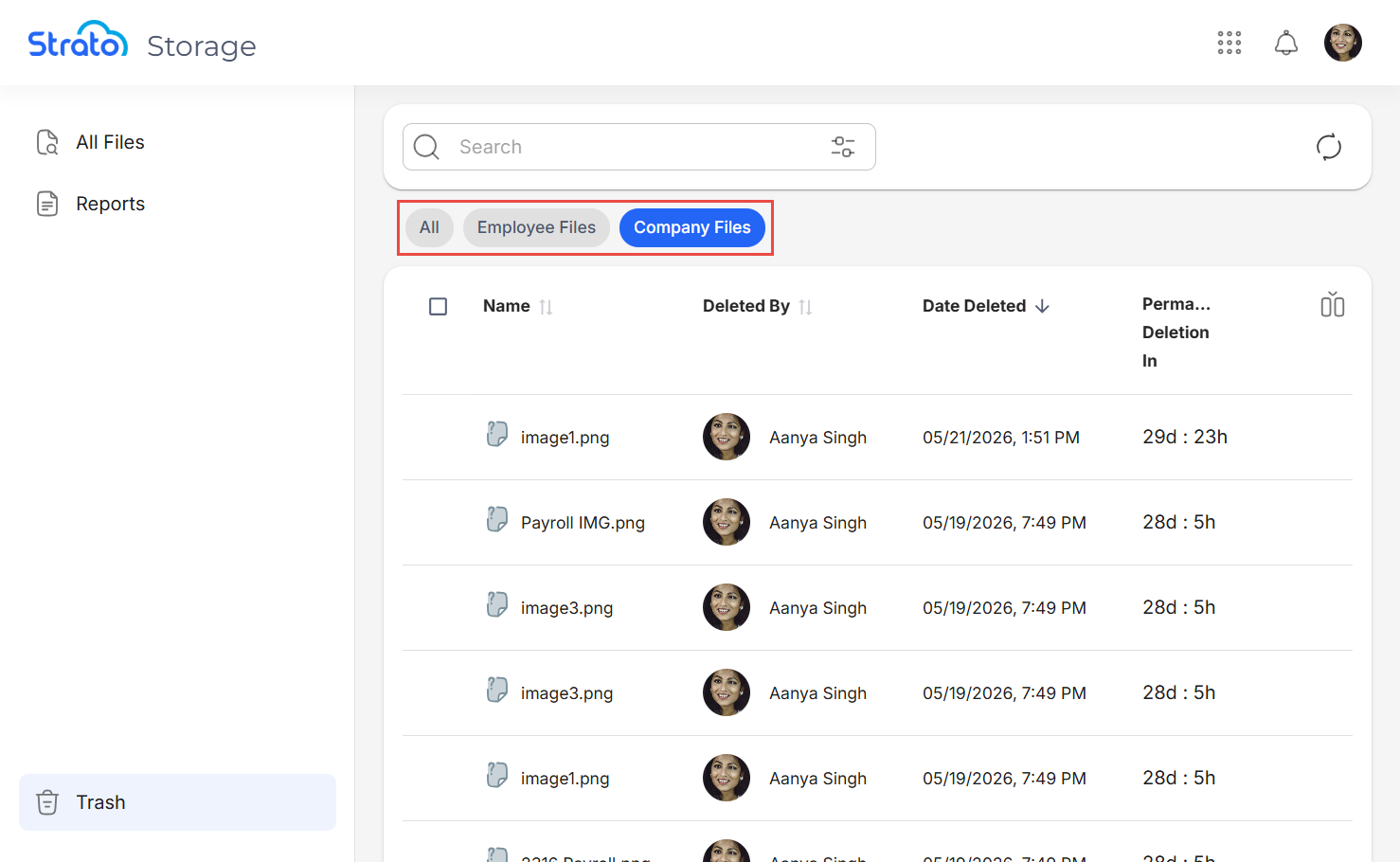
Filters in All Files and Trash
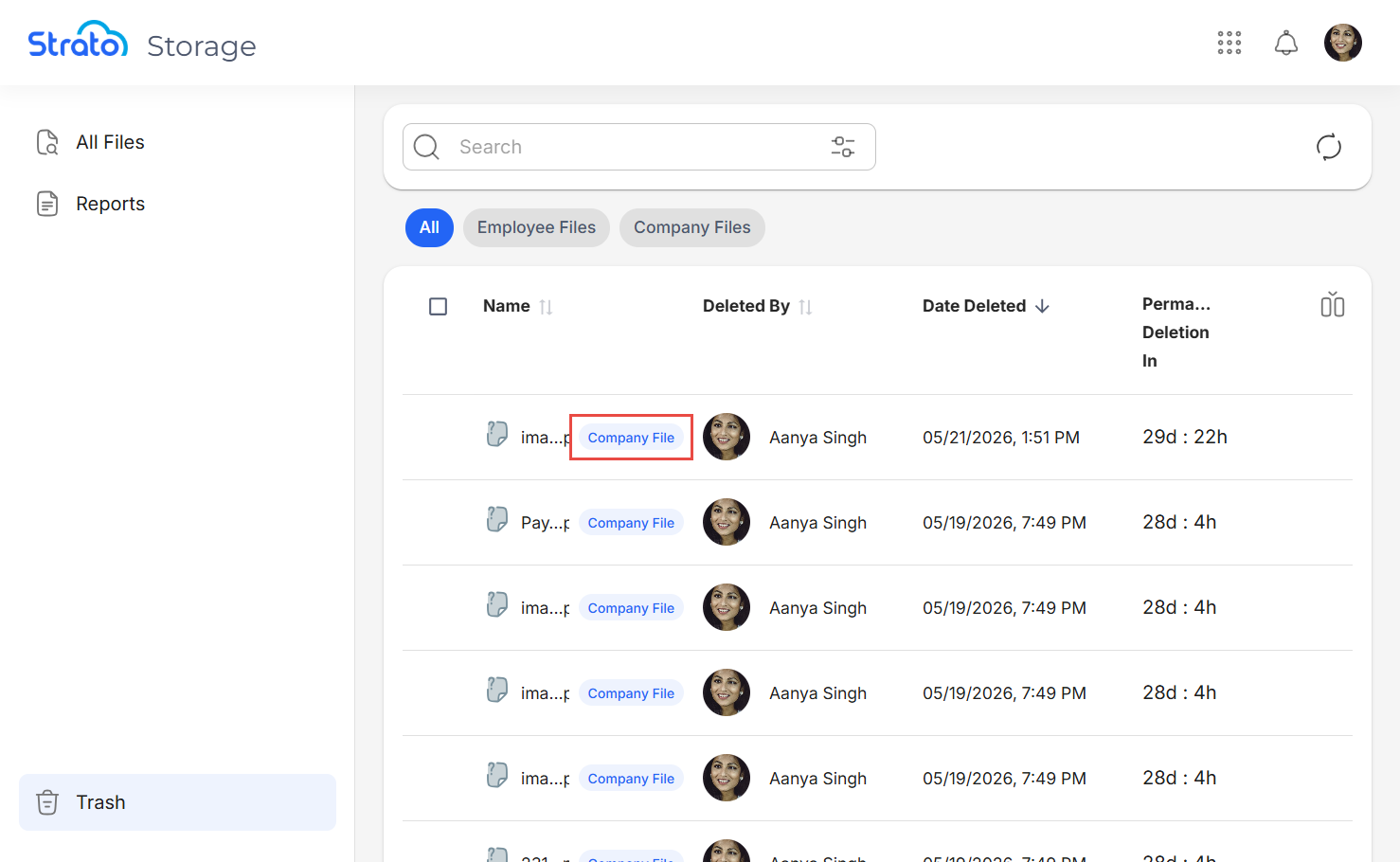
In the All Files and Trash pages, you can view and filter company-wide files through the quick filter buttons.
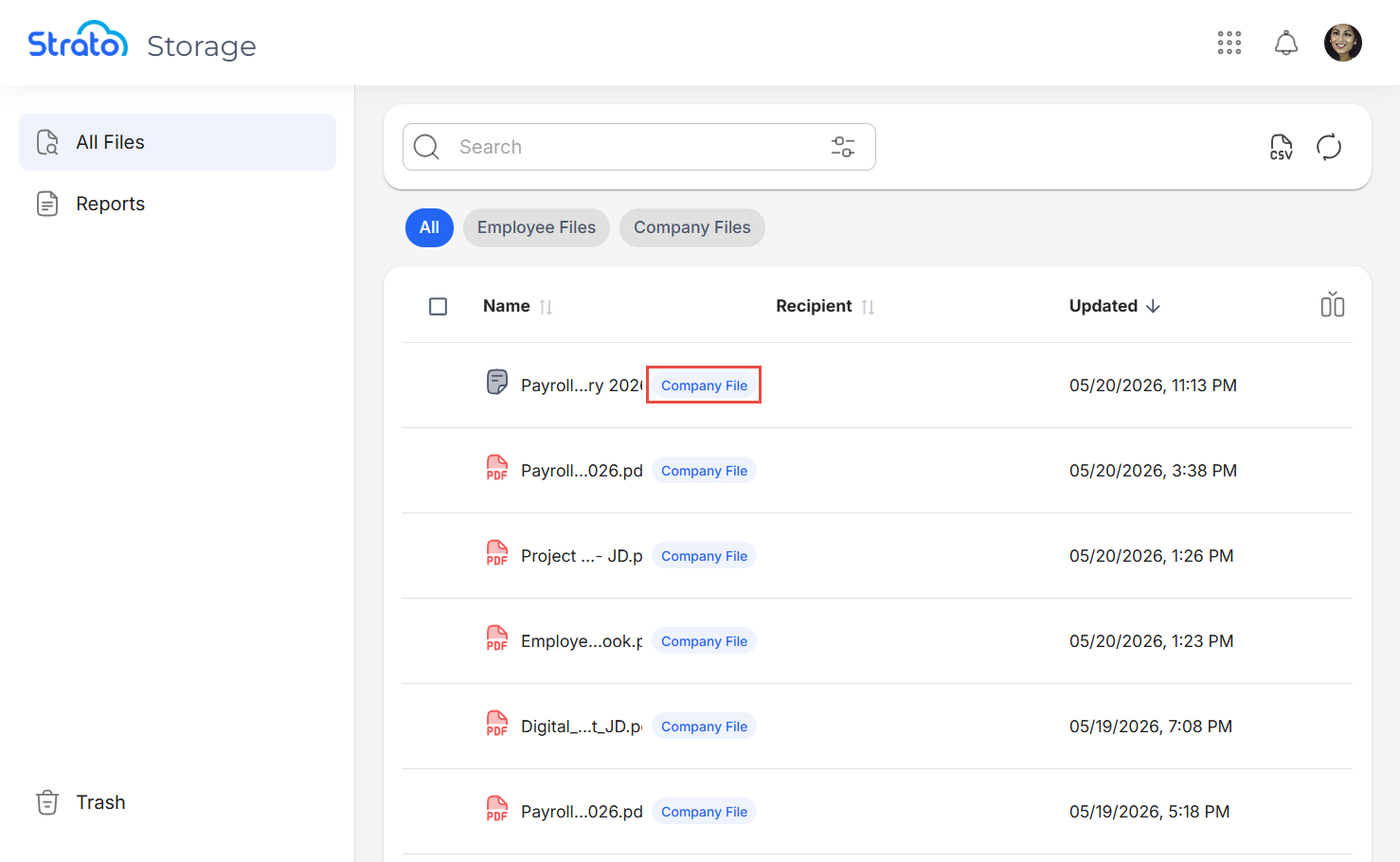
Additionally, in the All filter, company files are tagged with a chip to easily differentiate them from regular employee files.
Related articles
- New Design - Strato Document Management
- New Design - Category Management
- Categories
- Navigate the All Files Page
- Trash
- Navigate Company Files
- Configure Categories for Company Files
- Policy Evaluation for Strato Document Management