Trash
To ensure compliance with standards, Strato Document Management has a temporary storage location for deleted files through the Trash. This acts as a safety net to give users a chance to restore deleted files before they are permanently deleted. It also serves as a review center where other users can properly review and confirm that the files are to be permanently deleted, following the four-eyes principle.
This article contains the following sections:
Requirements
Your permissions and Policies determine whether certain actions are allowed in the Trash. Contact your Strato administrator if you need assistance with these permissions.
Access
You can access the Trash through the following, depending on your version of Strato:
Trash V1
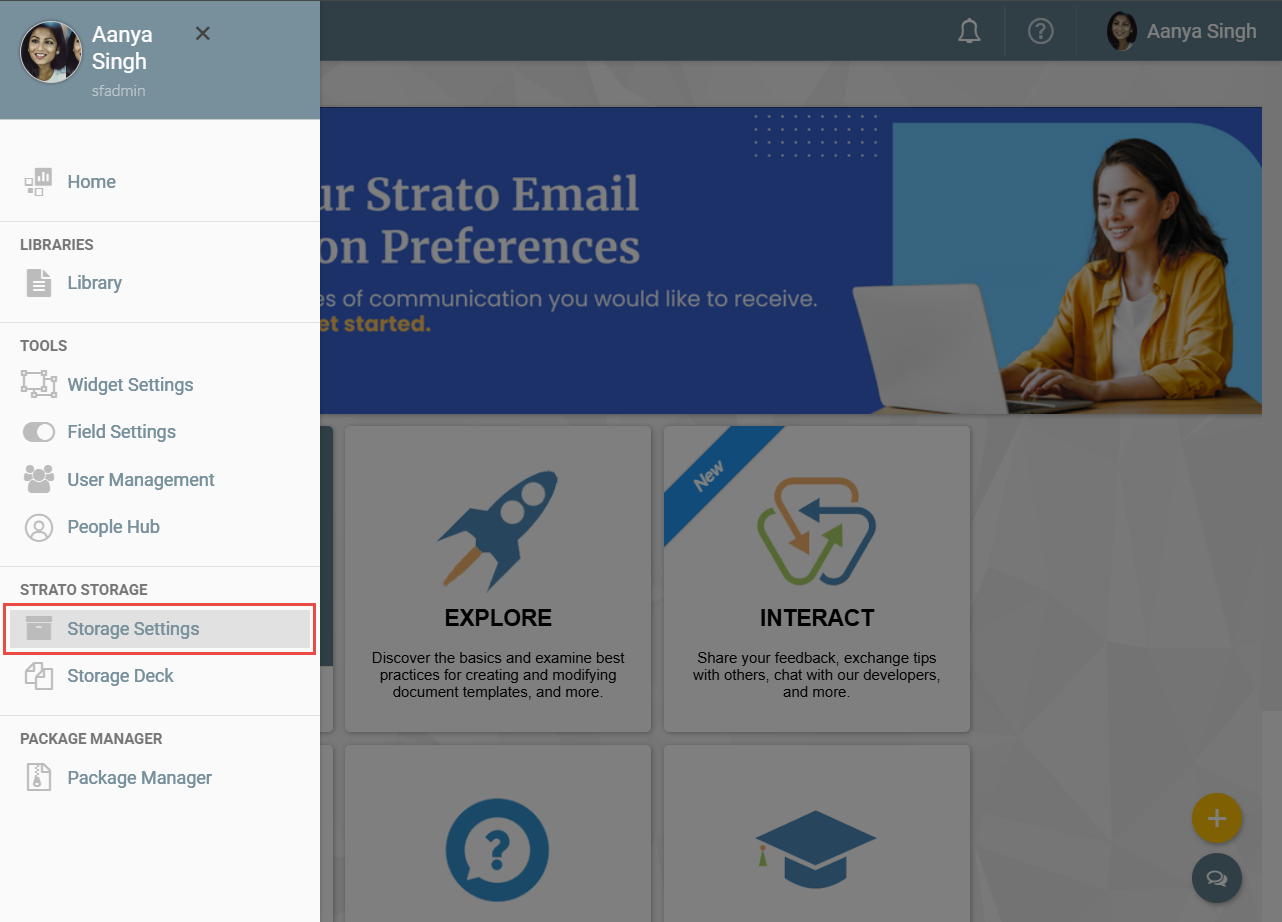
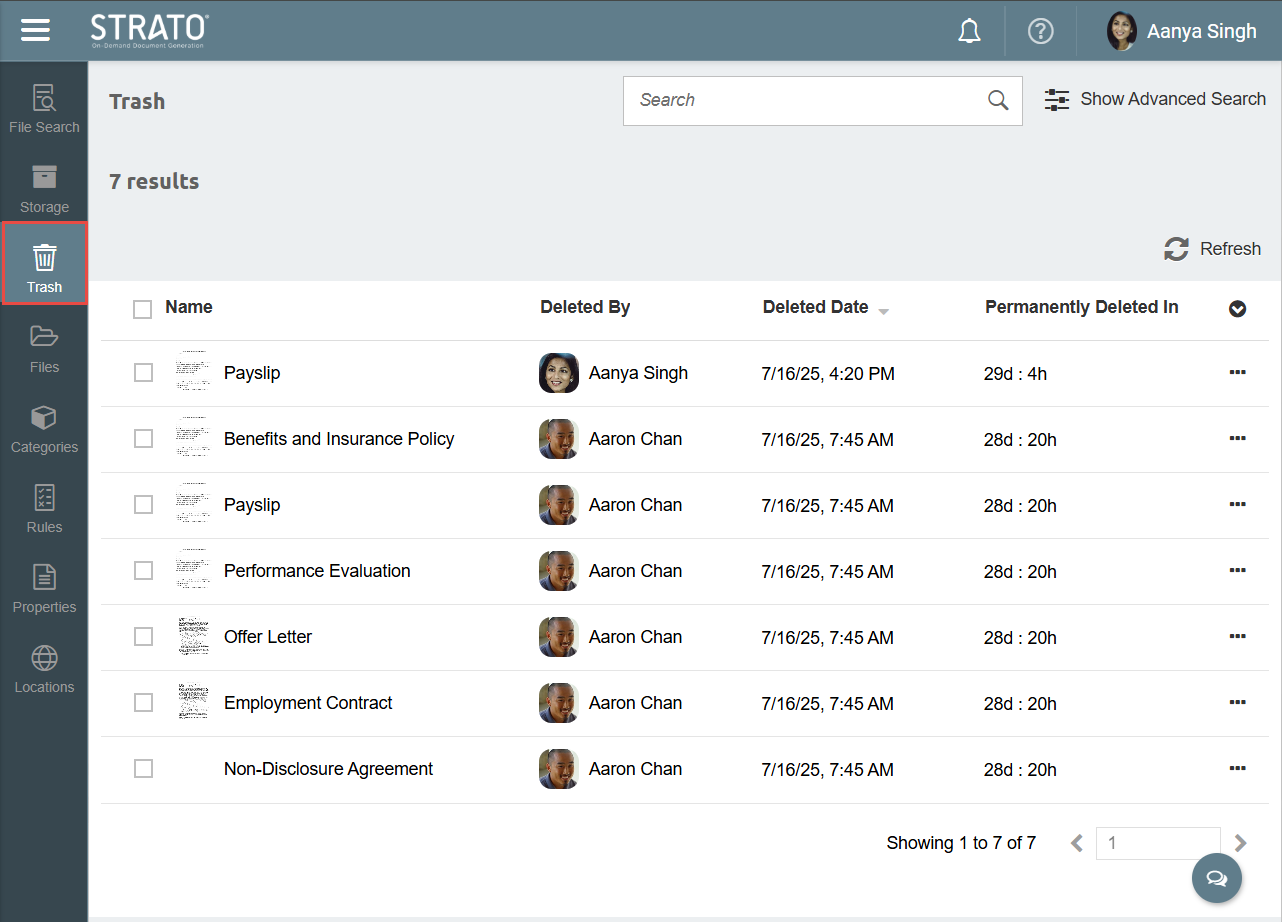
You can access Trash V1 by opening the Strato side panel, clicking Storage Settings, and then clicking Trash.
Trash V2
You can access Trash V2 via the Strato App Menu Bar.

You can also access Trash V2 by going to the All Files page, then clicking Trash in the left sidebar.

Features
Trash List
The Trash lists all deleted files with Categories that have retention periods defined.
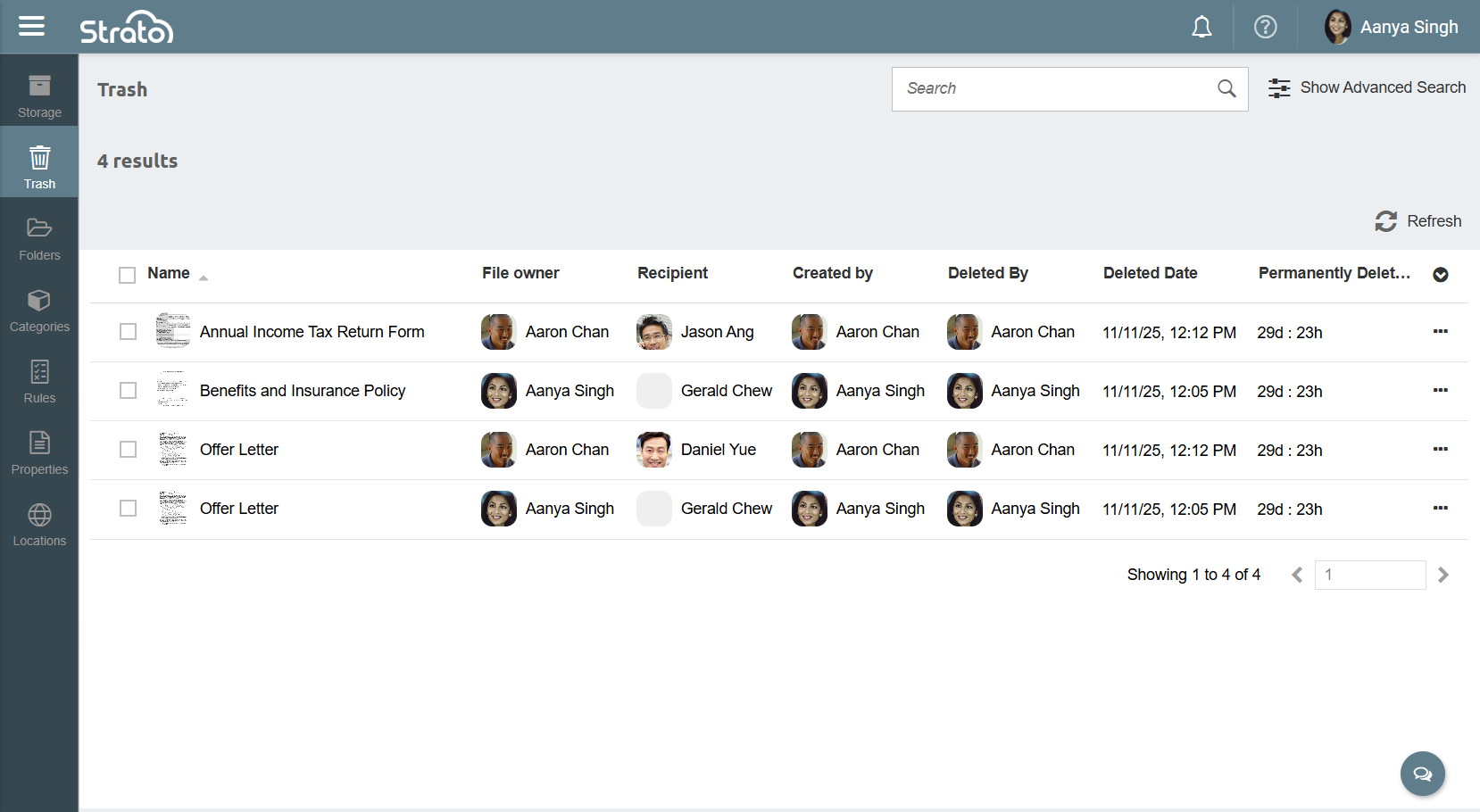

By default, four columns are shown:
- Name: The name and extension of the file.
- Deleted By: The user who deleted the file.
- Date Deleted: The date and time when the file was deleted.
- Permanently Deleted In: The remaining duration until the file is permanently deleted.
The following columns can be toggled via the Show/Hide columns button:
- Description: A short description of the file.
- Category: The Category assigned to the file.
- File Path: The location of the file before it was deleted.
- Recipient: The user who received the file.
- Created By: The user who created the file.
- Document Status: The current status of the file. For all files in Trash, this is always set to DELETED.
- Size: The size of the file.
You can do a basic search by using the search bar, and narrow down the results through the Advanced Search function. To know more about operations you can do in a search field, read File Search - Overview.
Actions
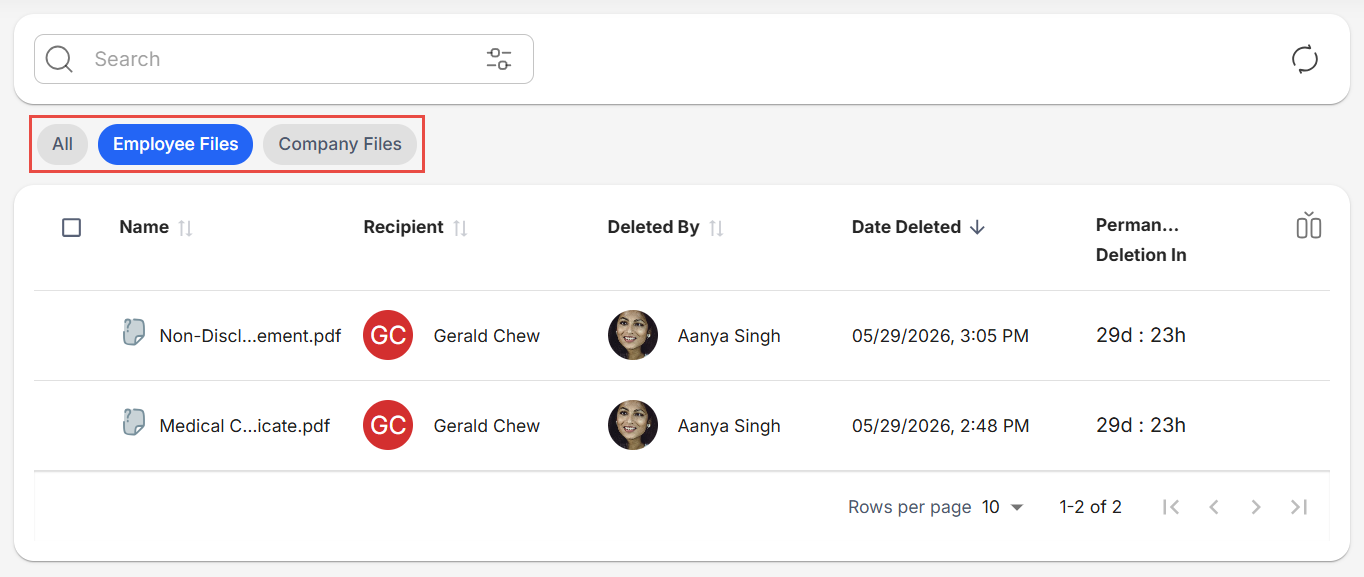
If New Feature - Company Files is installed, the Quick Filter buttons will appear. These allow you to show either all of the files, Employee Files only, or Company Files only. This only works in Strato V2.
You can do three actions to files in the Trash through the More button:
- The File Information (V1) or Info (V2) action shows more information about the selected file, including the file's Deletion History. This action can only be done to one file at a time.
- Trash V1Trash V2
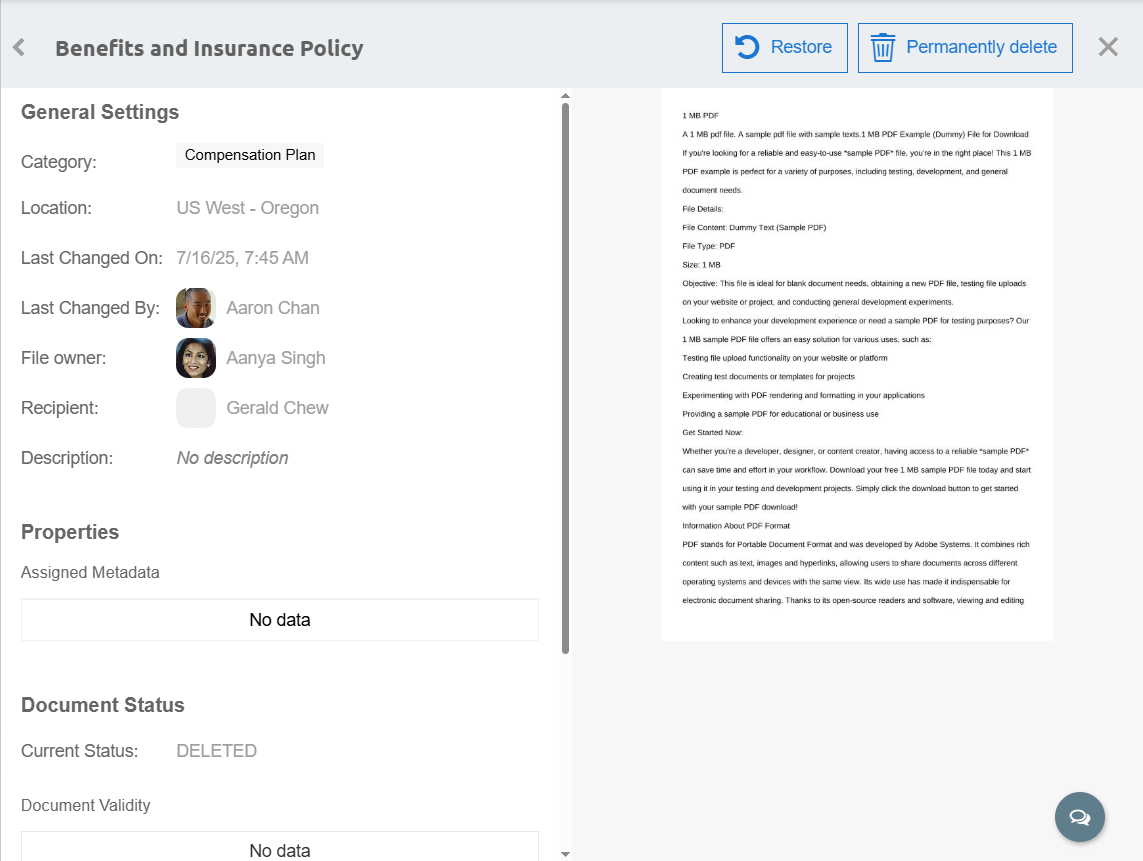
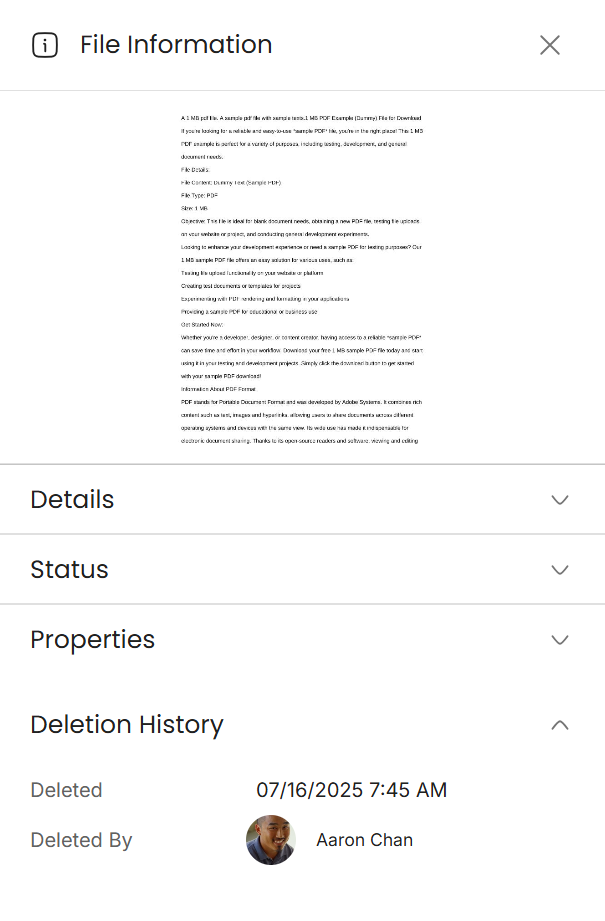
- The Restore action allows you to restore one or more deleted files back to their previous folder location listed in the File Path. If the original folder no longer exists, the system will prompt you to select a new folder destination.
- The Permanently Delete action allows you to delete one or more files from Strato completely. This action cannot be done if your user is the same user who originally deleted the file. When selecting multiple files, and some files were originally deleted by you, those specific files will be excluded from being permanently deleted.
Related articles
- New Design - Strato Document Management
- File Search - Overview
- Strato Storage
- Storage Management - Overview
- File Management - Overview