Navigate Company Files
This article explains how to navigate Company Files, where users can view, configure, and manage company-wide files.
Requirements
Make sure that New Feature - Company Files is installed in the Upgrade Centre.
Your user must have a Policy that grants access to Company Files. Contact your Strato administrator if you need assistance with these permissions.
Features / Functionality
Company Files Page
The Company Files page is where you can view, search, and manage files that belong to the organisation.
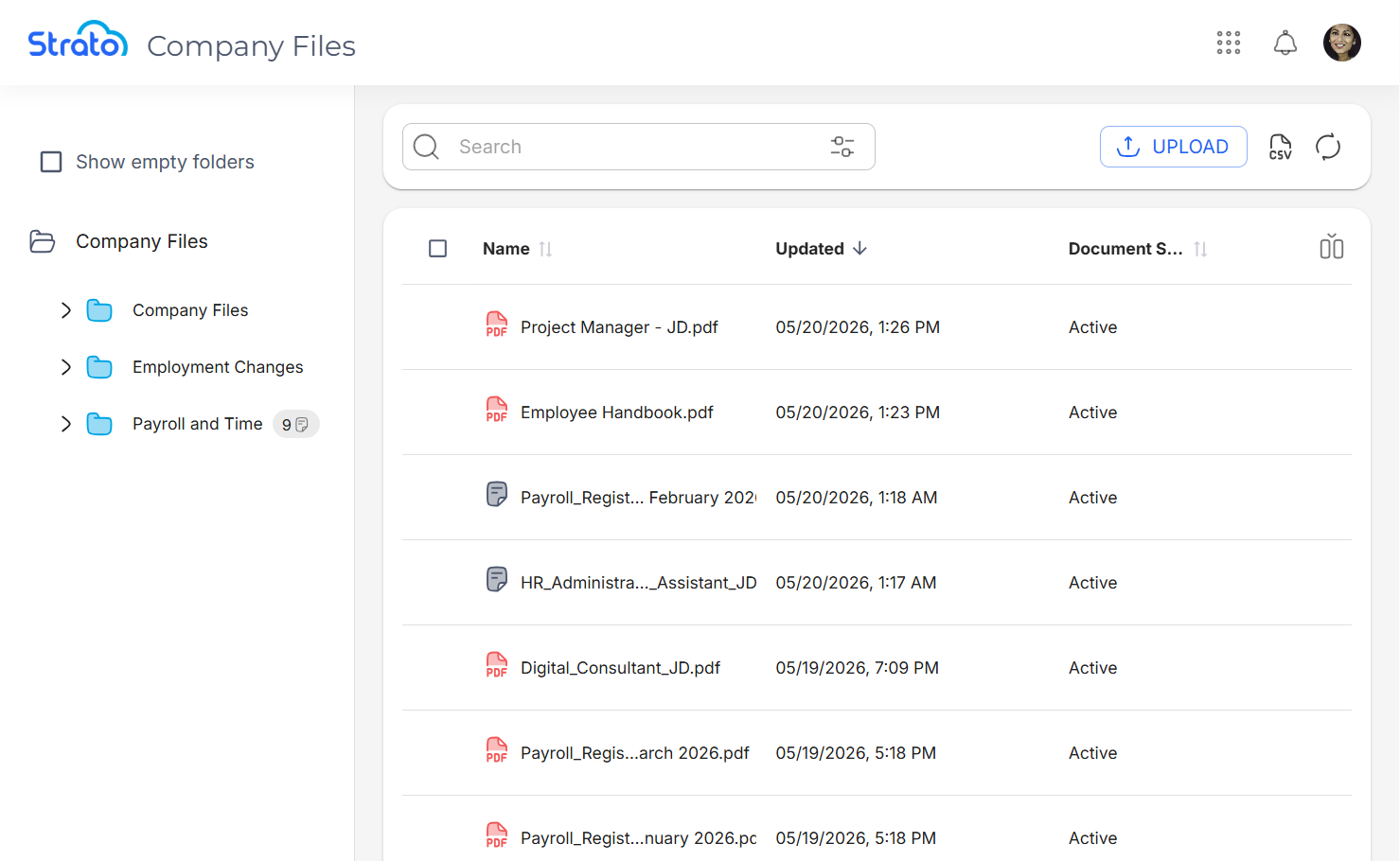
Actions
 | The Upload button allows you to upload company files. |
 | The Export to CSV button allows you to generate a CSV file of all available files. This file includes all active columns and download links for each file, and reflects any current filtering applied through Basic and Advanced Search. |
 | The Refresh button refreshes the Company Files list. |
 | The Show/Hide columns button allows you to toggle additional details on and off. Note that the Name column is enabled by default and cannot be toggled off. 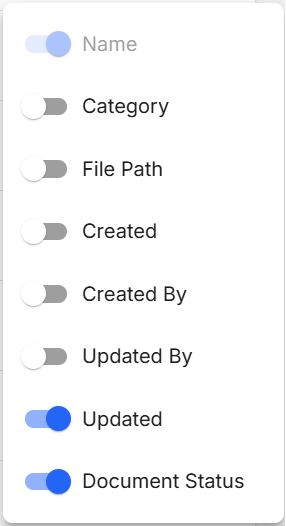 |
 | The Sort button allows you to sort by the selected column in ascending or descending order. |
 | The Rows per page dropdown allows you to choose either to show 10 or 25 files per page. |
 | The Record count shows you the number of files currently being viewed out of the total number of files. |
 | The Navigation controls allow you to jump between pages. You can go to the first page, previous page, next page, or the last page, respectively. |
 | The Move Column handle allows you to drag and drop columns to easily reorder them. |
 | The File Preview button allows you to see the contents of the file quickly. The preview can be seen to the left of the File Information panel. 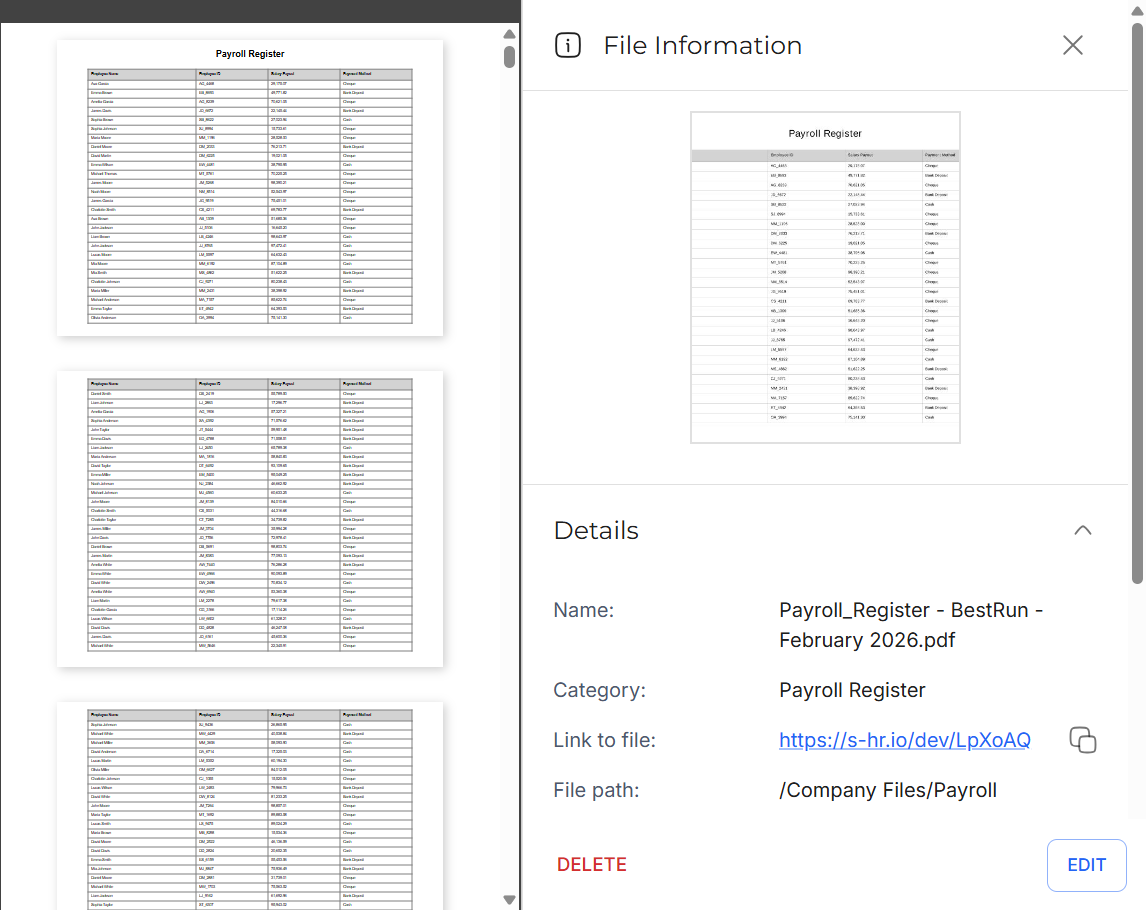 |
Five additional actions are available from the More button: Download, Info, Open, Edit, and Delete selected file.
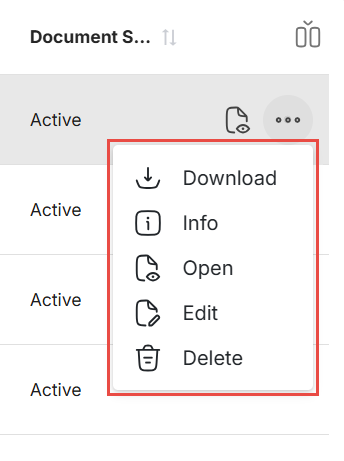
Download | Downloads the selected file. |
Info | Opens the File Information side panel where you can access the relevant details of a file. 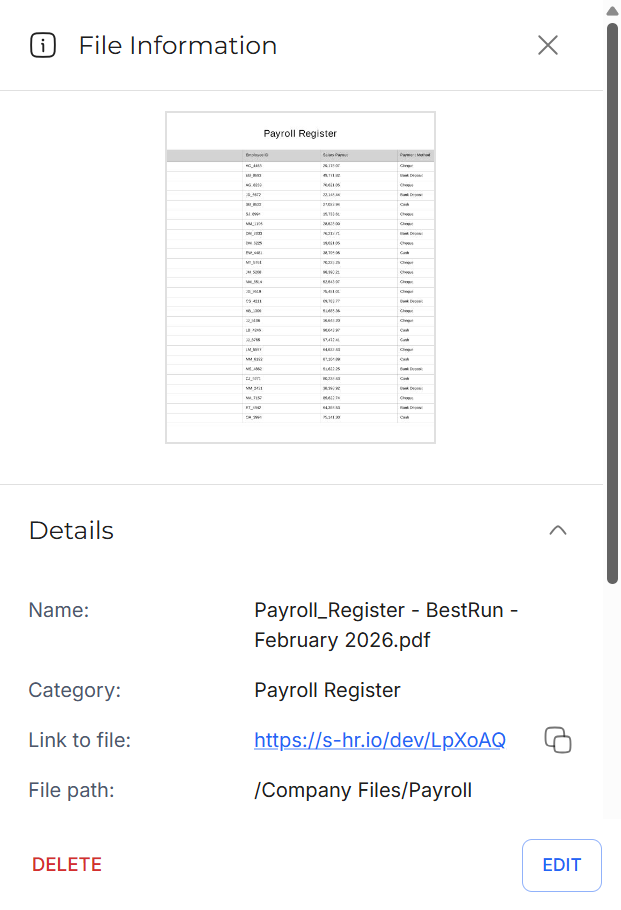 |
Open | Opens the File Viewer where you have more actions available, such as printing. 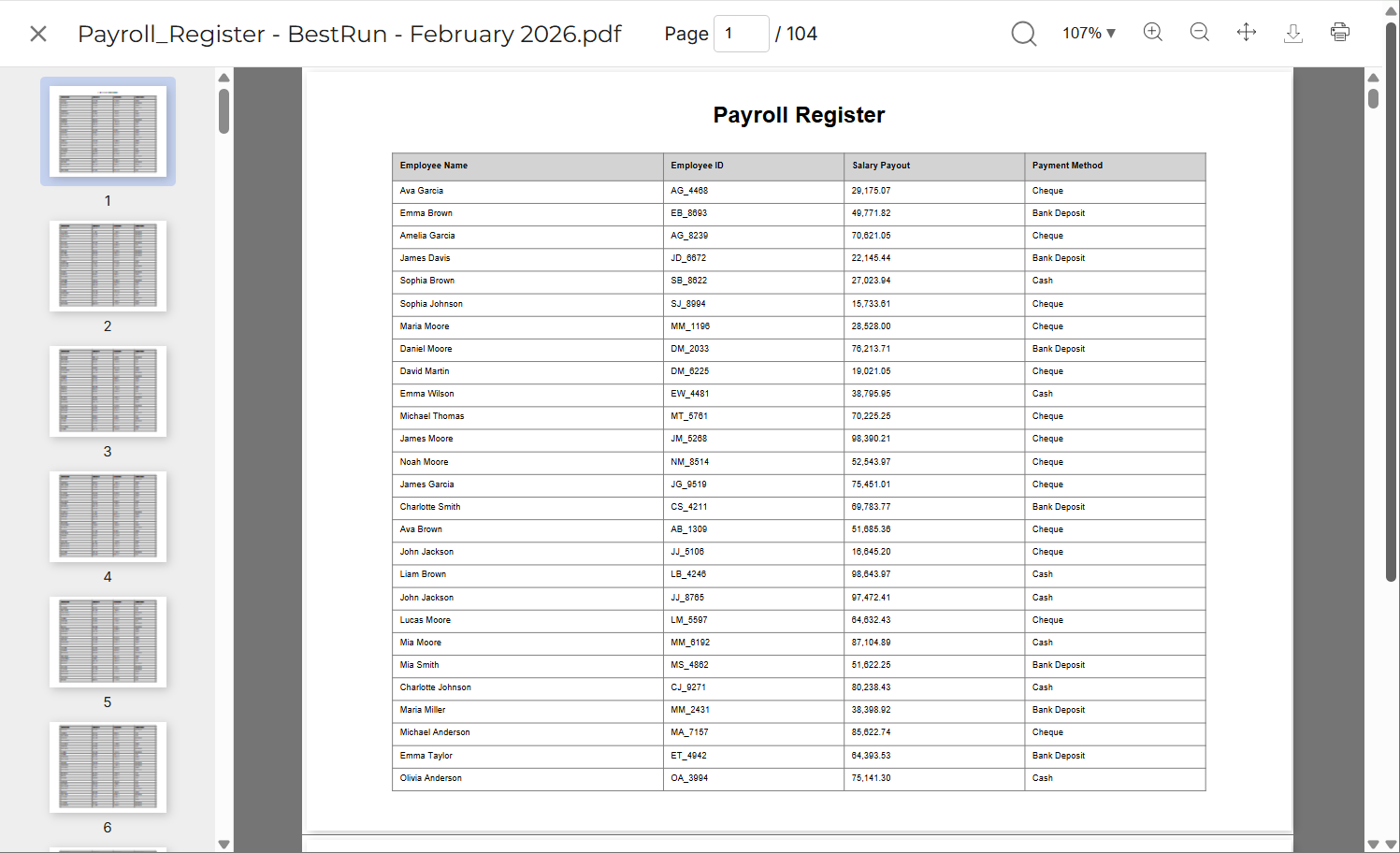 |
Edit | Opens the Edit side panel where you can modify the details of the selected file. 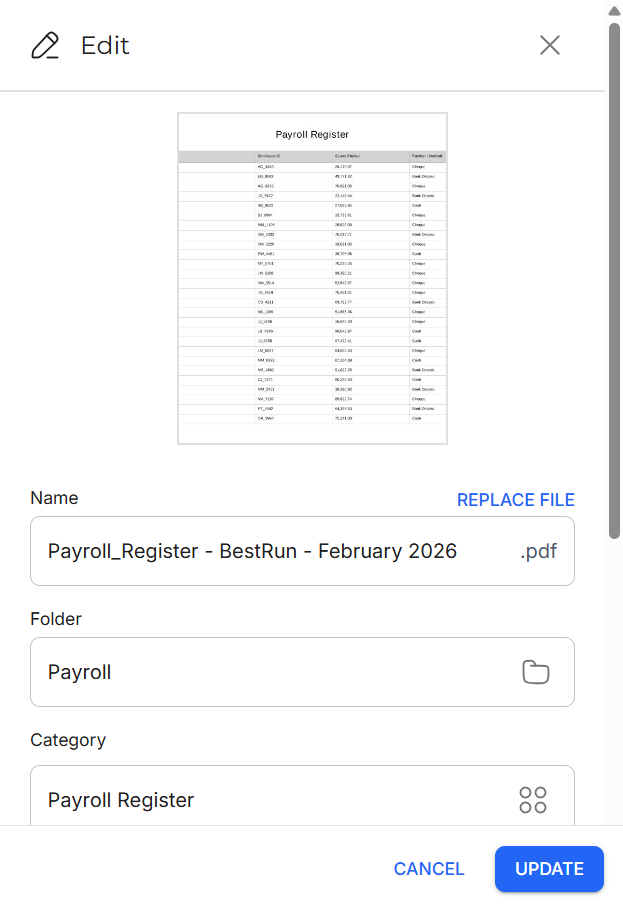 |
Delete | Removes the selected file from Strato Document Management. |
Batch Actions
When selecting more than one file using the checkboxes, the following actions can be performed:

Note that the Info and Open actions are unavailable when more than one file is selected.
Column Actions
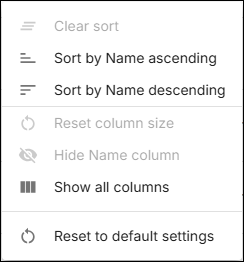
The Column Actions button appears on the right side when hovering over a column.
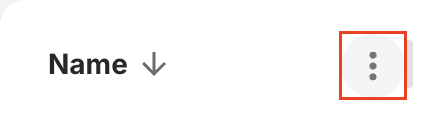
When clicked, the button shows you a list of options you can do to the selected column.
Related articles
- New Design - Strato Document Management
- New Design - Category Management
- Categories
- Navigate the All Files Page
- Trash
- New Feature - Company Files
- Configure Categories for Company Files
- Policy Evaluation for Strato Document Management