Create an Email Template
This article explains how to create an Email Template in Strato Document Generation.
Requirements
Basic knowledge of Documents and Emails in Strato Document Generation are required.
Instructions
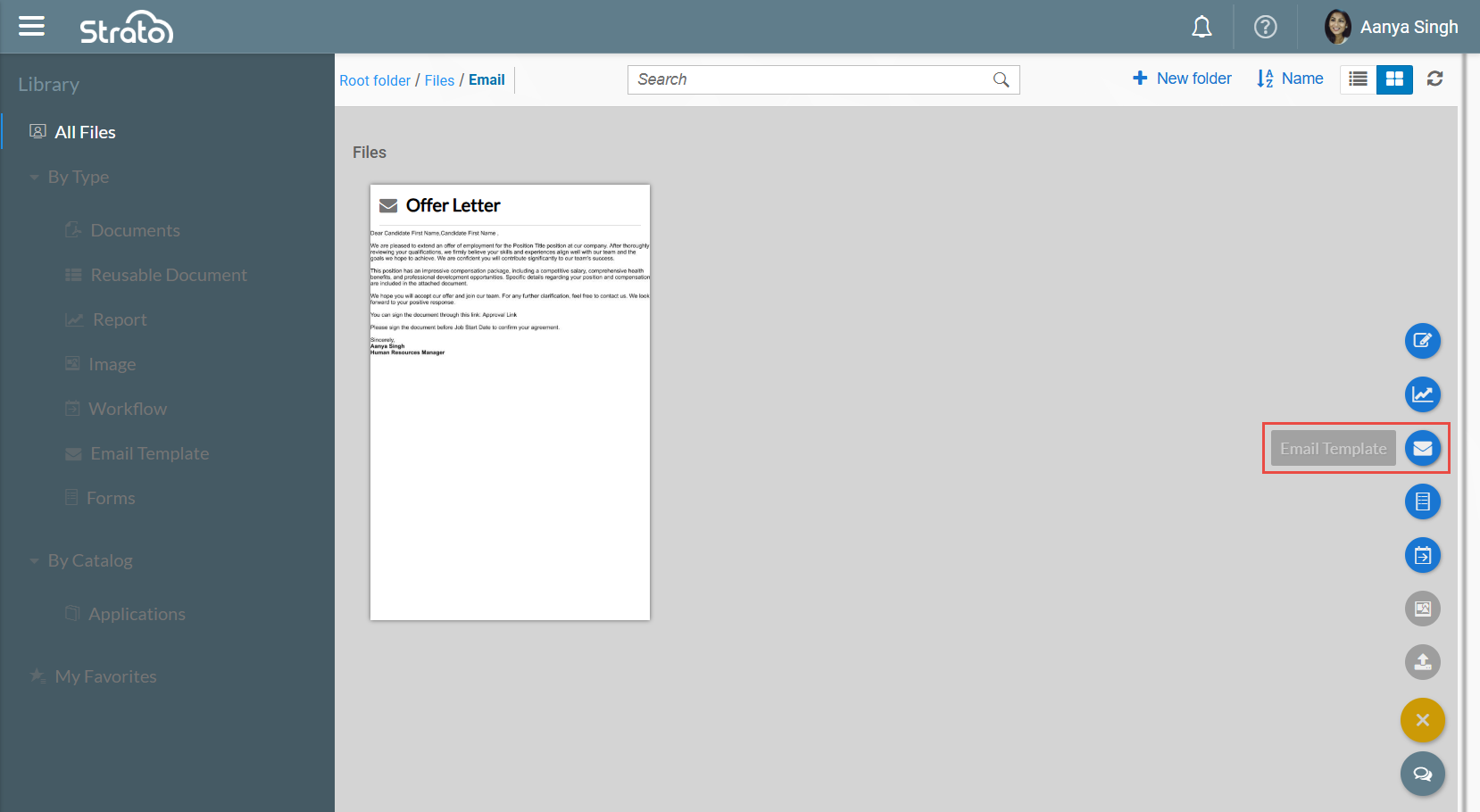
In the Library, create an Email Template by clicking the Email Template icon from the action button on the lower right of the screen.
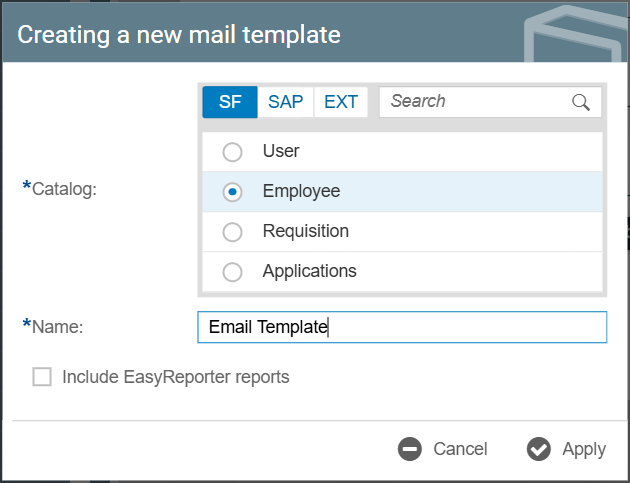
This will prompt a Creating a new mail template dialog box, where you can set which Catalog the Email Template will reference and the name of the Email Template. Click Apply once done configuring.
A blank Email Template would then be created. You can edit this template like you would edit a Document Template.
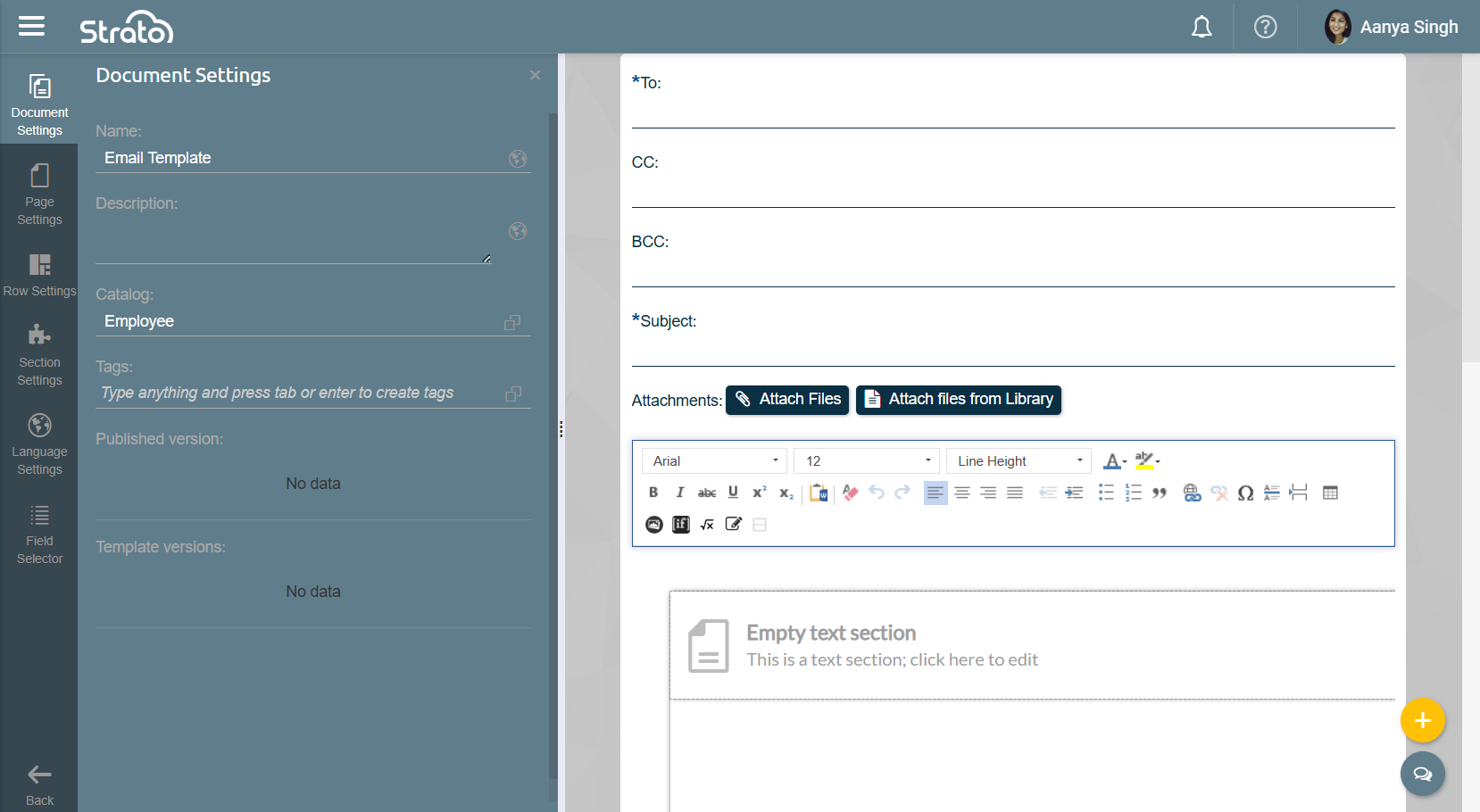
Fill in the following fields. The ones marked with an asterisk are required. You can fill in these fields with static text or Fields.

For attachments, you can attach one or more PDF or DOCX files through the Attach Files button. You can also attach one or more Document Templates from the Library through the Attach files from Library button.
Conditions can be applied for each attachment to include or exclude them from being sent.

After building your Email Template, click Save and then Publish from the action button on the lower right of the screen.