Workflow Settings [V1]
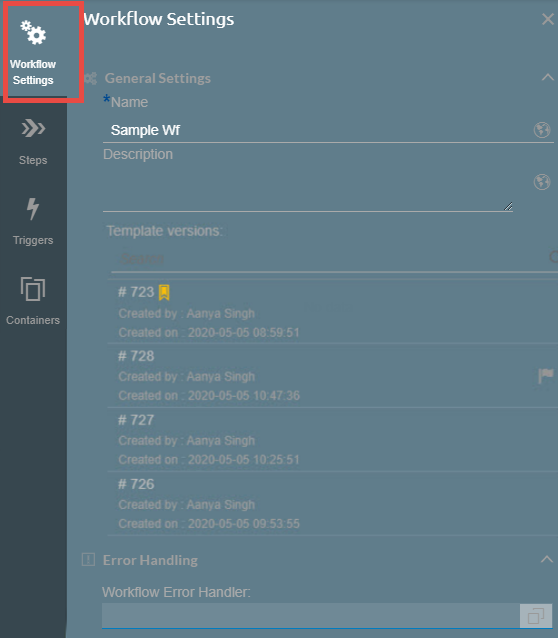
In creating your workflow template in Strato, the first thing that you need to do is to define its general details (name and description) in the Workflow Settings - the first main tab of the Workflow Editor.
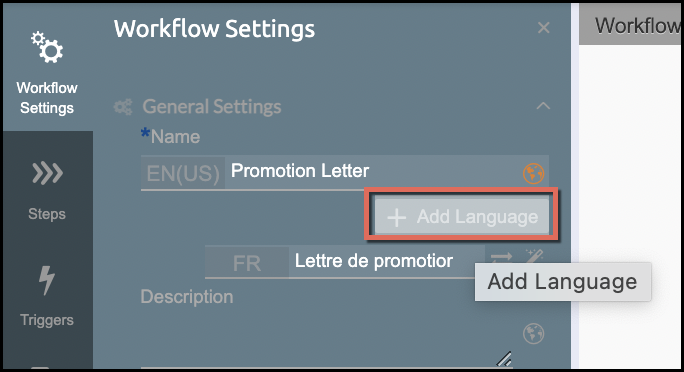
Similar to creating document templates in Strato documents, you can also set the workflow's Language settings by clicking the Add Language function below the description field as shown below. After adding a language, clicking its Wand icon on the right side to automatically translate the texts. This uses functions as Google Translate.
There's also a version management feature in creating workflow templates. You can modify and save it, so you will have previously saved versions and a published version. Every time you make a change to your workflow template, you can always save your configuration, but the published version is going to be the published or working version of your workflow.
- Name - Name of the workflow
- Description - Provide a description of your workflow (optional).
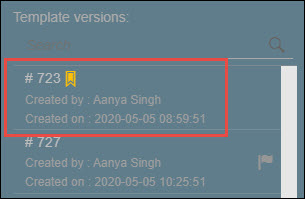
- Template versions - this shows the version history of the workflow each time it is saved. You can select another version, edit, and mark that version as the published version. The published version that is displayed on the screen below is indicated by a yellow ribbon. This is the version of the workflow that is live and is being used in your actual processes.