Search Enhancement - OCR
In Strato Storage, the Content-Based Search feature allows users to search for specific documents by utilizing keywords found within the document. The keyword used will display a list of search results containing both exact and partial matches in the documents. For instance, when using the keyword employ, the search results include matches such as employ, employee, employment, and similar terms (i.e., look for specific keywords or phrases within the content of the document).
The Content-Based Search feature applies to the following search engines in Strato Storage:
- File Search - Basic Search
- File Search - Advanced Search
Features
File Search - Basic Search
Performing a Basic Search with the content-based search allows the user to specify a keyword in the search field and return any files with names or document content that match the search term provided. The search results prioritize matches to the file name, followed by results that match the document contents.
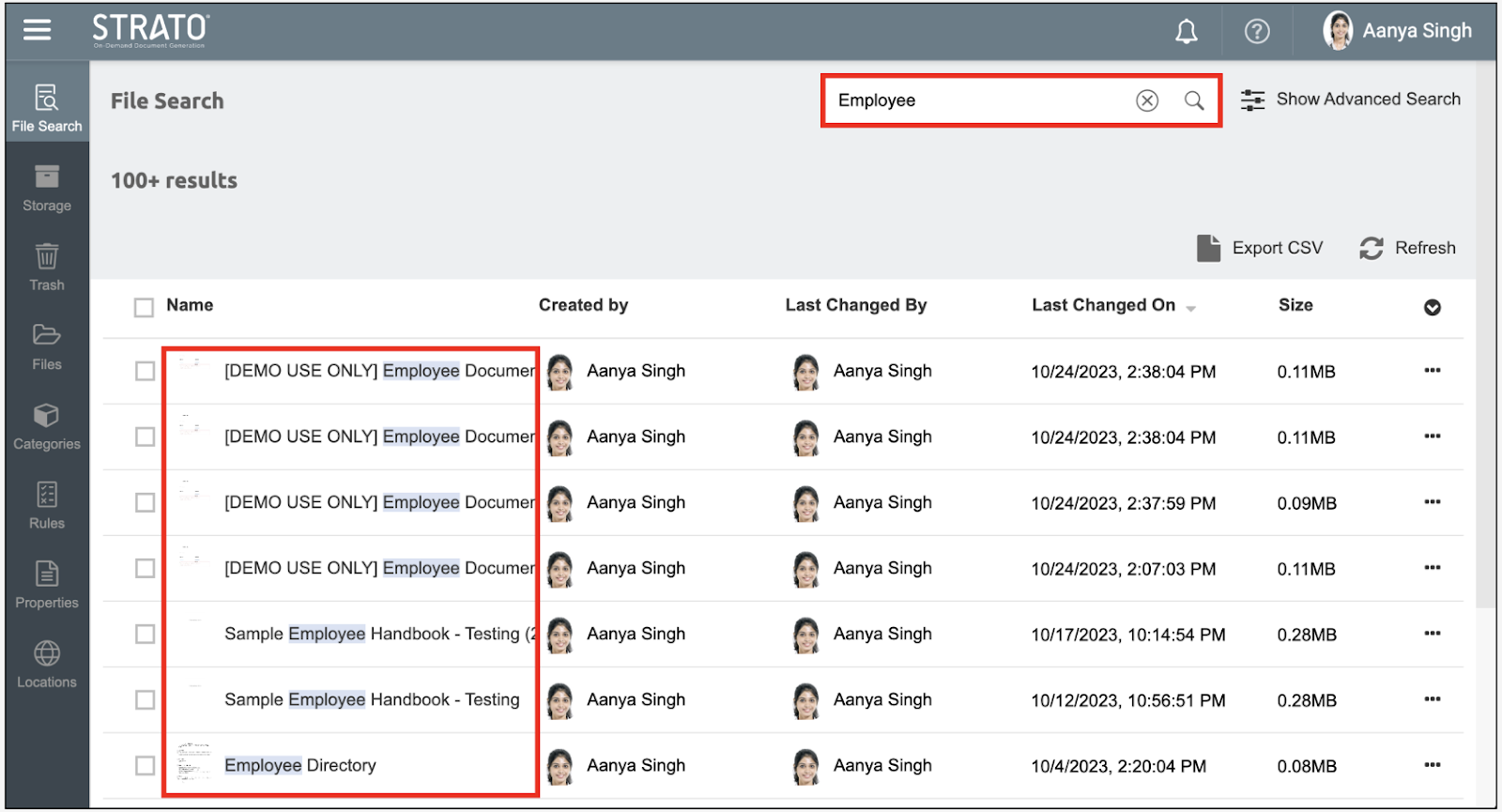
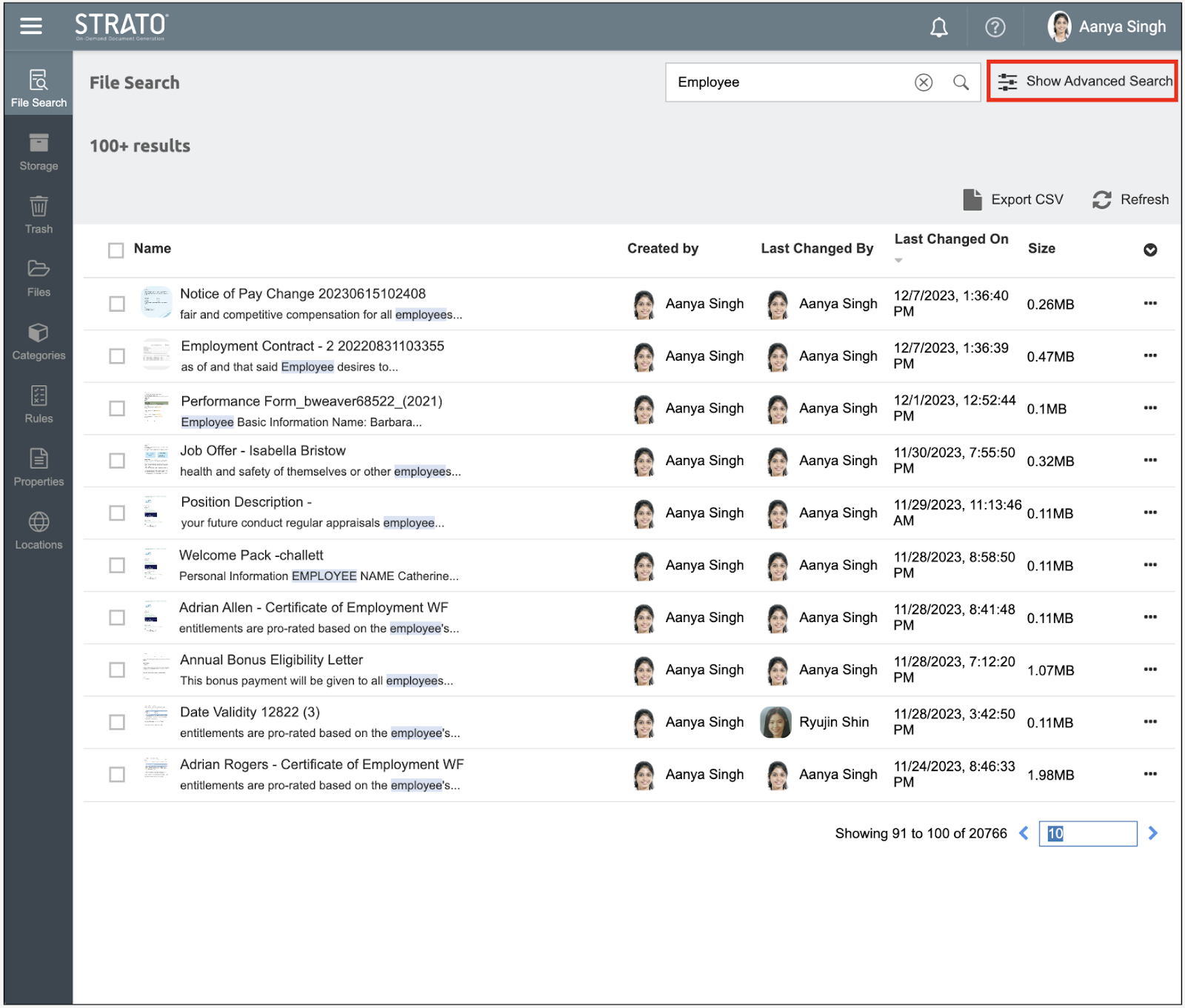
Clicking on the Show Advanced Search button automatically applies the Basic search input to the Content-Based Search feature in Advanced Search conditions.
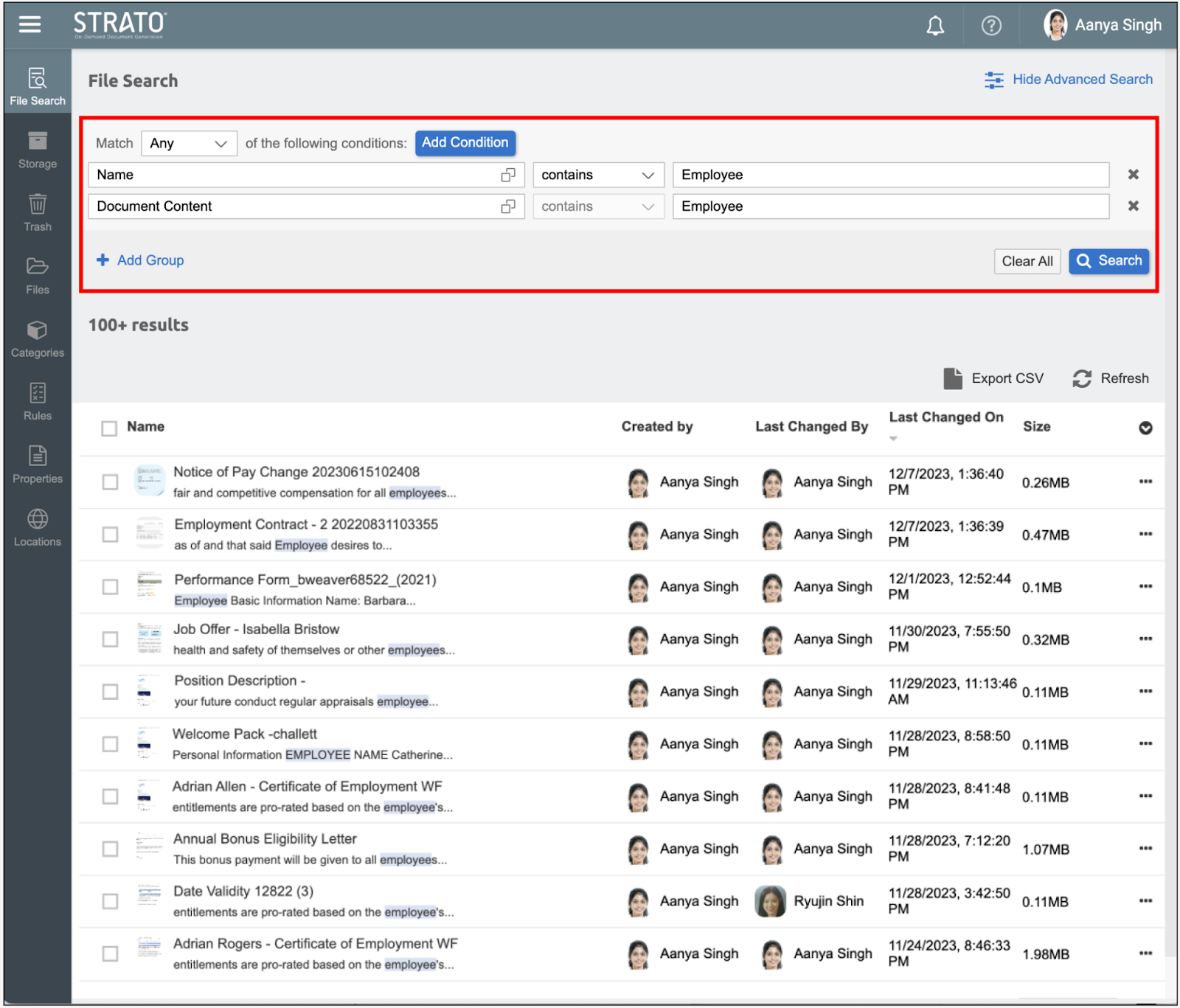
File Search - Advanced Search
The Document Content search field in the Advanced Search enables the user to utilize the Content-Based Search feature. This field sets both the contains operator and the search value text as fixed components of the advanced search conditions.
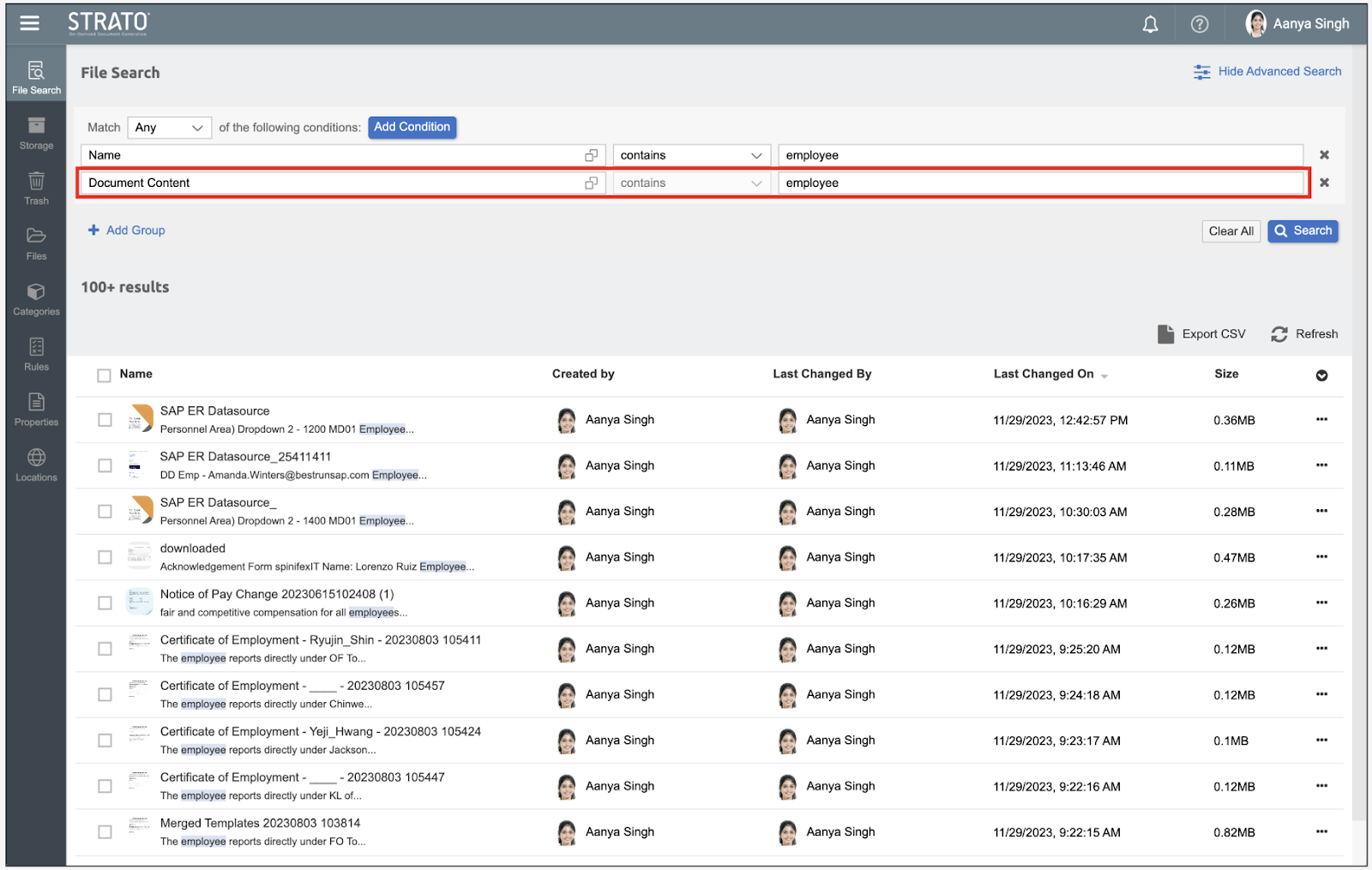
Highlight Search Matches
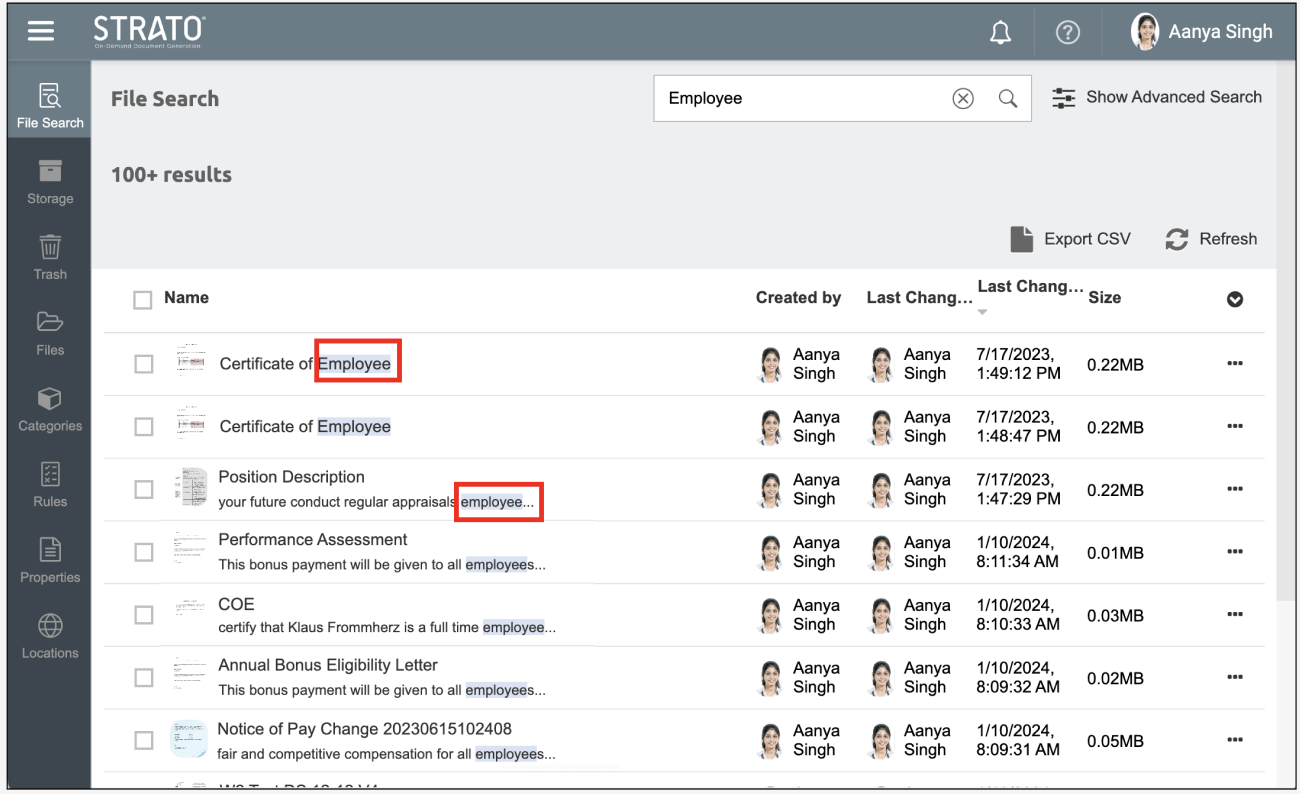
The result list of both Advanced Search and Basic Search will highlight the matching word or phrase in the Name column. The document content will also be highlighted and matched with the searched word or phrase.
Categories - Confidential
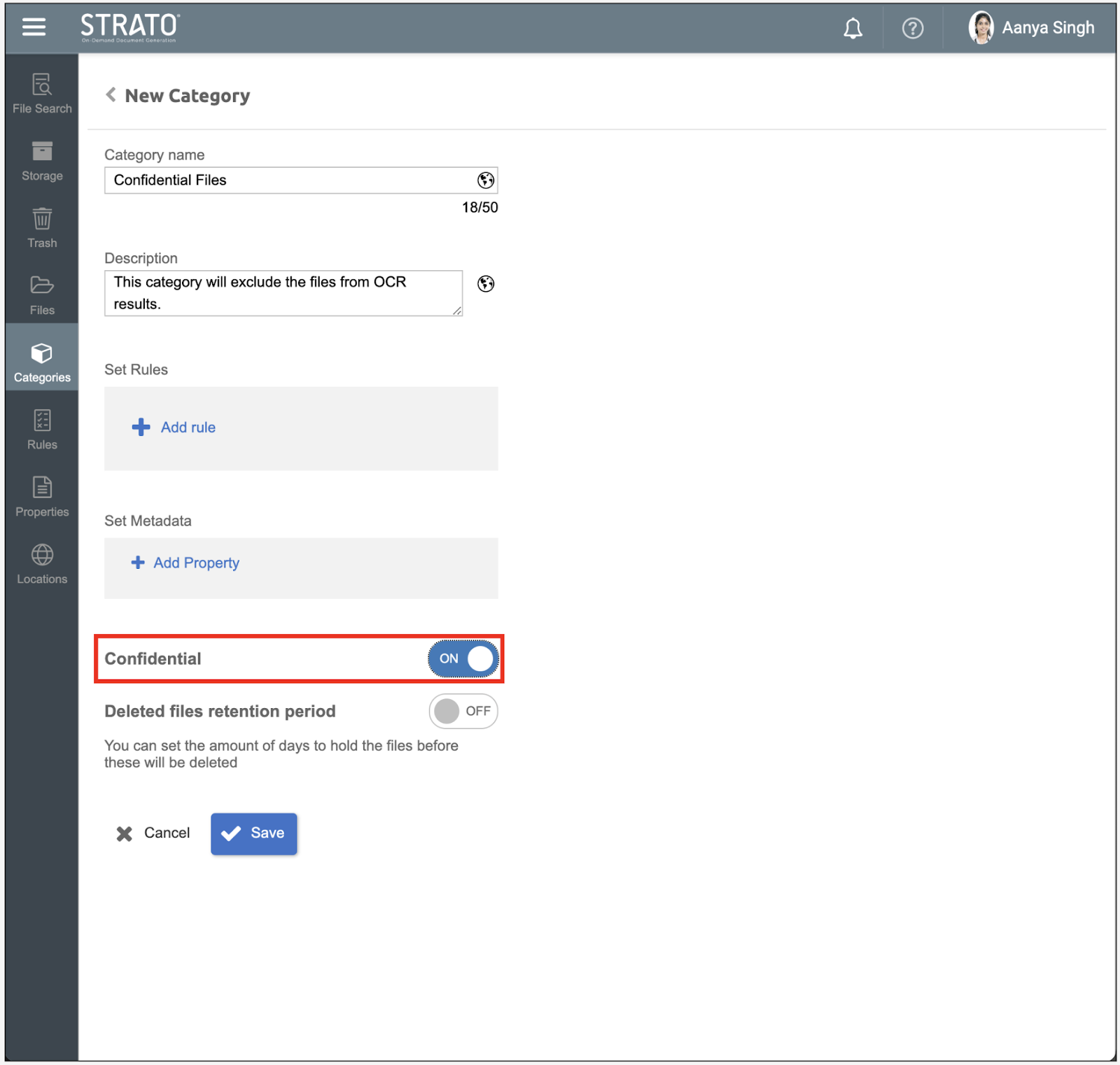
Strato Storage allows the setting of the Confidential category to files and folders. When a file is set as Confidential, the document content will be excluded from search extractions.
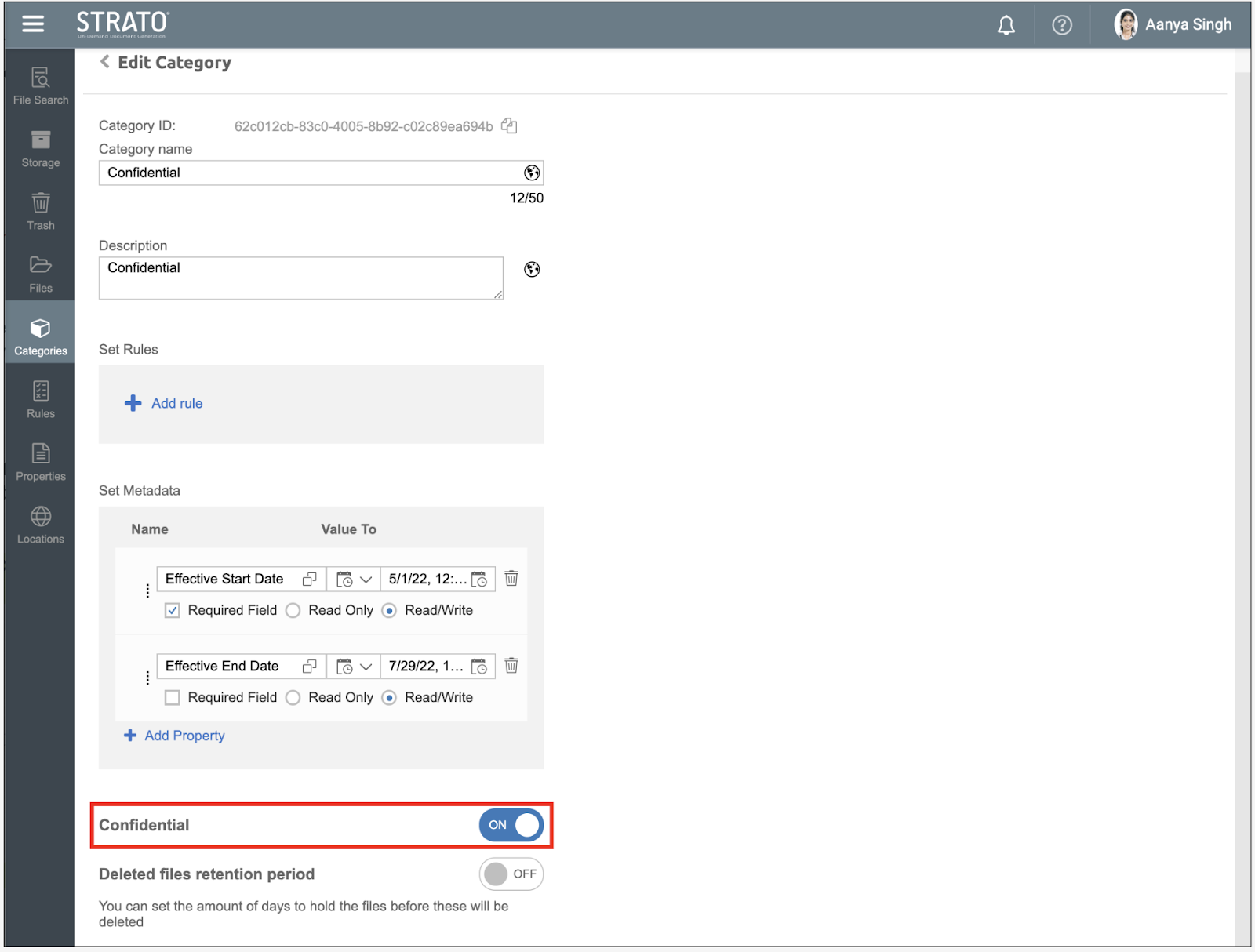
By default, this toggle is OFF. It would only be available in the systems where the Content Search/OCR is toggled ON from the Admin Tool.
Configuration
Admin Tool
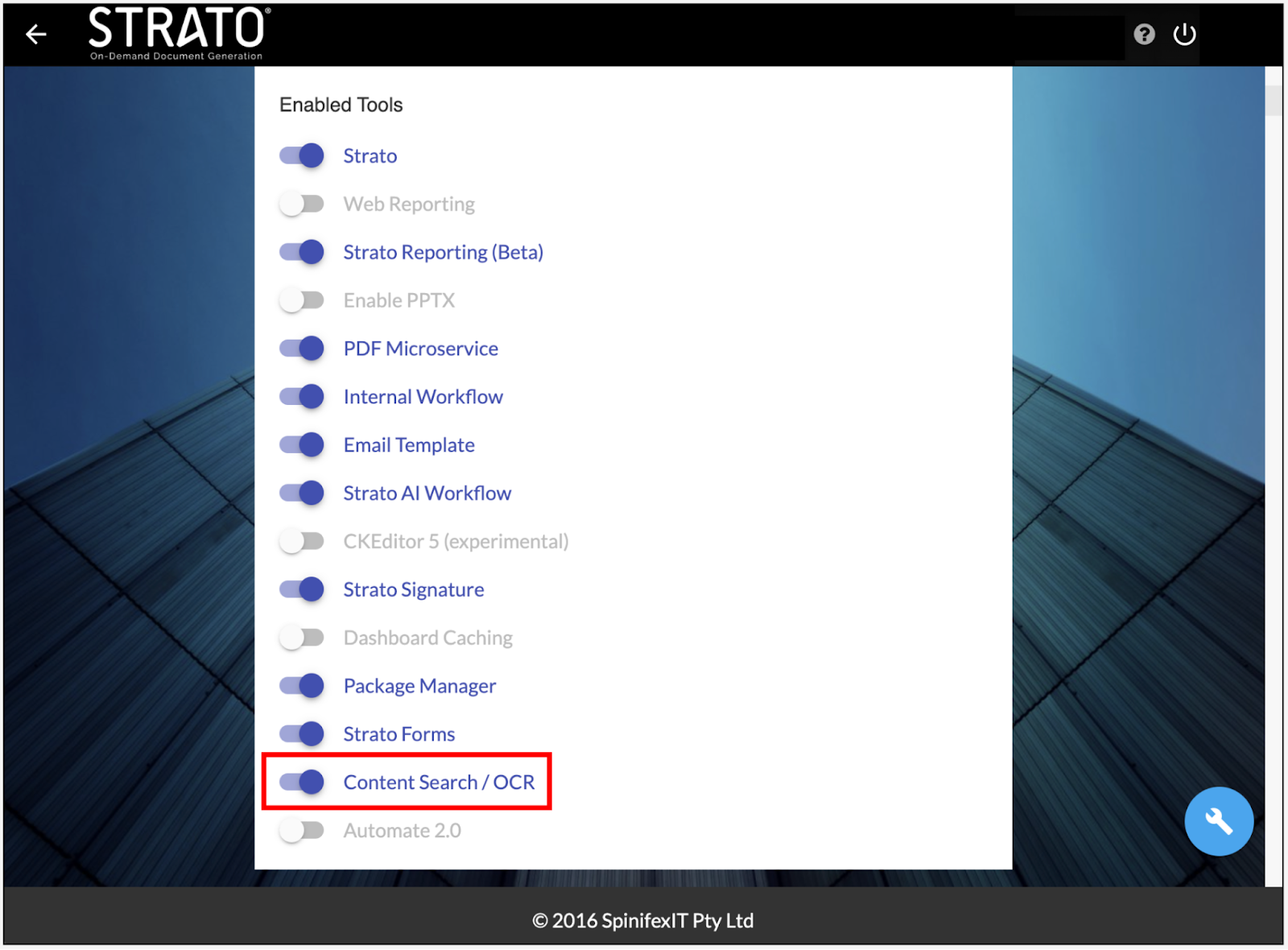
To enable or disable the Content-Based Search feature, toggle the Content Search/OCR to the on/off position. To do this, follow the steps as described:
- Go to General Settings.
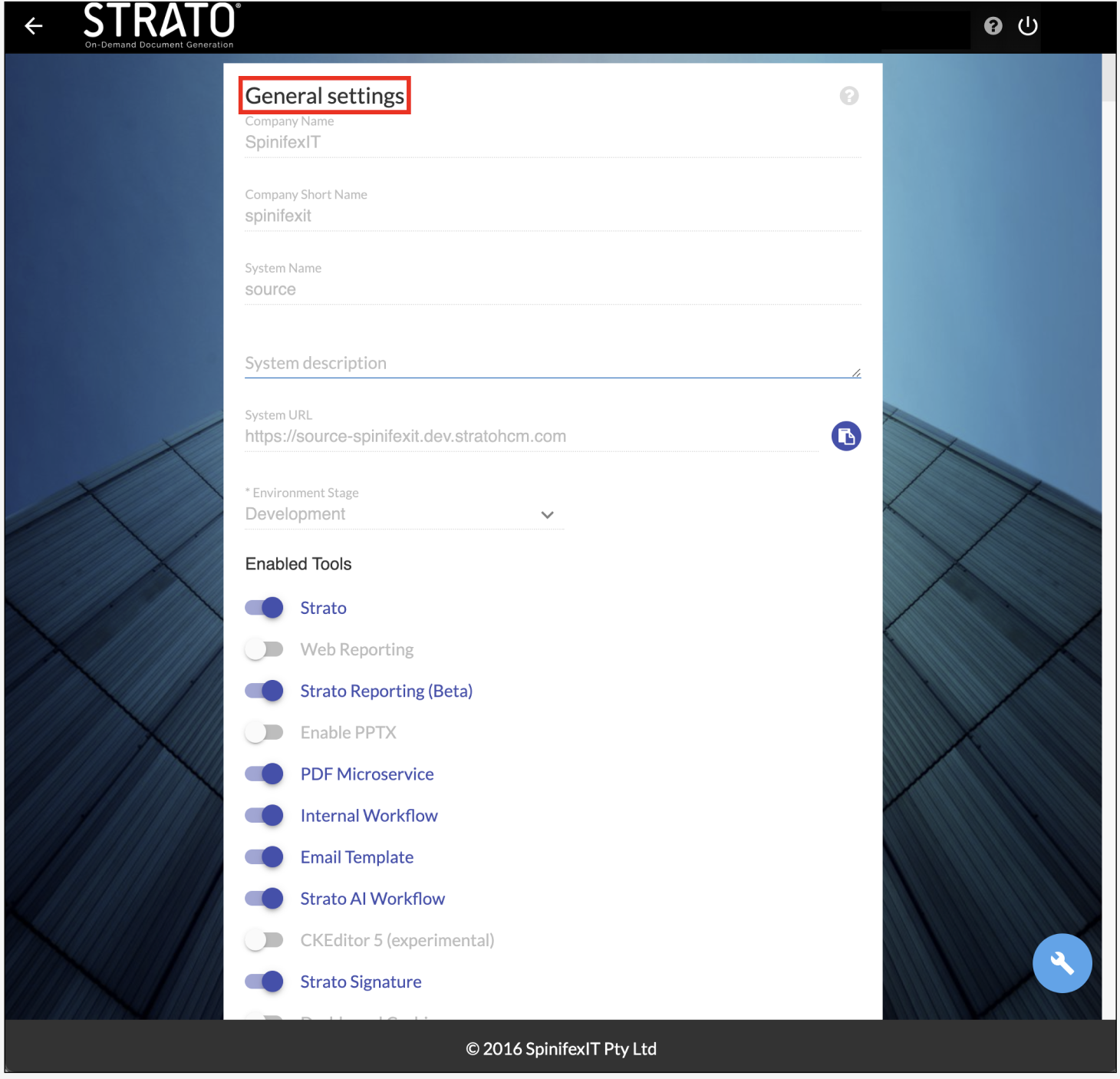
- Look for the Enabled Tools.
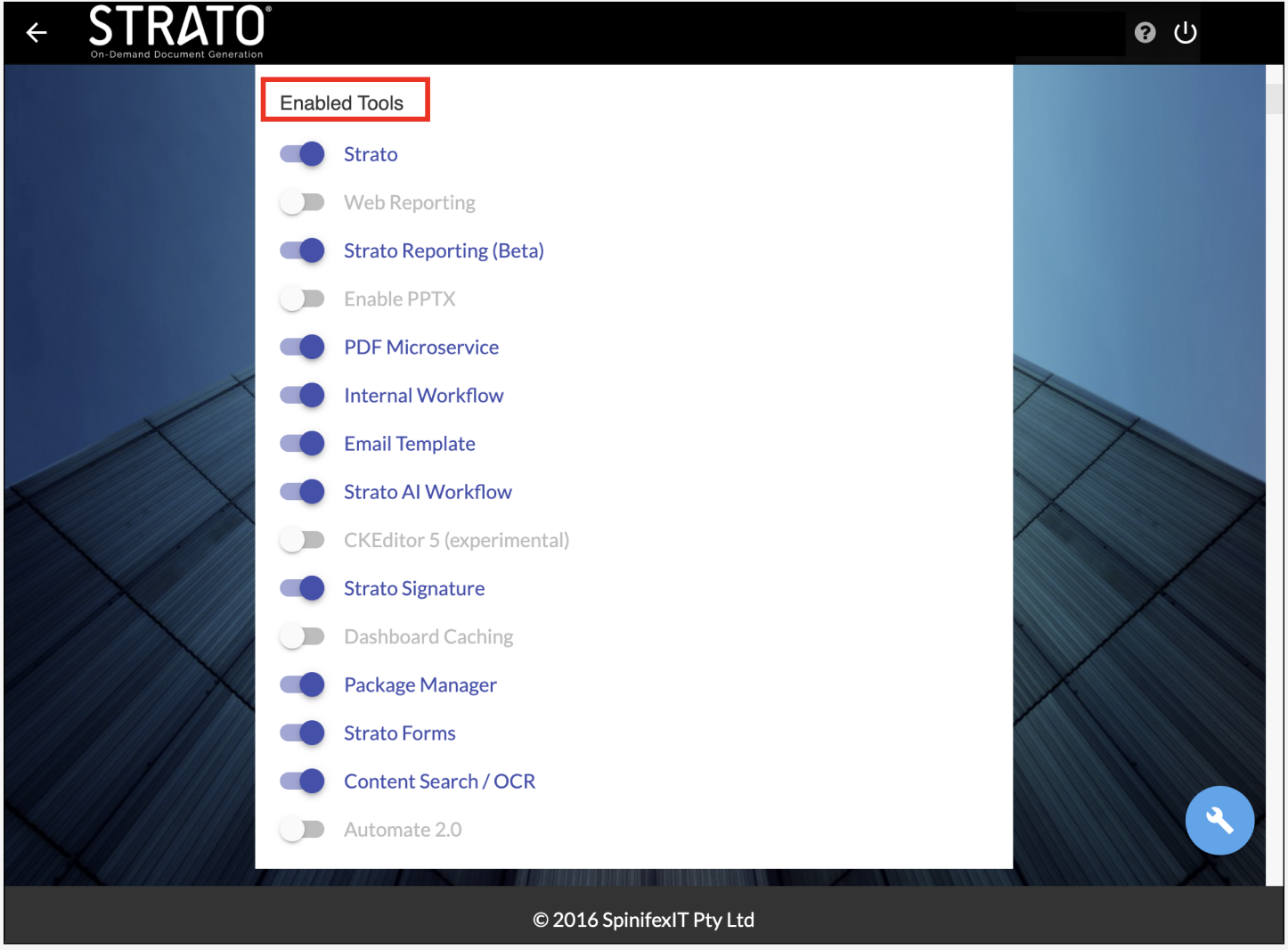
- Scroll down to see Content Search/OCR, then toggle ON to enable, OFF to disable.
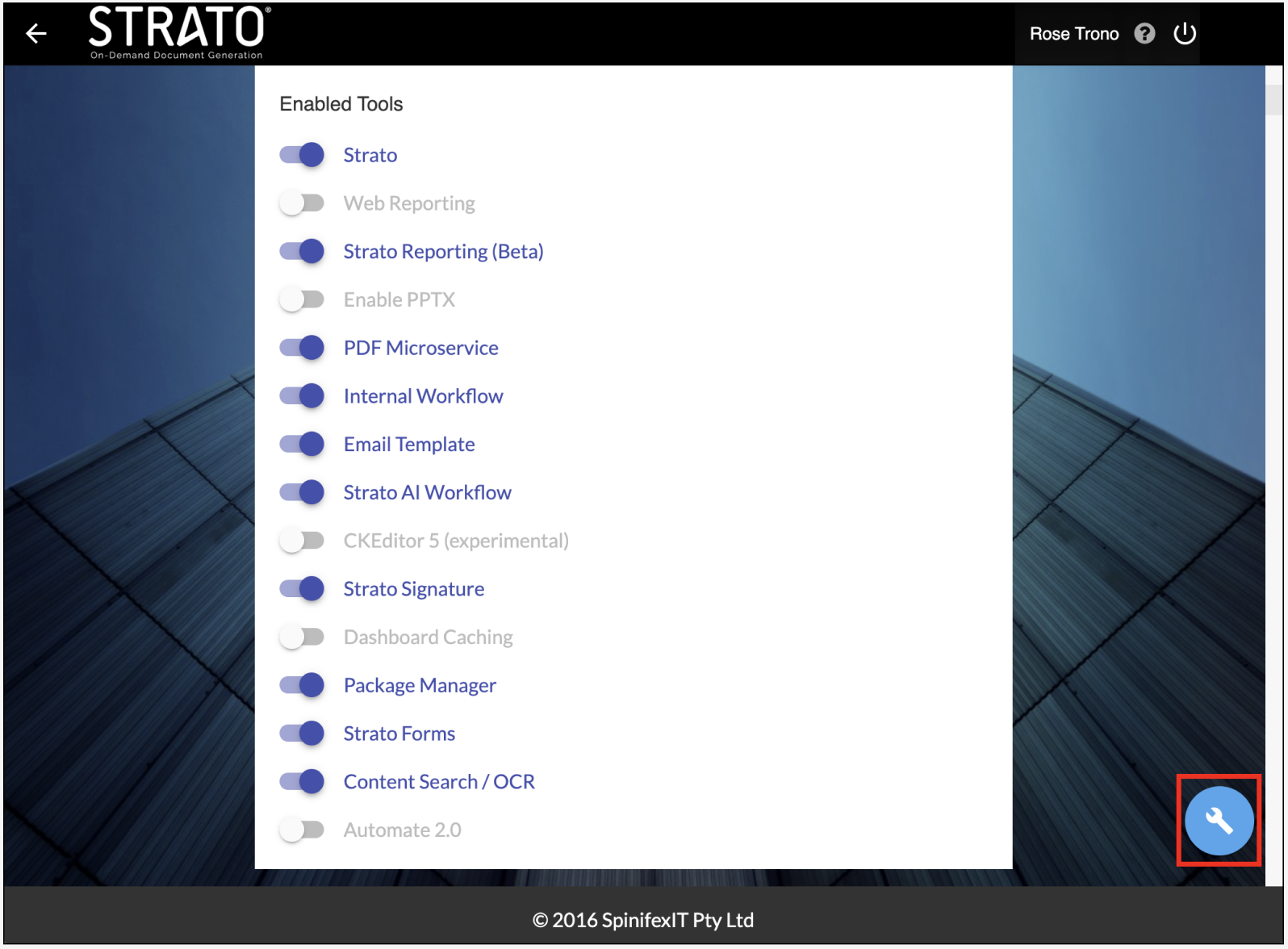
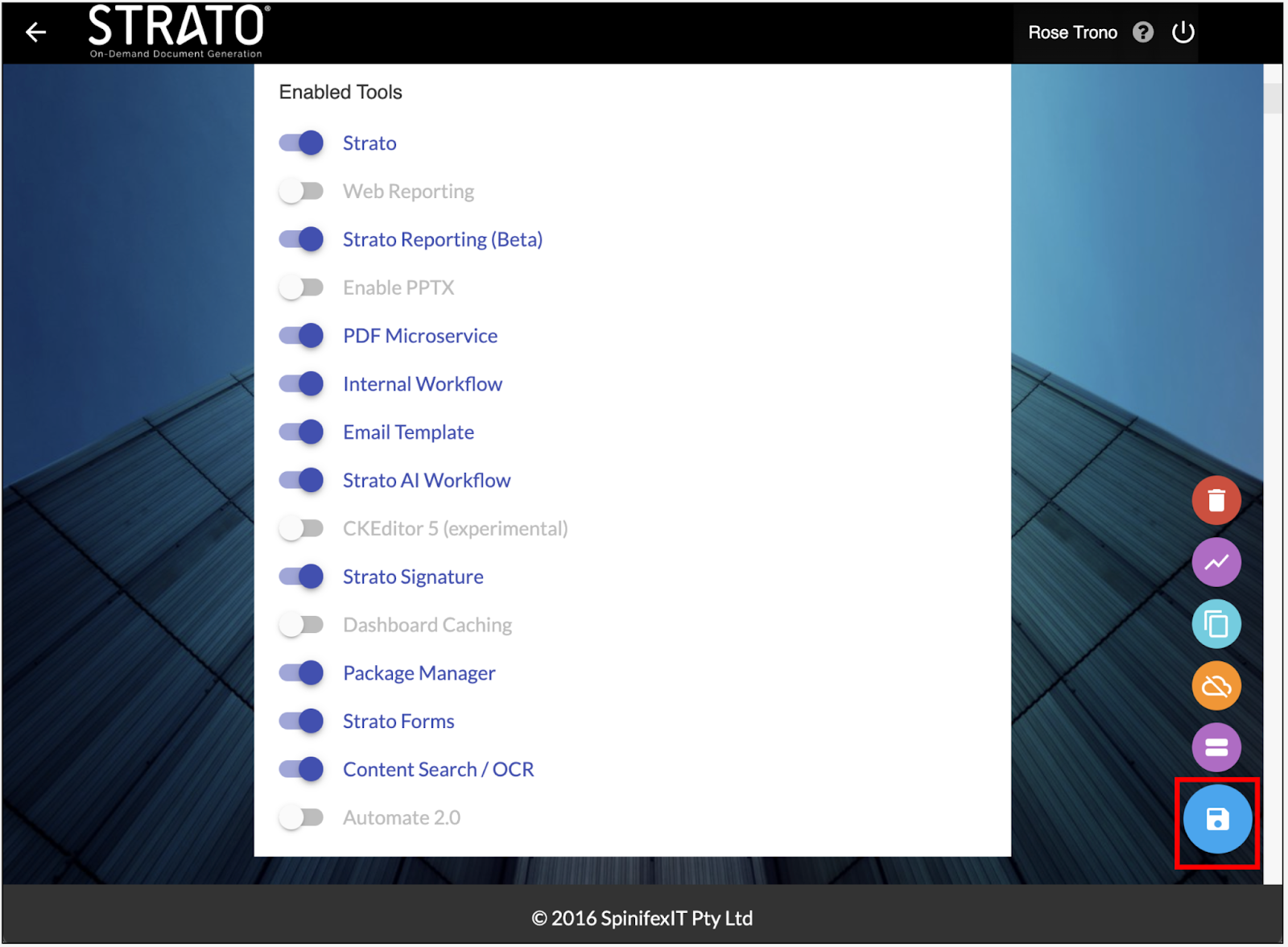
- When done with the changes, go to the Floating Action Button (FAB), then click the save icon.
Category Management - Confidential
For enhanced security, the Confidential toggle feature is added to Category Management, allowing users to apply it to files or folders. This ensures that the content remains hidden in content-based search results.
Related articles
- Performing Basic Search - File Search
- Performing Advanced Search - File Search
- Advanced Search and Filter (File and Storage Management)