Perform Advanced Search - File Search
In File Search, in contrast to Basic search, Advanced Search provides more refined and specific results. Using this search option, you can use conditions and other criteria to narrow down your search and get more relevant search results.
To perform an Advanced search, follow these steps:
- Login to Strato.
- Click Storage Settings.
- On the left pane, click File Search.
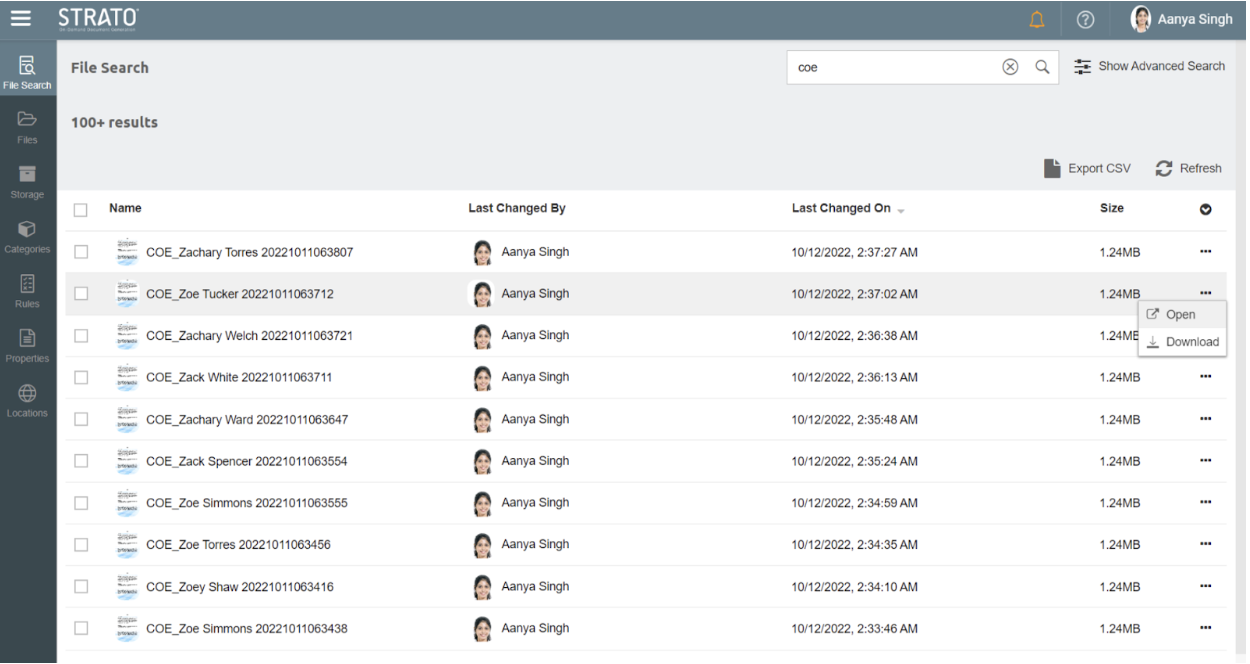
- On the upper right corner, click Show Advanced Search. The search options will then be displayed.

- Select the following for your conditions (See: File Search - Overview).
- Search Field
- Operation
- Search Value
- To add more conditions as the search criteria, click Add Condition.
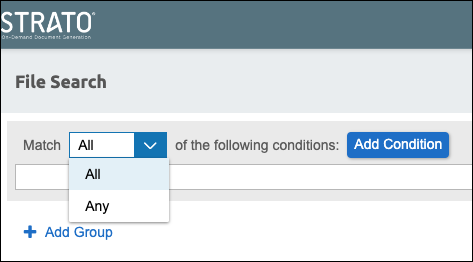
All means the operand used by all fields is AND.
Any means the operand used by all fields is OR. - Optionally, you can add another group or block of conditions to your search criteria. To do so, click + Add Group.
- When a new group is added, select the operand to use between the groups of conditions (OR/AND)
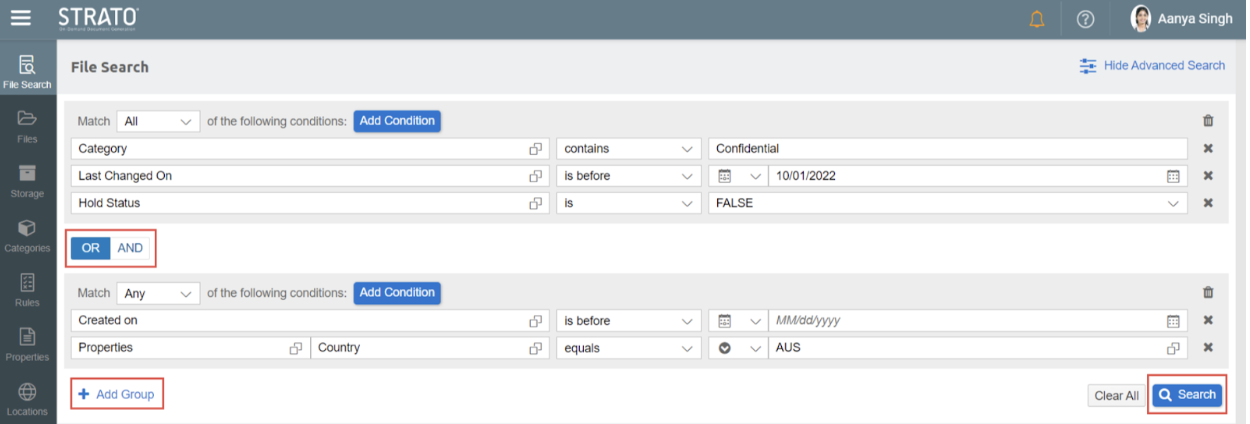
- When all conditions and search criteria are set, click Search.
Downloading File Search results
Similar with the Basic search, from the File Search results list, you can download the resulting files in multiple ways:
- From the search results, you can click the ellipsis at the end of the row of the particular document you want to download, then select Download.
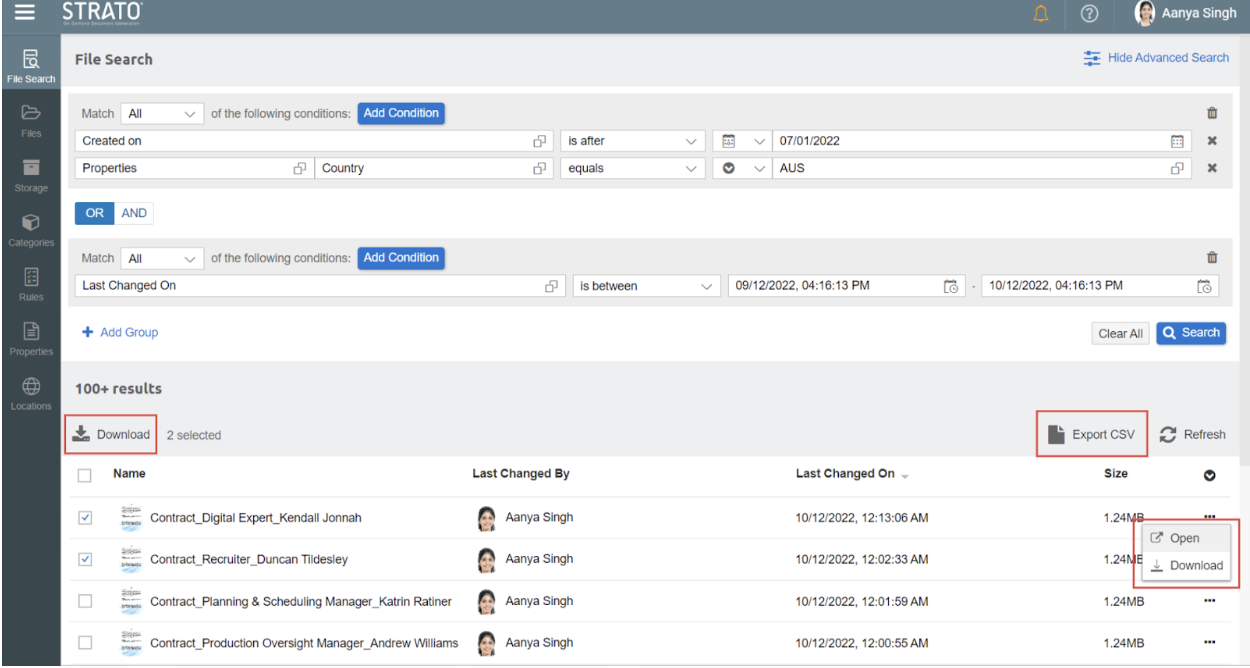
- You can also tick multiple checkboxes for multiple downloads, followed by the same process.Optionally, you may download the search results as a spreadsheet report.
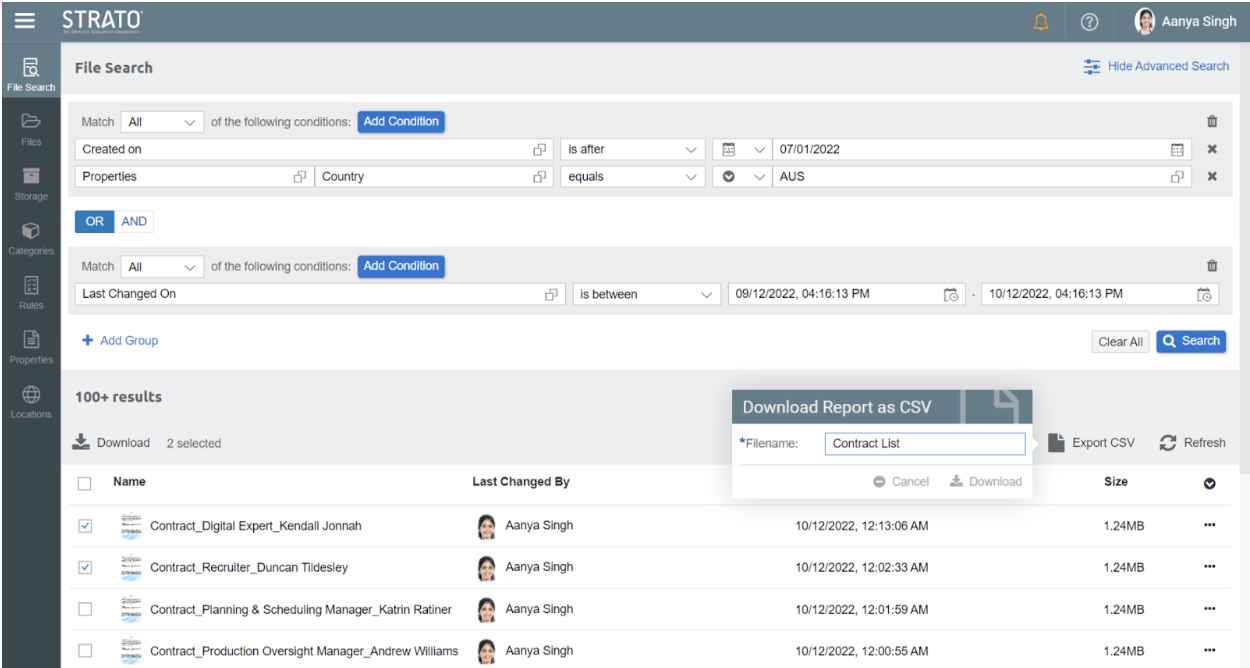
- To download, export the list as a CSV file. Click Export CSV.

- Specify the CSV file name and then click Download.
- In the downloaded CSV file, the download link for each file in the search results is indicated in the last column of the spreadsheet.
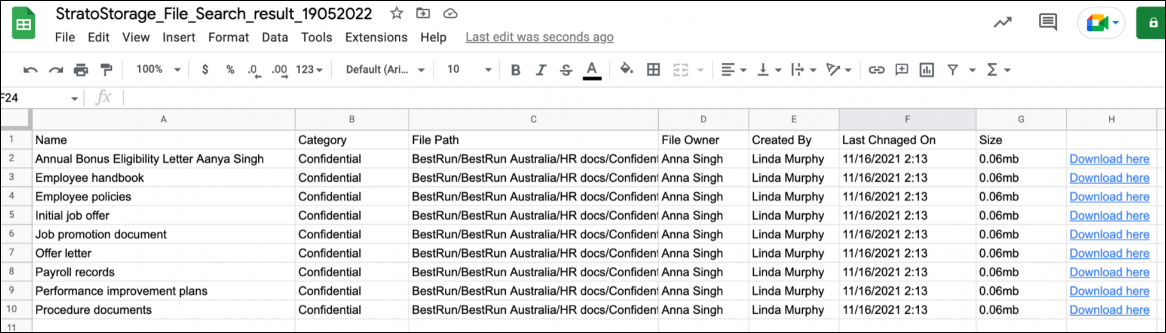
- To download, export the list as a CSV file. Click Export CSV.
You can also download all the files in one ZIP file.
- Select the files and click Download on the top of the results list.
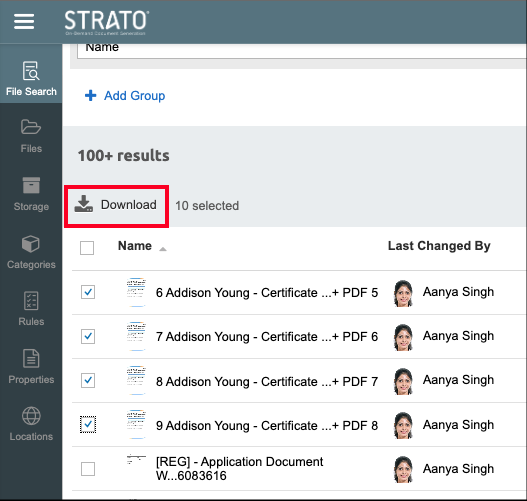
The selected files are consolidated in one ZIP file.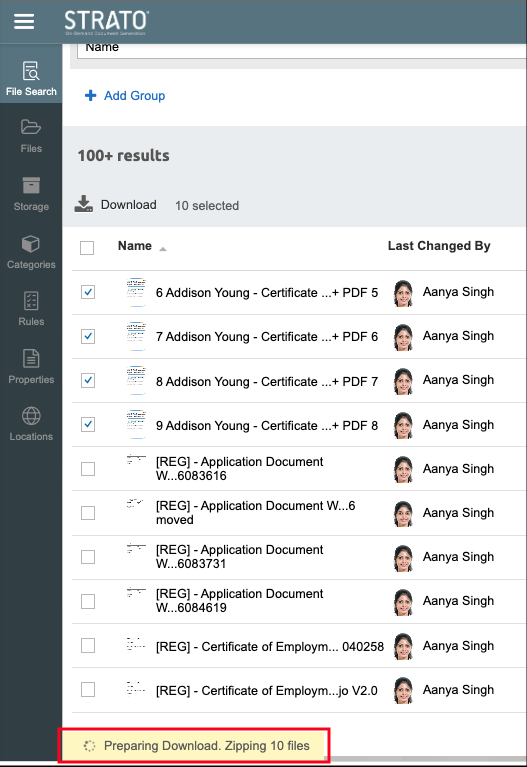
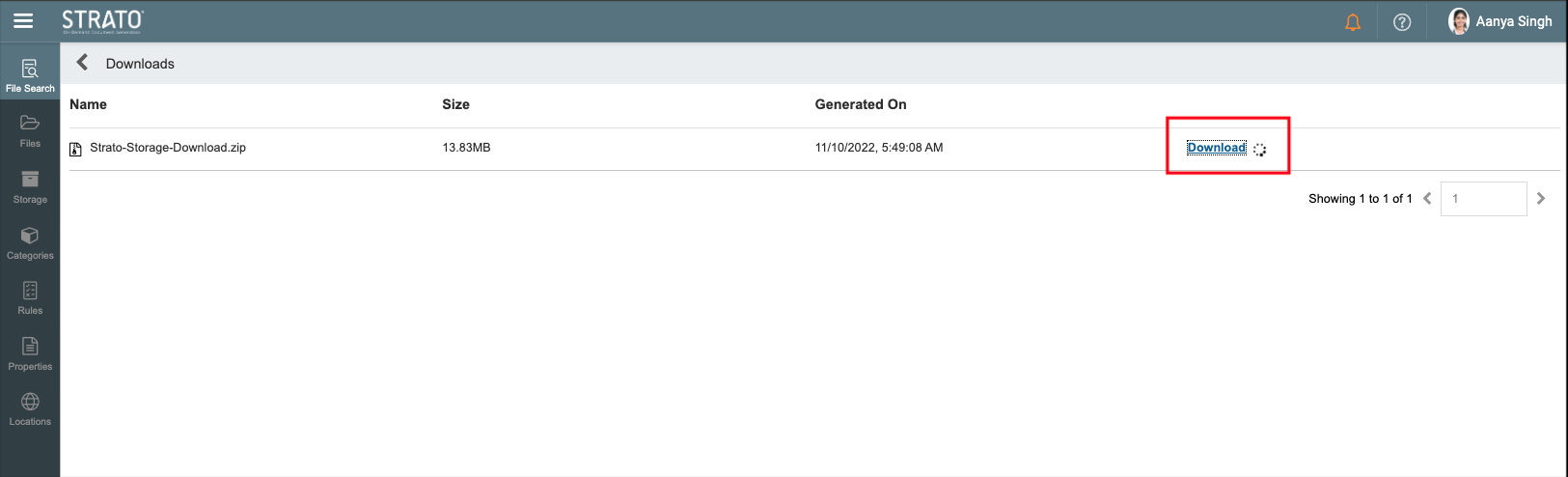
- Once the files are zipped, click Download Ready. You will be directed to the Downloads page.
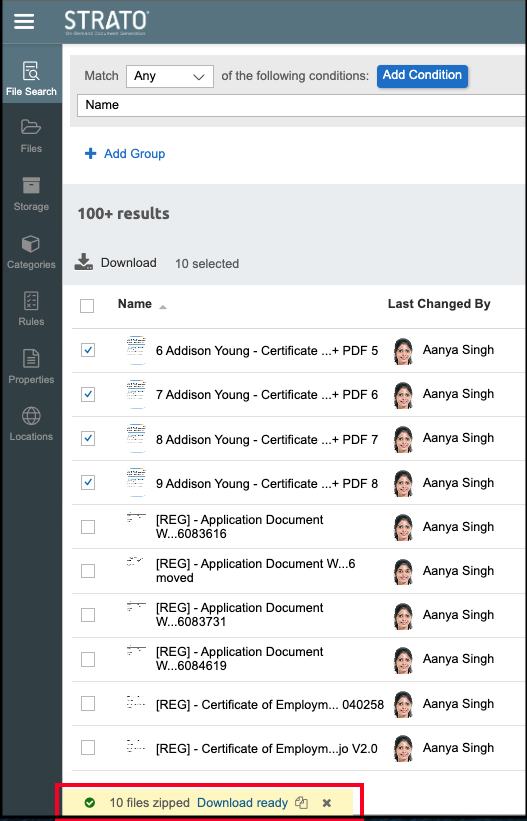
- On the Downloads page, select the zipped file and click Download.