Access and Navigate Storage Management
The Storage Management module allows administrators to view, manage, and control files and folders assigned to users within Strato. It provides a centralized view of all users (both SAP SuccessFactors and external users) and their associated document storage, including access permissions, folder structures, and legal holds.
This article contains the following sections:
Requirements
Basic knowledge of Storage Management is required.
Access
To access Storage:
- From the main Strato screen, access Storage Settings either through:
- The left navigation menu, or
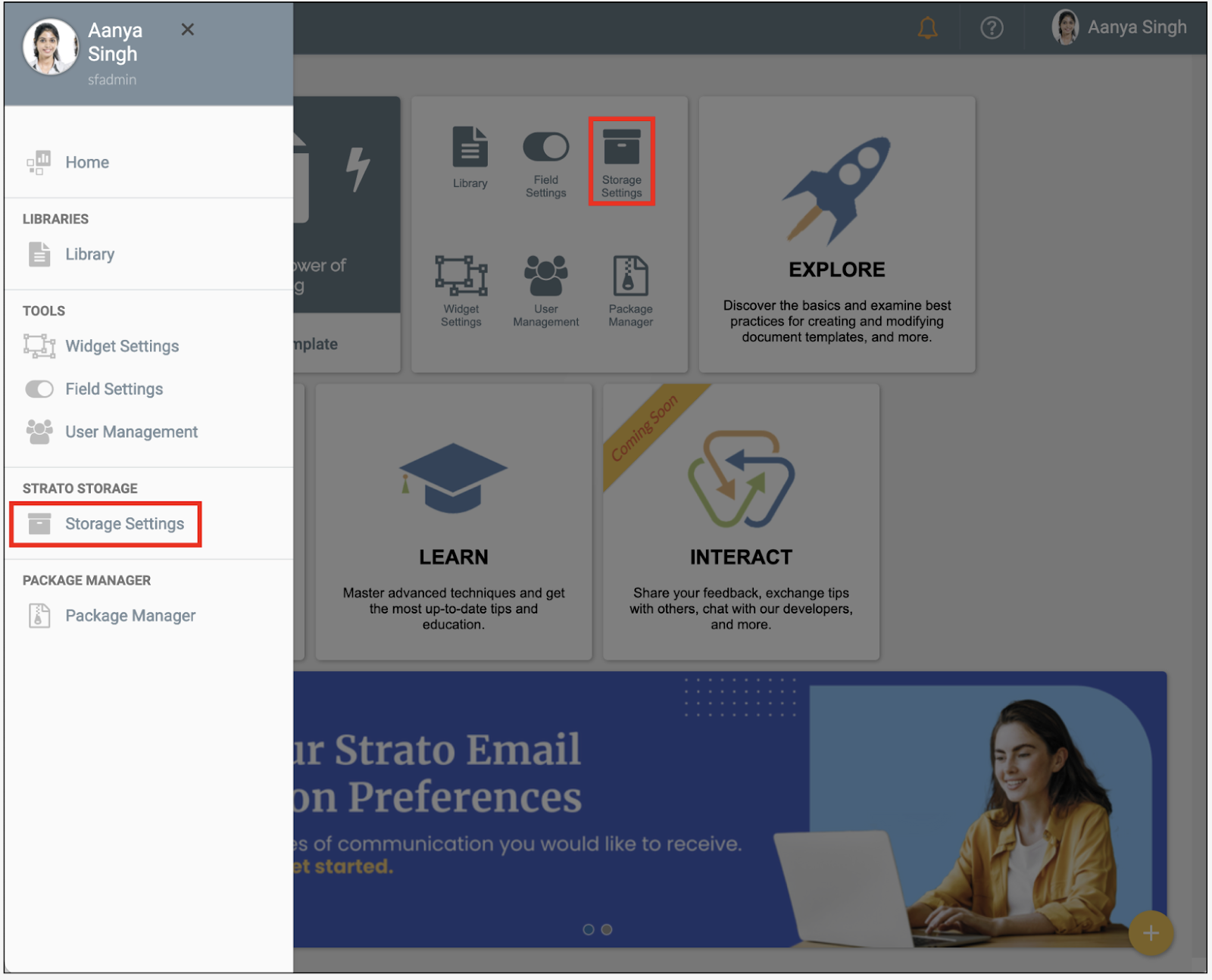
The Tools widget on the homepage
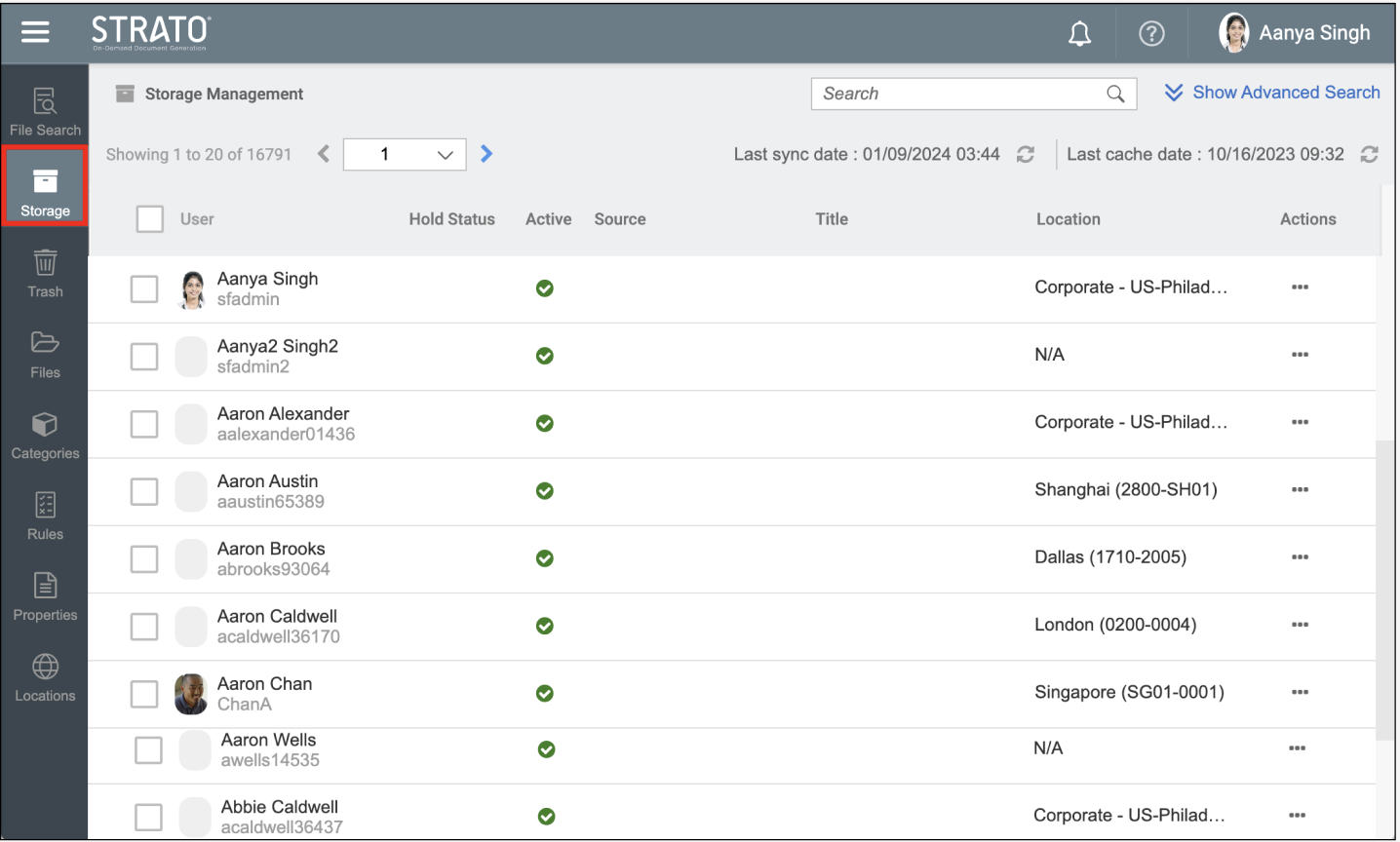
Click Storage.
Viewing and Navigating the User List
The user list serves as the main view to locate and manage users within Storage Management. It presents essential user details and provides navigation controls to help you explore the list efficiently.
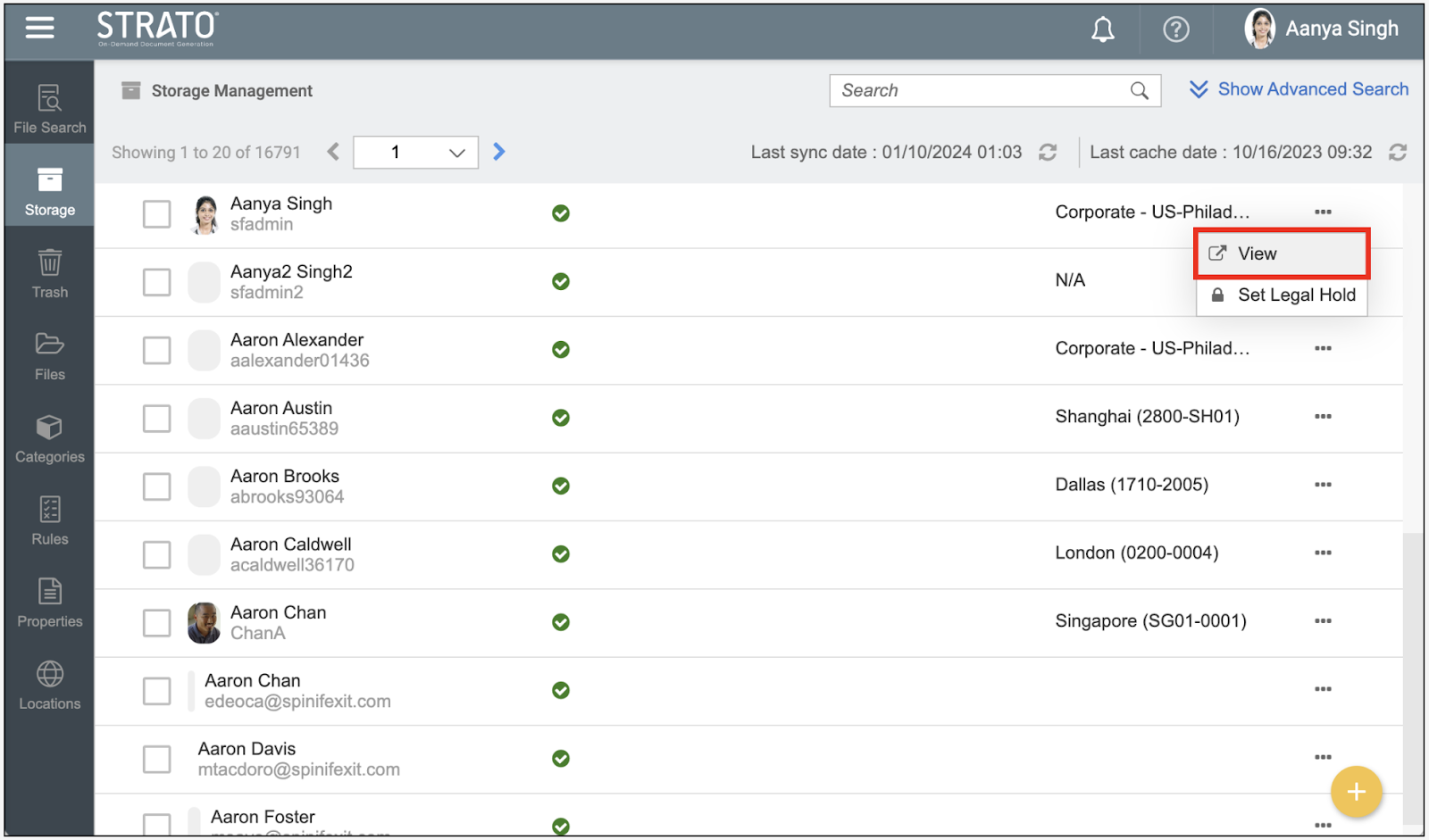
When Storage Management opens, it displays a list of all users recognized in the system (including both SuccessFactors (SF) users and external users) along with key details such as:
- Hold Status
- Status
- Title
- Location
Actions
The user list provides the following indicators:
- SuccessFactors Users appear in black text.
- External Users appear in orange text, with a tooltip showing External User on hover.
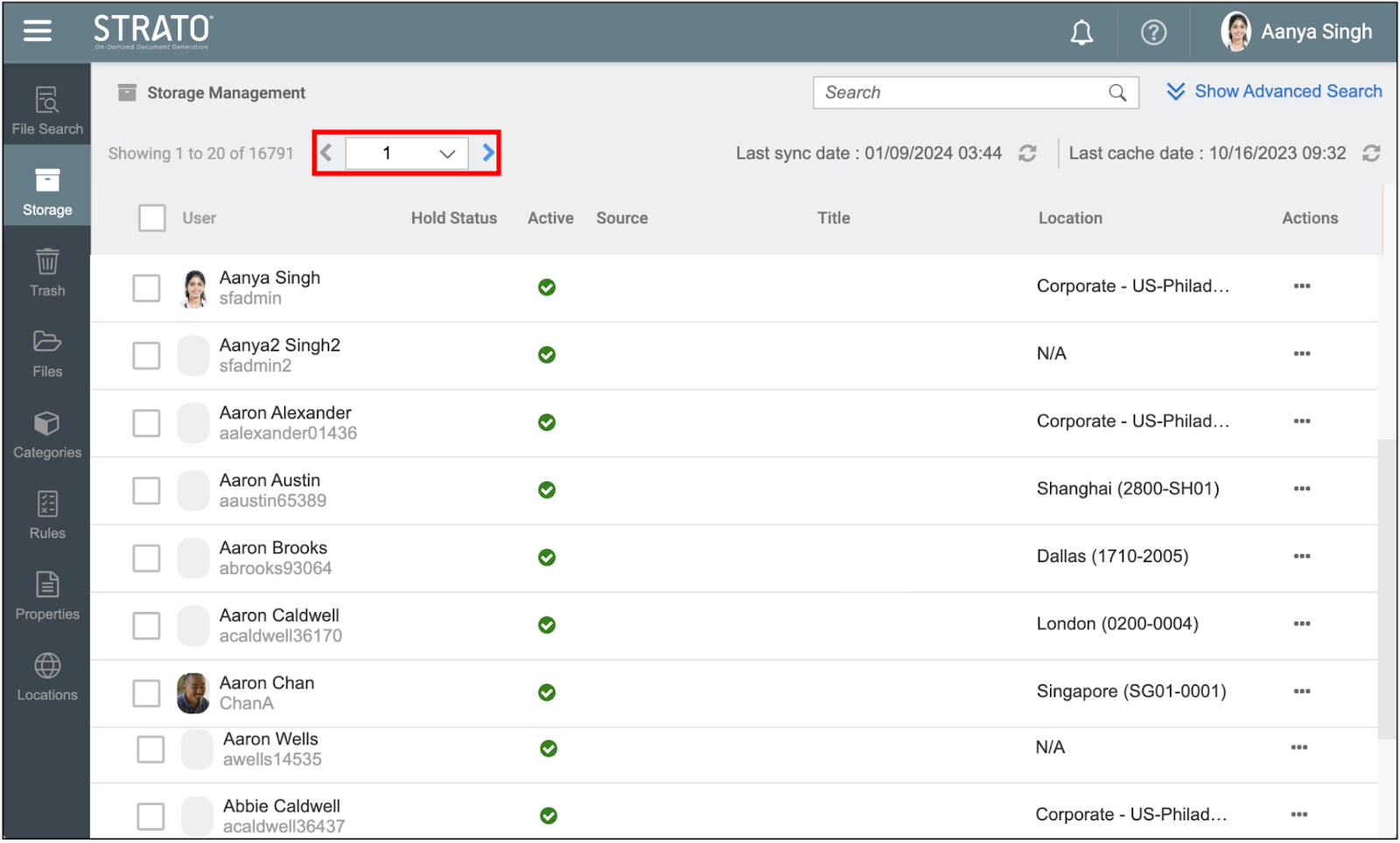
If the list contains many users, use the Next and Previous arrows. The current page is displayed for easy reference.
Additionally, the advanced search function is used to further narrow the search of users. To learn more about advanced search, read Advanced Search and Filter (File and Storage Management).
Synchronization and Refresh
To keep the user list up to date, Storage synchronizes user details from SuccessFactors on a scheduled basis. The Last Sync Date indicates when a Super Admin user last performed a manual sync.
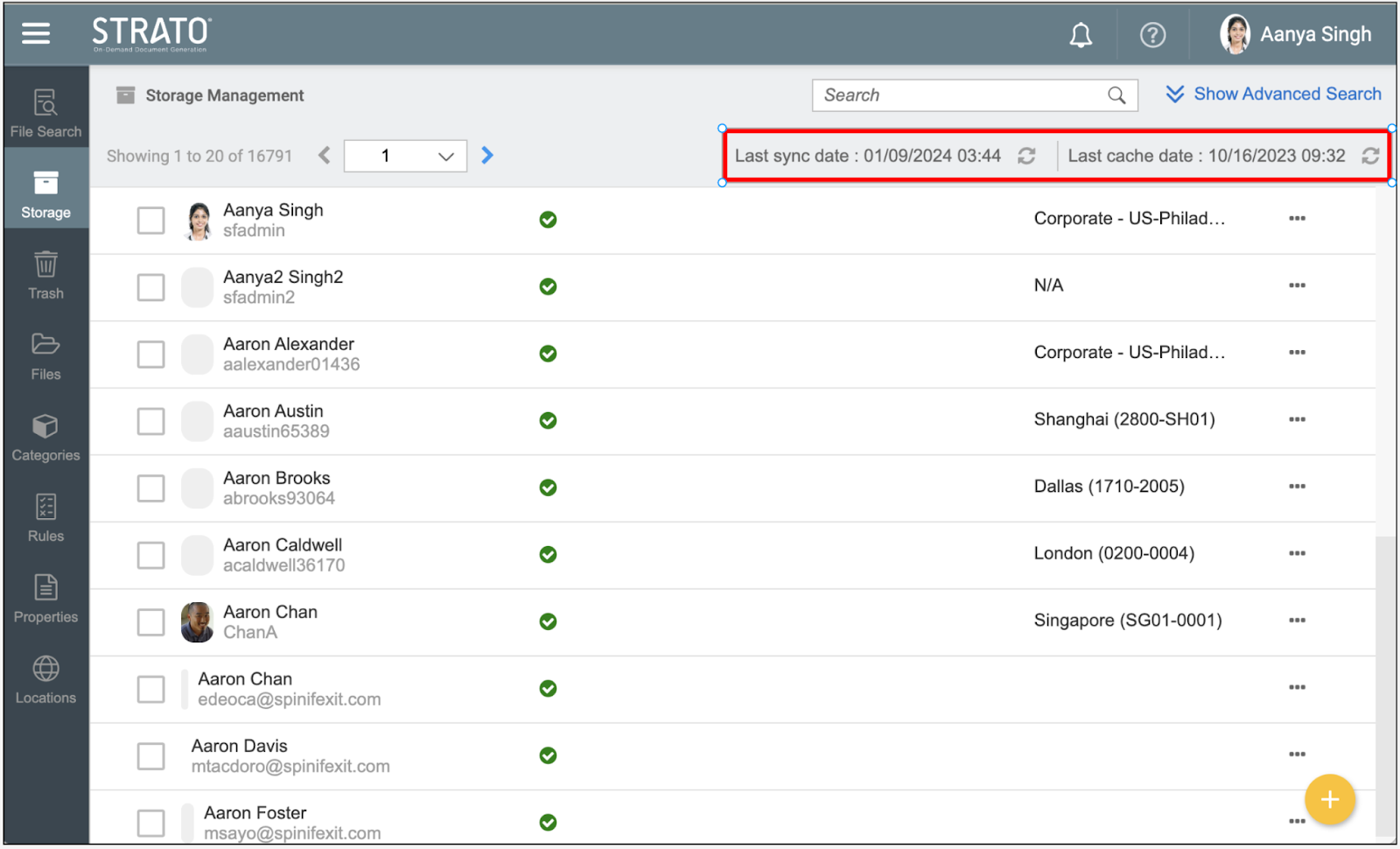
- Click the Refresh icon beside the date to manually synchronize user details such as Name, Title, and Location.
- External users are not included in synchronization and are managed via third-party APIs.
- Automatic synchronization runs daily at midnight between Strato and SuccessFactors.
- If a new SuccessFactors user does not appear in the list, perform User Synchronization or Refresh Cache manually.
User Files Screen
Selecting a user or clicking the View opens the User Files screen. This page shows all folders and files assigned to that user, including documents uploaded via My Files or those assigned through File Management.
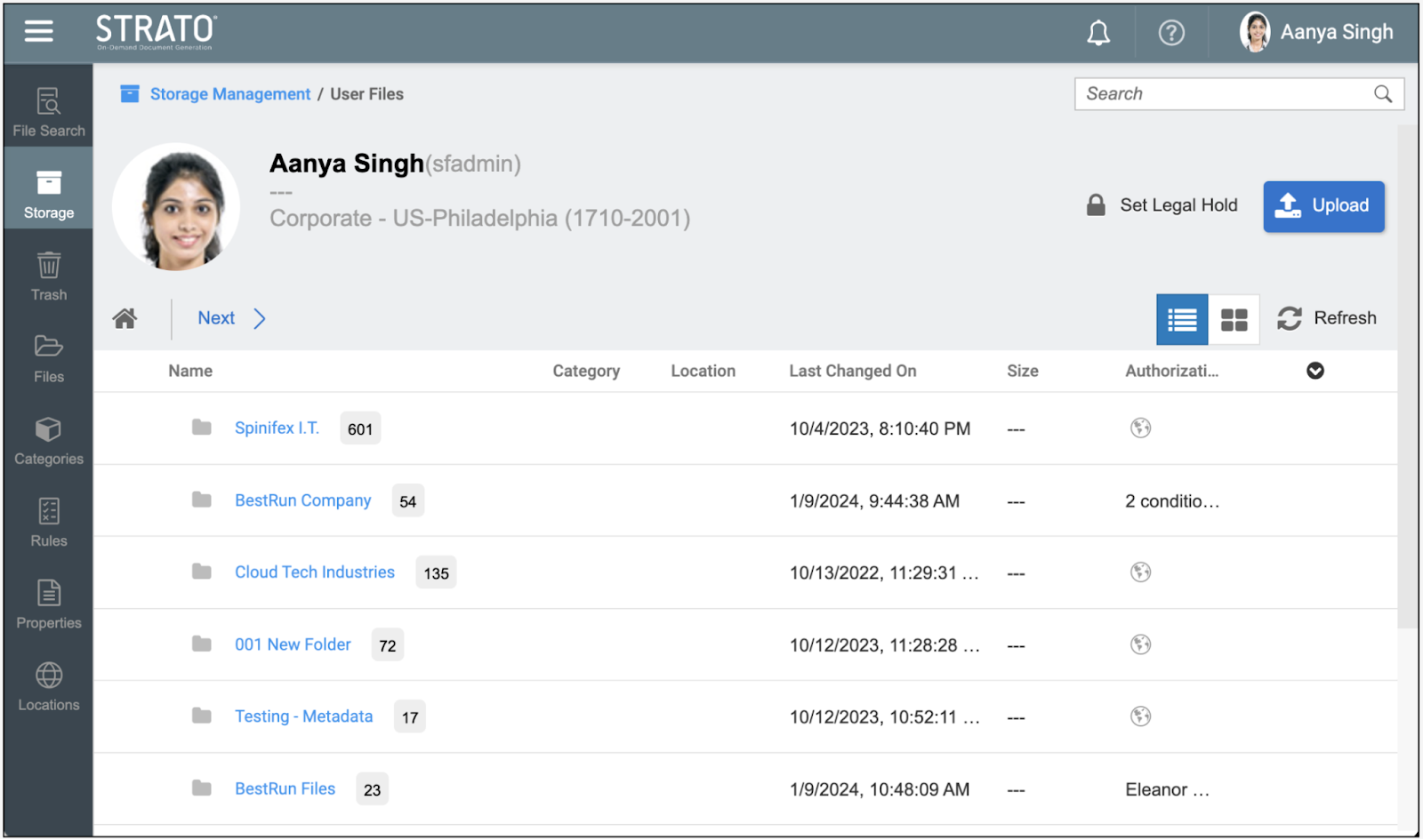
Depending on the permissions set for the folders and files, some may be viewable by that user (via the My Files card), and some may not be viewable (e.g., Performance Improvement Plan document).
With the super admin role permission, the user will be able to add files and have full access to all files and folders regardless of the authorizations configured to the files and folders for the user.
The screen provides detailed information about each item, including:
- File or folder name
- Categories assigned
- Storage location
- Last modified date
- File size
- Permissions applied
Navigating Folders and Files
Within the User Files screen, users can browse through a selected user's folder structure to view stored documents and subfolders.

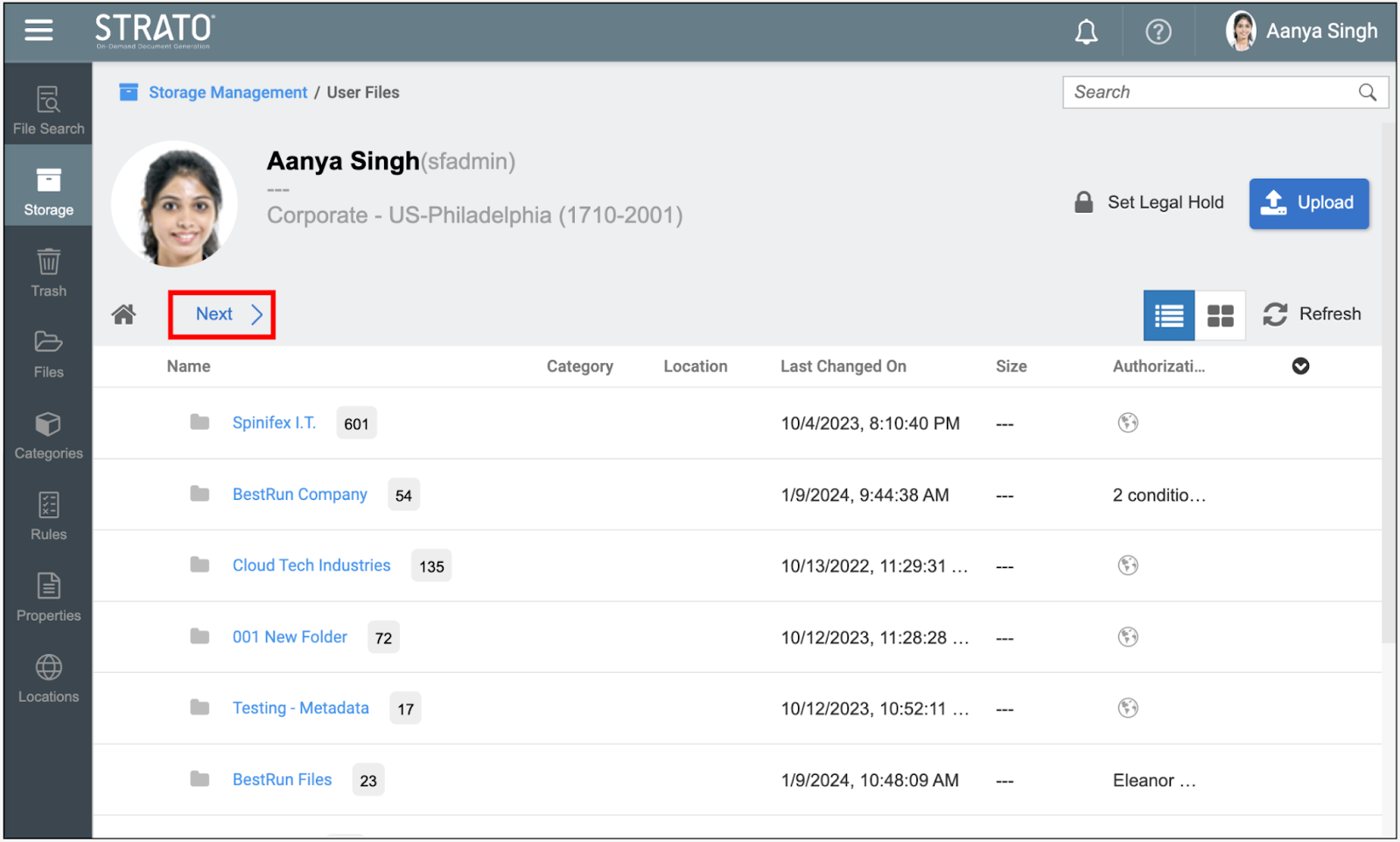
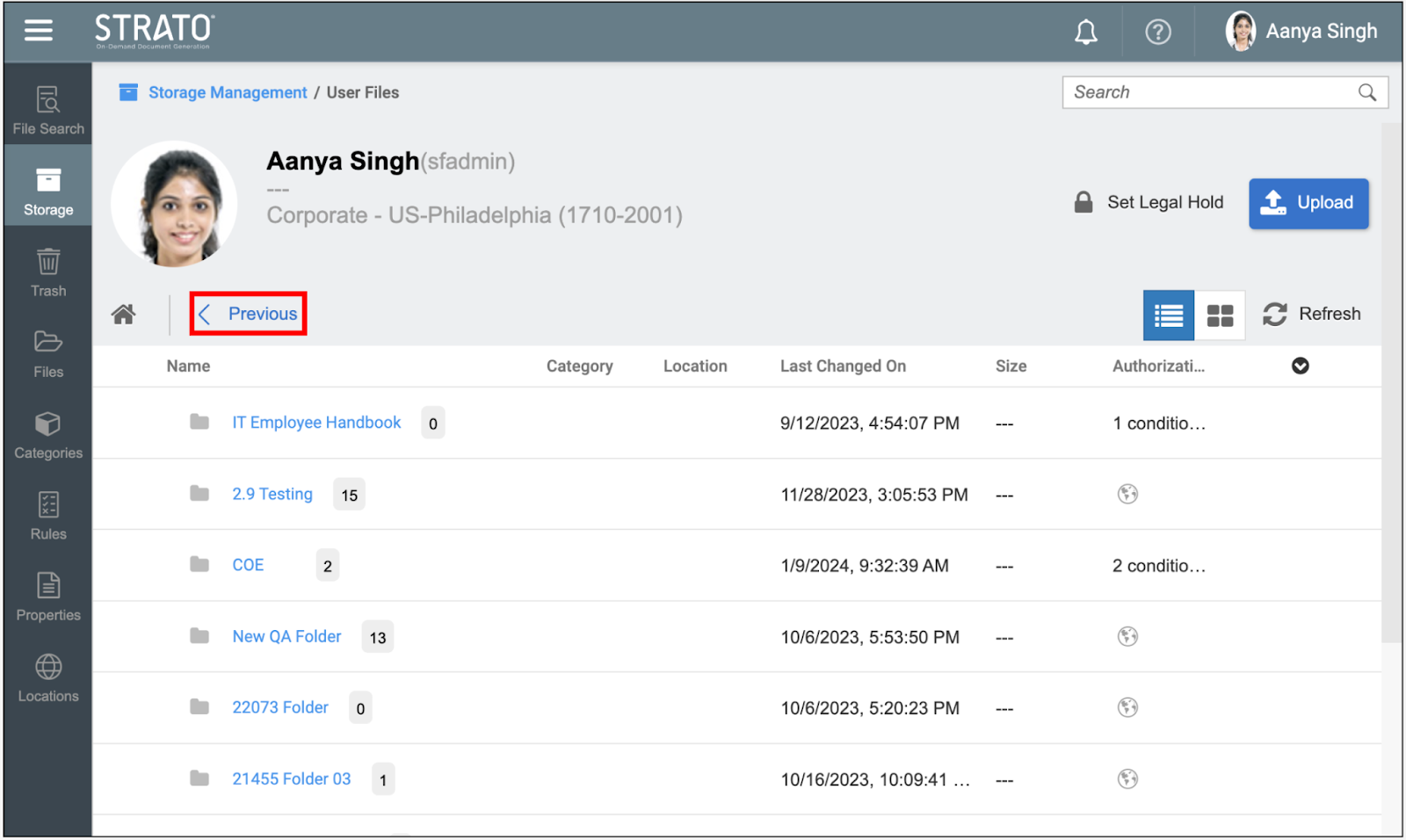
To open or navigate into a folder, click directly on the folder name. This action displays the folder’s subfolders or the files it contains.
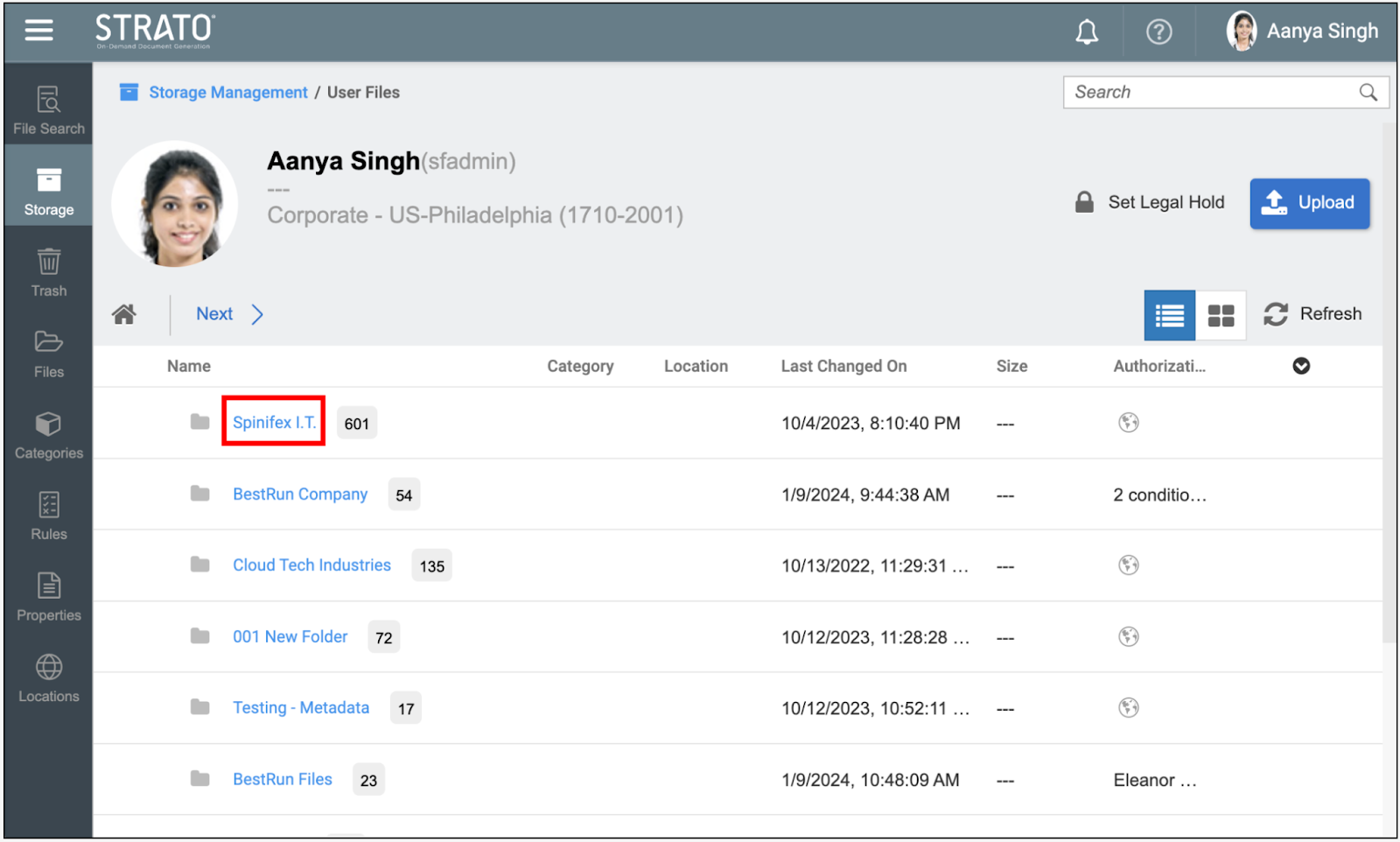
To view folder information without opening it, click anywhere within the folder item except the folder name.
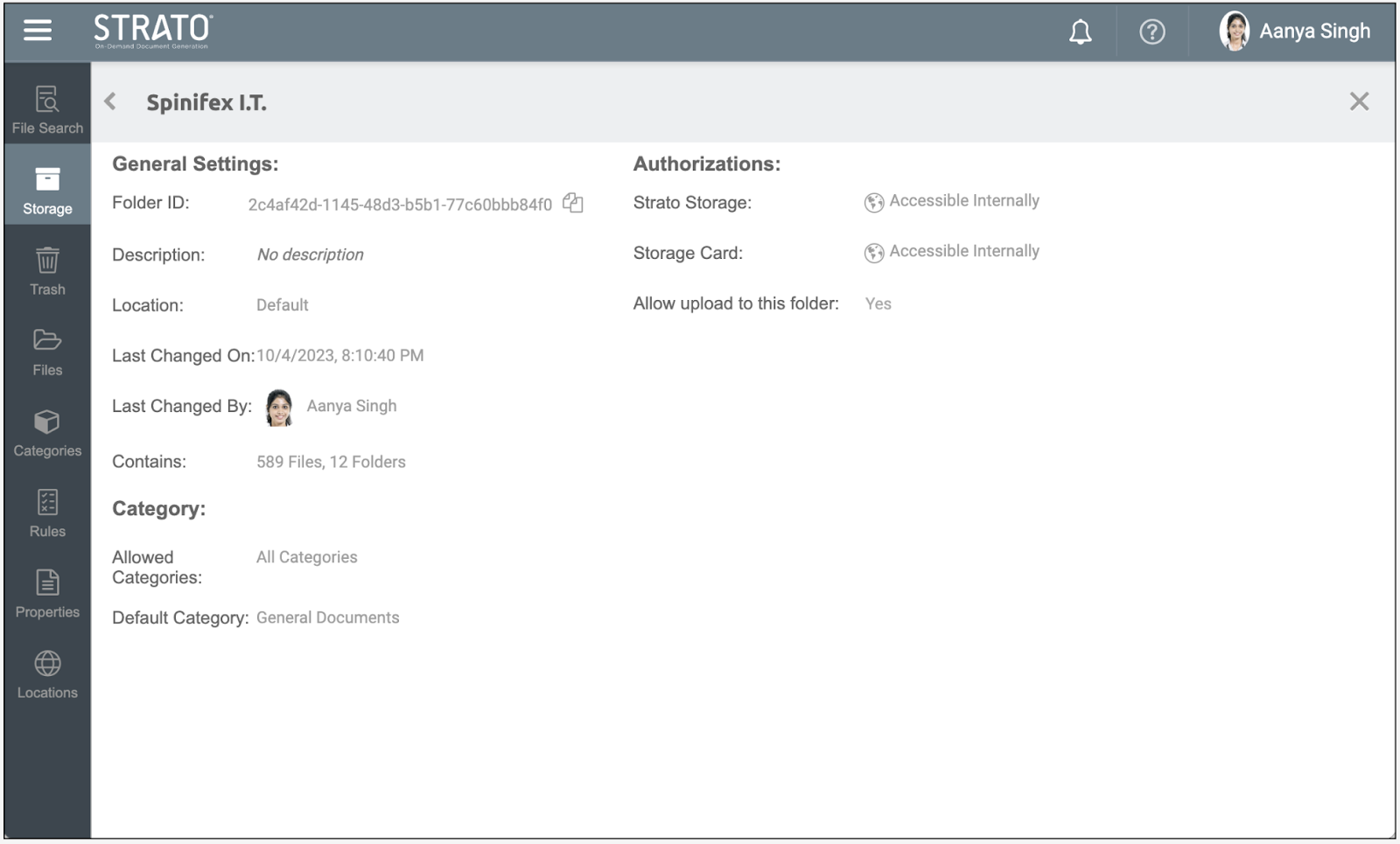
In managing the files and folders for the users within Storage Management, and given the proper admin authorization, you should be able to:
- View Details (File and Folders)
- Add/Upload Files
- Reassign Folders and Files
- Move Folder and Files
- Edit Folders/Files
- Delete Folders/Files