Reassign Files to Employees (Storage Management)
The Storage Management feature aims to allow Storage Administrators/Managers to easily access the files that are stored for one or more employees. One of the main functionalities in Strato Management is the ability for the managers and admins to reassign files between employees.
As an example, Strato Workflow could temporarily store the Job Offer of a candidate to the recruiter and then the recruiter can then re-assign that Job Offer to the candidate once their record in SuccessFactors has been created.
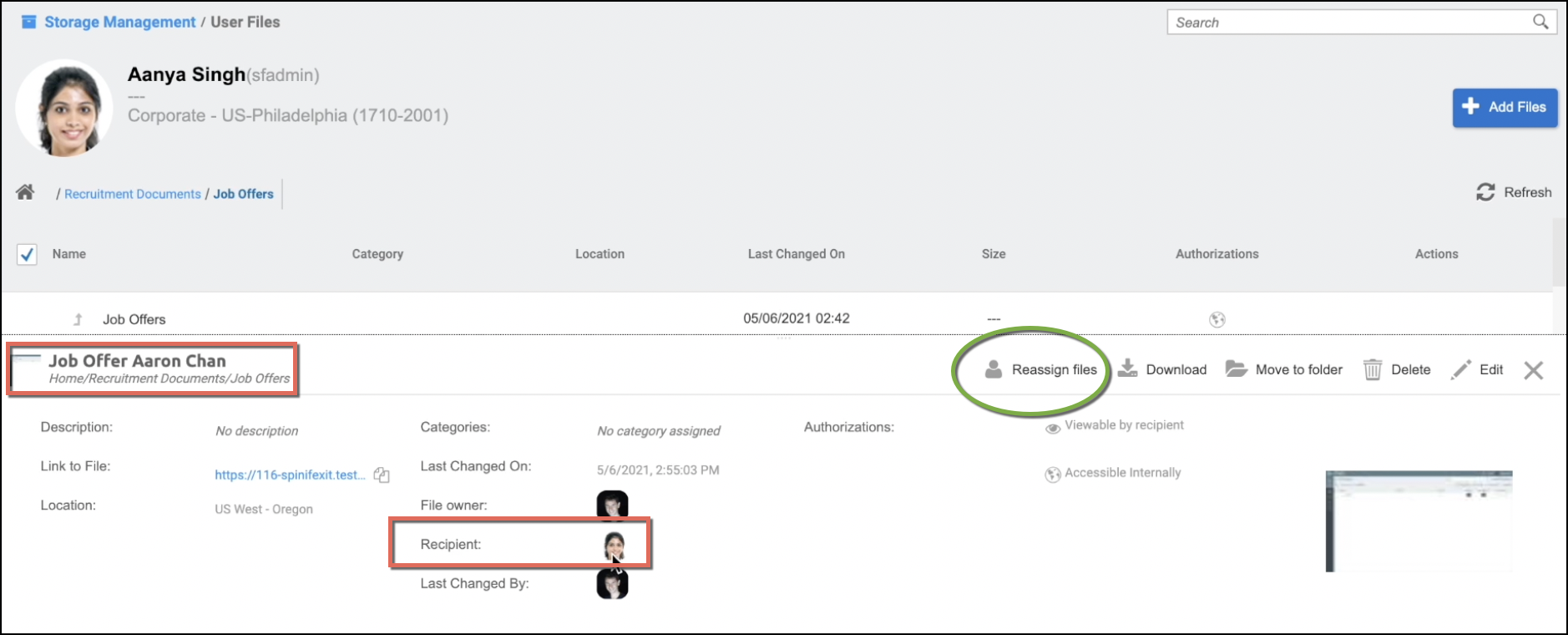
In this sample scenario, let’s say this employee is Aaron Chan and the recruiter is Aanya Singh. In the screen below, the Job Offer for Aaron Chan is saved in the recruiter’s (Aanya Singh's) Job Offers folder. The recruiter can re-assign this document to the employee, Aaron Chan, just by clicking the Reassign Files option from the file's View Panel.
Just select the new recipient of the document from the selection screen, as shown in the screen below. In this example, the new recipient of the file is Aaron Chan.
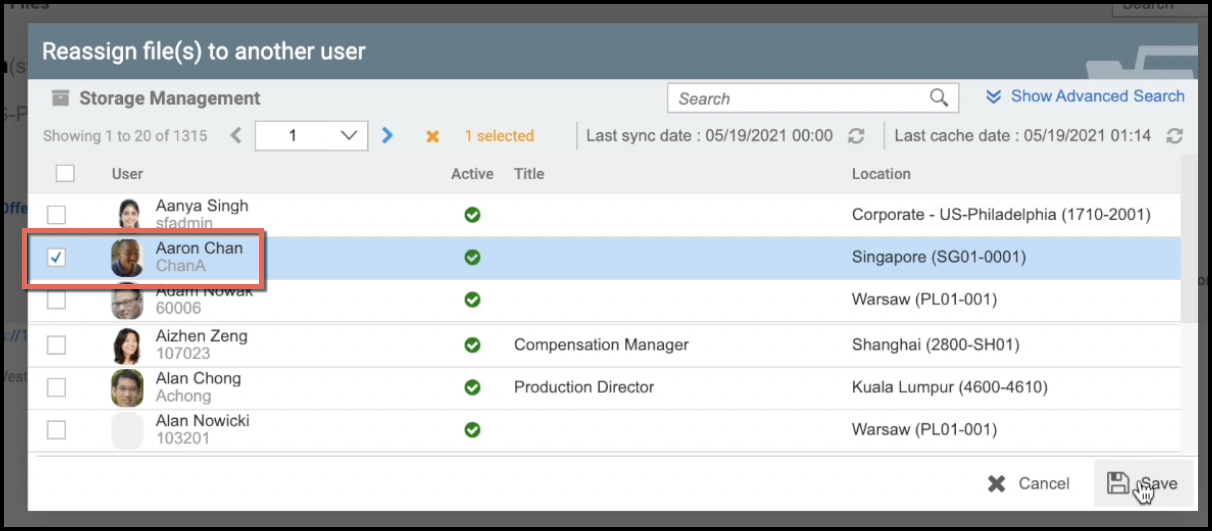
After clicking save, the file will disappear from Aanya Singh's user files. When navigating to Aaron Chan's user files, the Job Offer document should have already been moved to his files within the same folder (company folder structure), Job Offers folder.
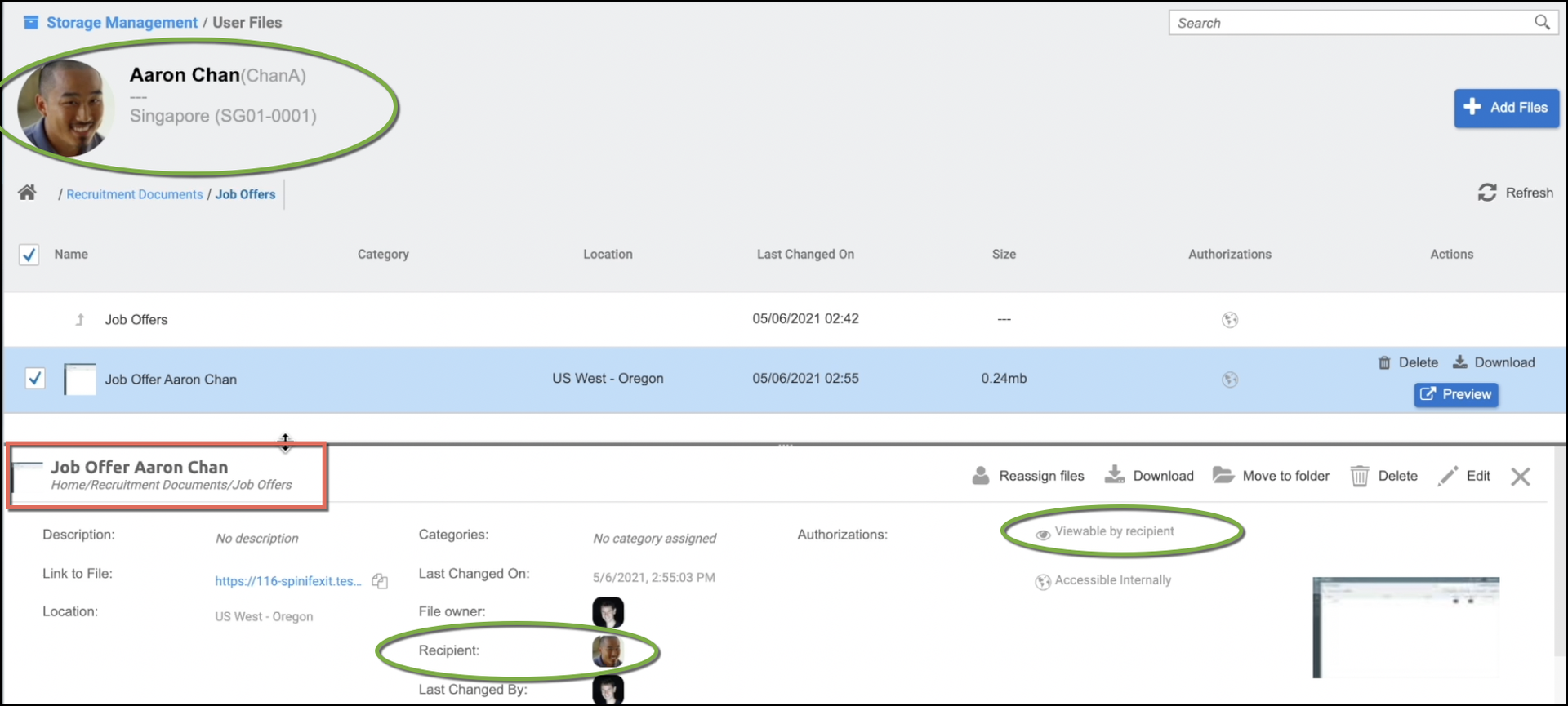
Notice in the screen above that his name reflects as the recipient of the file, and this file is also set to be Viewable by the recipient. This means that in Aaron Chan's My Files card, he will be able to view this file. From there he can also download the file.