Assign Categories, Validity Rules, and Metadata to Documents in Strato Storage
Categorizing documents and files makes it easy to locate and find any items within your File and Storage Management. This is done via the Advanced Search and by searching via Categories.
Categories are created from within the Category Management module, and applying Categories to documents gives the ability to:
- Assign Validity Rules to documents and files via Rule Definition - Through Categories, documents' validity period can be set when uploading files for employees in Storage Management. To know more about Validity Rules, please read Validity Period of Documents in Strato Storage.
- Assign Metadata (Properties) - Apart from validity rules, assigning Metadata to documents is also done through the Categories. To know more about Metadata (Properties), please read Metadata / Properties Manager Overview.
- Effectively and properly manage and organize files
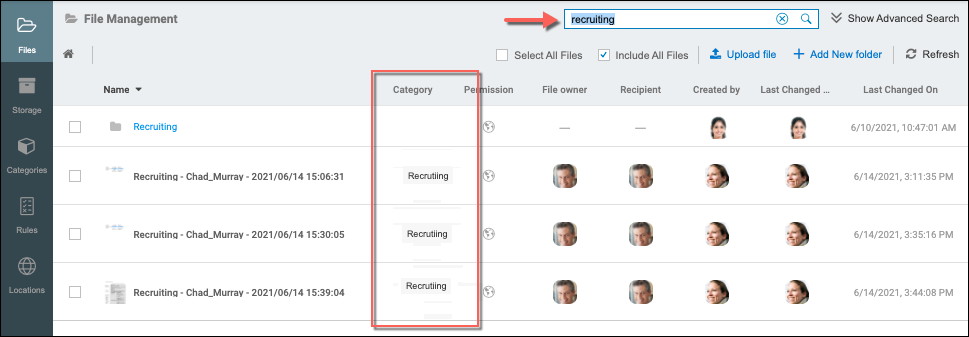
Categories can be assigned to documents in Strato Storage in the following ways:
- Assign Categories when uploading files within Files/Storage Management
- Automatically assign Categories via Strato Automate (Workflow) configuration
- Automatically assign Categories via Strato Dashboard (Generator Card) configuration
Assign Categories when Uploading Files within Files/Storage Management
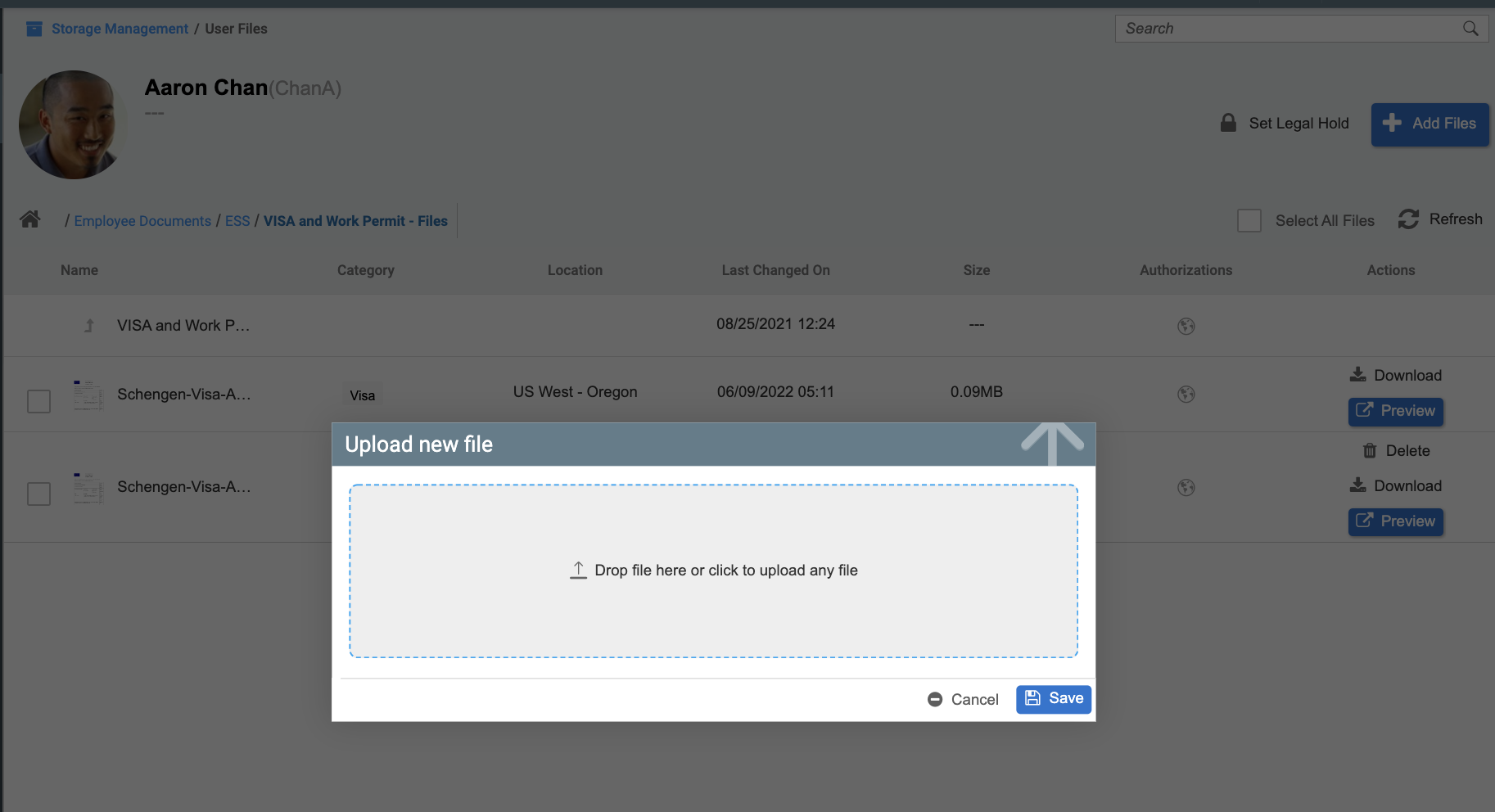
When uploading files within File or Storage Management, Categories are easily assigned just by clicking on the selection option for the Categories field. The sample screen below shows a file being uploaded with the Visa category being assigned to the file from the selection list.
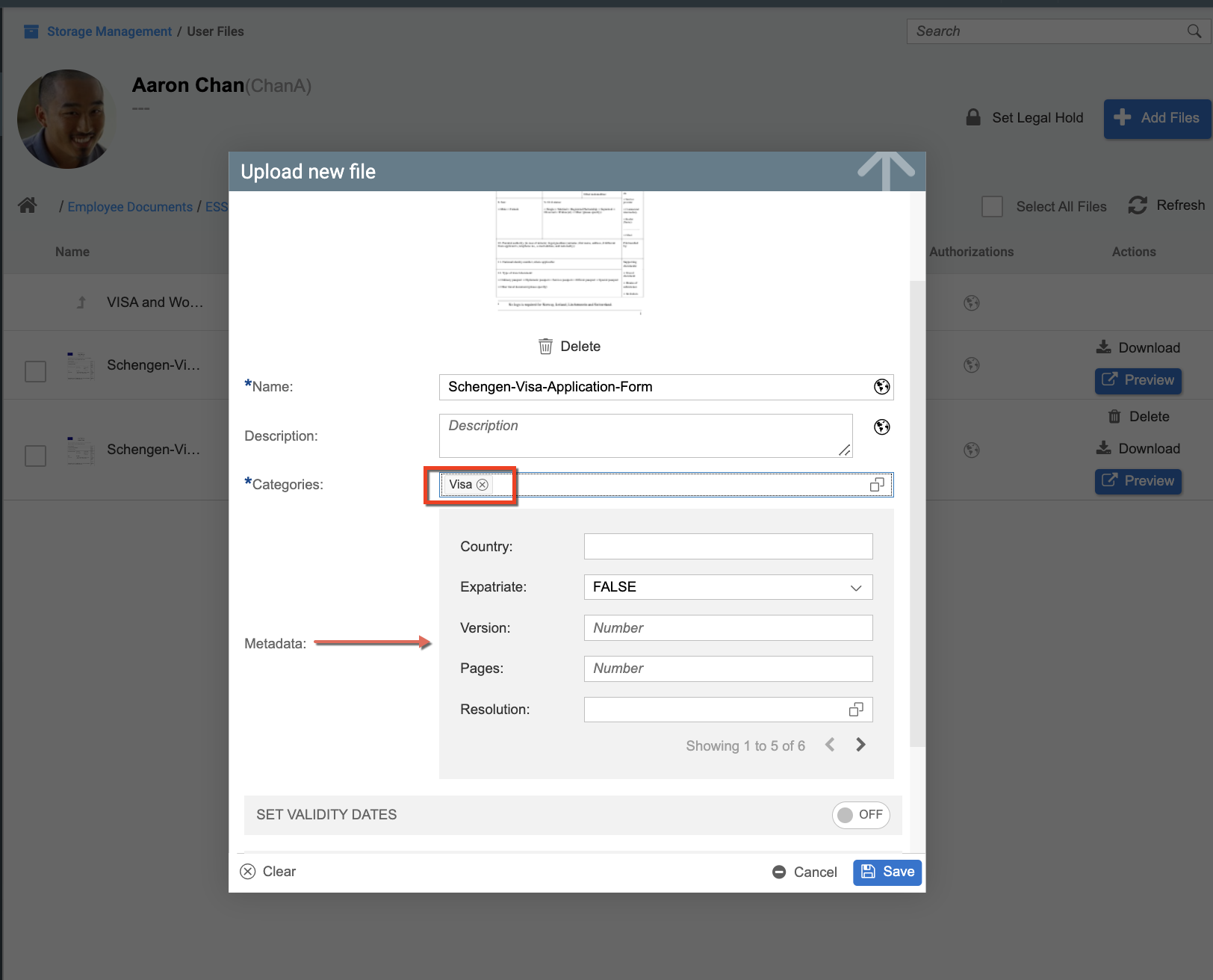
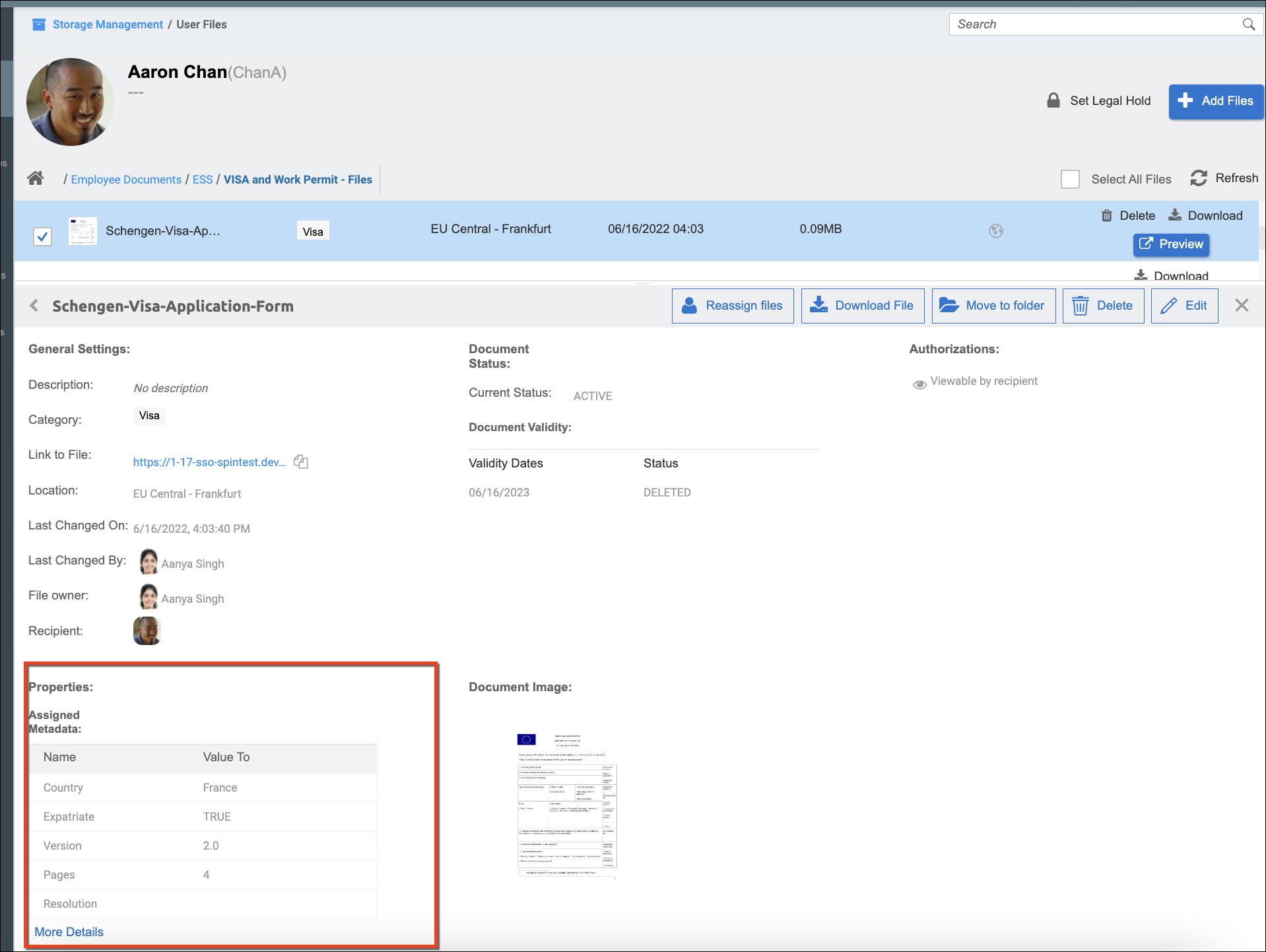
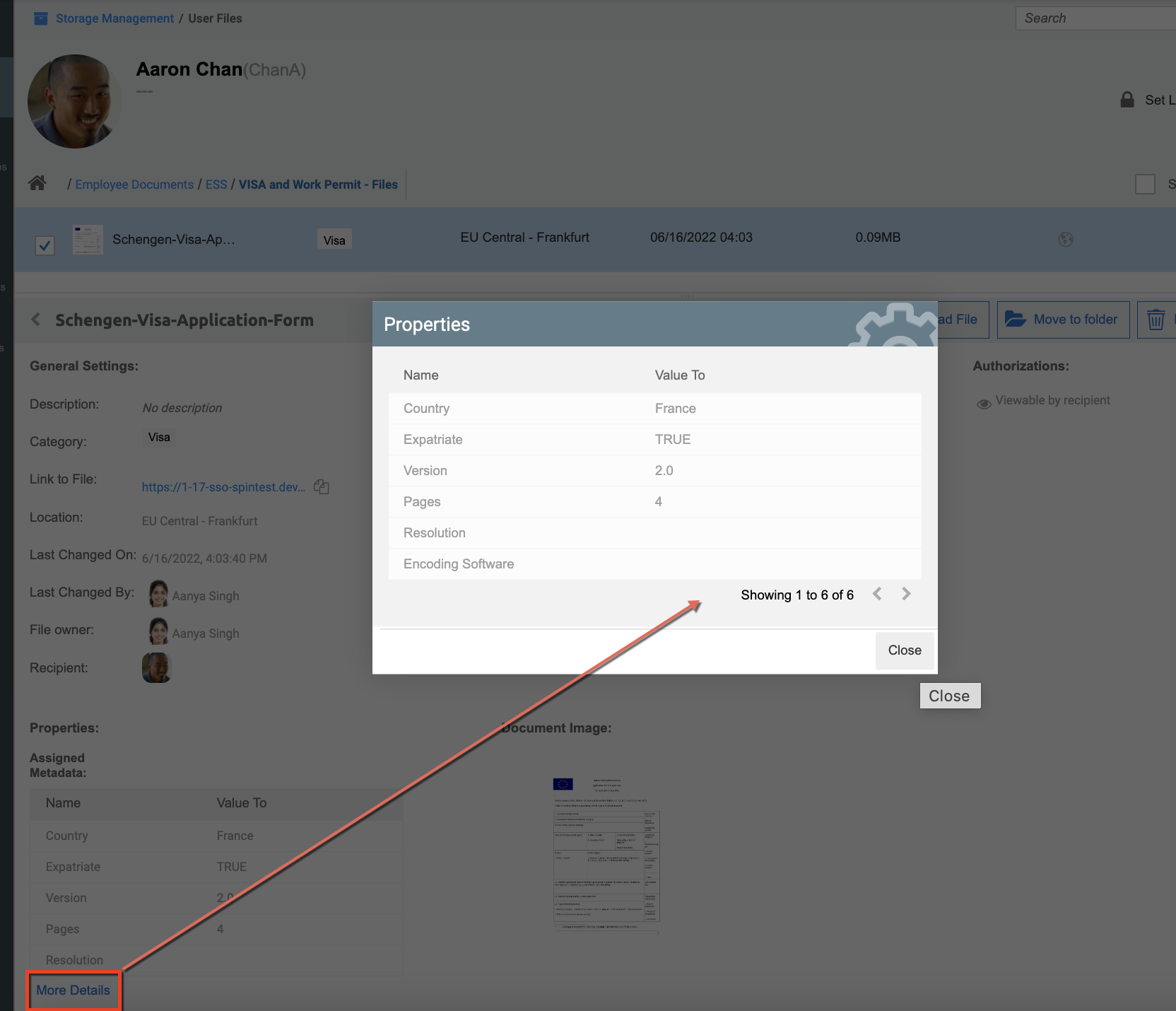
If there are multiple Properties assigned as Metadata, clicking the More Details link will pop up a screen showing all the assigned Metadata with pagination.
Automatically Assign Categories via Strato Automate (Workflow) Configuration
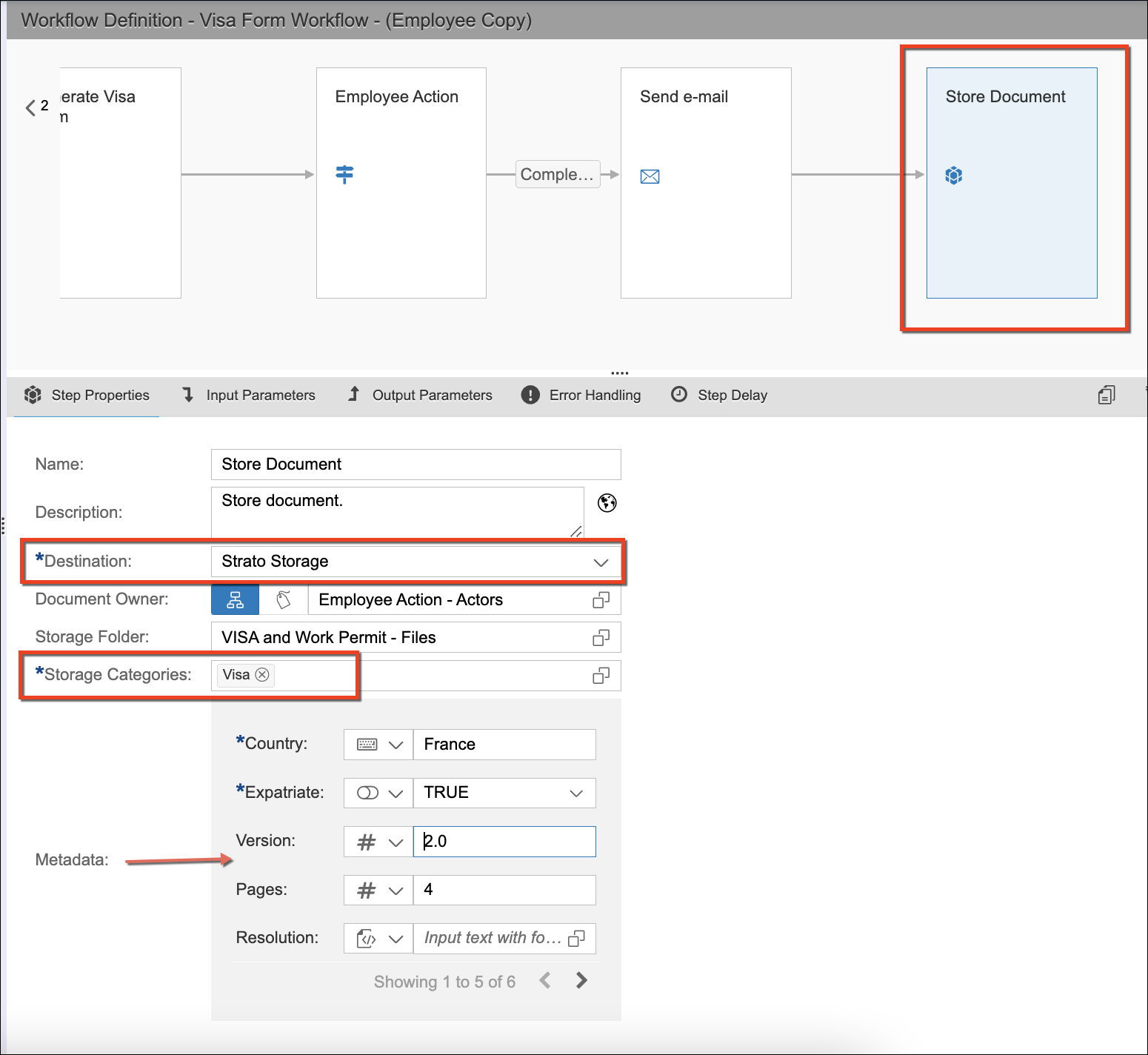
Documents generated via Strato Workflow can be automatically stored to Strato Storage via the Store Document step configured within the workflow. The Destination configured for this step should be Strato Storage, and there is an option to select to which Storage Folder the document should be uploaded, and what Category should be assigned after generation. If there are any Properties or Metadata assigned to that particular category assigned, these properties will be displayed in the settings to be configured according to their property types.
The sample screen below shows a workflow for Visa Form generation, which is configured to be uploaded to the Visa and Work Permit - Files folder within Strato Storage. A category called Visa is also set which has some Properties (Metadata) configured to it. To know more about Metadata (Properties), please read Metadata / Properties Manager Overview.
Automatically assign Categories via Strato Dashboard (Generator Card) Configuration
Apart from automatically assigning categories to workflow-generate documents as mentioned above, documents generated from Strato Dashboard can be automatically stored in Strato Storage as well. This is done by configuring the document template's Settings Type from the Generator Card and enabling the Use own settings option.
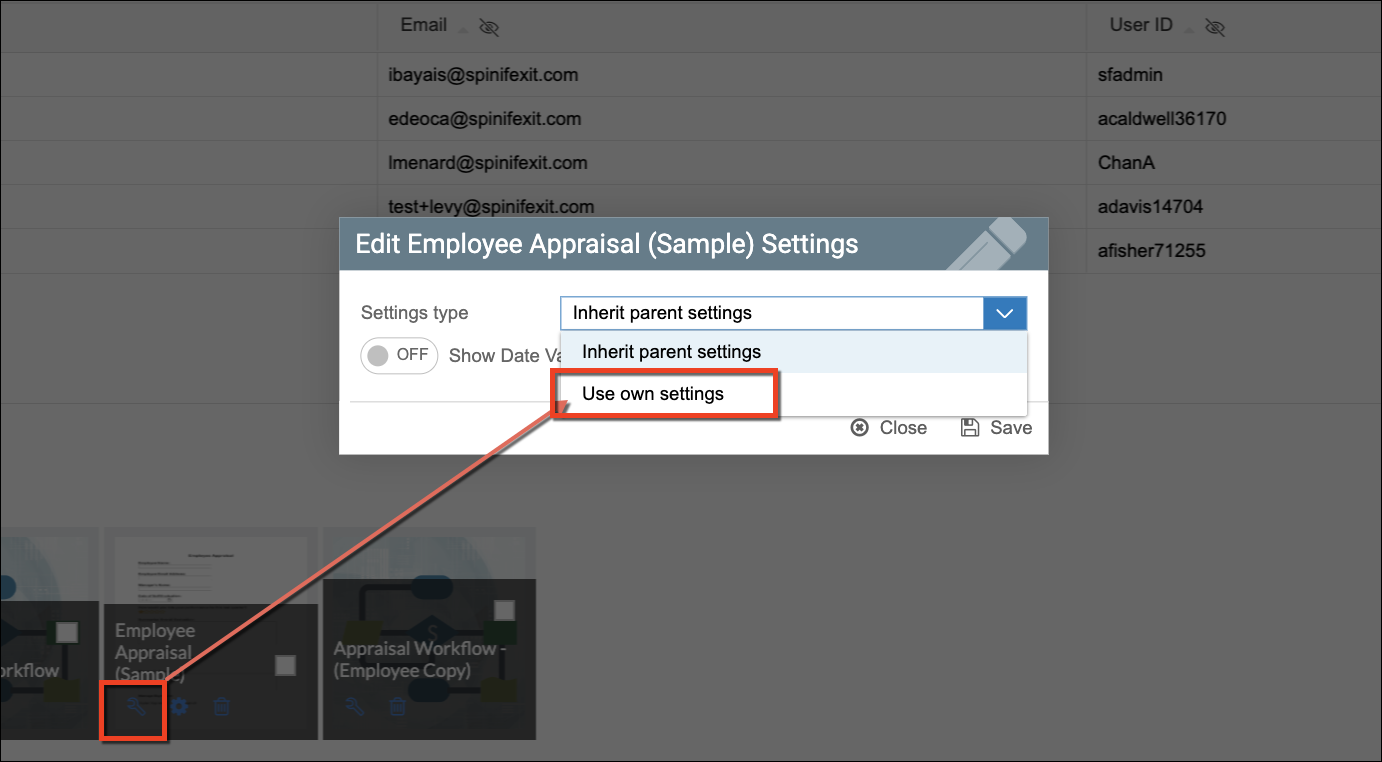
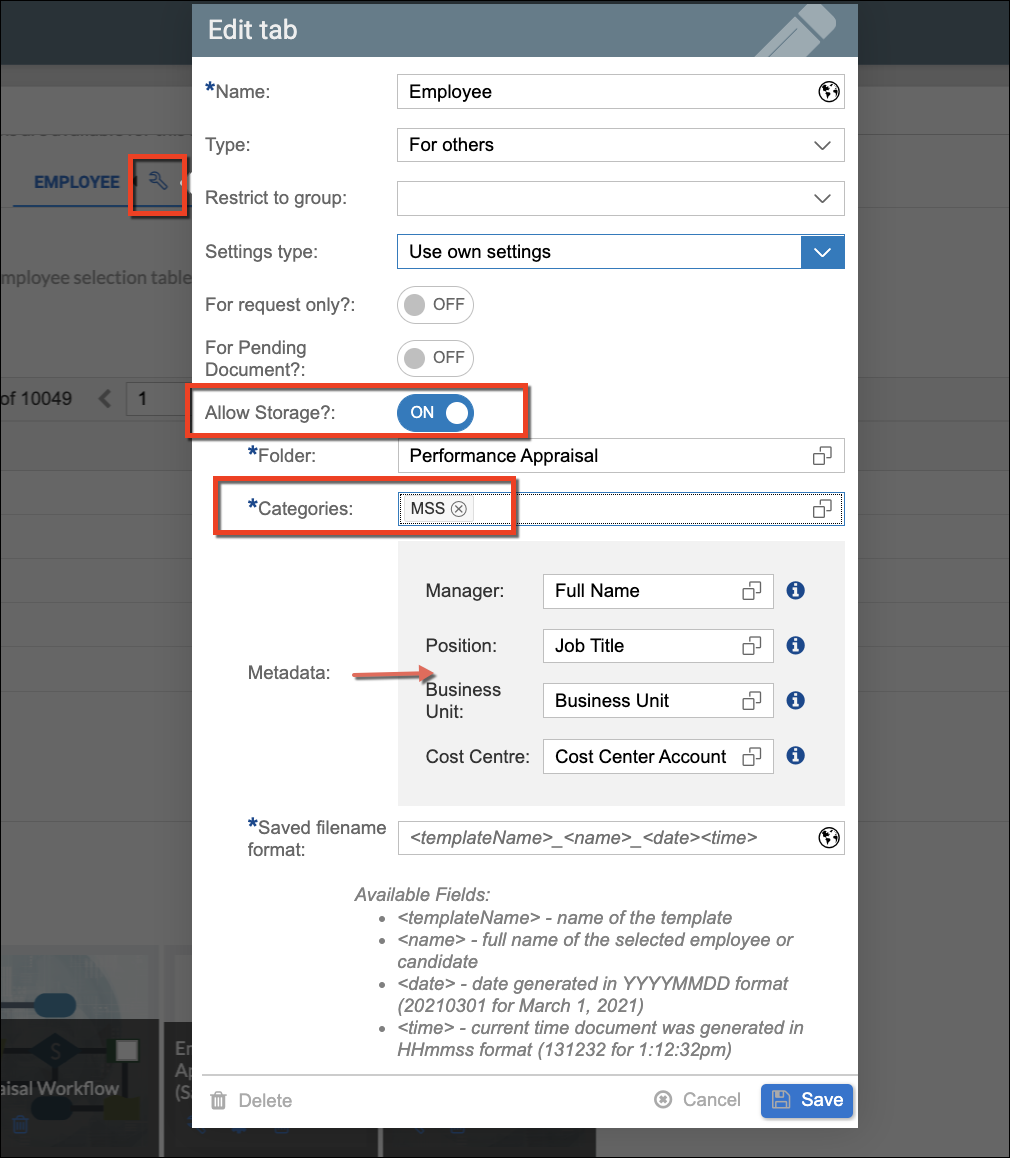
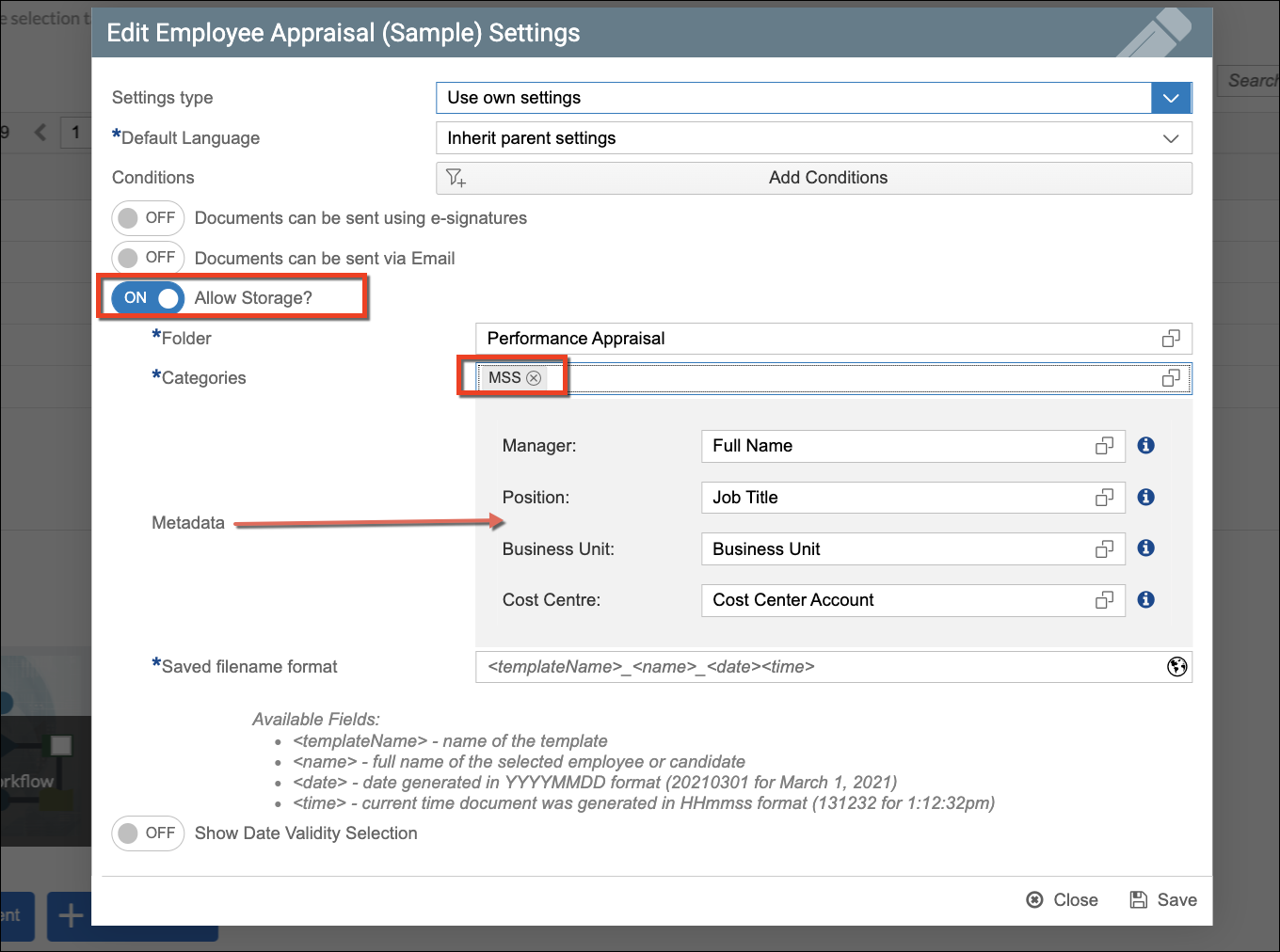
From there, the Allow Storage option can be enabled to set which Storage Folder the document should be uploaded to, and what Category should be assigned after generation. If there are any Properties or Metadata assigned to that particular category assigned, these properties will be displayed in the settings to be configured accordingly.
The sample screen below shows a document called Employee Appraisal which is configured to be uploaded to the Performance Appraisal folder within Strato Storage. A category called MSS is also set which has some Properties (Metadata) configured to it.
To know more about Metadata (Properties), please read Metadata / Properties Manager Overview.
Moreover, aside from the storage settings that can be applied on a document-template level in Strato Dashboard, these settings can also be configured on the Tab-Level Settings. Settings configured on a Tab Level will be applied to all the document templates under it, unless there are specific settings configured on the document template level.