Edit a Folder or a File in File and Storage Management
Given the proper role and authorization for the files and folders, you will be able to:
- Edit a Folder; and
- Edit a File
To edit a folder or a file in the File and Storage Management:
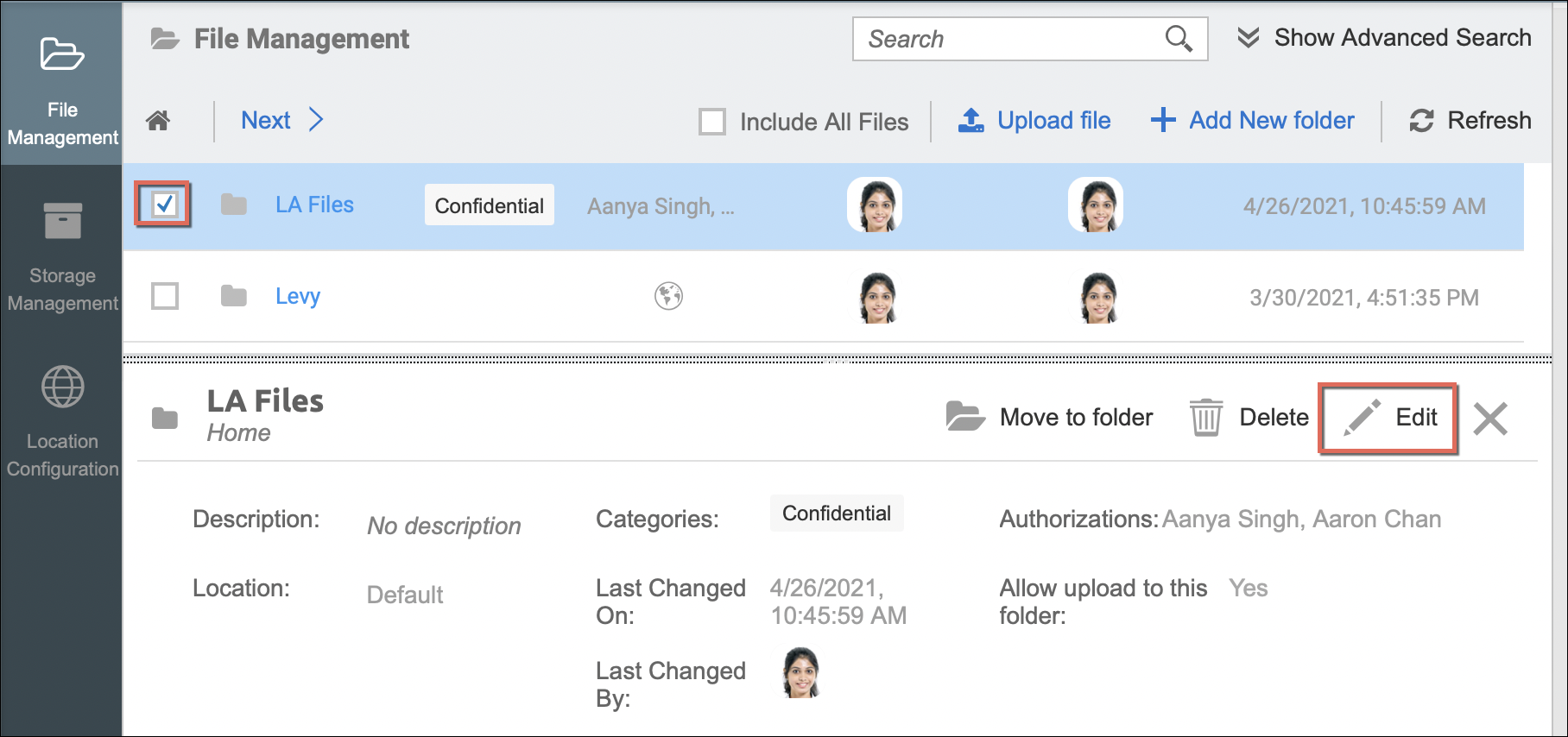
- Navigate through the folders (or subfolders) and select the folder or file to edit by either ticking the checkbox or by clicking on the item's row. This opens the View Details panel at the bottom.
- Click the Edit button.
This switches the View Details panel into Edit mode.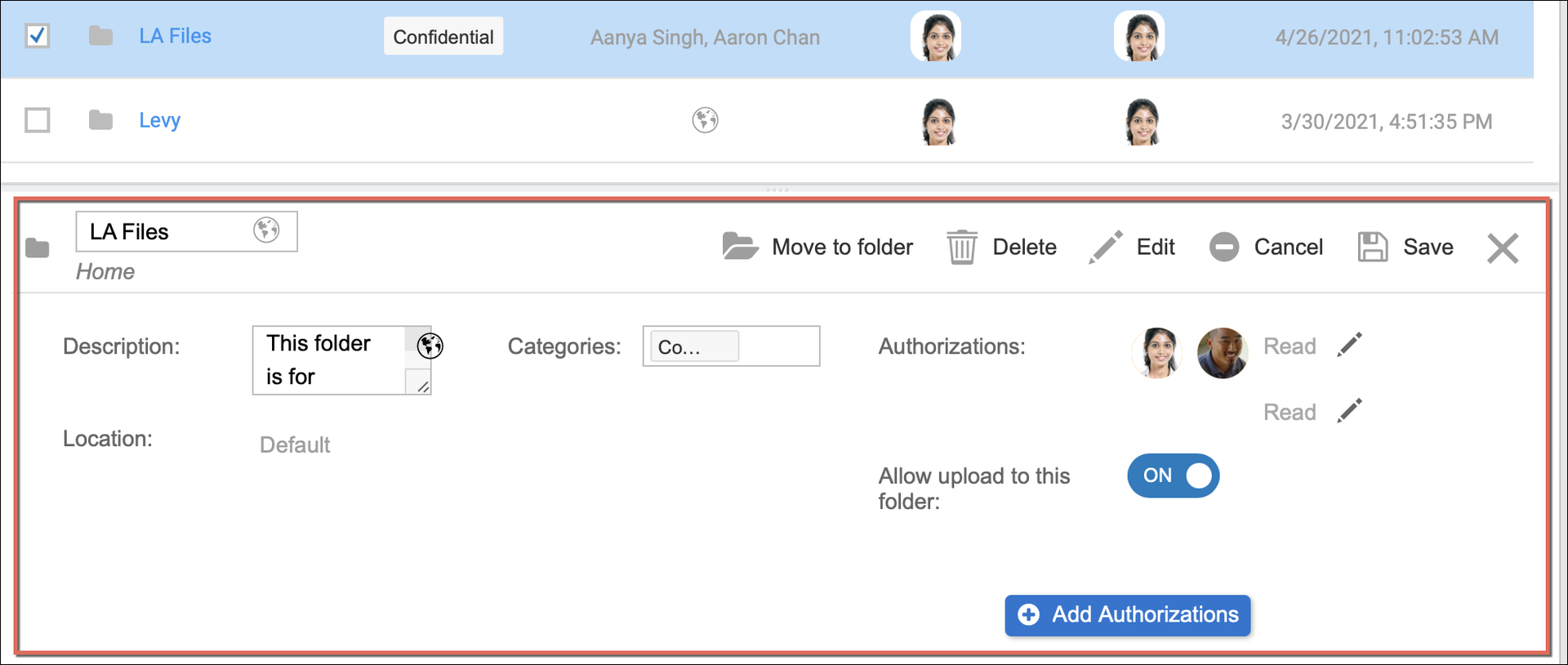
- Click the pencil icon or the toggle option for the details that you want to modify
- Allow upload to this folder (for editing a folder only) - Toggle this option to allow uploading of files to a folder. (Please read: Allowing Upload to a Folder)
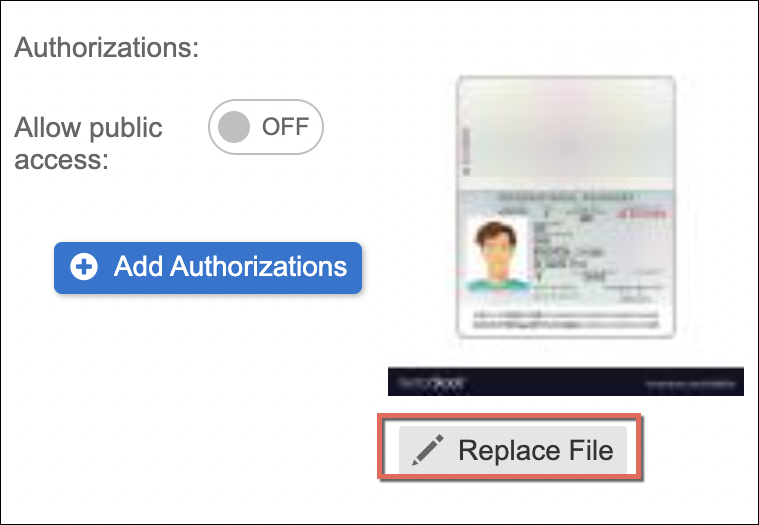
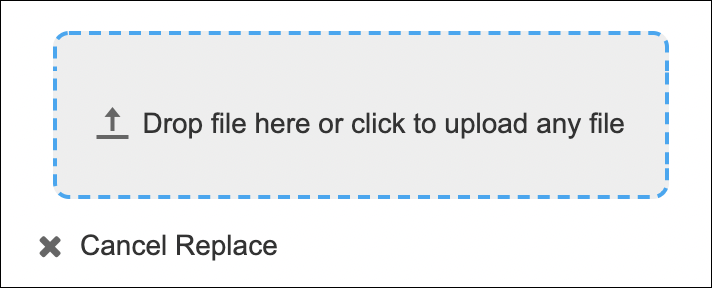
- Replace file (for editing a file only) - static files such as images and PDF files can be replaced via this option. This lets you upload any file to replace the file being edited. Once replaced and saved the file name. will be updated, but the URL from the Link to file will be retained.
- Allow upload to this folder (for editing a folder only) - Toggle this option to allow uploading of files to a folder. (Please read: Allowing Upload to a Folder)
- Once done with the changes, click the Save button.
Related articles
- Set Authorizations/Permissions to Folders and Files
- Assign Categories, Validity Rules, and Metadata to Documents in Strato Storage)
- Allow File Upload to a Folder (File Management)
- Add Folders in File Management
- Move Folders and Files (File Management)
- Show All Users Files in File Management
- Advanced Search and Filter (File and Storage Management)
- Delete Folders and Files in File Management