Add Folders in File Management
Given the proper authorization, you can add a folder in the root folder of File Management or add subfolders within its existing folder. This allows you to create a folder structure to make it easier for employees to find files that are relevant to them.
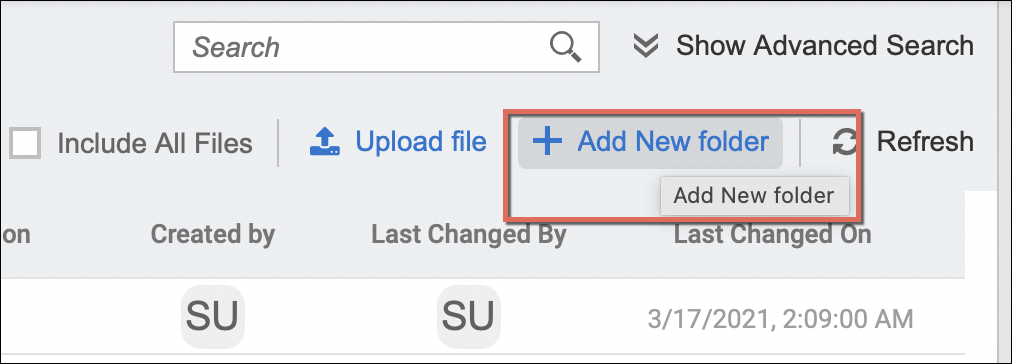
Adding a folder is simply done by clicking the Add New Folder button as shown on the screen below.
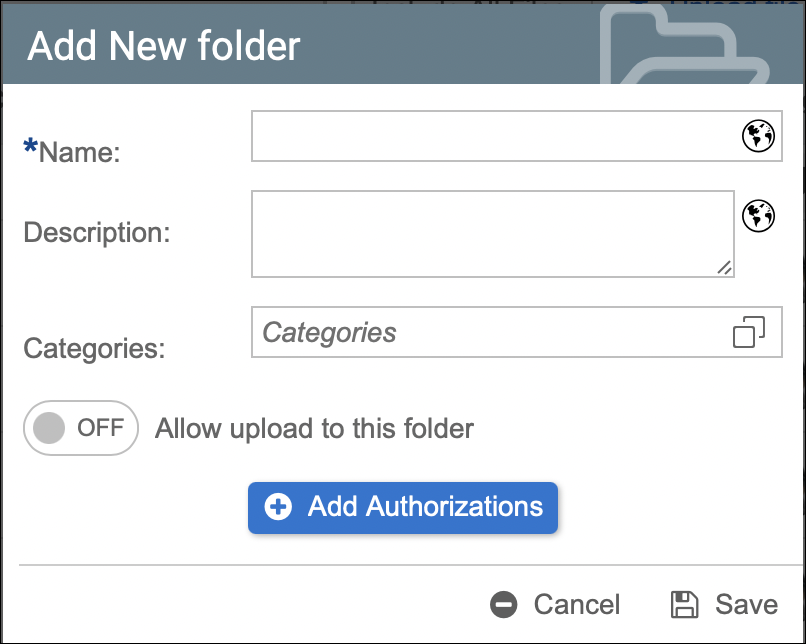
When adding a new folder, enter the Name and Description, assign Categories if there's any required, and set whether documents and files can be uploaded within this folder or not (Allow upload to this folder option). You can also add Authorizations/Permissions to set groups or certain users that can have access to view, edit or upload to this created folder. (For more information, read the following articles: Assign a Category to a Folder; Set Authorizations/Permissions to Folders; Allowing File Upload to a Folder)
Once added, the new folder will be reflected in File Management.
Files and subfolders can be added within the newly created folder and they can also be modified, which are all discussed in the following articles:
- Move Folder and Files (File Management)
- Upload and Download Files in File Management and Storage Management
- View Folder and File Details (File and Storage Management)
- Edit a Folder or a File in File and Storage Management
- Assign Categories, Validity Rules, and Metadata to Documents in Strato Storage
- Allow File Upload to a Folder (File Management)
- Delete Folders and Files in File Management