Perform Basic Search - File Search
When using File Search, Basic search only performs searches according to the criteria that you have specified in the search field and returns any files or documents that match the search term that you have provided. (See: File Search - Overview)
To perform a Basic search, follow these steps:
- Login to Strato.
- Click Storage Settings.
- On the left pane, click File Search.
- In the search field, specify the keyword or search term relevant to the files you are searching for, then click the magnifying glass icon to search. The search results will then be displayed.
Downloading File Search results
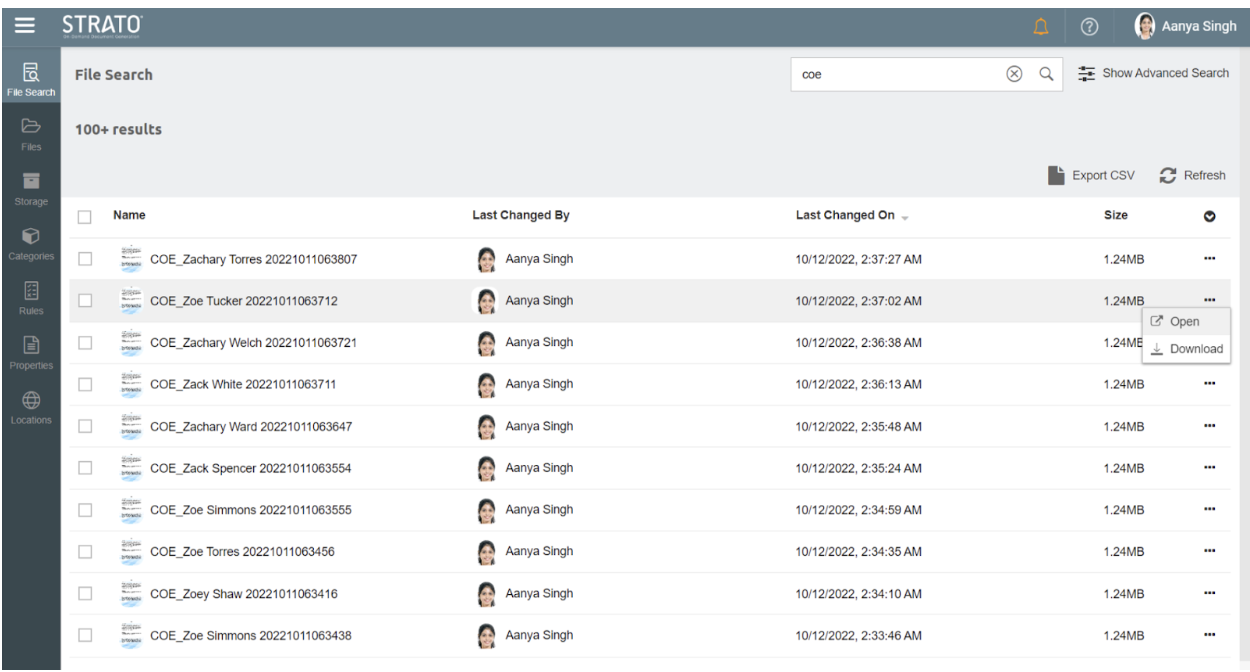
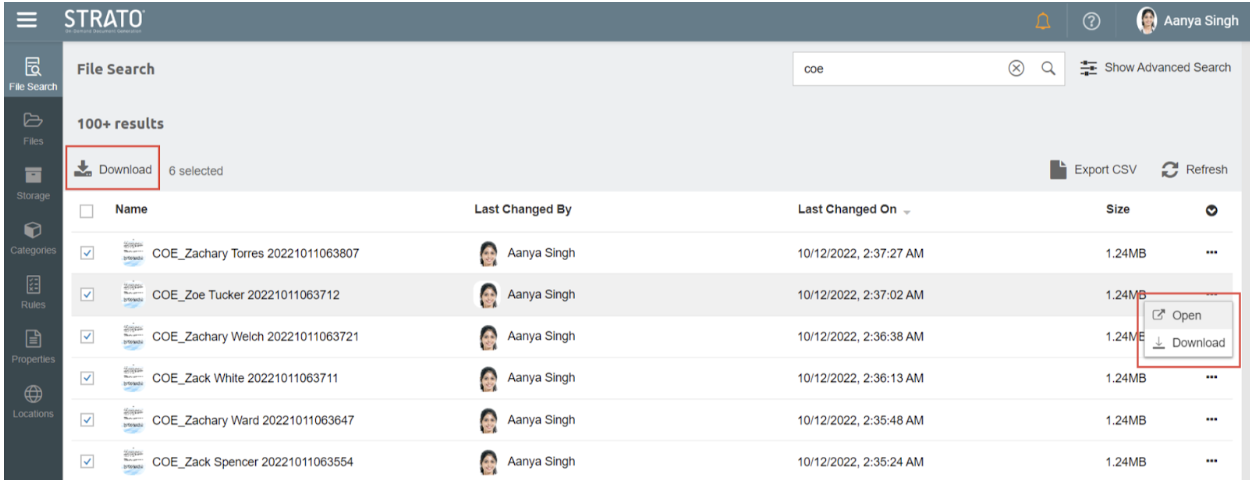
- From the search results, you can click the ellipsis at the end of the row of the particular document you want to download, then select Download.
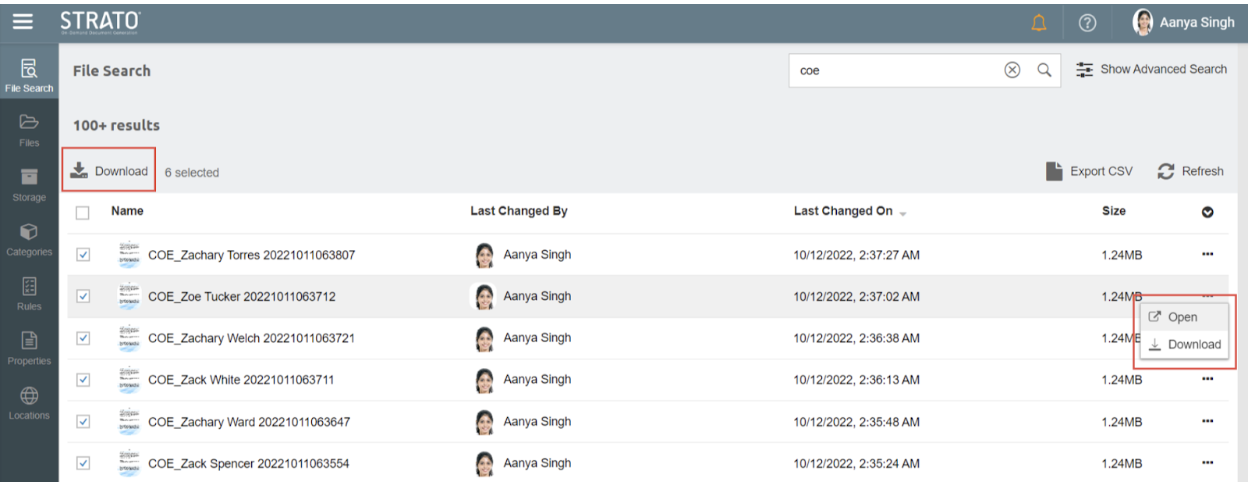
- You can also tick multiple checkboxes for multiple downloads, followed by the same process:
 Optionally, you may download the search results as a spreadsheet report.
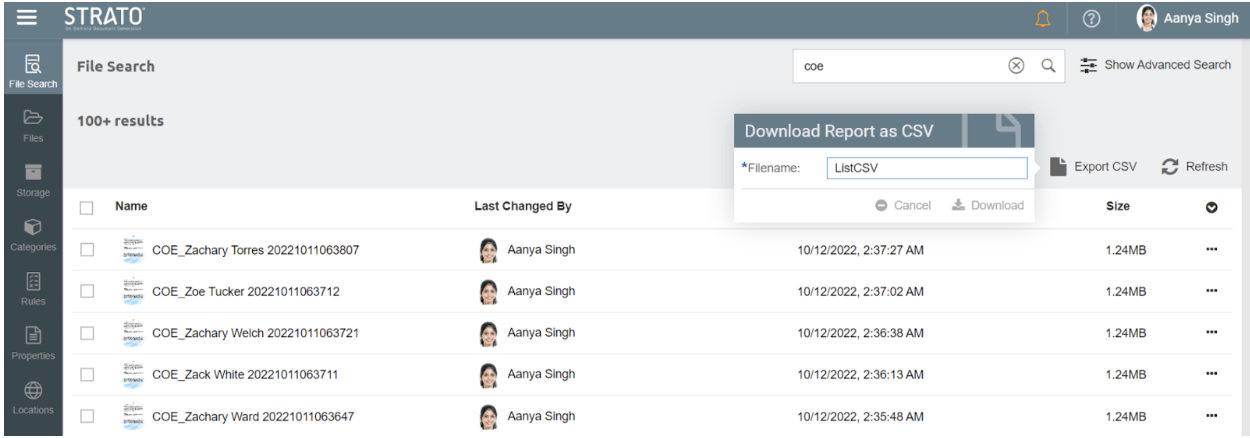
- To download, export the list as a CSV file. Click Export CSV.

- Specify the CSV file name and then click Download.
- In the downloaded CSV file, the download link for each file in the search results is indicated in the last column of the spreadsheet.
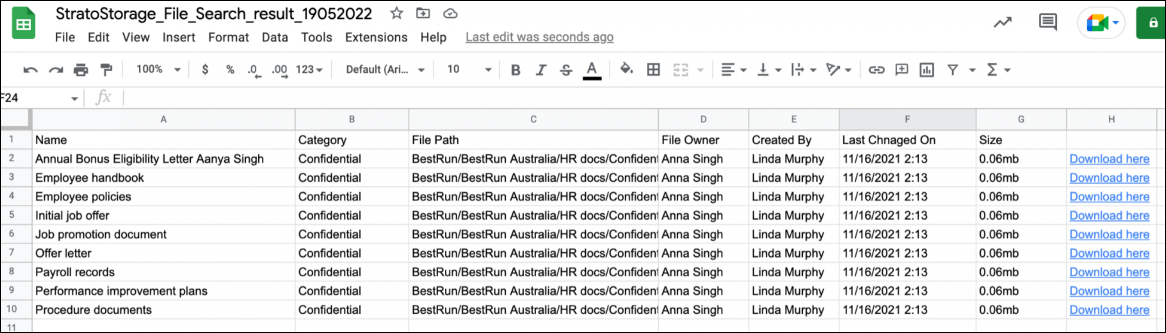
- To download, export the list as a CSV file. Click Export CSV.
You can also download all the files in one ZIP file.
- Select the files and click Download on the top of the results list.
The selected files are consolidated in one ZIP file.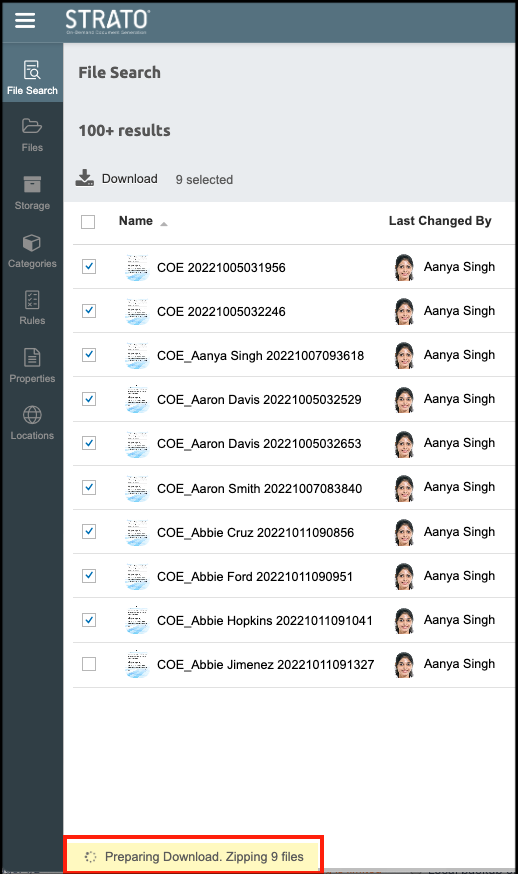
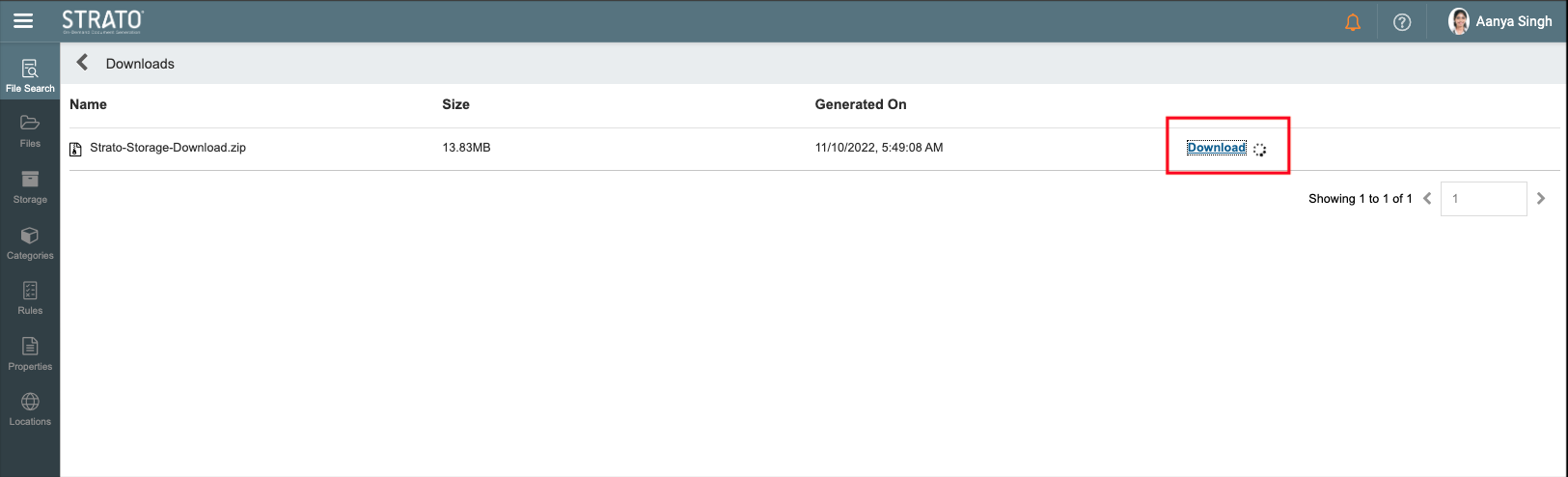
- Once the files are zipped, click Download Ready. You will be directed to the Downloads page.
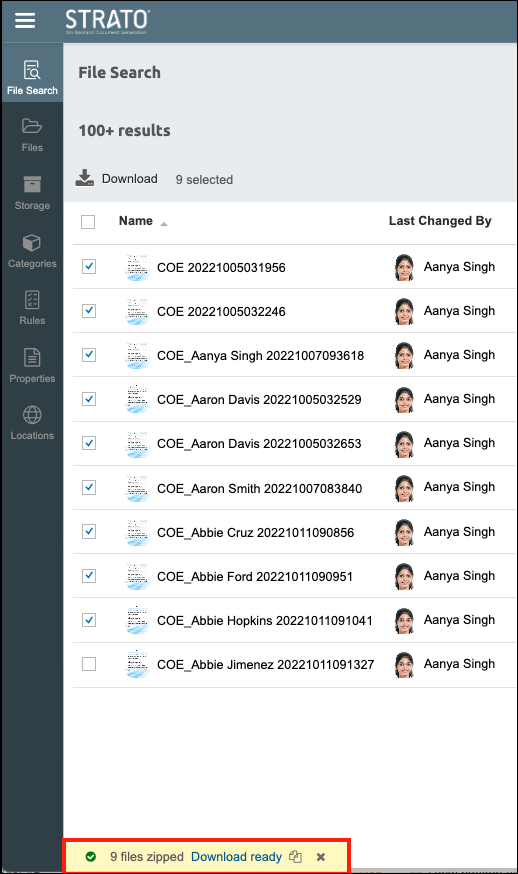
- On the Downloads page, select the zipped file and click Download.