Configure Identity Provider
The IdP (Identity Provider) enables administrators to identify the default IdP and secondary connections.
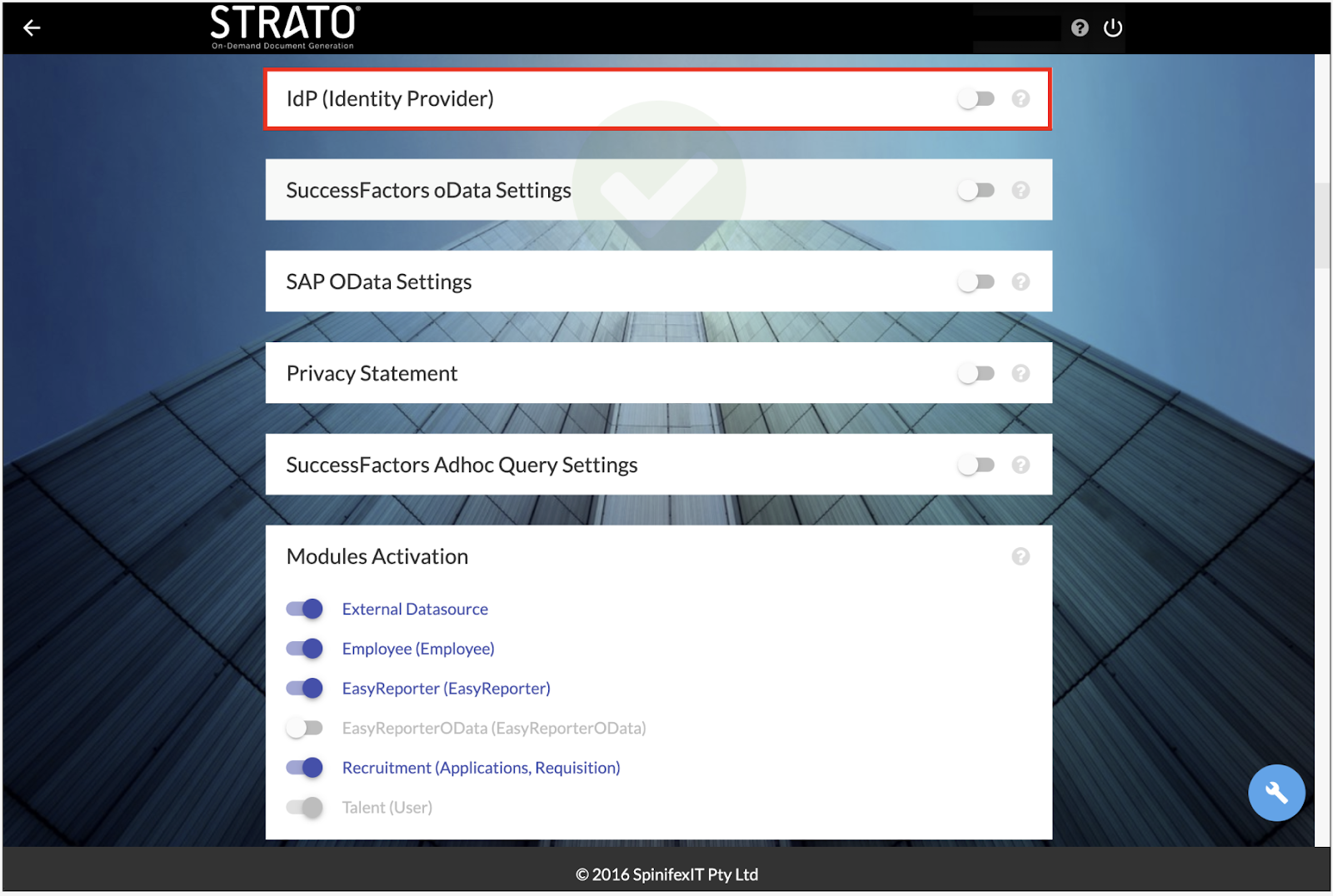
The SuccessFactors IdP is automatically enabled and assigned as the default IdP for existing systems. For newly created systems, IdPs are initially disabled by default.
To configure an IdP, follow these steps:
- Toggle the required IdP to ON.
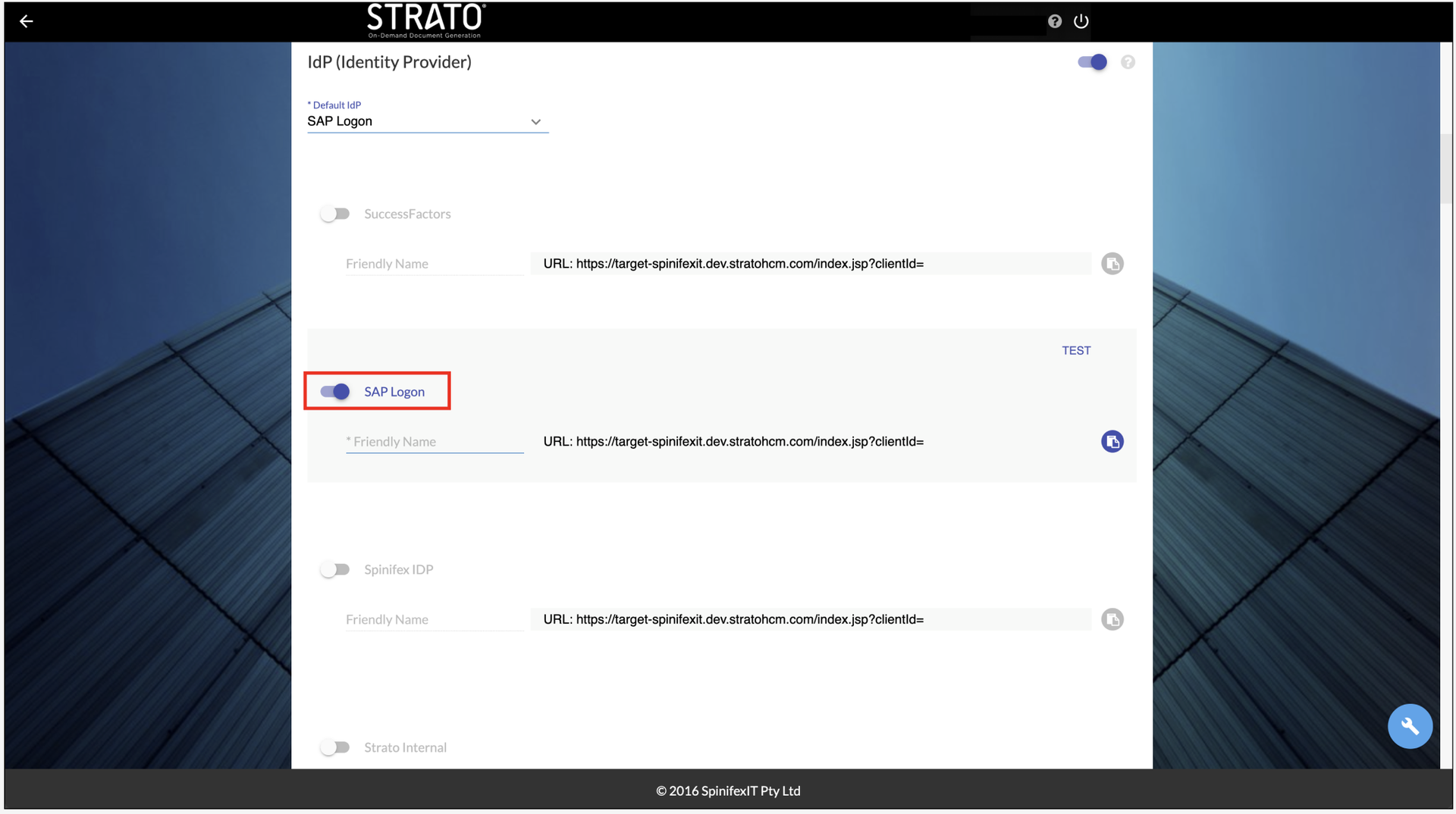
- Once toggled ON, Friendly Name input is required. It is added to the end of the specified URL, accepting only alphanumeric characters without spaces and is limited to 255 characters.
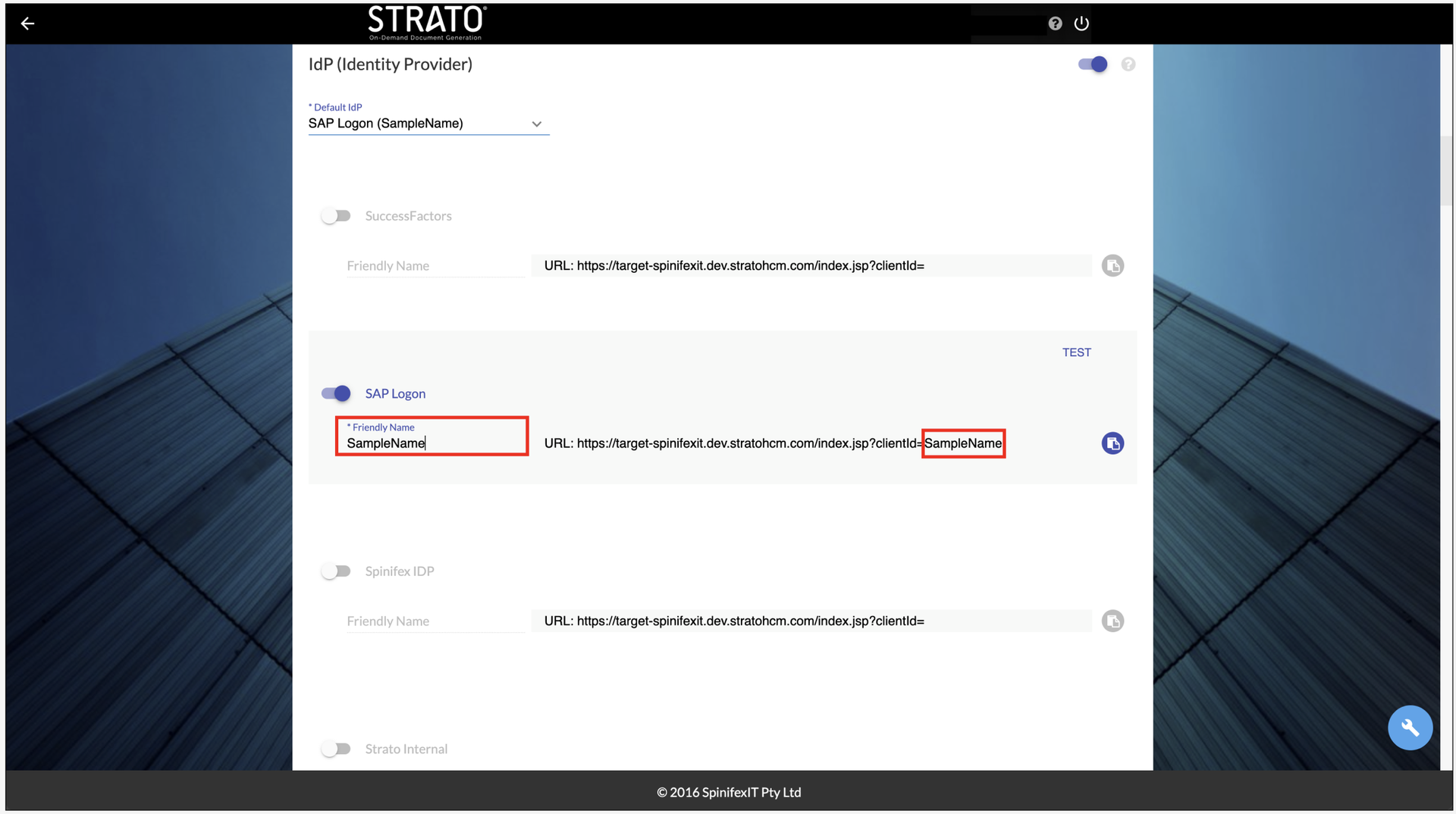
The Copy value to clipboard icon allows convenient copying of the URL.- The first enabled Identity Provider becomes the Default IdP. Disabling it will clear the Default IdP. When multiple Identity Providers (IdPs) are toggled ON, administrators can select from the enabled options.
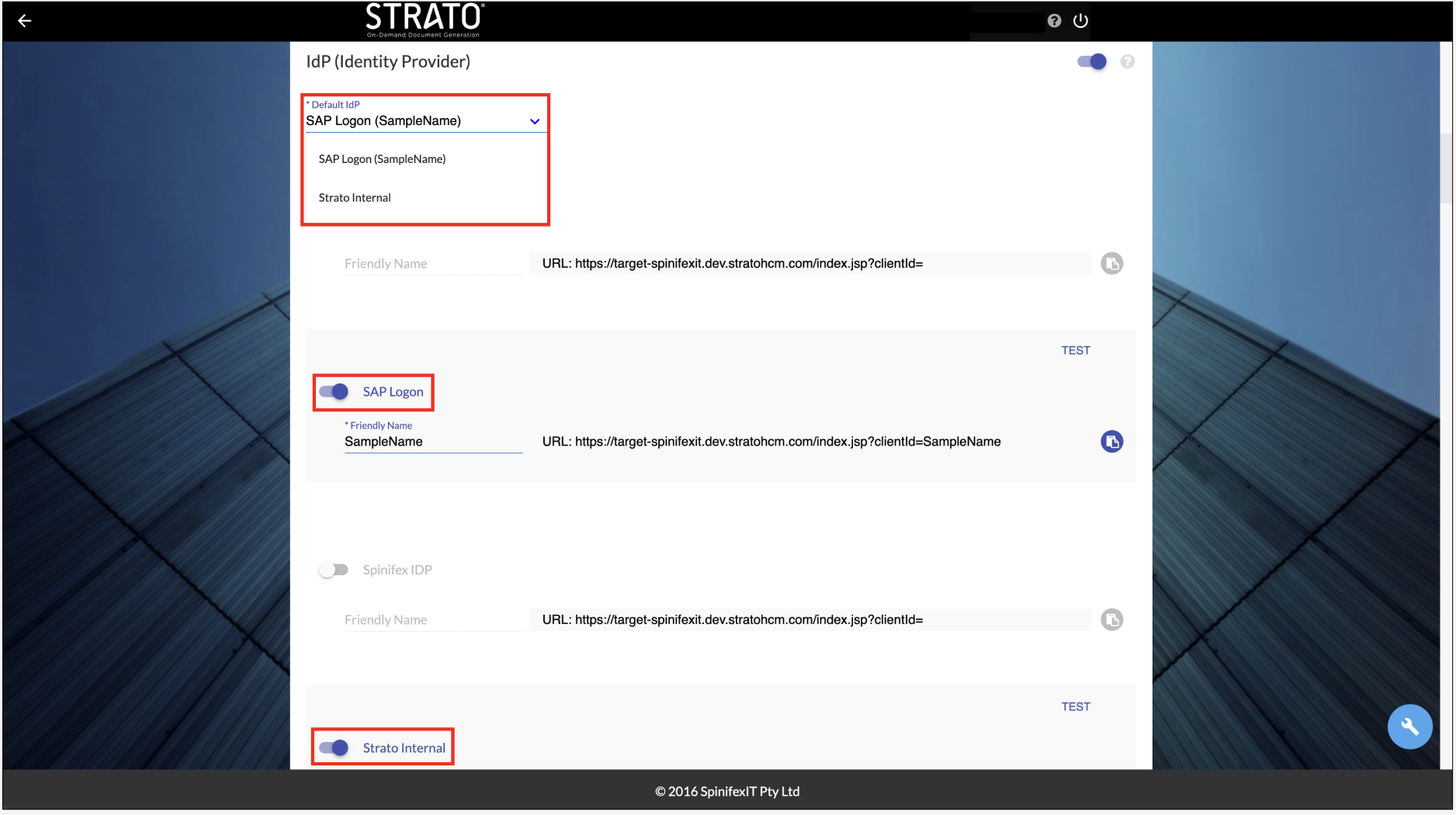
Notice that only SAP Logon and Strato Internal (StratoInternal) are displayed since these are the only two options toggled ON. When there is no IdP enabled, the Default IdP dropdown field will be disabled.
IdP Provider (IdP) Options
There are four Identity Providers available:
1. SuccessFactors IdP
Strato leverages single sign-on capabilities of SAP SuccessFactors to create a fully integrated and secure user experience. When the SuccessFactors IdP is enabled, users must specify the SAP SuccessFactors' base URL and combine it with the other URL addresses as shown below.
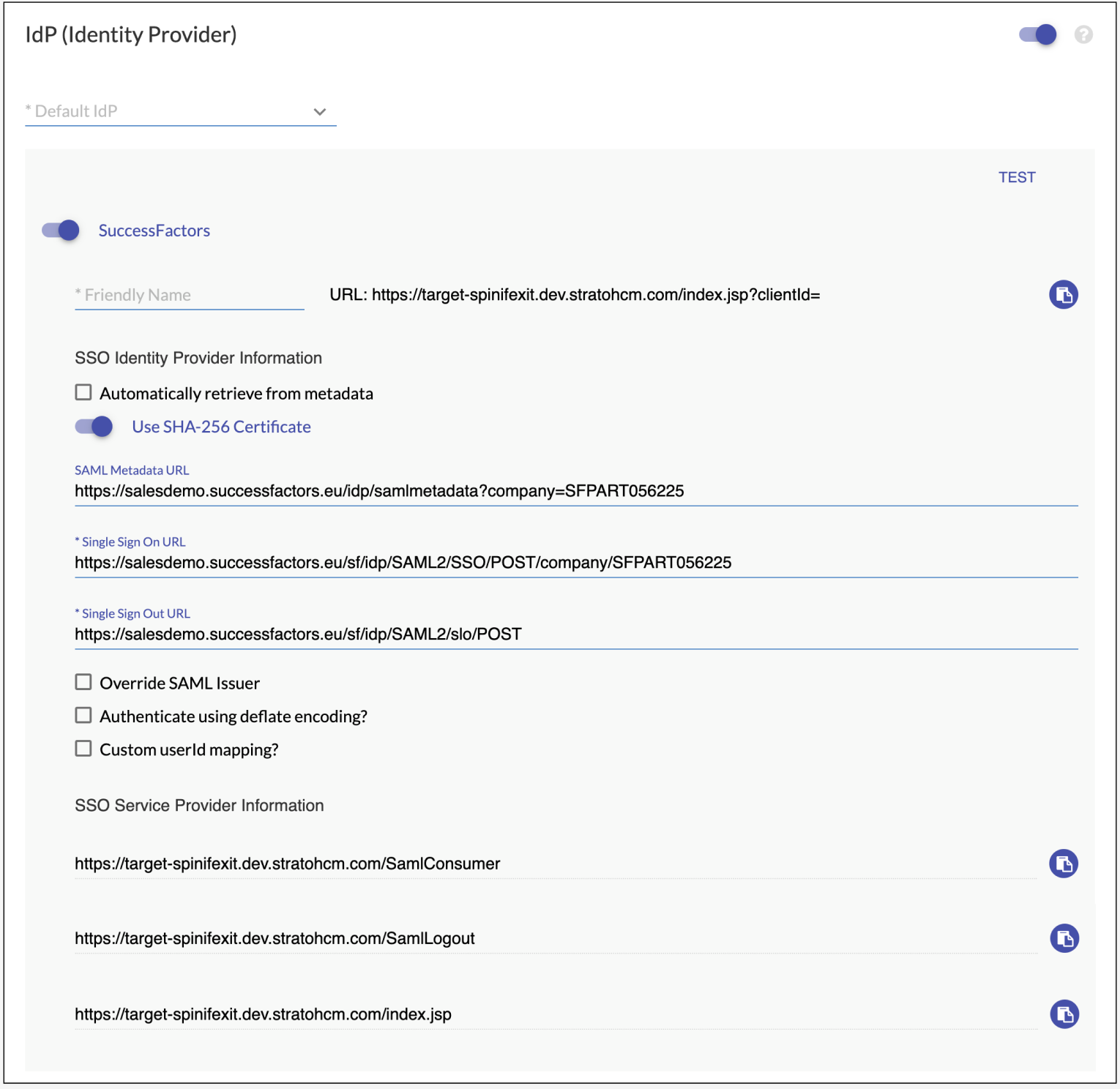
When manually configuring SuccessFactors, users have the option to input links with the structure outlined as follows:
- SAML Metadata URL: SuccessFactors base URL + /idp/samlmetadata?company=Your company name
- Single Sign On URL: SuccessFactors base URL + /sf/idp/SAML2/SSO/POST/company/Your company name
- Single Sign Out URL: SuccessFactors base URL + /sf/idp/SAML2/slo/POST
This is a precursor to preparing the single-sign-on settings. With the fast-tracked option, users do not need to manually enter anything. On the other hand, with manual input, users may refer to the instructions below for guidance.
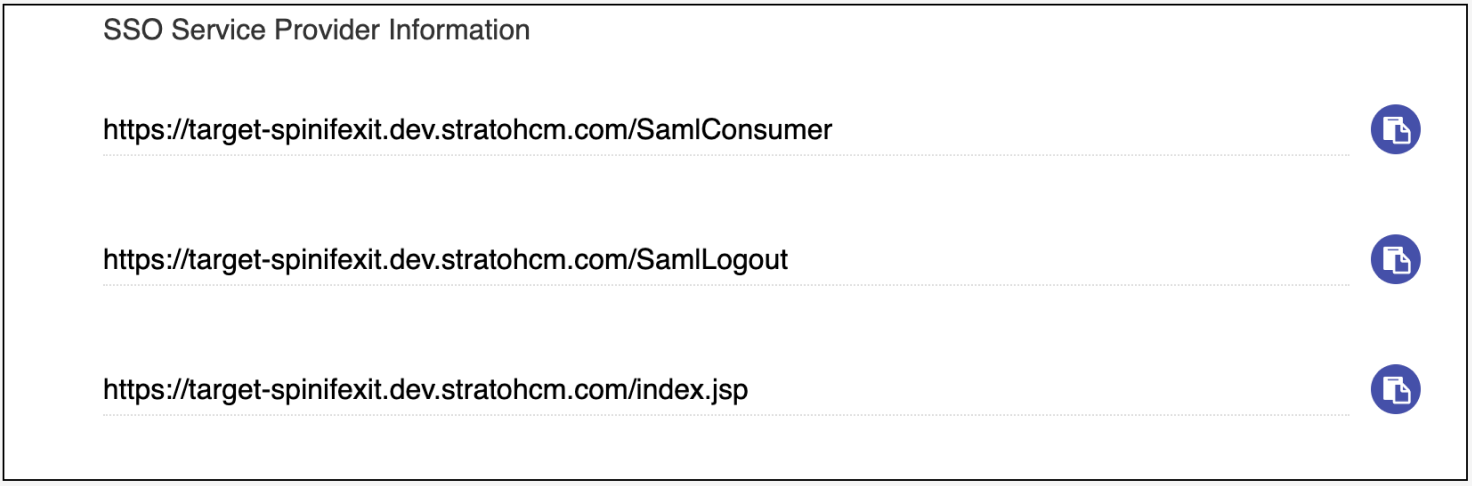
There is no need to enter the SSO settings on the fields.The SSO Links are pre-generated, following the SuccessFactors’ base URL in the fast-tracked option.
2. SAP Logon IdP
To connect to the SAP on-premise system, users must enable and use the SAP Logon IdP, which can be accessed through the provided URL link.
3. Spinifex IdP
If users wish to try out Strato with SuccessFactors data without setting up SuccessFactors, the Spinifex IdP option can be utilized instead.
If the Spinifex IdP option is configured as the default IdP, the Identification type in the SuccessFactors oData Settings will be changed to Basic. Subsequently, users will only be required to enter their SuccessFactors Username and Password.
4. Strato Internal IdP
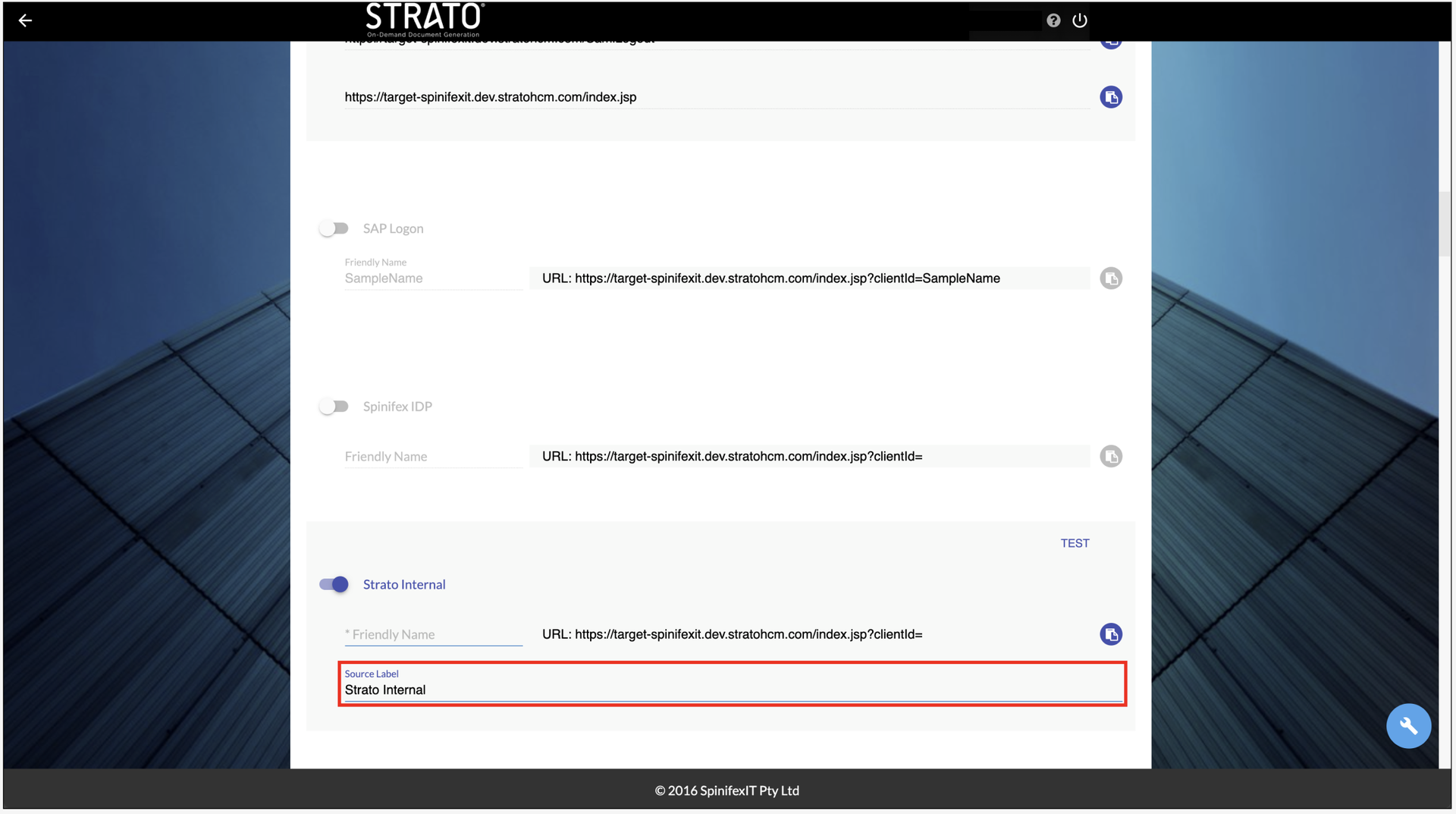
The Strato Internal IdP is used by external users to access the system. When the Strato Internal IdP is toggled ON, Source Label becomes available. The value entered in here accepts only alphanumeric characters including spaces and is limited to 50 characters. It serves as the name of the value of the Source in Strato Storage, and if left empty, it will default to Strato Internal across Strato Storage.