Creating an Application Widget
Application Widgets are designed to make it easier for a recruiter to generate multiple documents for all applicants in their database. The widgets allow its user to filter an Applicant or a Candidate's application status and job title, then select multiple recipients and generate multiple documents for each.
- Application- Used by Recruiters, Human Resources Personnel who have Recruitment roles, or Editors with Access to large groups of employees. These widget allow them to generate documents for candidates & applicants.
Creating an Application Widget
Access Widget Settings from your Strato Tools Menu
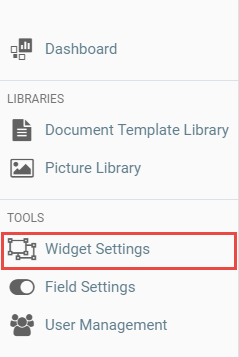
Then this window will contain all the widgets in your system.
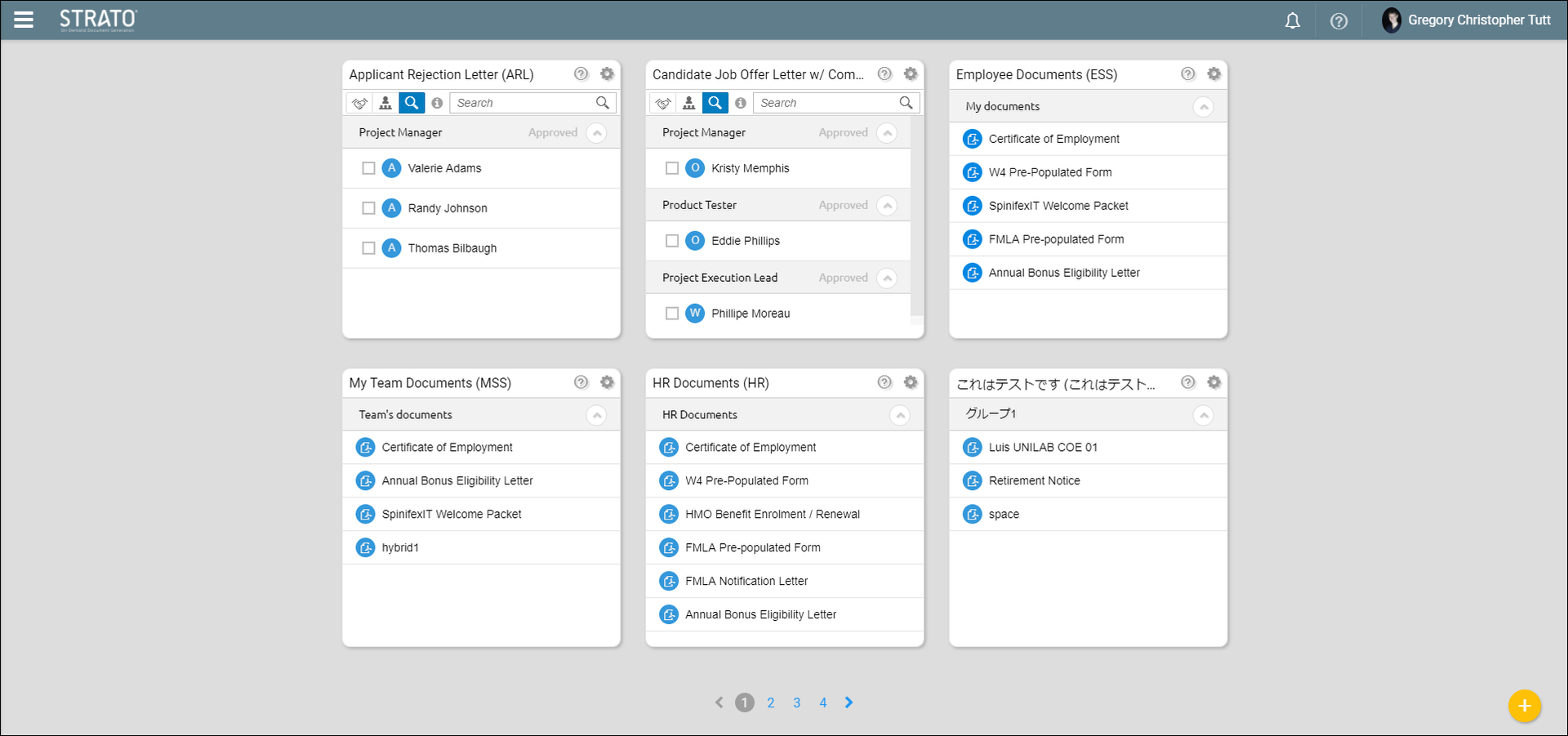
Click the Actions button > Add Widget button from the bottom-right side of your screen.
This window will pop up.
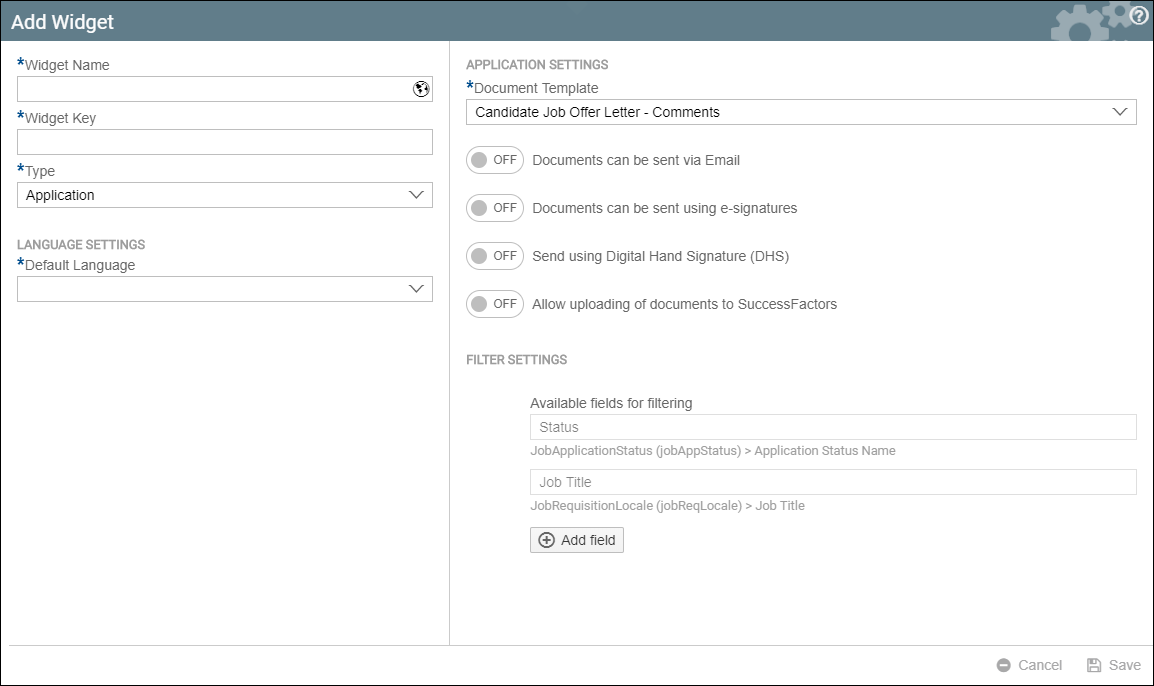
| Widget Name | This will be name of your Widget |
| Widget Key | This is a shorter version of your Widget Name |
| Type | Choose Application Widget |
| Default Language | Choose the language of the widget. There are three options:
|
Application Settings
| Document Template | Select the document template that you will use for the application widget. Make sure that the document you will use belongs to the Application Catalog. |
| Documents can be sent via Email | This can be toggle on or off. When toggled on, you can decide if you want the email to be sent immediately after generation. Additionally, you can enable adding a comment in the recruiting record when a document is sent via e-mail. |
| Documents can be sent using e-signatures | This is for the application workflow together with the AdobeSign / DocuSign integration. You can enable or disable the adding of comments in the recruiting record when a document is generated. Additionally, you can enable or disable the sending of an email after the document is signed. An Email field must be selected if this is enabled |
| Send Using Digital Hand Signature | You can send the document using the Digital Hand Signature. When this is toggled on, Parameter boxes will appear. You can further add Parameter boxes as needed. Additionally, you can enable or disable adding comments in the Recruiting record when a document is generated To use the Digital Hand Signature, make sure it is enabled in your Strato system. Read Strato with Digital Hand Signature (DHS) Integration . |
| Allow Uploading of documents to SuccessFactors | A pre-requisite of uploading documents to a candidate's profile is that they should be in the Offer status. Uploading a document cannot be done for any other candidate status.
|
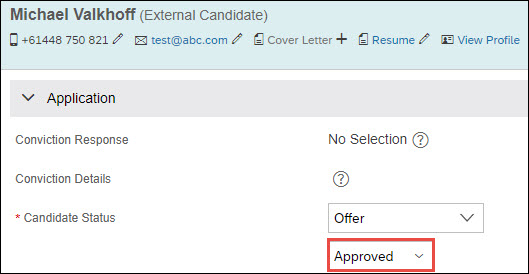
For Filter Settings, read Filter Settings for Widgets .
You can select a default language per document with the following options:
- Inherit parent settings
- Browser language
- Generation language
- Language from a field
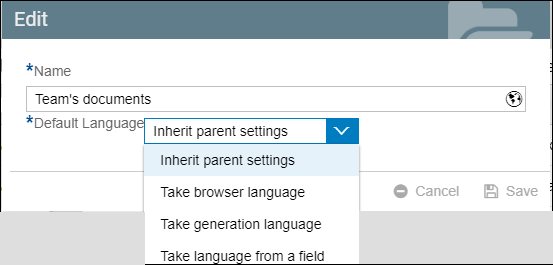
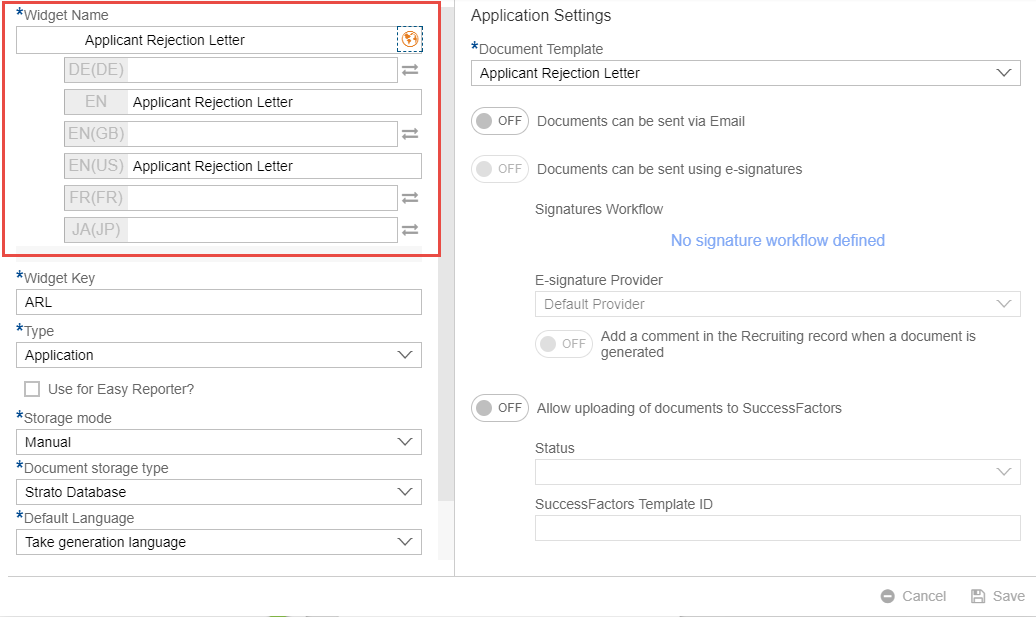
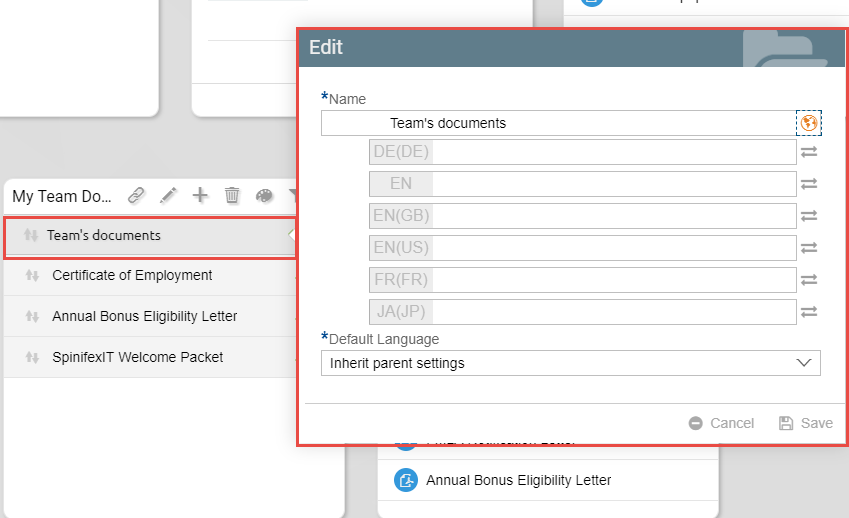
Also, you can also set the default language of a widget title and a group title.
Widget Title:
Group Title:
For more information, click the article below.
Adding a Strato Widget as an SAP SuccessFactors tile
For information about the different widget types, click Widget Types.