Storage Deck
The Storage Deck enables admins to review, classify, and validate Categories, Folders, Recipients, and File Properties for large volumes of files uploaded before transferring it to Storage. This ensures seamless file storage, with plans to expand support for other sources.
This article contains the following sections:
Policies
Once activated, admins can grant or deny Storage Deck permissions to users in Policies.
- Review: Access and see all of the files in the Storage Deck.
- Store: Move the files from the Storage Deck to Storage.
- Delete: Permanently remove the files from the Storage Deck.
- Audit: View audit history and activity related to files in the Storage Deck.
For the data objects, admins can select from the available document sources, including:
API: Access and upload documents to the Storage Deck via API.
Manual: Upload documents directly to the Storage Deck.
SuccessFactors Recruiting: Retrieve documents from this module using the Auto Retrieve Documents feature.
SuccessFactors Onboarding: Retrieve documents from this module using the Auto Retrieve Documents feature.
SuccessFactors Employee Central: Retrieve documents from this module using the Auto Retrieve Documents feature.
Access
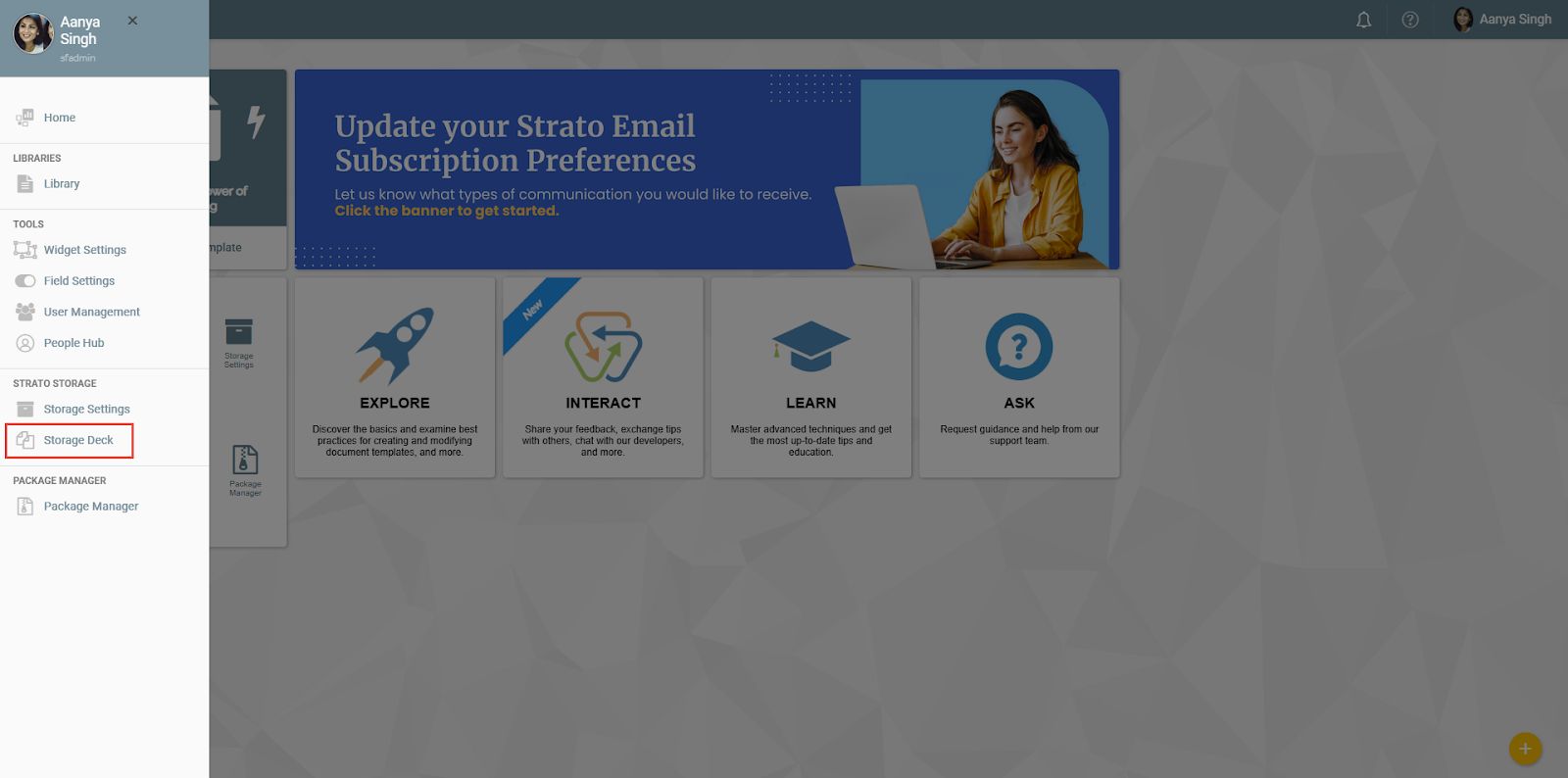
If your account has the Review permission granted through a Policy, you can access the Storage Deck through the following methods, depending on your version of Strato:
Strato V1
You can access the Storage Deck via the Strato side panel, and click Storage Deck under the Strato Storage menu.
Strato V2
You can access the Storage Deck via the Strato App Menu Bar.

Features
Storage Deck
The Storage Deck shows all files waiting to be stored to Storage.
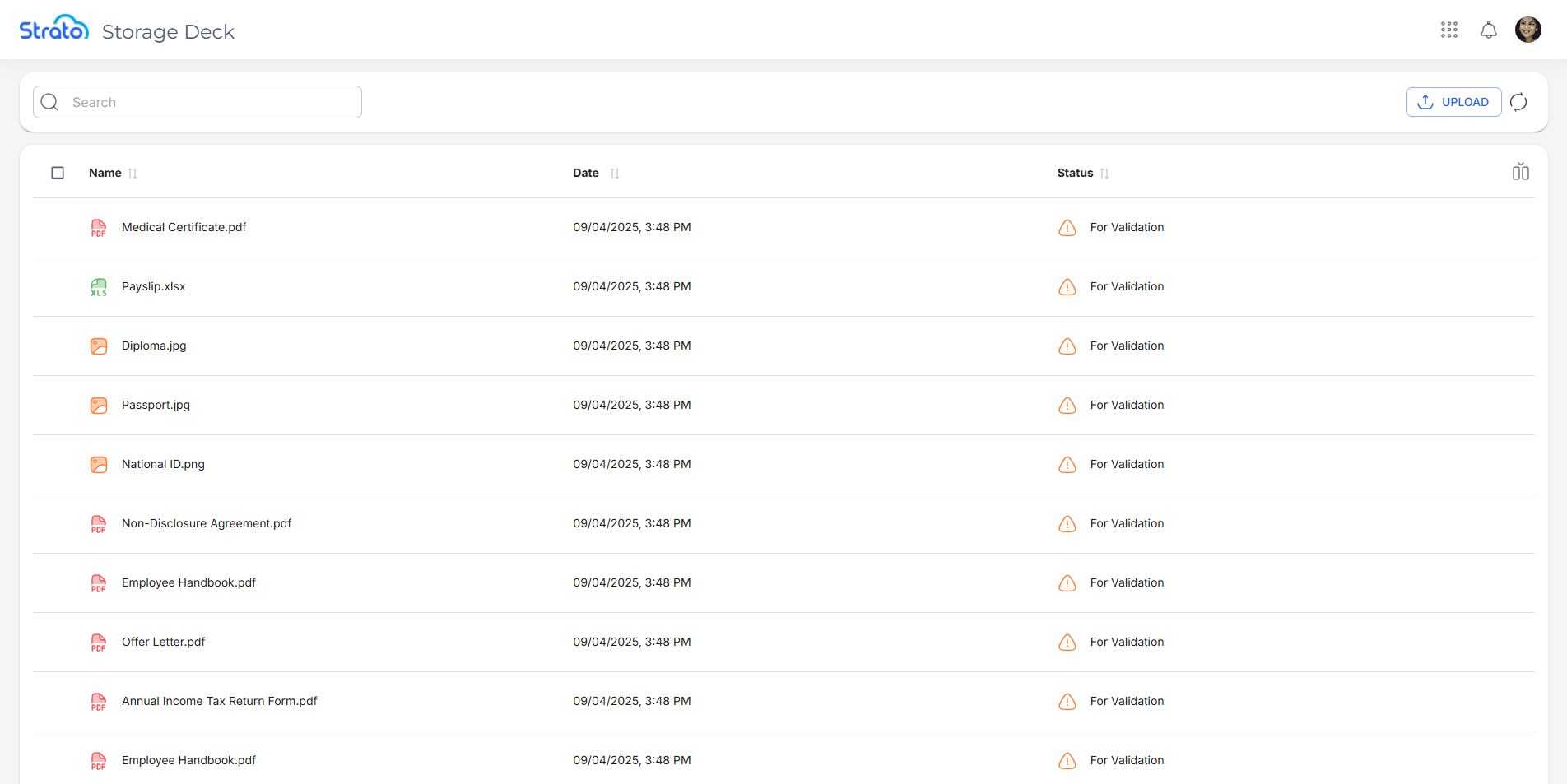
By default, three columns are shown:
- Name: The file's type icon, name, and extension.
- Date: The date and time when the file is uploaded to the Storage Deck. This is displayed following the current user's time zone.
- Status: The current state of the file in the Storage Deck.
The following columns can be toggled via the Show/Hide columns button:
- Recipient: The intended receiver of the file when stored to Storage.
- Folder: The location where the file will be stored.
- Category: The Category to be assigned to the file.
- Source: Shows how the file was uploaded to the Storage Deck.
Upload Files
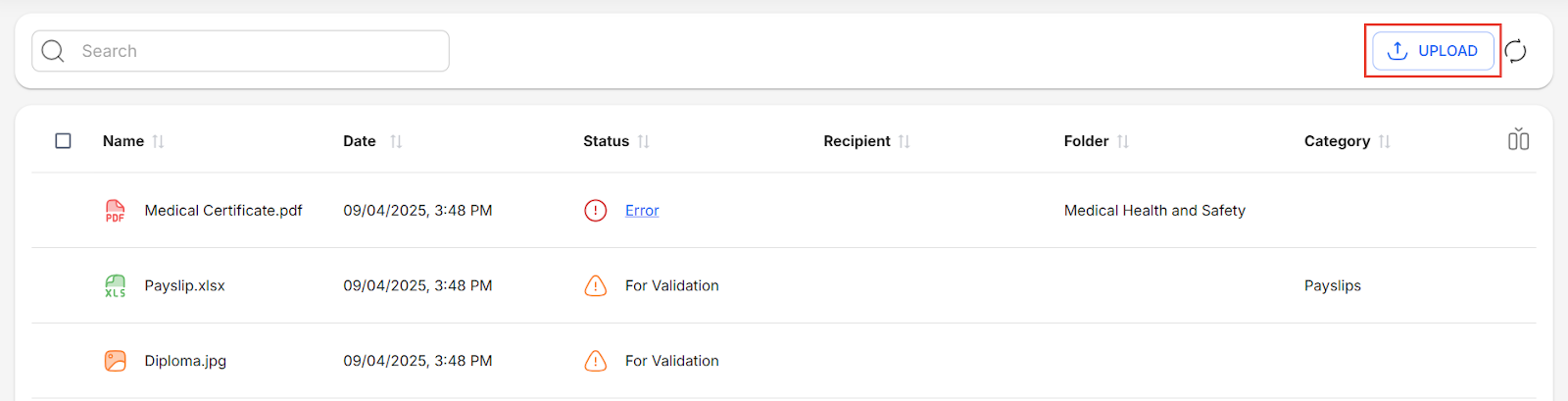
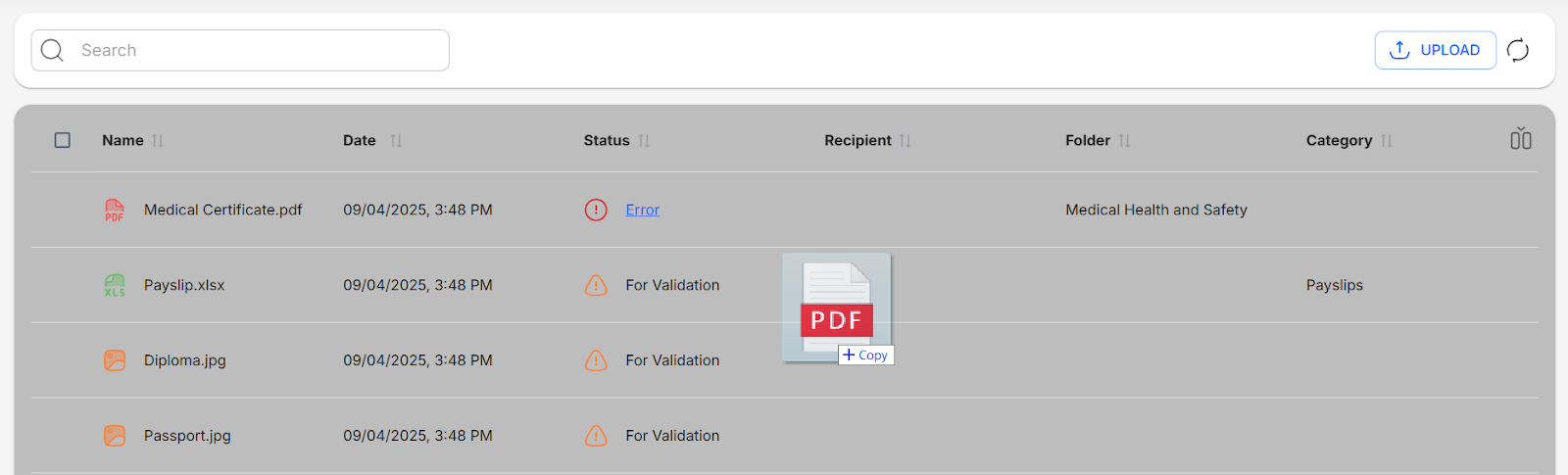
You can upload files to the Storage Deck by either using the Upload button or by dragging and dropping files to the files list.
Search Files
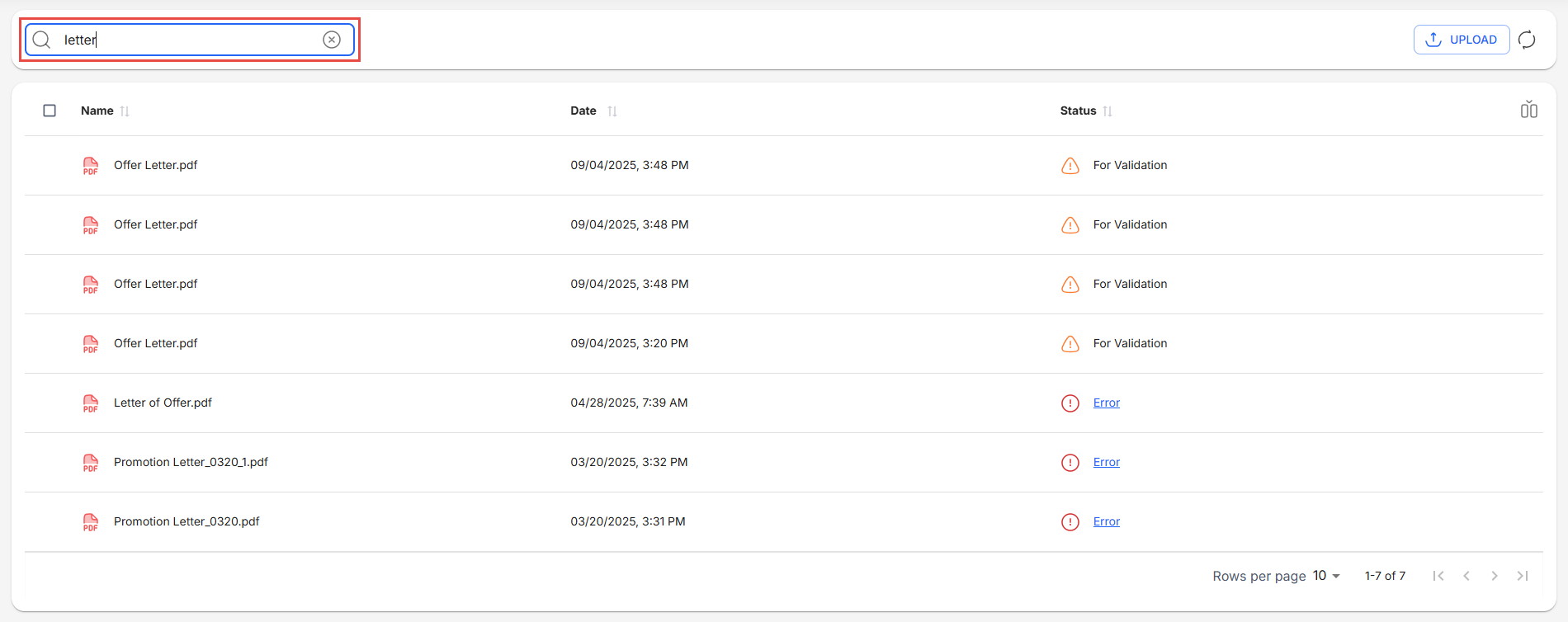
You can search for files in the Storage Deck by using the search bar.
Check File Information
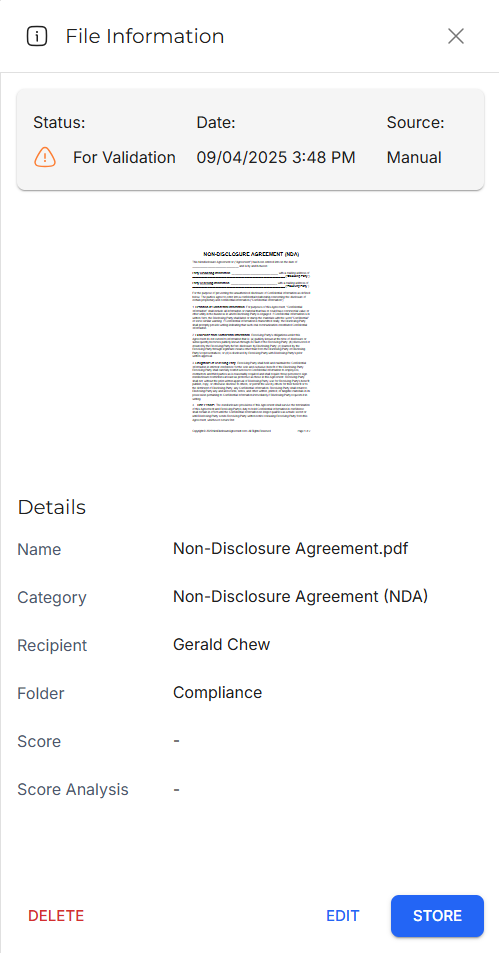
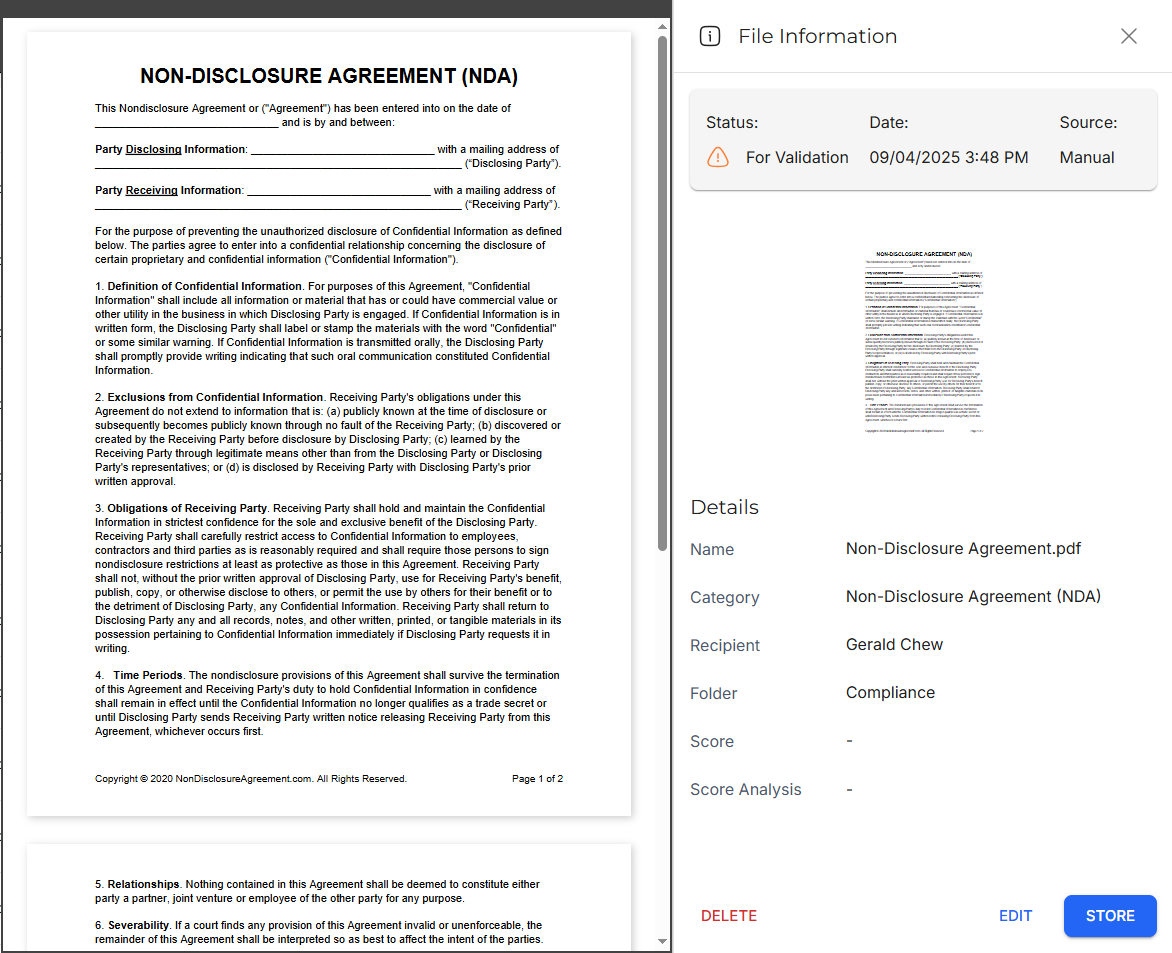
The File Information side panel shows you information about the selected file. You can look at a preview of the file, and depending on your user's permissions, you can edit, delete, or store the file to Storage.
Edit File Information
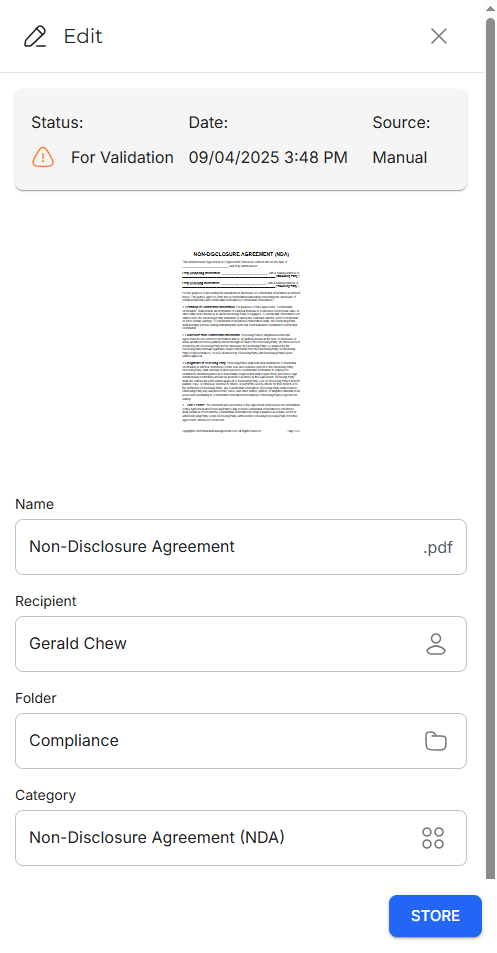
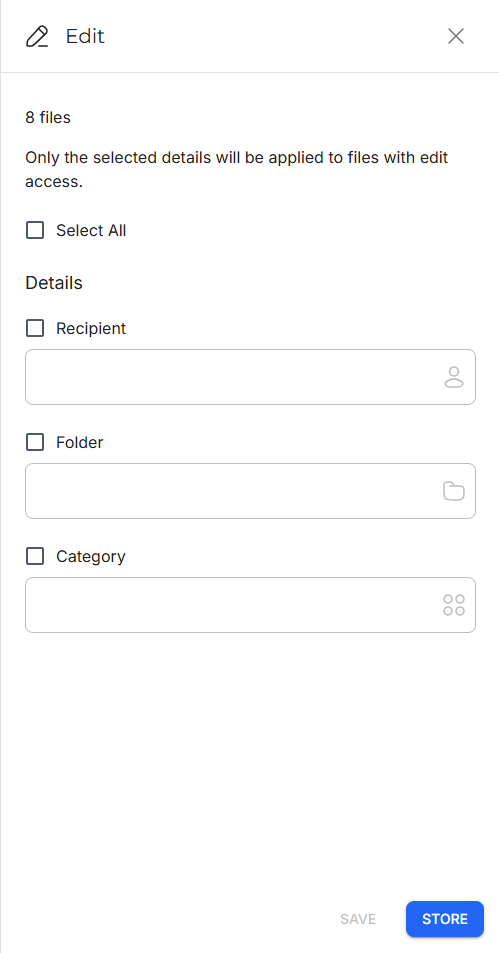
The Edit side panel allows you to edit the file's details. The content displayed in the side panel varies based on whether you are editing a single file or multiple files at once.
Single File
Multiple Files
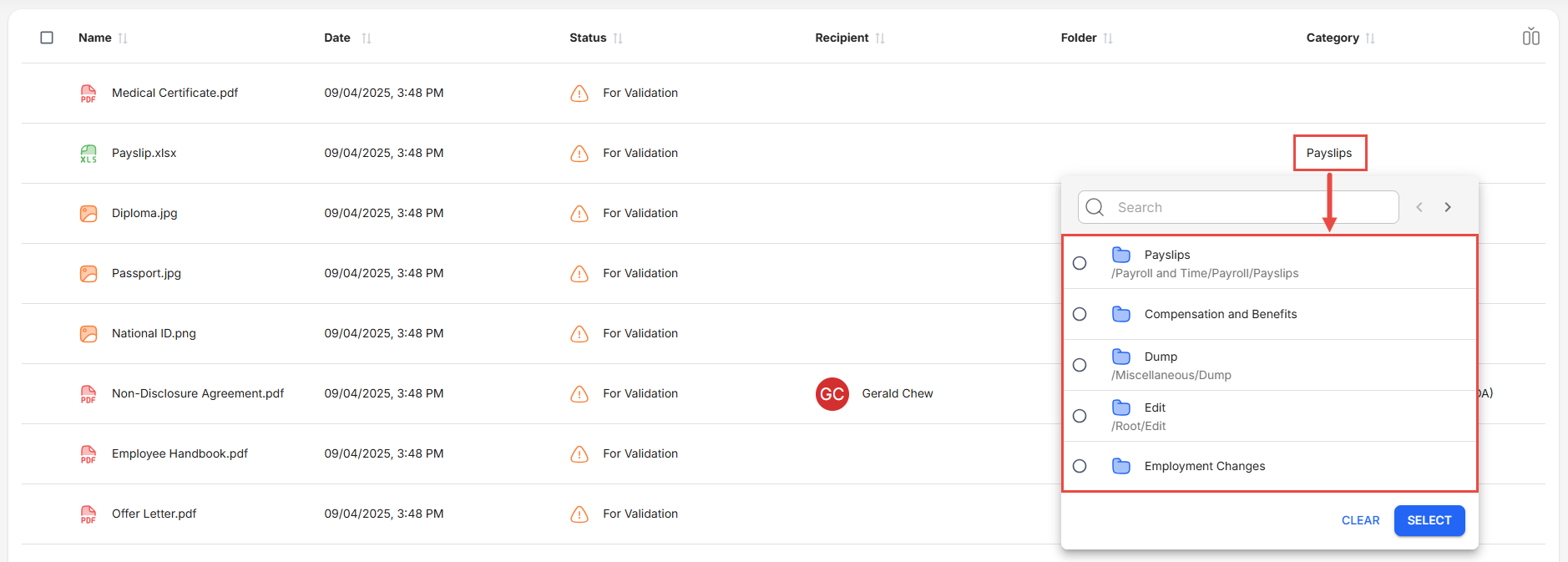
Dynamic Folder and Category Filtering
When selecting the destination folder, the list of Folders will be filtered according to the selected Category, and vice versa. This makes it easier to select a Folder or Category if a Category or a Folder has already been selected.
Preview File
The File Preview side panel allows you to quickly see the contents of the file. This can be seen alongside the current active side panel.
Related articles
- Navigate Storage Deck
- Store Files to Storage in Storage Deck
- Manage Files in Storage Deck
- Upload Files to Storage Deck via API
- Upload Files to Storage Deck