Navigate Storage Deck
This article explains how to navigate the Storage Deck page, where files are temporarily stored before being moved to Storage.
Requirements
Make sure that New Feature - Storage Deck is installed in the Upgrade Center.
Your permissions and Policies determine whether certain actions are allowed in the Storage Deck. Contact your Strato administrator if you need assistance with these permissions.
Features
File List
When you open the Storage Deck page, you will see the list of files and their details, including the Name, Date, and Status.
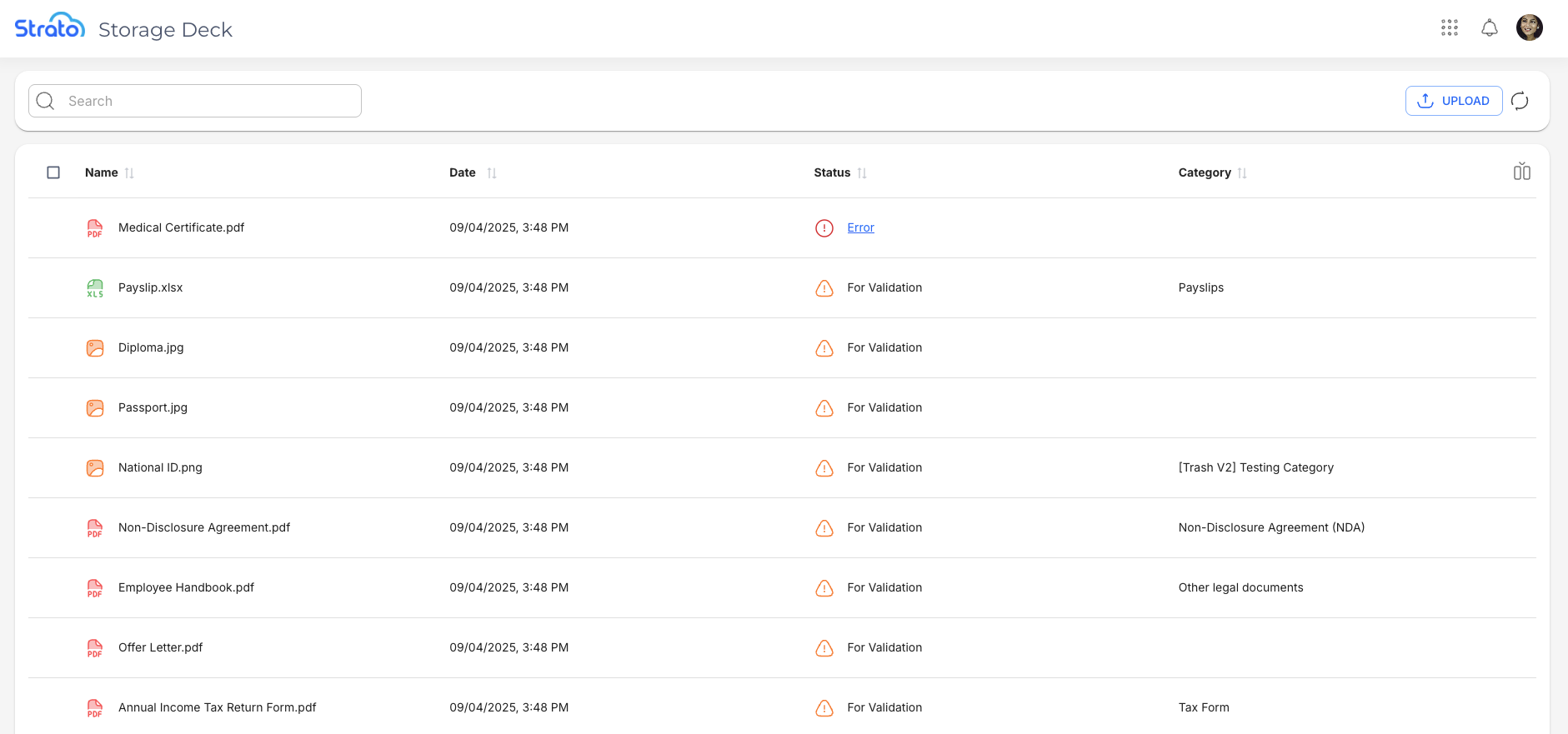
Actions
 | The Upload button opens a system window that allows you to select files from your computer to upload to the Storage Deck. This functionality can also be done by dragging and dropping files to the File List. |
 | The Refresh button refreshes the File List. |
 | The Show/Hide columns button allows you to toggle additional details on and off. 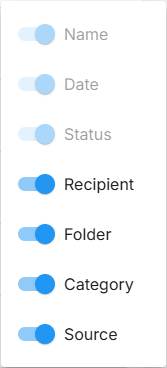 Note that the Name, Date, and Status columns are enabled by default and cannot be toggled off. |
 | The Sort button allows you to sort by the selected column in ascending or descending order. |
 | The Info button appears when you hover over an item. Click the button to show the file details in a side panel. 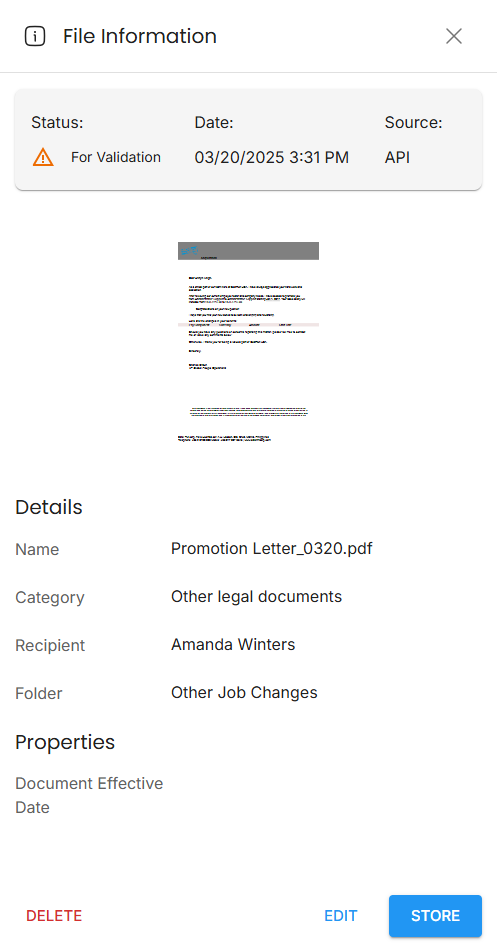 |
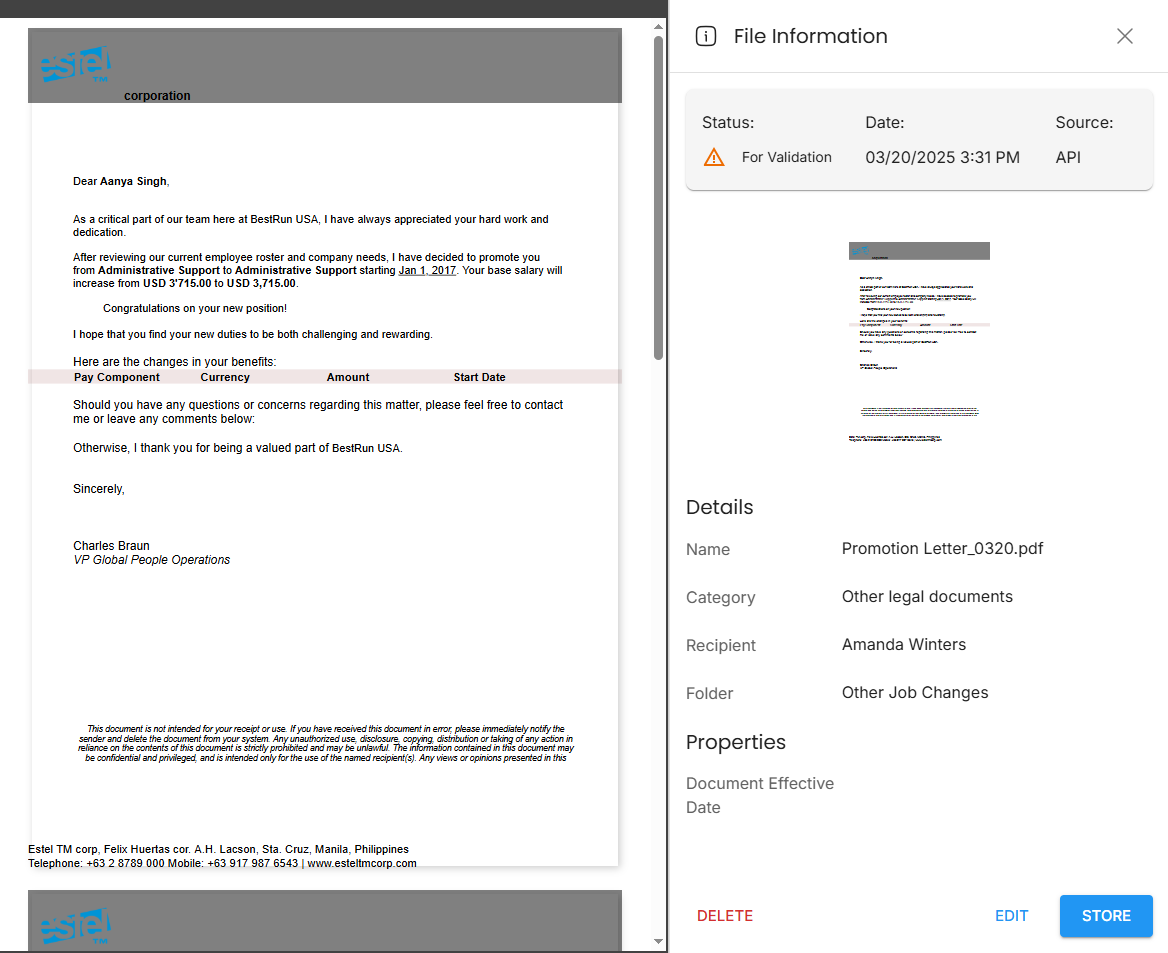
 | The File Preview button allows you to see the contents of the file quickly. The preview can be seen to the left of the File Information panel.
|
 | The Store button appears when you hover over an item. Click the button to move the file from the Storage Deck to Storage. |
 | The Rows per page dropdown allows you to choose either to show 10 or 25 files per page. |
 | The Record count shows you the number of files currently being viewed out of the total number of files. |
 | The Navigation controls allow you to jump between pages. You can go to the first page, previous page, next page, or the last page, respectively. |
 | The Move Column handle allows you to drag and drop columns to easily reorder them. |
Three additional actions are available from the More button: Edit, Delete, and Store the selected file.
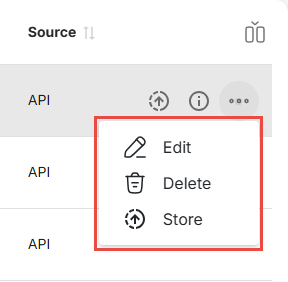
Edit | Opens the Edit side panel where you can modify the details of a single file. 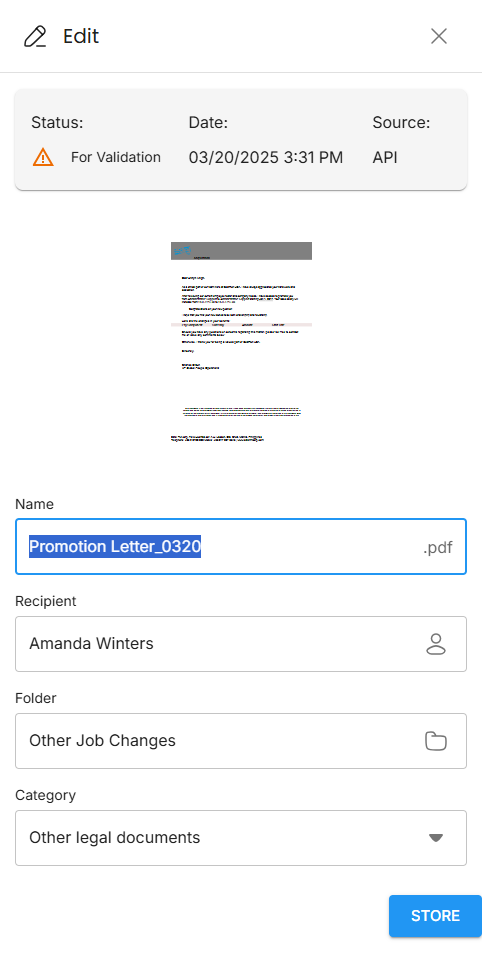 |
Store | Moves the selected file from the Storage Deck to Storage. |
Delete | Permanently removes the selected file from the Storage Deck. |
When selecting one or more files using the checkboxes, the following actions are available. These actions are commonly used when updating file details by batch.
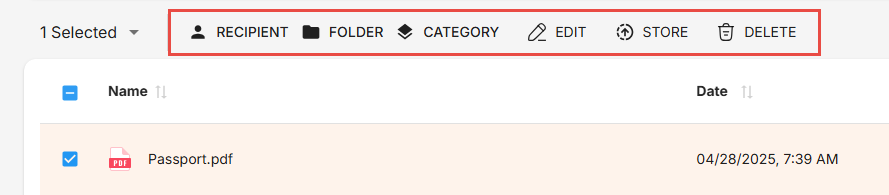
Recipient | Opens a window where you can select the Recipient for the selected files. 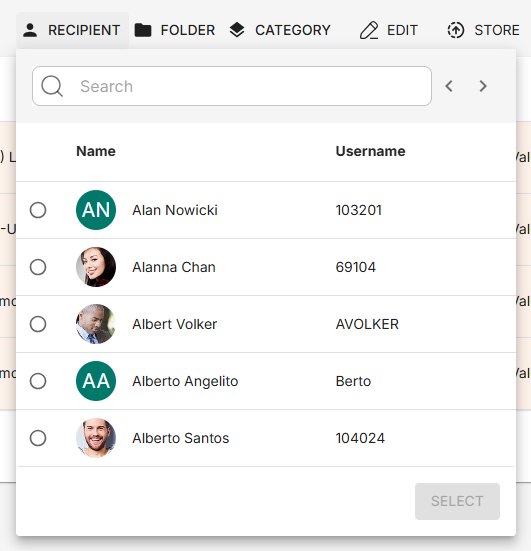 |
Folder | Opens a window where you can select the Folder for the selected files. 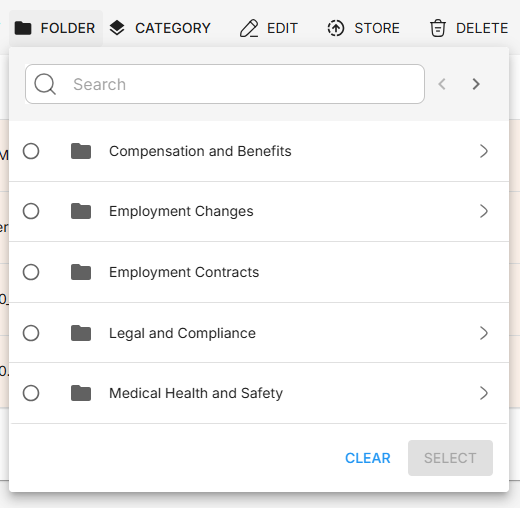 |
Category | Opens a window where you can select the Category for the selected files. 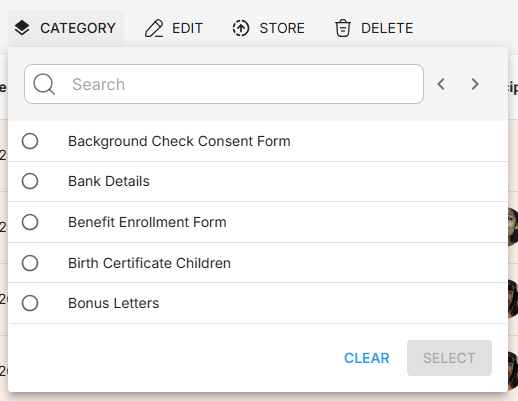 |
Edit | Opens the Edit side panel where you can modify the details of selected files. 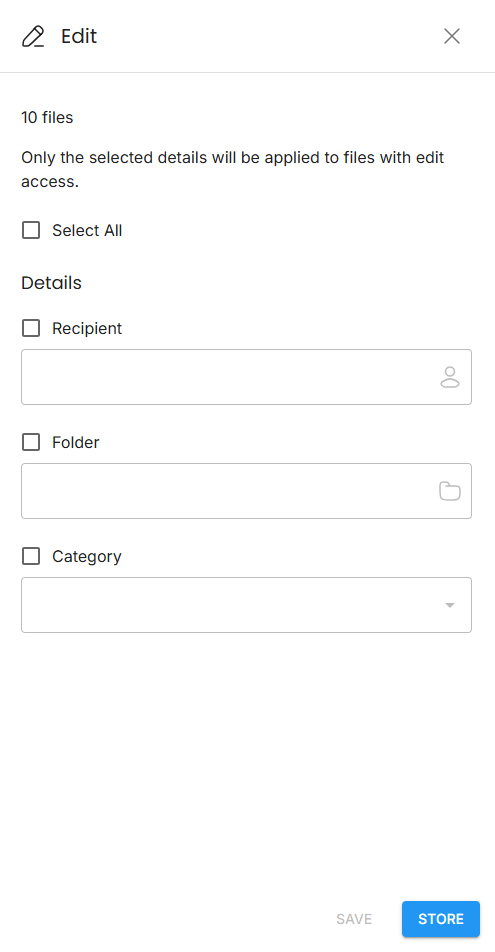 |
Store | Moves the selected files from the Storage Deck to Storage. |
Delete | Permanently removes the selected files from the Storage Deck. |
Column Actions
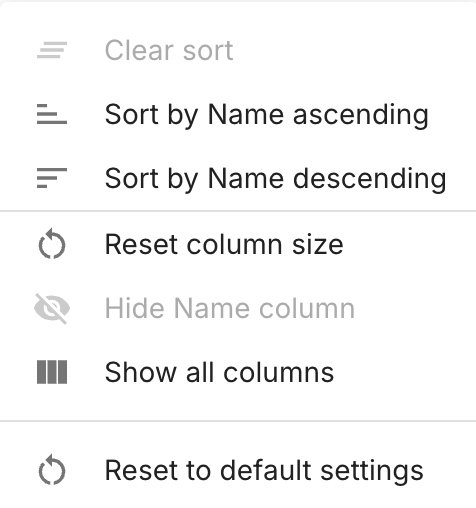
The Column Actions button appears on the right side when hovering over a column.
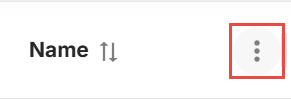
When clicked, the button shows you a list of actions you can do to the selected column.
Related articles
- Storage Deck
- Manage Files in Storage Deck
- Store Files to Storage in Storage Deck
- Upload Files to Storage Deck via API
- Upload Files to Storage Deck