Store Files to Storage in Storage Deck
This article explains the process of storing files from the Storage Deck to Storage.
Requirements
Make sure that New Feature - Storage Deck is installed in the Upgrade Center.
Basic knowledge of how to navigate Storage Deck is required.
Your permissions and Policies determine if you can store files to Storage from the Storage Deck. Contact your Strato administrator if you need assistance with these permissions.
Instructions
Depending on whether you are going to store a single file or multiple files to Storage, you will need to follow two different processes.
In both cases, make sure that the file or files that you want to store have the following details:
- Recipient
- Folder
- Category
Storing a Single File
To store a file, hover over it and use one of the following methods:
- Click the Store icon.
- Click the More button, and then the Store action.
- Go to the File Information or Edit side panels, and click the Store button.
Storing Multiple Files
To store multiple files, check the boxes next to the desired files and then use one of the following methods:
- Select the Store icon on the batch action bar that appears under the search field.
- Open the Edit side panel, and click the Store button.
Process Outcomes
After following the steps above, the system will start moving the files to the correct Recipients and Folders in the Storage.

Once moved to the Storage, the files can now be seen in their respective user and folder, as well as their assigned Categories.

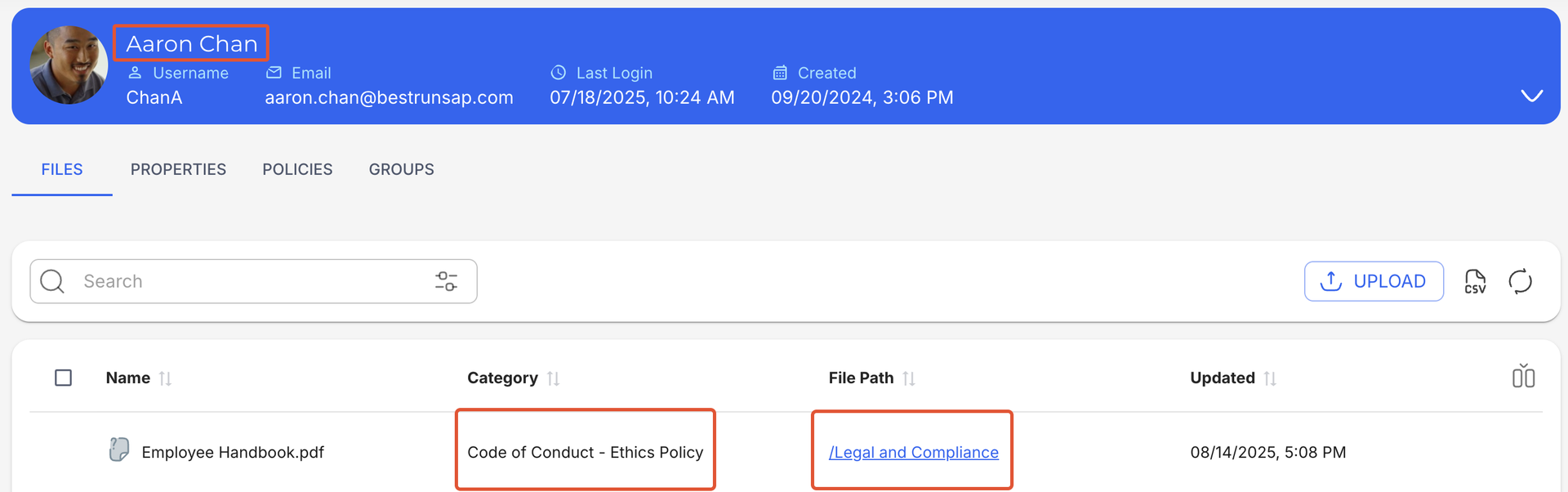
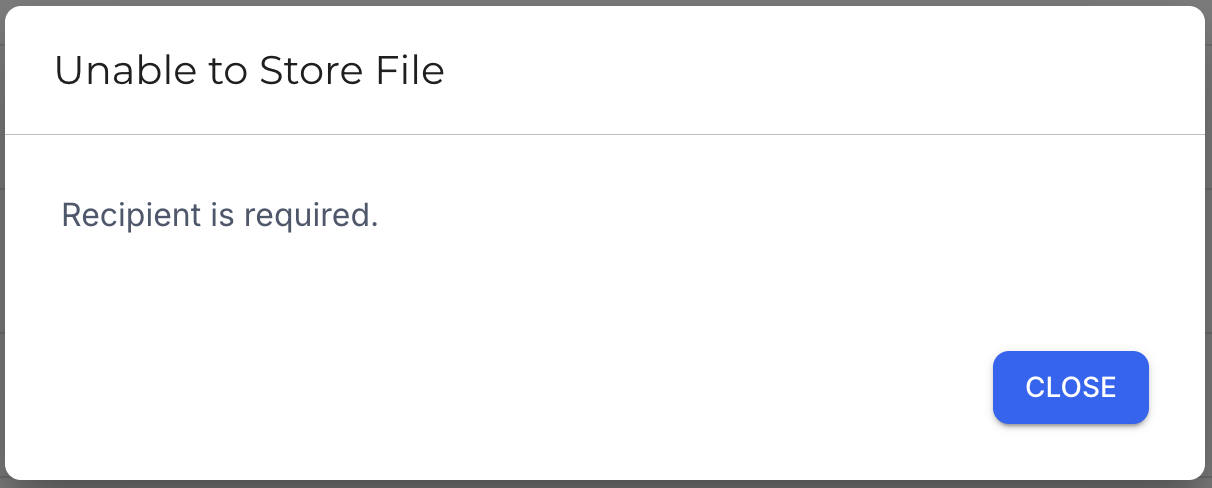
If an error appears on the Status column of any file you have attempted to store, you can click on the Error link to learn more about the issue.

Related articles
- Storage Deck
- Navigate Storage Deck
- Manage Files in Storage Deck
- Upload Files to Storage Deck via API
- Upload Files to Storage Deck