Configure and Manage Folders
This article explains how to configure and manage Folders.
Requirements
Make sure that New Feature - Authorization Framework Integration with Configurations and New Design - Strato Storage are installed in the Upgrade Center.
Your permissions and Policies determine whether access is granted to Folders. Contact your Strato administrator if you need assistance with these permissions.
Toggle Folder Status
You can easily activate or deactivate folders by using the toggles in the Status column.
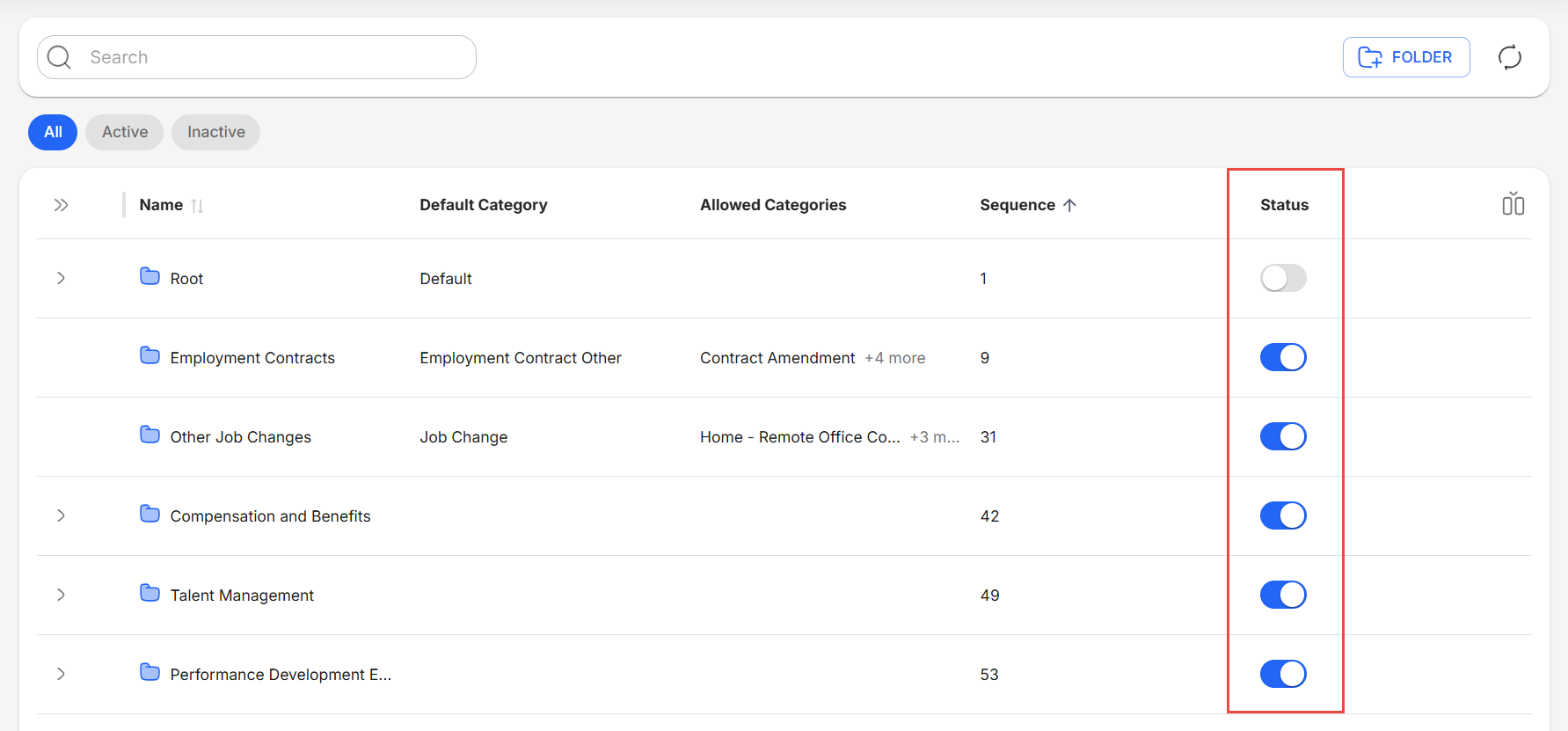
Activate Folder
Folders can be activated by clicking the Status toggle while it is currently inactive. An active folder means that it is currently enabled and available for use in Strato Document Management.

When activating a folder that contains subfolders, all subfolders will not be activated.


When activating a subfolder, all connected parent folders will also be activated.


Deactivate Folder
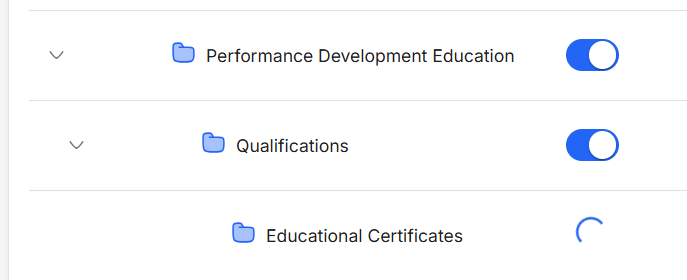
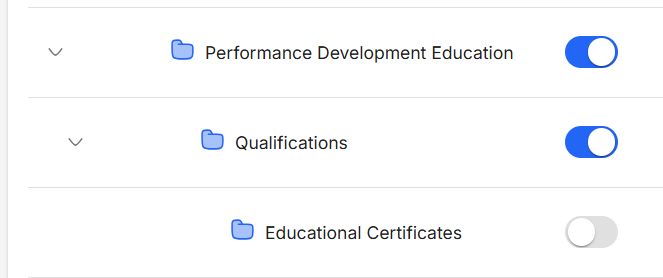
Folders can be deactivated by clicking the Status toggle while it is currently active. An inactive folder means that it is currently disabled and cannot be used in Strato Document Management.

When deactivating a folder that contains subfolders, all connected subfolders are also deactivated.


When deactivating a subfolder, the parent folder will not be deactivated.
Currently Unavailable Features
Strato New Experience (V2) includes buttons for these features, but they are not fully functional and will redirect you to their Strato V1 equivalents.
- Add Folders
- Edit Folders
- View Folder Information
Strato New Experience (V2) currently does not have support for these features, and will require you to go back to Strato V1 to execute.
- Arrange folder sequence
- Move Folders
- Delete Folders