Navigate Strato Reporting
This article explains how to navigate Strato Reporting, where Strato Document Generation Workflows and file-related actions in Strato Document Management are tracked.
This article contains the following sections:
Requirements
Make sure that Strato Reporting is installed in the Upgrade Centre.
Reports List
When you open the Strato Reporting page, you will see the list of reports and their details, including the Report Key, ID, and OData URL.
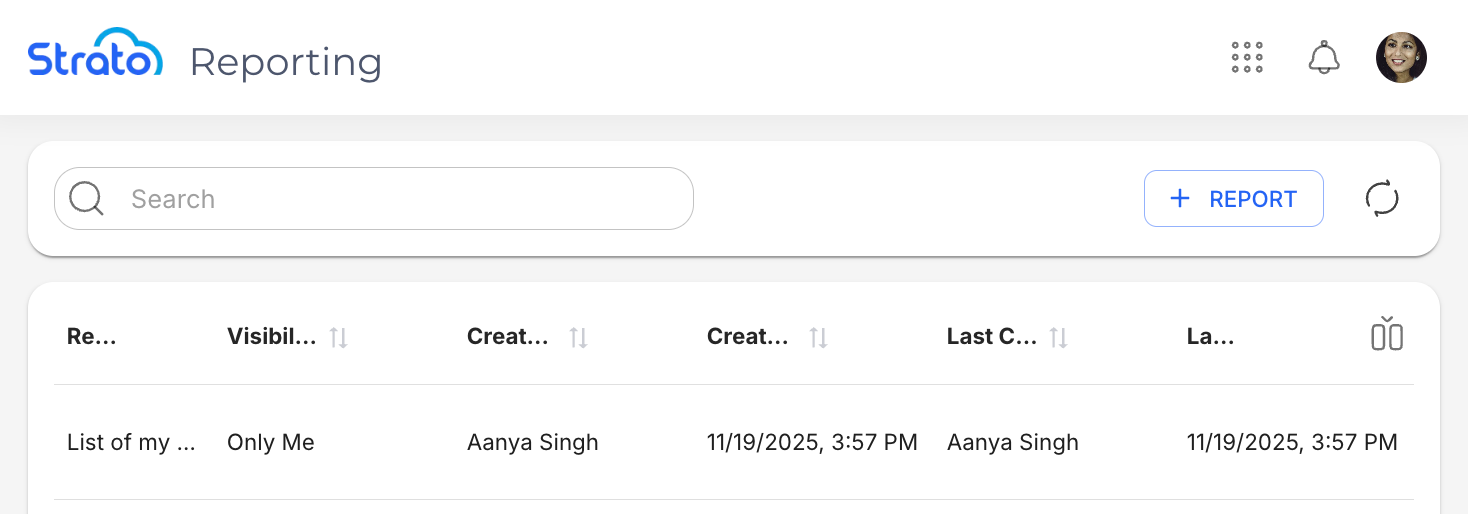
Actions
 | The Add Report button allows you to create a new report. |
 | The Refresh button refreshes the Reports List. |
 | The Show/Hide columns button allows you to toggle additional details on and off. 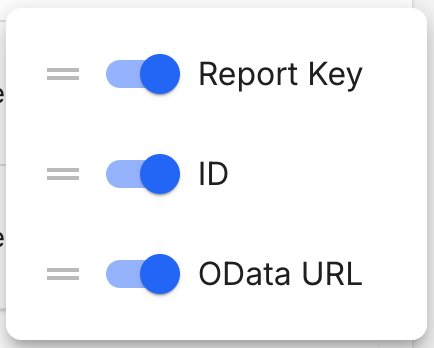 |
 | The Sort button allows you to sort by the selected column in ascending or descending order. |
 | The Rows per page dropdown allows you to choose either to show 10 or 25 entries per page. |
 | The Record count shows you the number of entries currently being viewed out of the total number of entries. |
 | The Navigation controls allow you to jump between pages. You can go to the first page, previous page, next page, or the last page, respectively. |
 | The Move Column handle allows you to drag and drop columns to easily reorder them. |
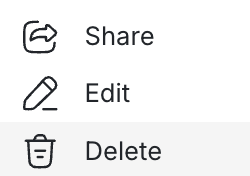
Hovering over a report row reveals specific action icons. The actions available depend on your role:

Open | Opens the report page, where you can see the details of the report based on how it has been configured. 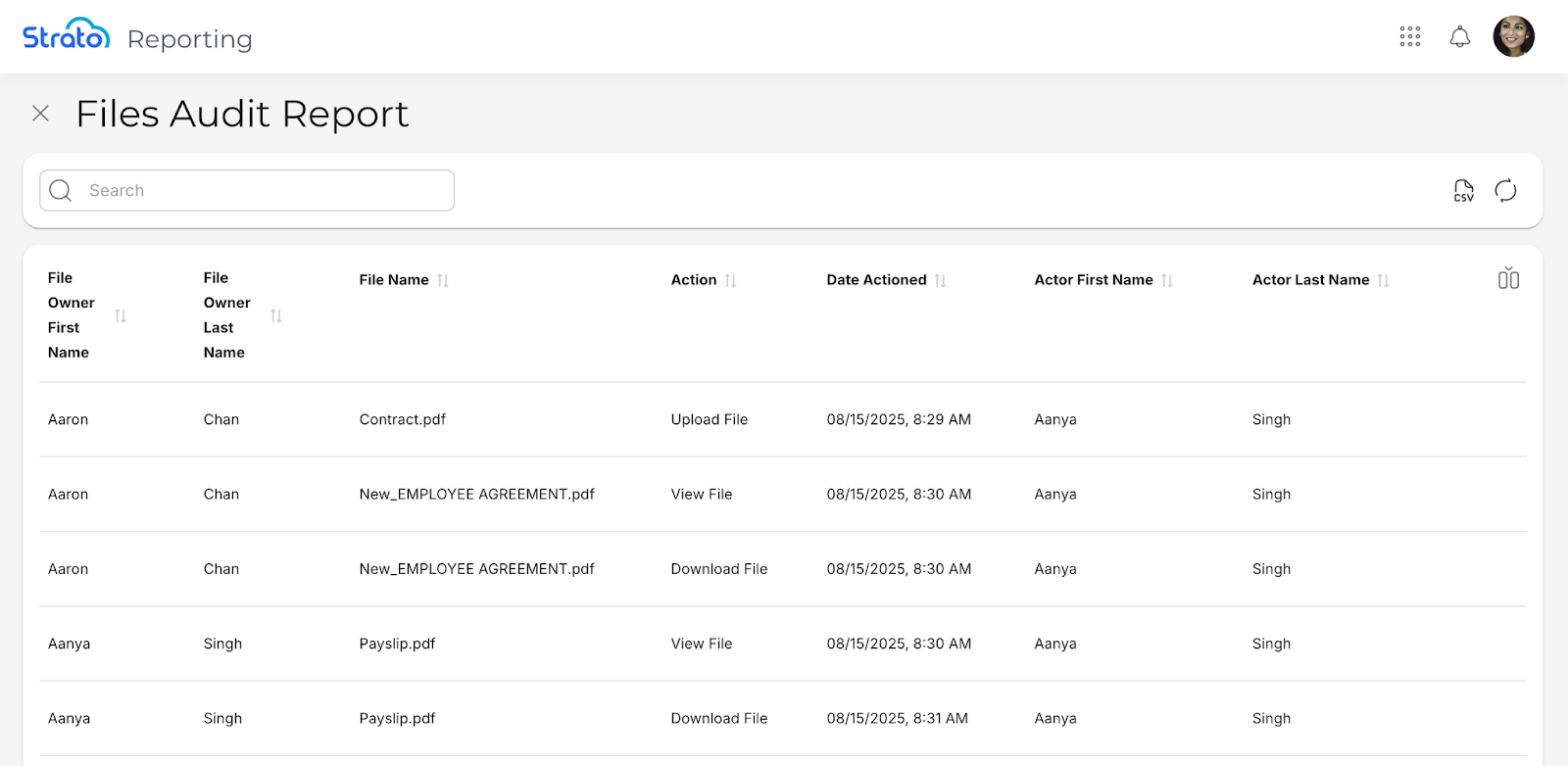 |
Share | Opens a dialog box to select User Groups that should have access to the report. Note that sharing is currently limited to groups rather than individual users. 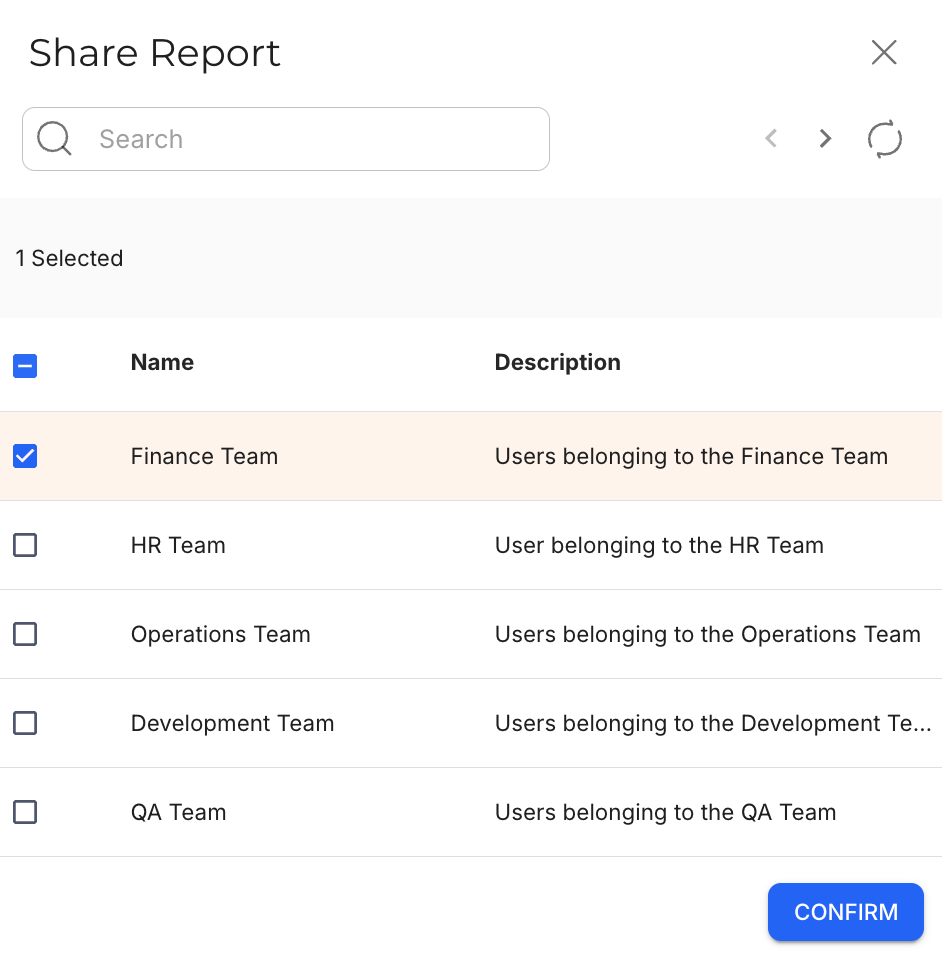 |
Edit | Opens the Edit side panel where you can edit the details of a single report. 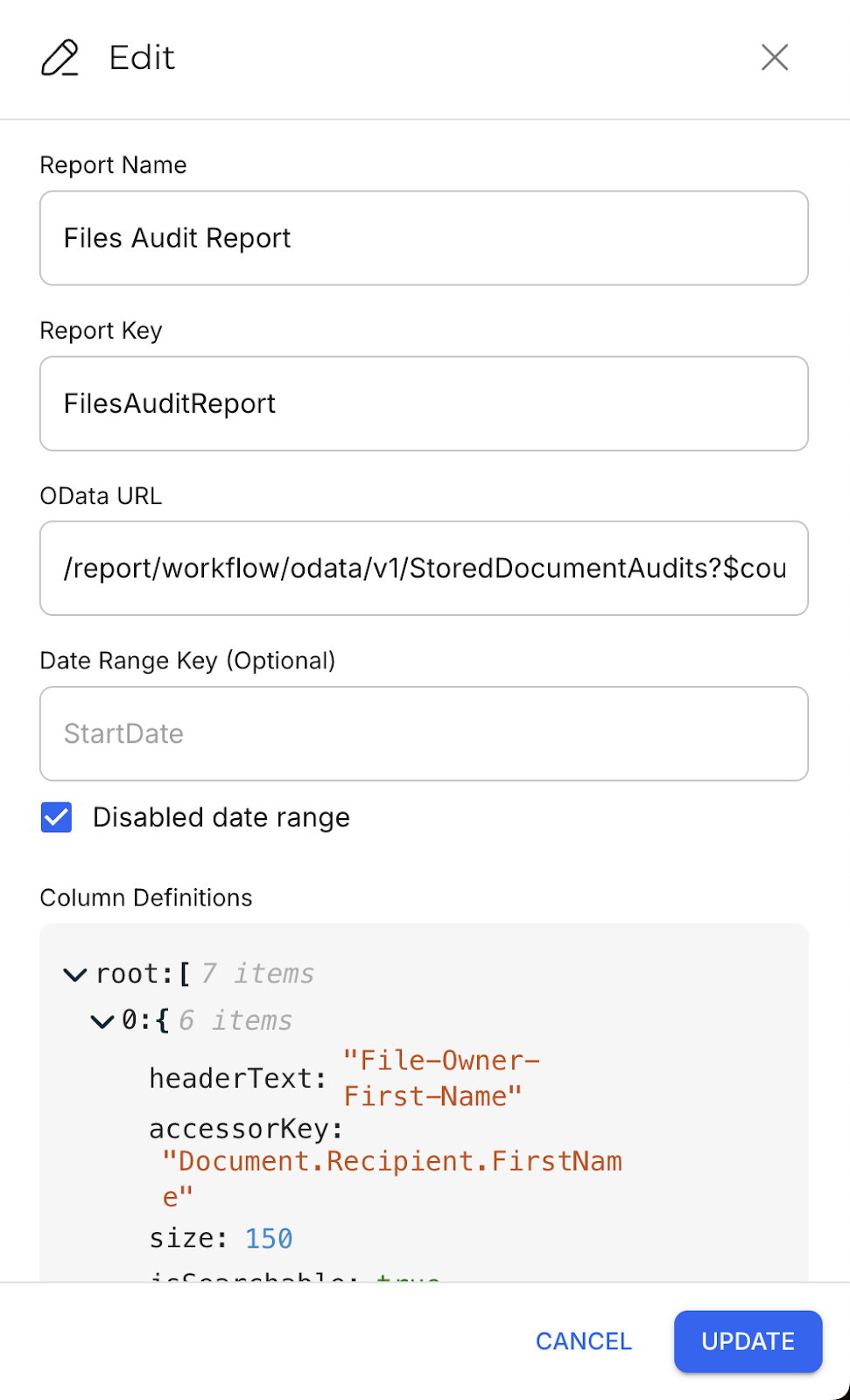 |
Delete | Permanently removes the selected report from Strato Reporting. |
Column Actions
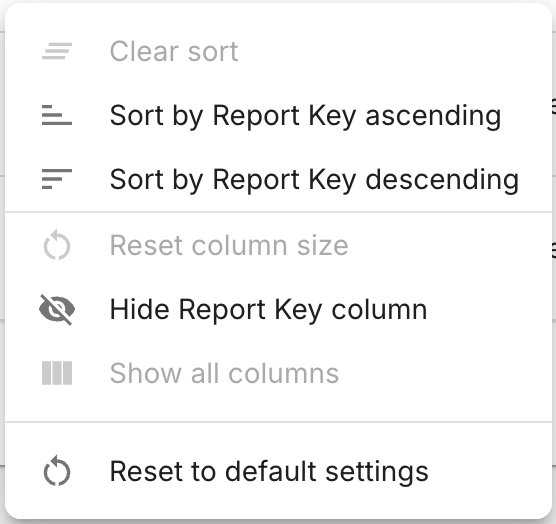
The Column Actions button appears on the right side when hovering over a column.

When clicked, the button shows you a list of actions you can do to the selected column.
Report Page
When you open a report, you will see the details of the report based on how it has been configured. In this example, we will use a Document Management report that lists the actions done to files.
The Report Page shares most of the same navigation features as the Reports List, with some additional features.
Export Button
Each report can be exported as a CSV file using the Export button.
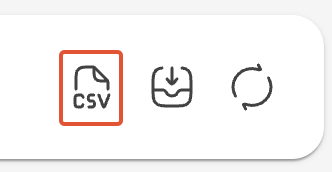
The exported file includes all active columns, and reflects any current filtering applied through Basic and Advanced Search.
CSV exports are processed in the background, with a message displaying the current progress.
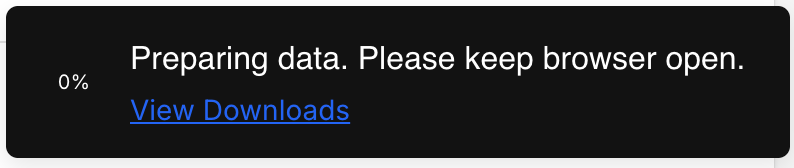
When the export is complete, the CSV file will become available for download. You can find the file using the Downloads button next to the Export button.
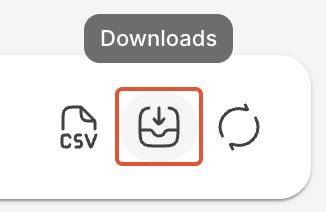
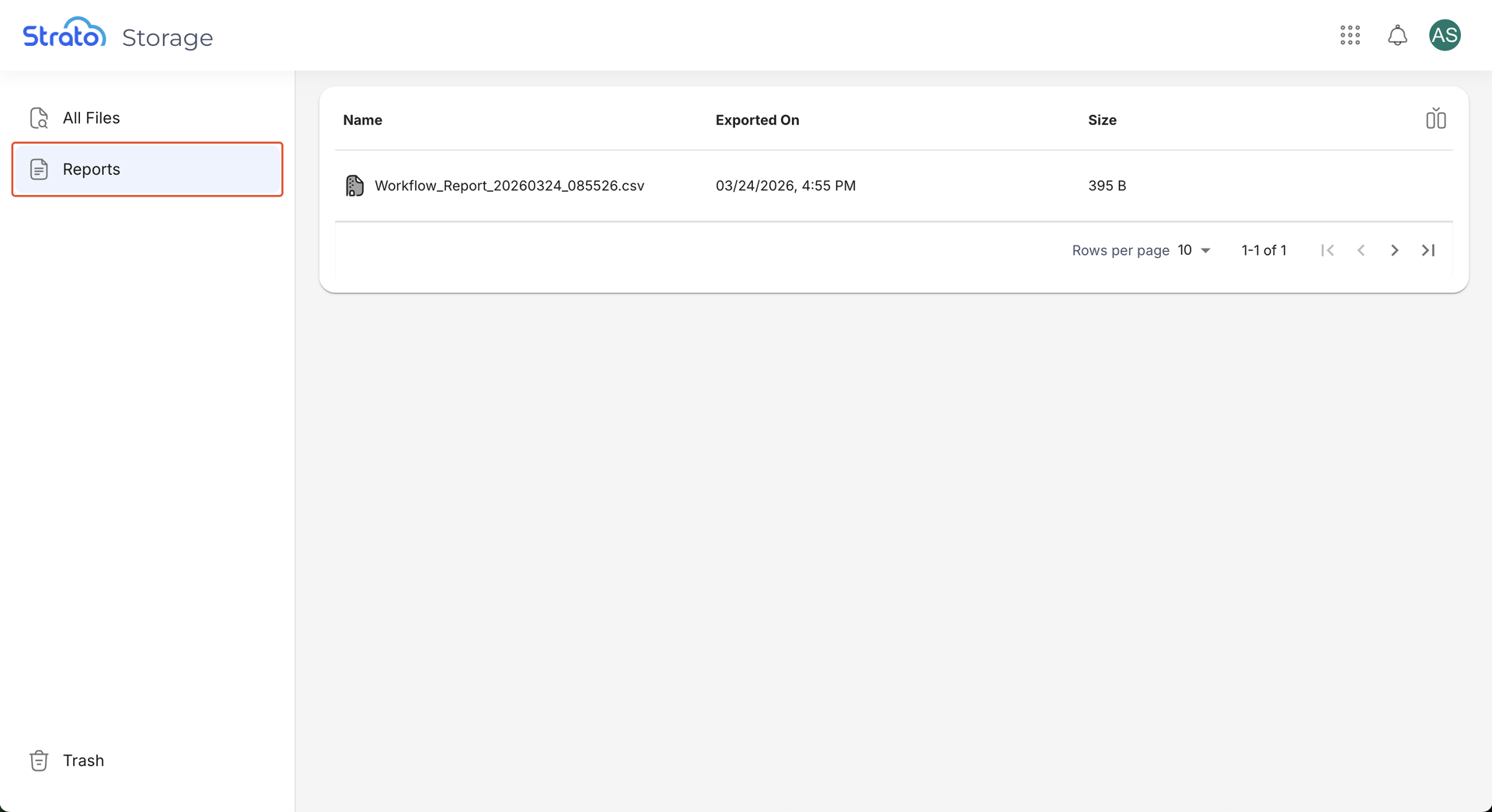
You can also find the file by clicking View Downloads in the confirmation message, or by going to the All Files page, then clicking the Reports sidebar link.
Related articles
- Strato Reporting
- Configure Strato Reporting via API
- Strato Reporting for Workflows
- Strato Reporting for Documents