Split Text into Sections in Template Editor
The Split Text feature allows users to split highlighted text and images into multiple sections easily. This significantly reduces time on document generation tasks like manually adding new sections, cutting text from one section to another, and reorganizing content.
Requirements
Basic Knowledge of Strato Document Generation (Documents, Forms, and Emails) is required.
Functionality
There are three ways to use the Split Text feature:
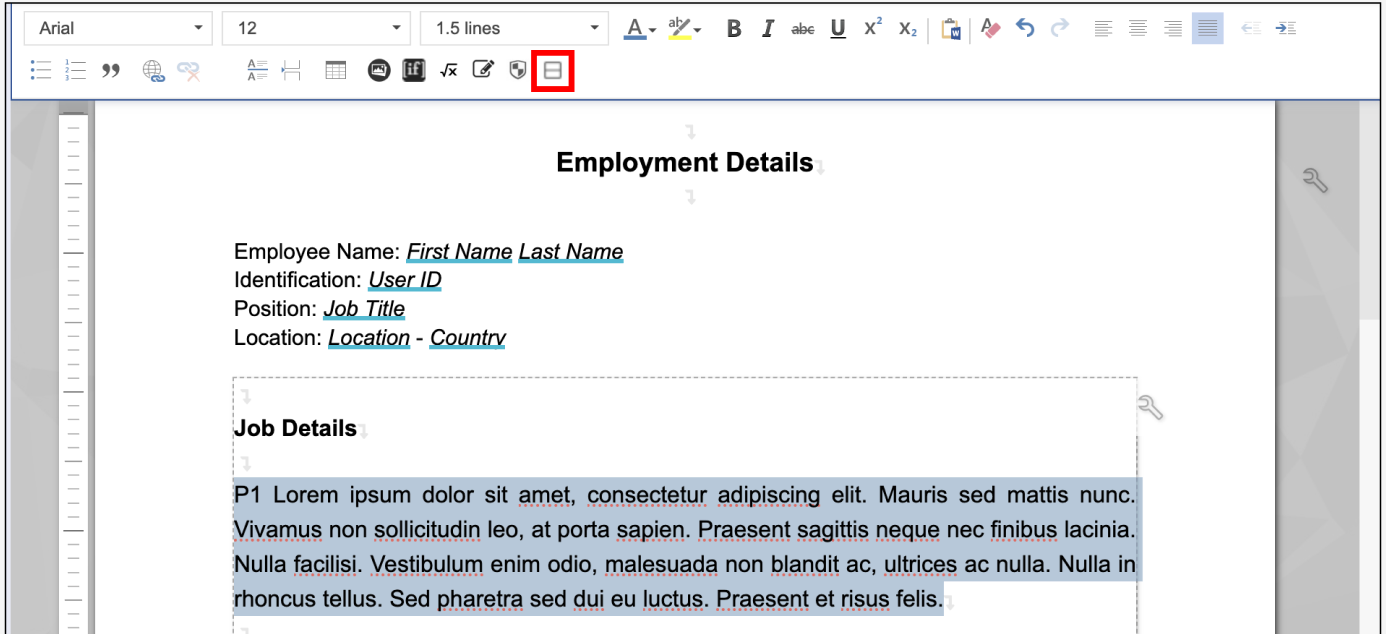
- The Split Text button in the text editor toolbar.

- The Split Text action in the right-click context menu.
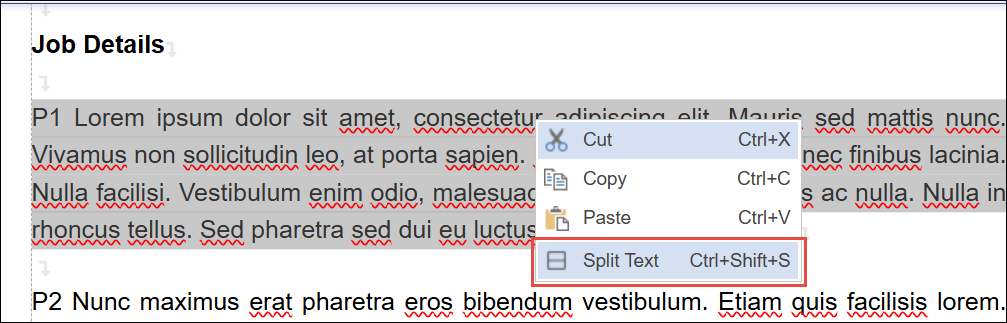
- Pressing CTRL+SHIFT+S for Windows, or CMD+SHIFT+S for macOS. The keyboard shortcut can be seen in the right-click context menu as well.
To use this feature when generating your document, follow these steps:
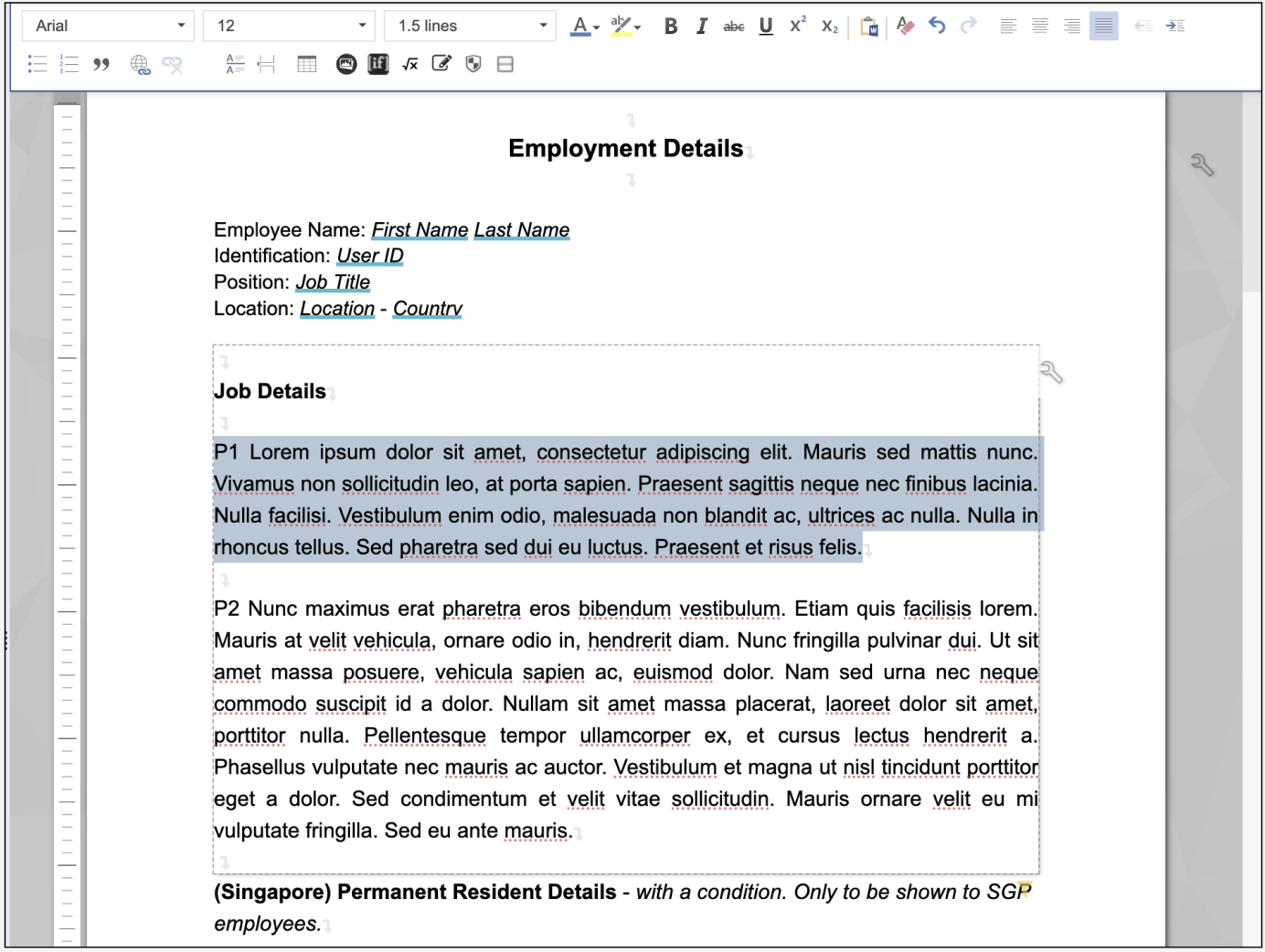
- Highlight the text or images to be split off into its own section.
- Trigger the Split Text feature. In the screenshot below, the Split Text button is used.
- Click Continue.

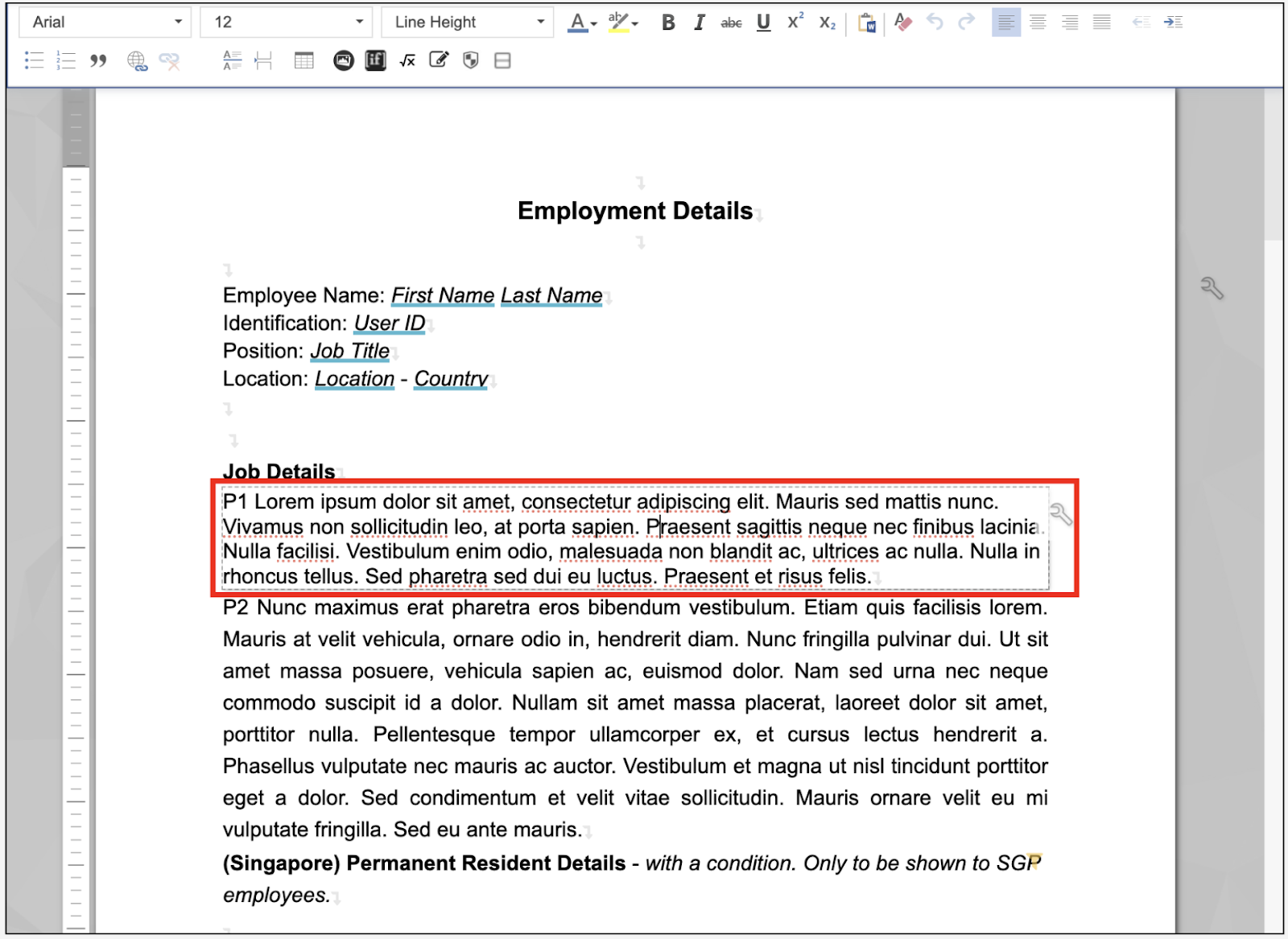
- The selected text now exists as its own section, separate from the original.
Related articles
- Create a Document Template
- Create a Form Template
- Create an Email Template
- Section Settings
- Text Sections