Navigate Categories
This article explains how to navigate the Categories page.
Requirements
Make sure that New Feature - Authorisation Framework Integration with Configurations and New Design - Strato Storage are installed in the Upgrade Centre.
Your permissions and Policies determine whether access is granted to Categories. Contact your Strato administrator if you need assistance with these permissions.
Features
Category List
When you open the Categories page, you will see the list of categories and their details, including the Name, Description, Retention Rule, and Status.

Actions
 | The Add Category button allows you to create a new category. |
 | The Refresh button refreshes the Category List. |
 | The Show/Hide columns button allows you to toggle additional details on and off. Note that the Name and Status columns are enabled by default and cannot be toggled off. 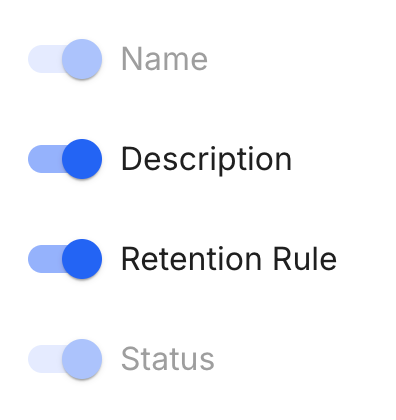 |
 | The Sort button allows you to sort by the selected column in ascending or descending order. |
 | The Rows per page dropdown allows you to choose either to show 10 or 25 categories per page. |
 | The Record count shows you the number of categories currently being viewed out of the total number of categories. |
 | The Navigation controls allow you to jump between pages. You can go to the first page, previous page, next page, or the last page, respectively. |
 | The Move Column handle allows you to drag and drop columns to easily reorder them. |
 | The Quick Filter buttons allow you to filter the categories quickly according to their status. |
 | The Show company files only toggle allows you to show only the Categories tagged as Company Files. This is only available when New Feature - Company Files is installed in the Upgrade Centre. |
Three additional actions are available when you hover over a category or click the More button: check the category's Info, Edit, and Delete.
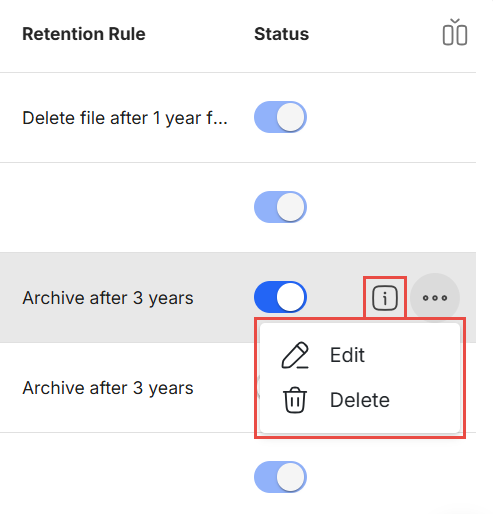
Info | View the category's details. |
Edit | Edit the category's details. |
Delete | Delete the category. |
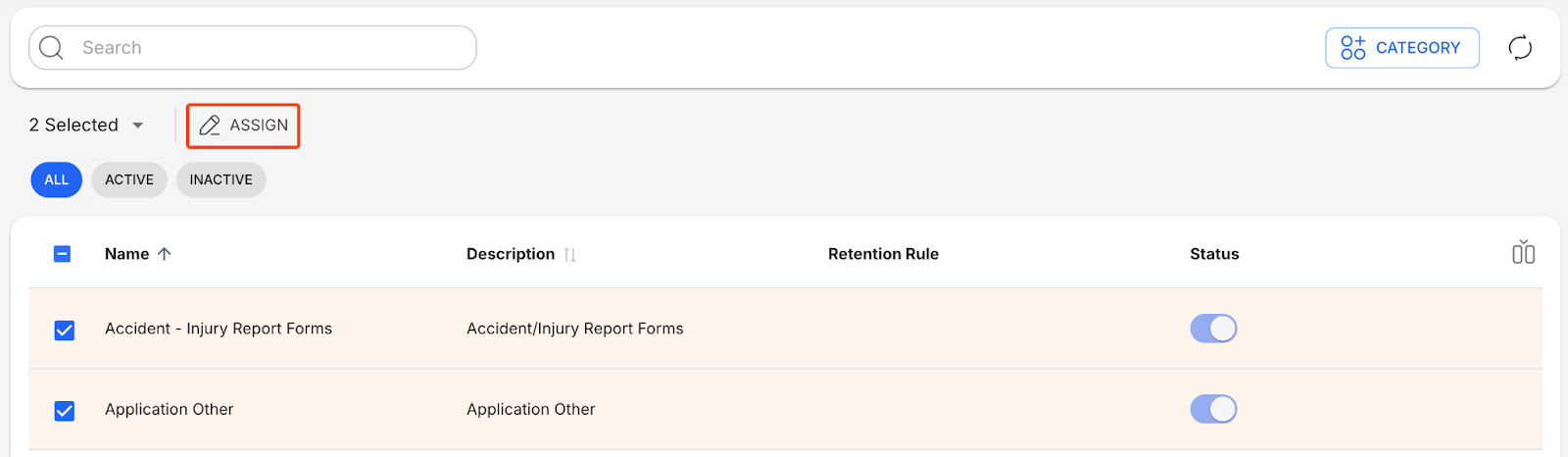
Assign is also available when you select categories using the checkboxes. This opens the Assign side-panel, which lets you assign and remove retention rules and file properties from the selected categories.
Column Actions
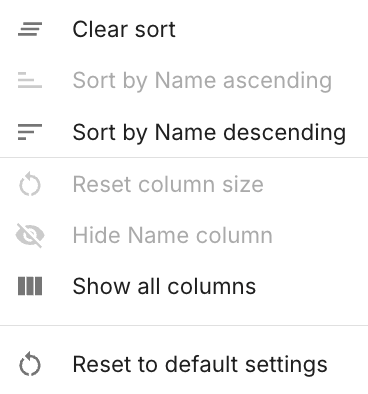
The Column Actions button appears on the right side when hovering over a column.

When clicked, the button shows you a list of actions you can do to the selected column.