Allow Upload of Documents in Strato Storage (Configure Generator Card)
This article will discuss how to configure the Generator Card (Strato Dashboard) to allow storing of generated documents to Strato Storage.
By setting this up, it will allow administrators or managers to automatically store documents in a specific folder in Strato Storage after document generation by default. (related article: Mass Storage)
A good example of this would be for expat employees where their employers require legal documents like copies of their passports. Employees would then go to their respective My Files cards and upload their scanned passport copies to their required folder like a Legal Documents folder (a folder that is configured to allow file uploads). These uploaded documents should only be stored within their respective foreign locations/countries. For cases where expat employees do not have access to the internet but have given their HR Admins their physical passports, the HR Admins can access Storage Management and upload the scanned copies for each employee in their respective file storage, which would be based on the current location of each employee.
Tab Level - Settings
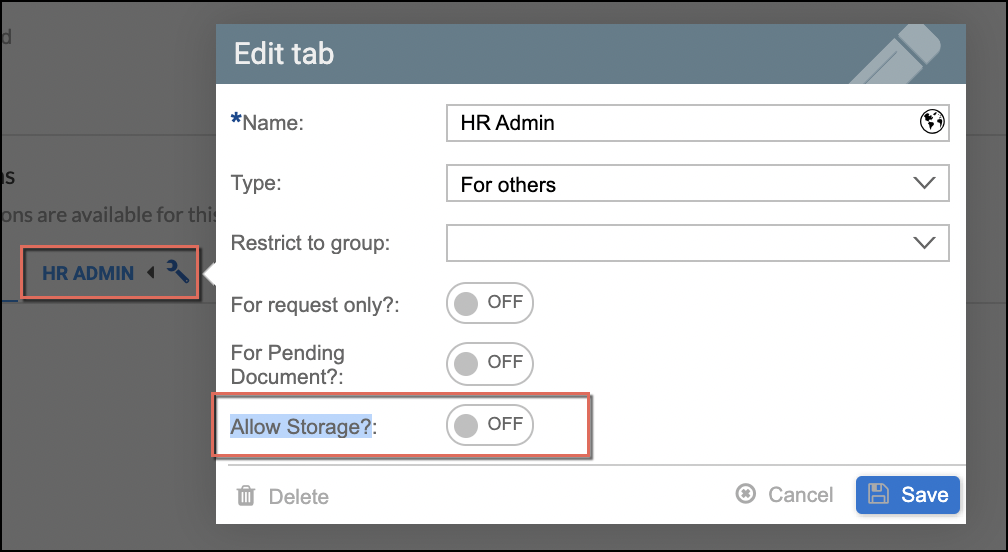
In configuring the Generator Card, on a Tab level, click on the tab's settings icon and enable the Allow Storage option. The sample screen below shows the HR Admin (MSS) tab being configured.
Once enabled, the following settings should be done:
- Folder - Select to which folder from your company's folder structure (in File Management) should the documents be automatically uploaded after generation.
- Categories - (optional) Apply relevant categories for easy file search when managing your company files. (advanced search via Categories in File Management)
- Saved Filename format - Enter the filename by applying the naming convention required as shown from the screen.
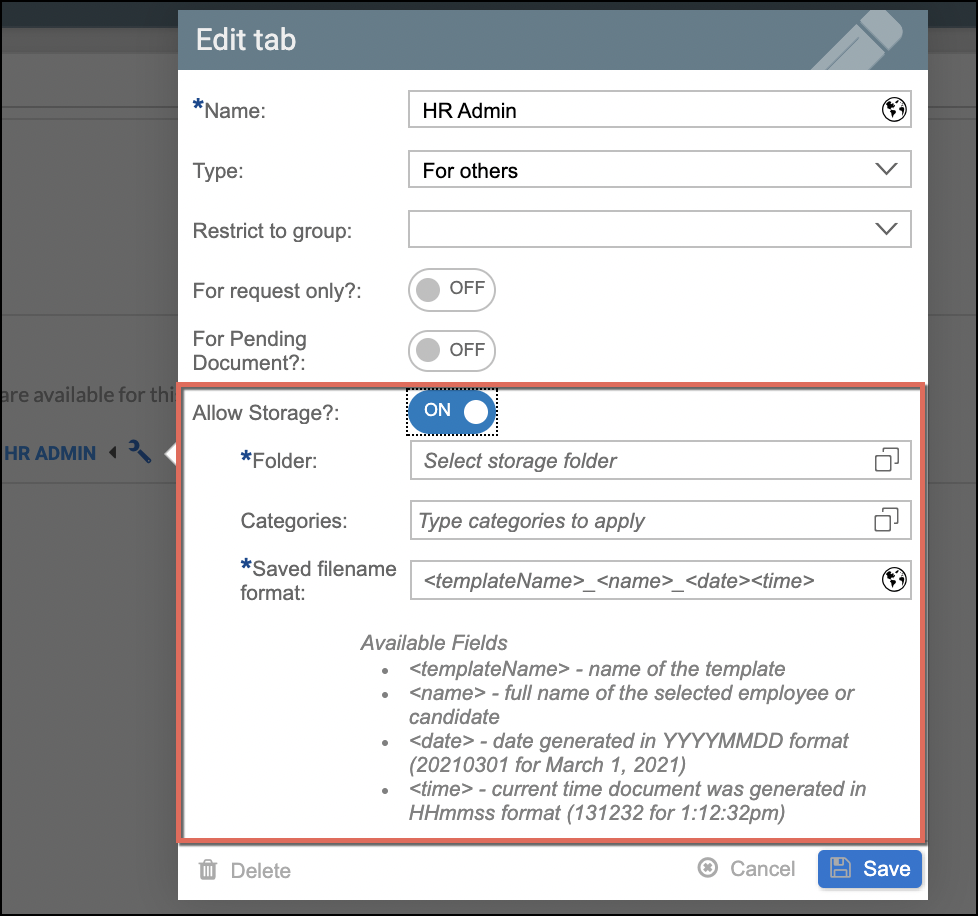
After setting this up, all the templates that will be generated for the selected employees from this tab will be automatically uploaded to the storage folder location set. The settings for the document templates should be inherited from the tab settings unless explicitly configured on a document level, as discussed in the section below.
Document Level - Settings
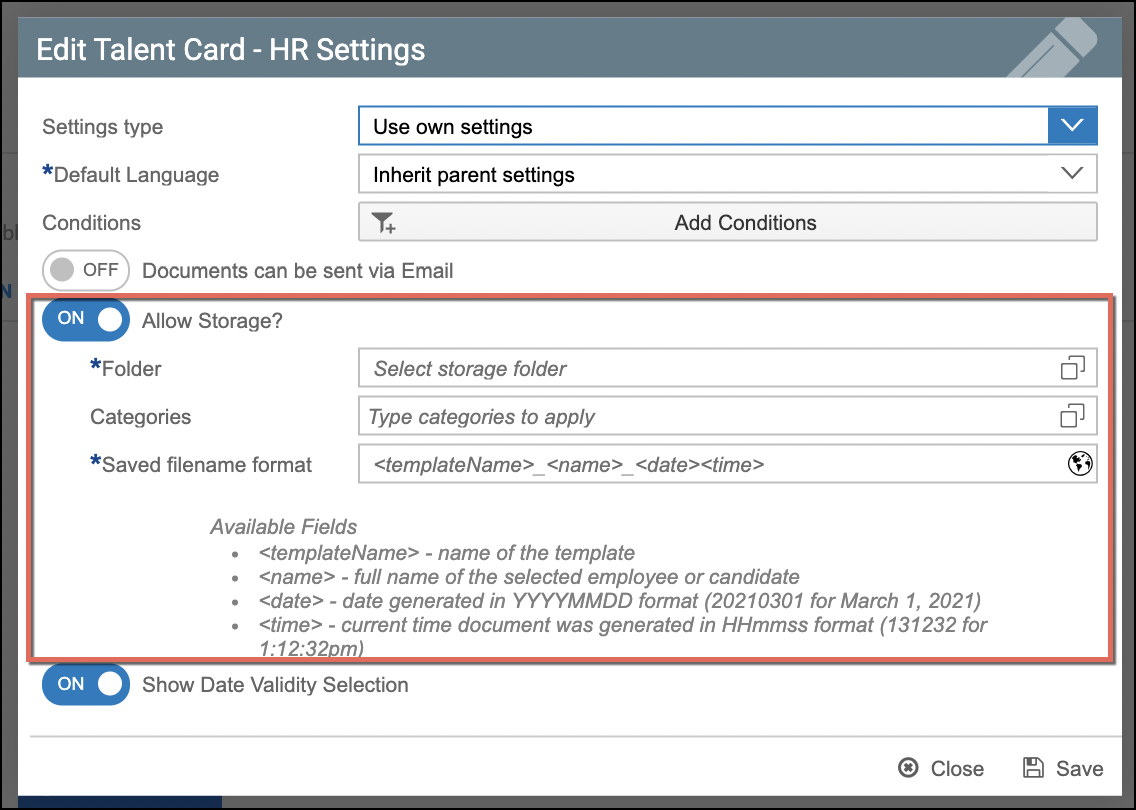
The storage location settings can also be set on a document level. This is done via the settings icon of the document template added in the Generator Card as shown in the sample screen below.
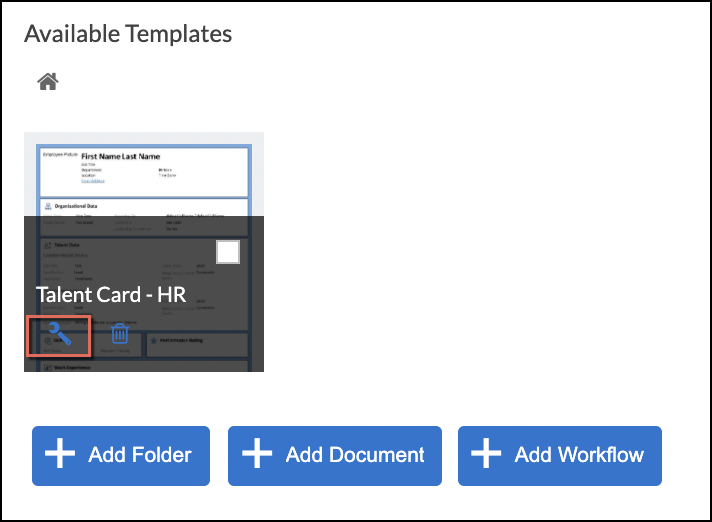
As mentioned in the section above, the settings for the document templates should be inherited from the tab settings unless explicitly configured on a document level.
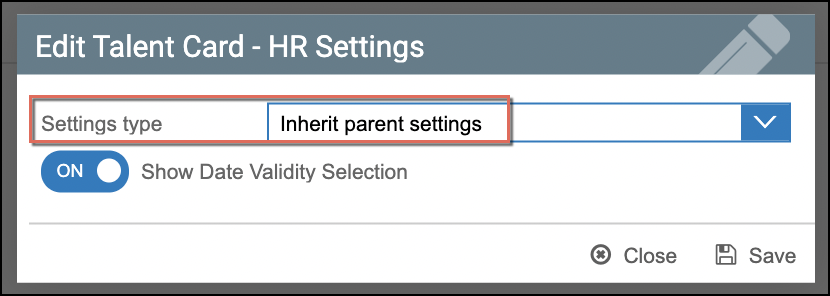
For this sample scenario, Use own settings should be selected for the Settings type. From there, the Allow Storage option can be enabled.
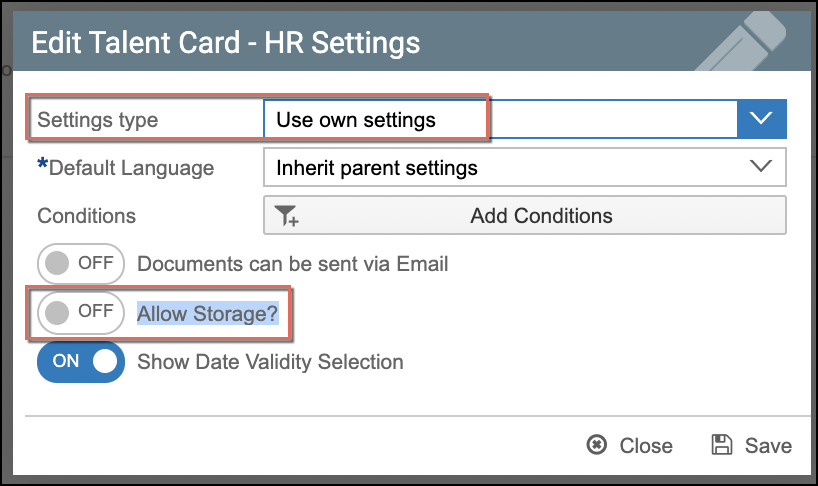
Once enabled, the same settings described in the section above should be done.