Access and Navigate File Management
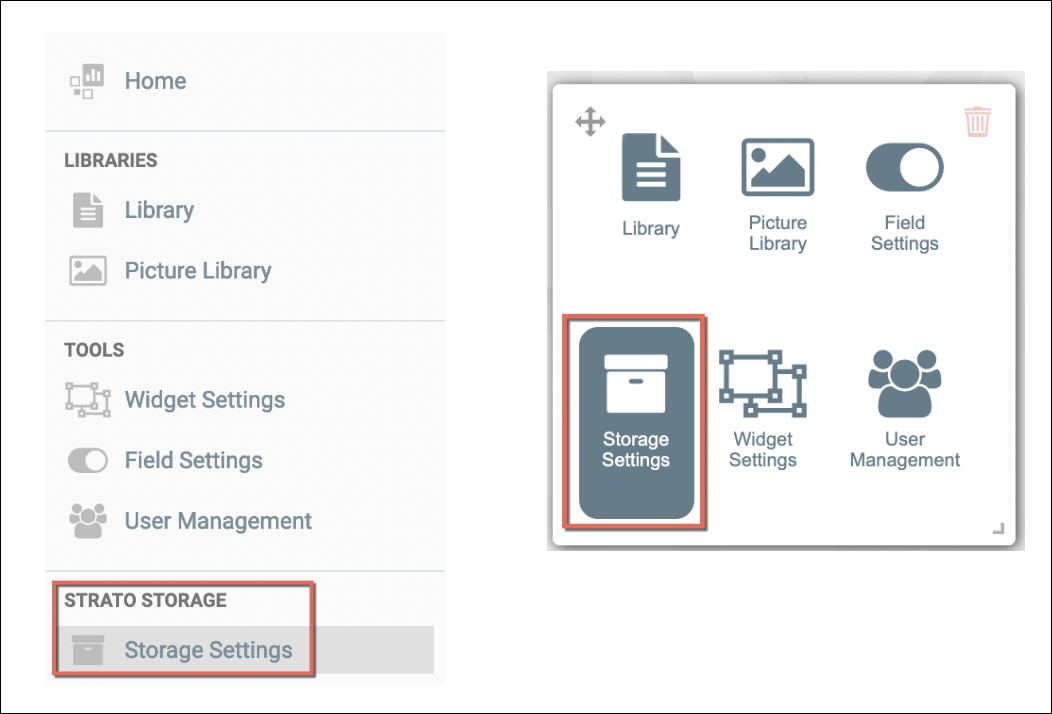
To access the File Management module, access the Storage Settings either from the left menu panel or from the tools widget from the main screen/dashboard of Strato, as shown in the screen below. Then click on the File Management menu. (Access here will depend on the organization's File Management users' authorization settings.)
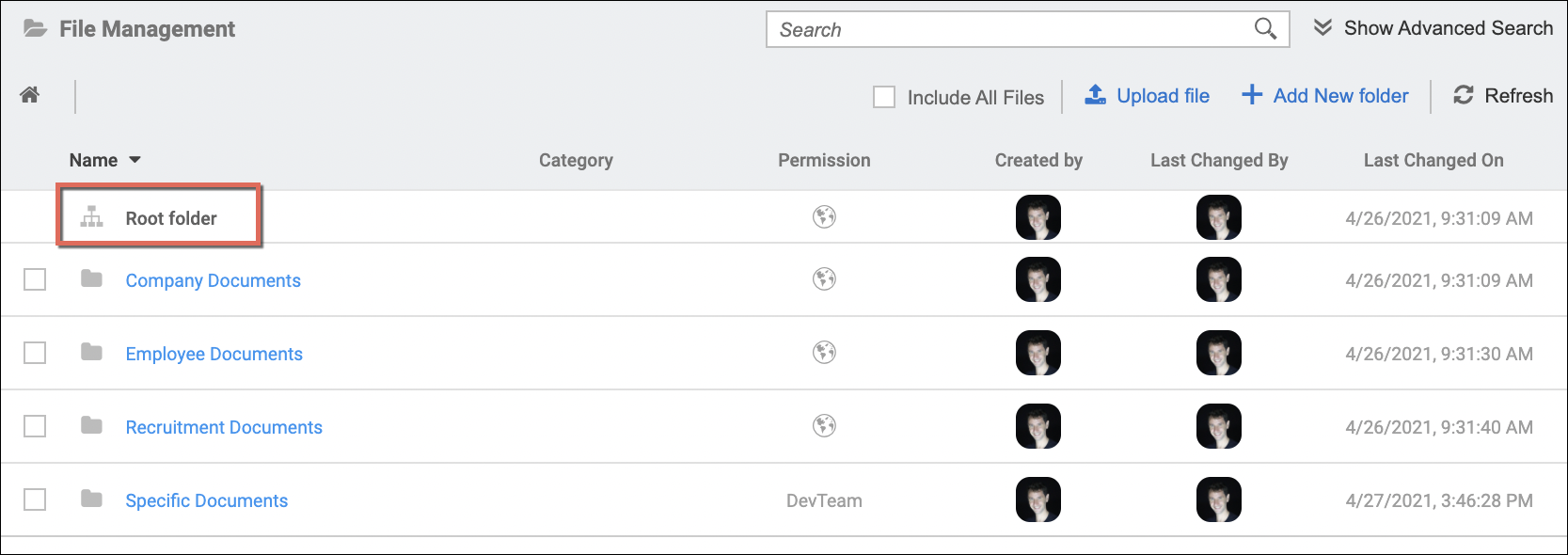
Accessing the File Management first loads the Root Folder (as highlighted in the screen above) with the other subfolders and files that you have access to - given the proper admin authorization.
If you have the super admin role permission, then you will have full access to all files and folders regardless of the authorizations configured to the files and folders. Items that have specific authorizations where you are not part of will be hidden, though you still have the option to view them via the Include All Files option.
As a screen overview, you will be able to see the:
- Name of the folders and files
- the categories they are assigned to (if any)
- permissions applied to each item
- who created the folder or uploaded the file
- who made the last setting changes to a folder or file
- when was a folder or file last modified
- show hidden files (for super admin users - see users' authorization settings)
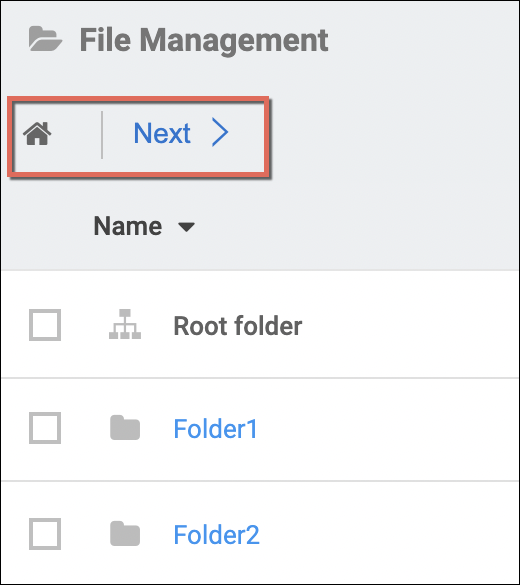
If there are many items in the File Management, there will be multiple pages on the screen. Simply click on Next or Previous to navigate through the pages. Clicking on the Home (icon) or Root folder leads back to the main screen/folder.
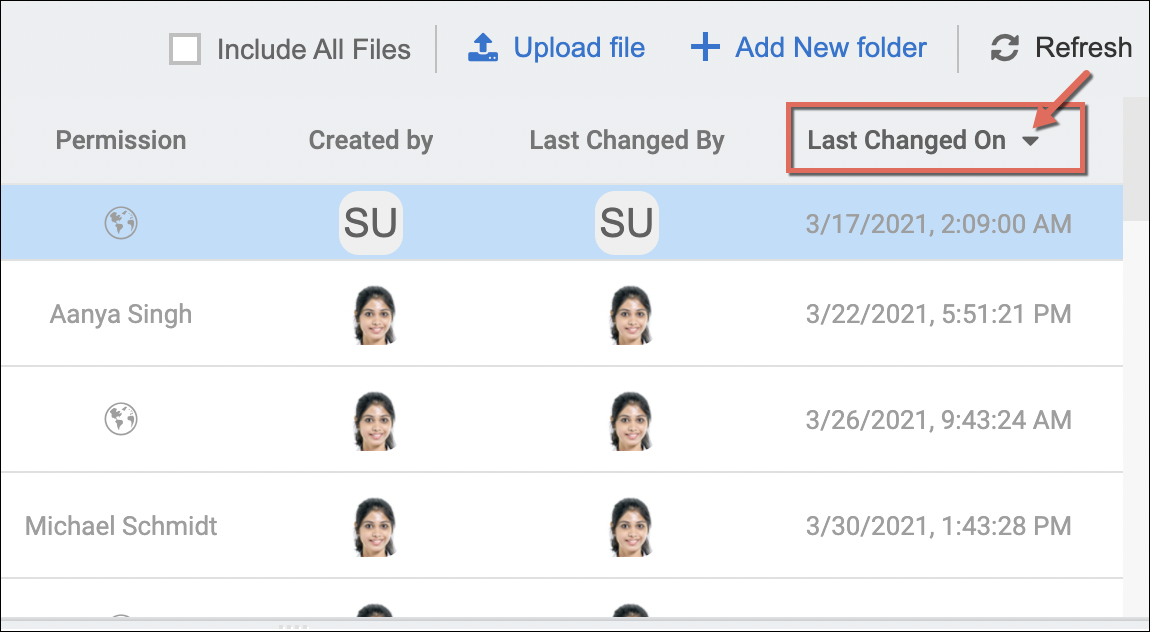
You can also sort and view the list of folders and files by Name, Permission, Created by, Last Changed by, and Last Change On in an ascending or descending order. This is done by clicking the Up/Down arrow next to the column name as shown in the sample screen below.
Sorting List of Items by Last Changed On in Descending Order
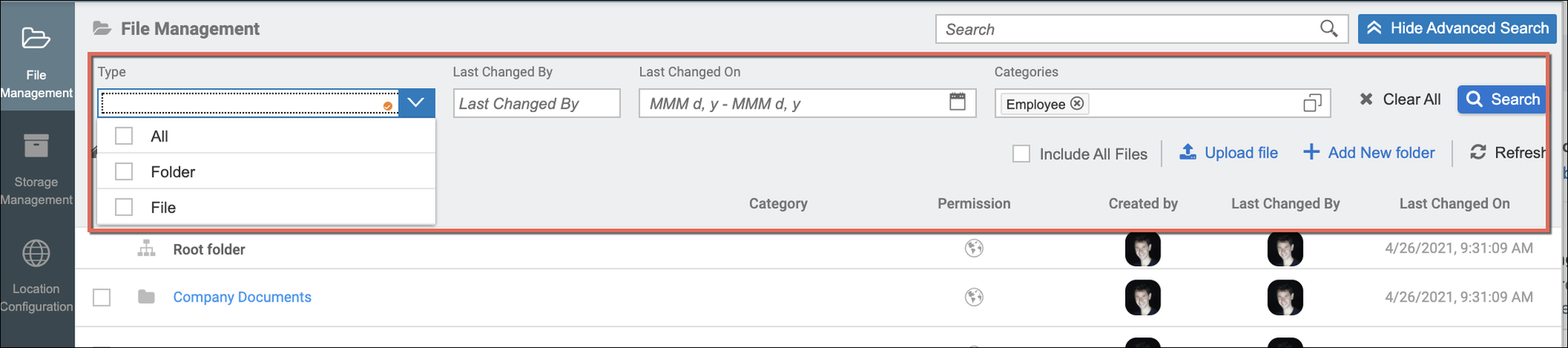
Additionally, there is an advanced search function to further narrow your search of folders and files

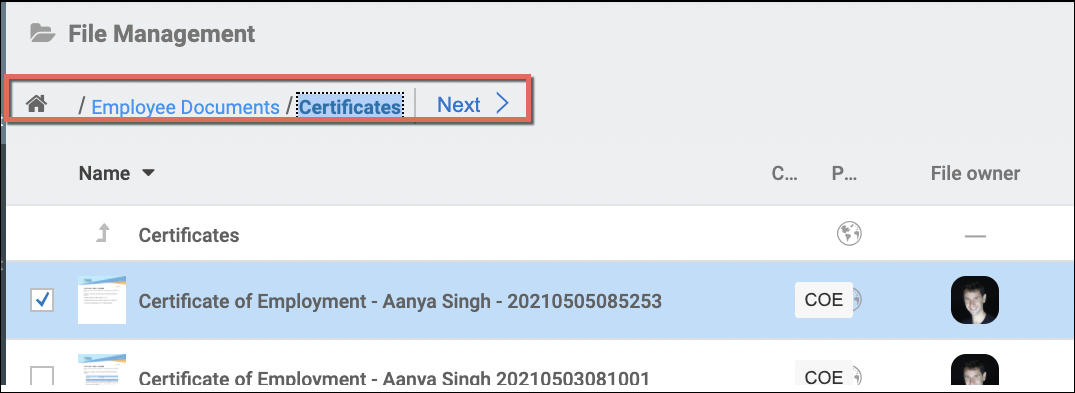
For navigating folders, clicking on a folder will traverse that folder and show the subfolders, files, and documents under it. Also, the breadcrumbs at the top would update to show where you are on the folder hierarchy. Clicking on any folder from the breadcrumbs will direct you back to that selected folder.
In managing the items within File Management, and given the proper admin authorization, you should be able to:
- Add Folders in File Management
- Move Folder and Files (File Management)
- Upload and Download Files in File Management and Storage Management
- View Folder and File Details (File and Storage Management)
- Edit a Folder or a File in File and Storage Management
- Show All Users Files in File Management
- Advanced Search and Filter (File and Storage Management)
- Authorizations to Folders and Files (File and Storage Management)
- Assign Categories, Validity Rules, and Metadata to Documents in Strato Storage
- Allow File Upload to a Folder (File Management)
- Delete Folders and Files in File Management